
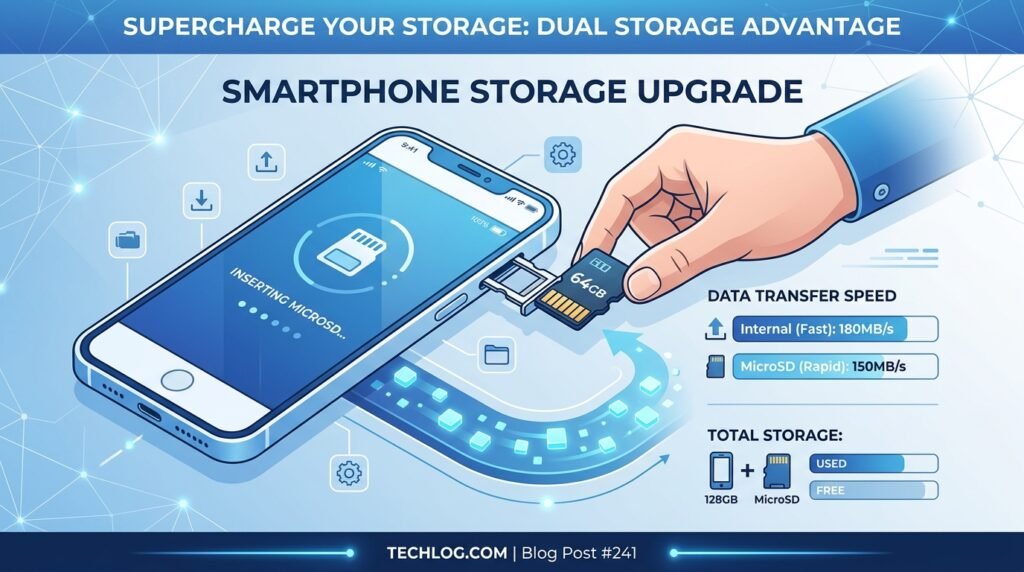
How to Format and Use SD Cards as Internal Storage on Android
How to Format and Use SD Cards as Internal Storage on Android
Storage anxiety is real. You’ve just installed a game, shot a weekend’s worth of 4K footage, and downloaded an offline playlist — and suddenly Android is nagging you about low storage. If your phone has a microSD card slot, you have more options than you might realize. Android supports two fundamentally different ways to use an SD card, and understanding the difference is the first step to making the most of your hardware.
Transparency note: This guide focuses on mid-range devices, since that is what most people actually use.
Portable Storage vs. Adoptable Storage: What’s the Difference?
Running out of onboard smartphone storage can bring app updates and photo downloads to a sudden halt. While many modern Android phones allow microSD expansion, configuring an SD card as adoptable internal storage versus portable media requires specific speed classes and formatting steps. In this tutorial, we explain how to format high-speed A1/A2 cards, transfer bulky app data, and avoid data loss.
Knowing how to manage your SD card storage correctly on Android can save you time, money, and frustration. Whether you are a beginner or an experienced Android user, this complete 2026 tutorial will walk you through every step clearly and simply.
Android offers two modes for SD cards, and choosing the wrong one can lead to data loss or performance issues.
Portable Storage (Default)
When you insert an SD card without any special formatting, Android treats it as portable storage — essentially an external drive you can plug in and remove at will. You can copy photos, music, and documents to it, but apps cannot be fully moved to portable storage on modern Android. The card is formatted as FAT32 or exFAT and can be read by any device — your laptop, camera, or another phone.
Adoptable Storage
Introduced in Android 6.0 (Marshmallow), Adoptable Storage (also called “Internal storage” formatting) reformats the SD card as encrypted, ext4-formatted storage that becomes part of your phone’s internal storage pool. Apps, their data, and even some system components can live on the card. The trade-off: the card is encrypted with a device-specific key, meaning it cannot be read by any other device and cannot be removed while the phone is in use.
SD Card Speed Class Requirements for Adoptable Storage
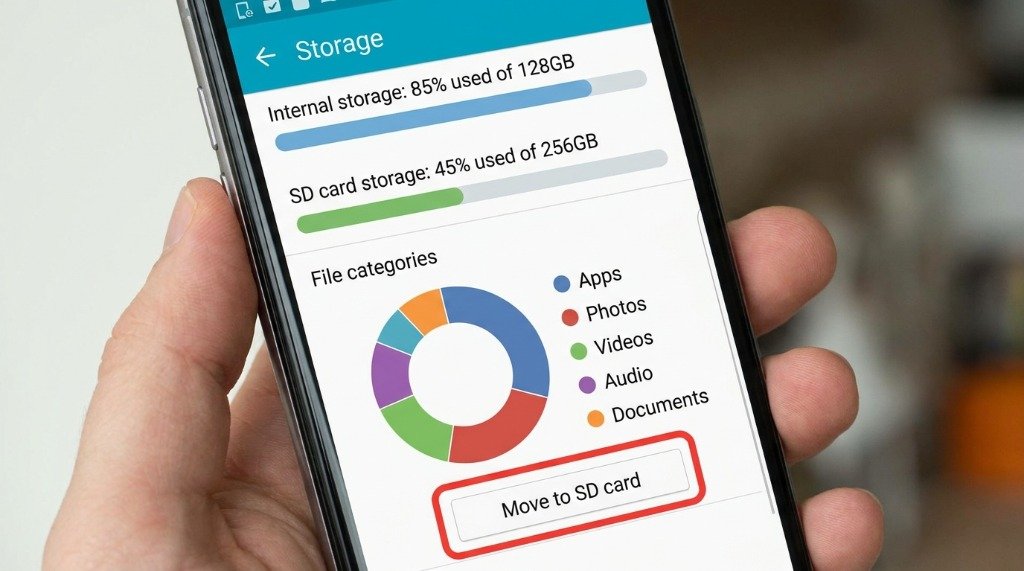
This is where many users go wrong. A slow SD card adopted as internal storage will make your entire phone sluggish because apps are constantly reading and writing to it. Android’s own documentation recommends A2-rated cards for adoptable storage, and we strongly agree.
SD Card Speed Class Comparison Table
| Speed Class | Min Sequential Write | Min Random Read IOPS | Min Random Write IOPS | Suitable for Apps? |
|---|---|---|---|---|
| Class 10 / U1 | 10 MB/s | N/A | N/A | ❌ No |
| U3 / V30 | 30 MB/s | N/A | N/A | ⚠️ Marginal |
| A1 | 10 MB/s | 1,500 IOPS | 500 IOPS | ✅ Acceptable |
| A2 | 10 MB/s | 4,000 IOPS | 2,000 IOPS | ✅✅ Recommended |
Speed ratings reflect the SD Association’s published specifications, not laboratory measurements.
IOPS (Input/Output Operations Per Second) matters far more than sequential read/write speed for running apps. App launches involve thousands of small random reads — a low-IOPS card will cause apps to hang for seconds when opening. Always choose A2 for adoptable storage.
Best SD Card Brands for Android Adoptable Storage
- Samsung PRO Endurance / Samsung EVO Plus (A2): Excellent random IOPS, reliable long-term. The PRO Endurance variant is designed for high write-cycle workloads.
- SanDisk Extreme (A2, V30, U3): One of the fastest microSD cards available. Rated for high random read performance per its published specifications.
- Lexar PLAY / Lexar 1066x: Great value-to-performance ratio. A2-rated models meet the Application Performance Class 2 specification.
- Kingston Canvas React Plus: Top-tier speed, ideal for power users who frequently read/write large files alongside app storage.
Step-by-Step: Formatting an SD Card as Internal Storage
This process varies slightly by Android version and manufacturer skin (Samsung One UI, Xiaomi MIUI, etc.), but the core steps are consistent.
- Insert the microSD card. A notification should appear: “SD card inserted.” Tap it.
- If no notification appears, go to Settings → Storage and look for the SD card entry.
- Tap Set up or the SD card name → select Use as internal storage (wording varies: may say “Format as internal,” “Phone storage,” or “Adoptable storage”).
- Android will warn you that all existing data on the card will be erased. Confirm.
- The formatting process takes 1–5 minutes. Android will also offer to migrate existing internal data to the SD card — accept this to free up internal space.
- Restart your phone when prompted.
Notes for Samsung One UI Users
Samsung has removed the adoptable storage option from recent One UI versions (One UI 4 and later) on most models, favoring their own file management approach. If you don’t see the “Use as internal storage” option, your device or OS version may not support it. Some third-party apps or ADB commands can re-enable it, but proceed with caution and research your specific model first.
Tip: This approach does not require root access or technical expertise.
Moving Apps to SD Card
Once your SD card is adopted as internal storage, most apps can be moved to it, freeing up the faster eMMC internal storage for the OS and performance-critical apps.
Method 1: Via Android Settings
- Settings → Apps → select the app you want to move.
- Tap Storage.
- If the app supports being moved, you’ll see a Change button or a dropdown for storage location. Select the SD card.
Method 2: Via ADB (Advanced)
Some apps block being moved via the UI but can be forced via ADB:
adb shell pm set-install-location 2
This sets the default install location to external storage (SD card) for all future app installs. Set it back to 0 (auto) or 1 (internal) afterward to restore default behavior.
Recovering a Corrupt SD Card with CHKDSK
If your SD card becomes corrupt — showing as unreadable, constantly ejecting, or displaying wrong file sizes — the Windows CHKDSK utility can often repair the filesystem before you consider the card a loss.
Step-by-Step CHKDSK Recovery
- Remove the SD card from your phone and insert it into a PC via a card reader.
- Open Command Prompt as Administrator (search “cmd” → right-click → Run as administrator).
- Run:
chkdsk E: /f /r /x(replace E: with your SD card’s drive letter). - CHKDSK will scan for bad sectors and attempt filesystem repair. This can take 10–60 minutes for large cards.
- After completion, try copying any recoverable files before reformatting.
Understanding Wear Leveling and Lifespan
All flash memory — including SD cards — has a finite number of write cycles per cell. SD cards use a technique called wear leveling to distribute writes evenly across all cells, extending lifespan. However, SD cards have significantly fewer write endurance cycles than the UFS storage built into your phone.
Practical Lifespan Guidelines
- For photo/video storage (mostly reads): An SD card will last many years — reads don’t wear out cells.
- For app storage (frequent reads and writes): A quality A2 card used as adoptable storage can last several years under typical usage, though actual lifespan varies with usage patterns.
- Signs of wear: Frequent filesystem errors, files becoming unreadable, write speeds dropping dramatically below rated specs.
- Prevention: Avoid filling the card past 90% capacity. Reserve space reduces write amplification significantly.
Portable vs. Adoptable: Which Should You Choose?
| Consideration | Portable Storage | Adoptable Storage |
|---|---|---|
| Can move card between devices | ✅ Yes | ❌ No (encrypted) |
| Can install apps on card | ❌ No (media only) | ✅ Yes |
| Data readable by PC/camera | ✅ Yes (FAT32/exFAT) | ❌ No |
| Can remove while phone is on | ✅ Yes (eject first) | ❌ No (system crash risk) |
| Extends app storage space | ❌ No | ✅ Yes |
| Risk of data loss if card fails | Moderate | Higher (apps affected) |
Conclusion
Adoptable storage is a powerful feature that can give budget and mid-range Android phones a new lease on life — but only if you use the right SD card. Invest in an A2-rated card from a reputable brand, keep backups of critical data, and you’ll enjoy years of reliable expanded storage. For users who need to share files between devices or swap cards frequently, portable storage is the smarter, simpler choice. Whatever you choose, understanding the trade-offs before formatting will save you from data loss headaches down the line.
