
How to Fix System UI Isn’t Responding Error on Android Phones
What Is System UI on Android?
Encountering the dreaded ‘System UI Isn’t Responding’ popup on your Android screen can freeze your navigation bar, status icons, and launcher instantly. This critical system crash is typically triggered by corrupted system cache, misbehaving Android System WebView updates, or conflicting third-party lock screen overlays. Here is the definitive diagnostic checklist to resolve System UI freezing without wiping your device.
Every recommendation in this article survived my ‘would I install this on my mom’s phone?’ test. That’s my quality bar.
If you are dealing with fix system ui not on your Android phone, you are not alone. This is one of the most common Android issues, but the good news is that most cases can be resolved in minutes with the right steps. This guide covers every proven fix, from simple restarts to advanced solutions.
System UI is one of the most critical background processes on your Android phone. It is responsible for drawing and managing everything you interact with on the screen that is not part of a specific app — the status bar with your clock and notification icons, the navigation bar with its back/home/recent buttons, the notification shade that pulls down from the top, the quick settings tiles, the lock screen, and the recent apps overview. If System UI crashes or stops responding, your phone’s interface becomes unusable: you cannot see the time, pull down notifications, or navigate between apps.
The “System UI isn’t responding” dialog typically appears with two options: Wait or Close App. Choosing Close App forces System UI to restart, which usually restores normal function temporarily — but if the error recurs, something is actively causing System UI to crash, and you need to find and eliminate the root cause.
What Causes System UI to Crash?
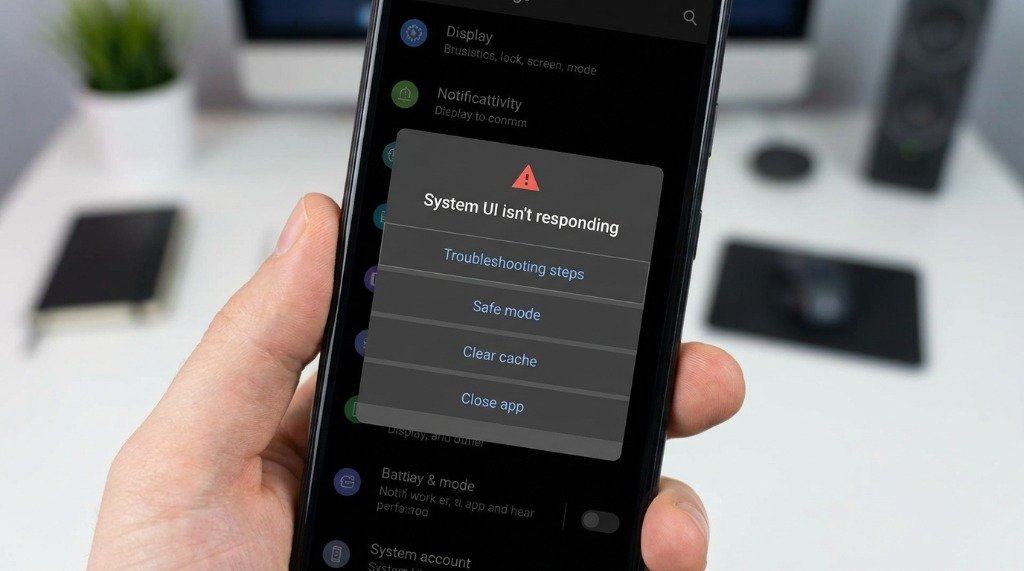
System UI is a complex piece of software that draws its content from many different sources — app notifications, widgets, wallpapers, live wallpapers, themes, font overlays, icon packs, the Android System WebView, and more. Any of these can become a source of instability. The most common causes in 2026 are:
- Outdated Android System WebView: The single most common cause. WebView renders web content inside apps, and System UI uses it to display certain notification content and the media player widget. A broken WebView update has caused mass System UI crashes multiple times in Android’s history.
- Corrupted System UI cache: Over time, the cached data System UI uses to render the status bar and notification shade can become corrupted, causing rendering failures.
- Third-party launcher conflicts: Custom launchers replace the home screen component of System UI. Incompatible or poorly coded launchers can cause System UI to crash when returning to the home screen.
- Custom theme and overlay applications: Apps that change system fonts, icon shapes, or colour schemes through the Themes or Substratum overlay system can inject malformed data that crashes System UI’s rendering engine.
- Severe RAM pressure: When Android runs out of RAM, the low-memory killer process terminates background apps. If a component that System UI depends on is killed and does not restart cleanly, System UI can enter a crash-restart loop.
- Misbehaving notification: A persistent notification from a buggy app that continuously updates can create a feedback loop that overwhelms System UI’s notification manager.
- Pending system update: Some Android security and system updates patch known System UI bugs. Running outdated firmware on a phone where a known bug exists will cause repeated crashes until the patch is applied.
- Factory reset required (last resort): In rare cases, a deep software corruption — often introduced by a failed system update or filesystem error — requires a full factory reset to resolve.
Fix 1: Update Android System WebView First
Before trying anything else, update Android System WebView. This single step resolves System UI crashes for a significant percentage of users experiencing this problem, because Google pushes WebView updates separately from Android OS updates and bugs in WebView directly impact System UI stability.
- Open the Google Play Store.
- Tap your profile icon in the top right and select Manage apps and device.
- Tap Updates available and look for Android System WebView.
- Update it if an update is available. If the Play Store shows it as “up to date,” try the next step.
- Alternatively, go to Settings → Apps → Android System WebView → App Details in Store and force-update from there.
Fix 2: Clear System UI Cache and Data
Clearing System UI’s app cache removes temporary files that may have become corrupted. This is a safe operation — it does not remove your personal data, home screen layout, or preferences (those are stored elsewhere). You may briefly lose wallpaper settings after clearing data, so screenshot your home screen layout first.
Step-by-Step Cache Clear
- Open Settings → Apps.
- Tap the three-dot menu (⋮) or the filter icon and select Show System Apps.
- Scroll down and find System UI in the list. (On Samsung devices it may be listed as “SystemUI” or found under “One UI Home.”)
- Tap Storage → Clear Cache.
- Restart your phone.
- If the crash recurs after 24 hours, return and also tap Clear Storage / Clear Data. This resets System UI preferences including wallpaper, widget positions, and quick settings layout — you will need to set these up again.
Fix 3: Remove Third-Party Launchers Temporarily
Custom launchers (Nova Launcher, Microsoft Launcher, Niagara Launcher, Action Launcher, and others) replace Android’s default home screen application. When System UI crashes in conjunction with a custom launcher, the launcher is often the trigger — especially after an Android OS update that changes APIs the launcher depended on.
How to Identify Launcher Conflicts
- Long-press your home screen and select the option to change the default home app, or go to Settings → Apps → Default Apps → Home App.
- Switch back to the stock OEM launcher (e.g., One UI Home, Pixel Launcher, MIUI Launcher).
- Use your phone normally for 24–48 hours and monitor whether System UI crashes recur.
- If the crashes stop, your third-party launcher was the culprit. Update it from the Play Store — the developer may have already released a patch. If no update is available, contact the launcher developer with your Android version details.
Fix 4: Remove Custom Themes and Overlay Apps
Custom theme apps, Substratum overlays, Samsung Theme Store themes, Xiaomi’s MIUI theme engine themes, and font changer apps all modify the way System UI renders by injecting custom resources into the system. When these resources contain errors — incorrect dimensions, missing drawable assets, unsupported font formats — System UI fails to render affected UI elements and crashes.
How to Remove Overlay Themes
- Samsung One UI: Open Settings → Wallpaper and Style → Theme and select the default Samsung theme. Also remove any icon packs by going to Settings → Display → Icon Frames and resetting to default.
- Xiaomi HyperOS: Open the Themes app and switch back to the default MIUI or HyperOS theme. Go to Settings → Display → Font and Display Size and reset the font to the default system font.
- Stock Android (Substratum overlays): Open the Substratum app and disable or uninstall all active overlays. If you applied overlays without a companion root app, you may need to boot into ADB and run
adb shell cmd overlay disable [package.name]to remove stubborn overlays.
My Take: Honestly, this is one of those things where spending five minutes now saves you hours later. I learned that the hard way.
Fix 5: Boot Into Safe Mode to Diagnose Third-Party Apps
Safe mode boots Android with all third-party apps disabled — only pre-installed system apps run. If System UI stops crashing in safe mode, the cause is definitely a third-party app. This is a powerful diagnostic tool for isolating which app is responsible.
How to Boot Into Safe Mode
- Press and hold the Power button until the power menu appears.
- Press and hold the Power Off option on screen.
- A prompt appears asking if you want to boot into Safe Mode. Tap OK.
- Your phone restarts in Safe Mode (indicated by a “Safe Mode” watermark in the bottom-left corner).
- Use your phone normally for 30–60 minutes and watch for System UI crashes.
- If no crashes occur, restart normally and begin disabling or uninstalling recently installed or updated apps one at a time until the crash culprit is identified.
Fix 6: Address RAM Pressure Issues
On budget and mid-range Android phones with 3–4 GB of RAM, aggressive memory management can cause System UI to crash indirectly. When Android’s low-memory killer terminates processes to free RAM, a race condition can occasionally leave System UI in an inconsistent state.
How to Reduce RAM Pressure
- Go to Settings → Battery → Battery Optimisation (or Background App Refresh on some OEMs) and set high-priority background apps to “Not Optimised” so Android stops killing them aggressively.
- In Developer Options, reduce Background Process Limit to “At most 3 processes” to prevent too many apps competing for RAM.
- Uninstall apps you no longer use — especially ones with persistent background services (social media apps with continuous notification polling, news apps, etc.).
- On phones with expandable storage, do not use a slow SD card as internal storage — I/O delays on a slow card cause memory management operations to time out, which can cascade into System UI crashes.
Fix 7: Install Pending System Updates
Google and Android OEMs regularly fix known System UI bugs in monthly security patches and firmware updates. Running outdated software when a patch exists for your specific crash is the simplest problem with the simplest solution.
- Go to Settings → System → System Update.
- Tap Check for Update.
- Download and install any available update. Connect to Wi-Fi and charge your phone before starting a major update.
Fix 8: Factory Reset (Last Resort)
If all the above steps fail to resolve System UI crashes, a factory reset eliminates the possibility that deep software corruption is the cause. Factory reset erases all apps, accounts, settings, and user data from the phone, returning it to its out-of-box state.
Before You Reset
- Back up photos to Google Photos or your PC.
- Ensure your Google account backup is current: Settings → Google → Backup → Back Up Now.
- Note any app-specific data that does not back up automatically (game progress, authenticator tokens, etc.).
How to Factory Reset
- Go to Settings → System → Reset Options → Erase All Data (Factory Reset).
- Enter your PIN and confirm.
- After reset, set up the phone fresh and monitor System UI stability before restoring apps from backup.
- Restore apps one category at a time, testing after each batch, to identify which app (if any) triggers the crash when restored.
System UI Crash Diagnostic Checklist Table
| Symptom / Observation | Most Likely Cause | Recommended Fix |
|---|---|---|
| Crash started after a Play Store update | Android System WebView bug | Update or rollback WebView |
| Crash on returning to home screen | Third-party launcher conflict | Switch to stock launcher |
| Crash after applying a new theme | Broken overlay / theme | Revert to default theme |
| No crash in Safe Mode | Misbehaving third-party app | Uninstall recent apps one by one |
| Crash on budget phone under heavy load | RAM pressure / memory killer | Reduce background process limit |
| Crash after Android OS update | Cached data incompatibility | Clear System UI cache and data |
| Persistent crash, nothing else works | Deep software corruption | Factory reset |
| Random crash, infrequent | Buggy notification from an app | Disable notifications for suspect apps |
How to Prevent System UI Crashes in the Future
- Keep Android System WebView on auto-update in the Play Store.
- Always install monthly Android security patches promptly.
- Test new launcher and theme apps for 24 hours before committing to them.
- Avoid installing multiple active overlay or theme apps simultaneously.
- Periodically clear System UI cache (monthly) as a preventive measure on phones prone to caching issues.
- Monitor RAM usage using Settings → About Phone → RAM and uninstall apps you no longer need.
The “System UI isn’t responding” error sounds alarming but is almost always fixable without data loss. For the vast majority of users, updating Android System WebView, clearing the System UI cache, or switching off a conflicting third-party launcher will resolve the issue permanently. Work through the fixes in the order presented above — from the simplest and least disruptive to the more involved — and you will almost certainly restore stable System UI operation well before reaching the factory reset step.
Have questions or want to share your own experience? Drop a comment below or reach out to our team. We read every message. You can also learn more about how we research and review on our About Us page.
