
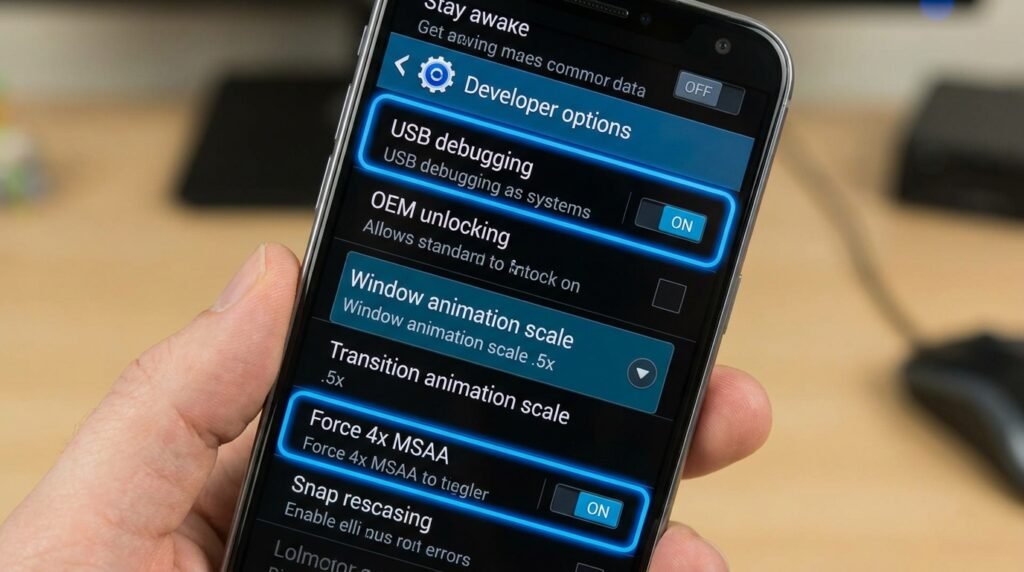
Master Android Developer Options: 15 Hidden Settings for Power Users
Unlocking the Secret Engine Room of Android
Tucked inside Android’s settings menu lies Developer Options—an advanced toolbox that unlocks hidden system toggles, animation speed multipliers, USB debugging protocols, and granular GPU diagnostics. Here are the 15 most practical Developer Settings that every power user should know how to utilize safely.
Deep within every Android operating system lies a hidden command center known as Developer Options. Originally designed by Google engineers for application programmers to test software, diagnose memory leaks, and profile hardware rendering performance, this concealed settings menu contains some of the most powerful system toggles available on modern mobile devices. For power users, tweaking these advanced settings provides unprecedented customization—enabling faster system animations, enhanced gaming graphics, improved battery optimization, advanced wireless debugging, and custom desktop multi-window workflows.
While default Android settings cater to casual users, unlocking Developer Options grants access to the core engine room of your phone. In this comprehensive technical guide, we break down 15 essential hidden settings every power user should master in 2026, complete with step-by-step instructions and safety recommendations.
1. Open Settings and navigate to About Phone (or System > About Phone).
2. Scroll down to locate the entry labeled Build Number.
3. Tap Build Number seven (7) consecutive times until a pop-up toast message displays: “You are now a developer!”
4. Enter your device PIN or password if prompted.
5. Return to the main Settings screen, tap System, and select the newly visible Developer options menu.
System Performance & Animation Speed Tweaks
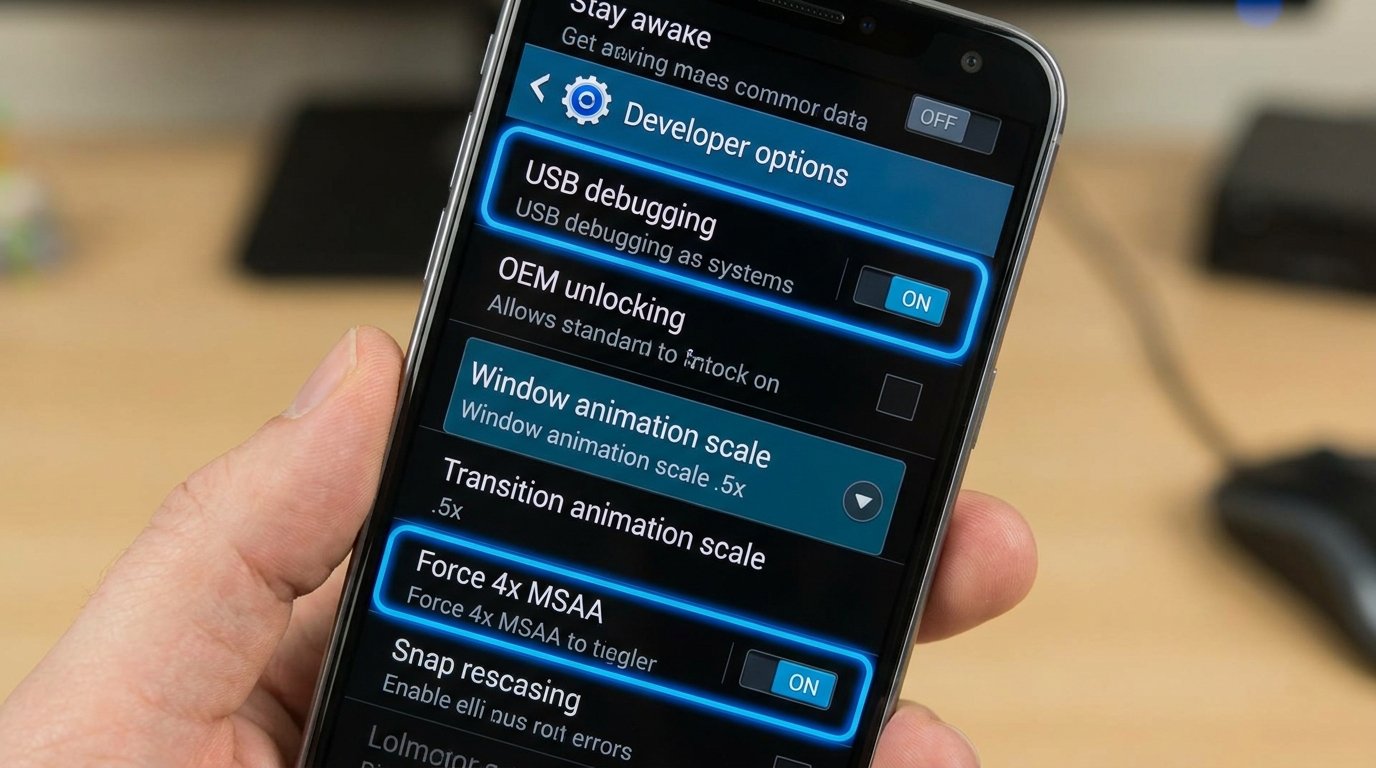
1. Window Animation Scale, Transition Animation Scale, & Animator Duration Scale
If your device feels sluggish when switching between apps or opening system menus, the issue is often not hardware capability, but rather the default duration of visual UI animations. By default, Android sets animation durations to `1x` speed.
Navigating to the Drawing category in Developer Options allows you to adjust three distinct scale settings: Window animation scale, Transition animation scale, and Animator duration scale. Setting all three values from 1x down to 0.5x cuts UI animation render times in half, instantly making app switching, popup menus, and gesture navigations feel blazing fast. Setting them to Off eliminates transition delays completely for instant UI rendering.
2. Force 4x MSAA (Multisample Anti-Aliasing)
Mobile gamers looking to enhance graphical rendering quality can activate Force 4x MSAA. Anti-aliasing smooths out jagged edges on 3D rendered polygons, delivering noticeably cleaner graphics in mobile games built on OpenGL ES 2.0 or modern Vulkan engines.
While enabling 4x MSAA dramatically improves visual clarity and texture smoothness in intensive mobile titles, users should note that it increases GPU workloads, leading to elevated thermal output and higher battery consumption during extended gaming sessions.
3. Disable HW Overlays
Android constantly decides whether to render screen overlays using the main CPU or hardware GPU acceleration. By enabling Disable HW overlays, you force the system to route all screen compositing directly through the dedicated Graphics Processing Unit (GPU).
This offloads UI rendering calculations from the central processor, resulting in smoother interface transitions, reduced frame drops during heavy multitasking, and faster screen redraws on modern multi-core devices.
Advanced Connectivity & Debugging Controls
4. USB Debugging & Revoke USB Authorizations
USB Debugging is the primary gateway for communication between your Android smartphone and a computer running Android Debug Bridge (ADB) command-line tools. Enabling USB Debugging allows power users to execute advanced terminal commands, perform full offline system backups, remove pre-installed carrier bloatware without root, install custom firmware, and pull diagnostic system logs.
To preserve security, always use the Revoke USB debugging authorizations toggle whenever connecting to public or secondary computers, revoking RSA cryptographic keys previously authorized for terminal access.
5. Wireless Debugging (ADB Over Wi-Fi)
Modern Android versions eliminate the requirement for physical USB cables by introducing native Wireless Debugging. Operating over localized Wi-Fi networks, Wireless Debugging allows developers and power users to execute ADB commands wirelessly using secure pair codes or QR key exchanges.
This feature is exceptionally useful for sideloading applications, modifying system permission flags (such as granting Shizuku or Tasker elevated permissions), and debugging device behavior on high-speed home Wi-Fi networks.
6. Mobile Data Always Active
Normally, Android disables cellular mobile data connections whenever your phone joins an active Wi-Fi network to conserve power. However, when switching between Wi-Fi and cellular coverage, this connection teardown causes brief data stalls during VoIP calls, streaming, or online gaming.
Enabling Mobile data always active keeps the cellular modem hardware warm and standby-ready even while connected to Wi-Fi. This enables instantaneous network failover without buffering or dropped audio streams, albeit at a minor battery cost.
7. Wi-Fi Safe Mode & Wi-Fi Verbose Logging
Enabling Wi-Fi verbose logging expands system Wi-Fi diagnostics, displaying detailed Received Signal Strength Indicators (RSSI) in dBm, exact network band frequencies (2.4GHz, 5GHz, or 6GHz Wi-Fi 6E/7), and packet transmission metrics directly on your Wi-Fi settings screen. Meanwhile, Wi-Fi Safe Mode prioritizes network stability over raw speed during poor signal conditions.
Multitasking, Display, & UI Customizations
8. Force Desktop Mode & Enable Freeform Windows
Hidden inside Android’s window manager lie flags that unlock desktop workstation capabilities. Enabling Enable freeform windows permits users to launch any application inside floating, resizable desktop-style window overlays rather than forced full-screen modes.
Pairing this with Force desktop mode allows external USB-C monitors or secondary screens to display a dedicated desktop layout complete with a windowed taskbar, desktop wallpaper, and dynamic app snap grids—turning your Android device into a portable PC.
9. Smallest Width (DPI Customization)
The Smallest Width setting controls your screen’s Density-independent Pixel (dp) scaling. Increasing the numerical value (for example, raising a default 384 dp to 420 dp or 450 dp) decreases the physical size of on-screen UI elements, fitting substantially more text, app icons, and web content onto your display simultaneously.
This is particularly transformative on large-screen phones and Android tablets, effectively forcing smartphone user interfaces into compact tablet-class desktop layouts.
10. Simulate Secondary Displays
This developer tool creates simulated virtual secondary display overlays directly on your primary screen, ranging from 480p up to 4K resolution. Power users use this feature to test multi-screen app scaling, verify window manager behavior, or record dual-screen output streams simultaneously.
11. Force Apps to Be Resizable
Some legacy applications explicitly prohibit multi-window split-screen execution. Toggling Force activities to be resizable overrides app manifest declarations, forcing all installed applications to function in split-screen mode, pop-up windows, and desktop environments regardless of original app developer restrictions.
Battery, Memory, & Background Process Management
12. Background Process Limit
Android manages system RAM by caching background processes dynamically. However, on devices with limited RAM or when running intensive games, background processes can degrade system responsiveness. The Background process limit toggle allows you to restrict cached background apps from the default limit down to 4, 3, 2, 1, or No background processes.
Restricting background processes frees up hardware memory instantly, though apps will need to cold-restart when reopened from the task switcher.
13. Logger Buffer Sizes
The Android system log daemon (logcat) records background events, crash trace logs, and system messages into memory buffers. By default, logger buffer size is configured to 256K per log buffer.
Increasing Logger buffer sizes to 4M or 16M reduces CPU overhead spent writing continuous log entries during heavy disk I/O workloads, improving overall performance for high-load application tasks.
14. GPU Rendering Diagnostics (Profile GPU Rendering)
To diagnose UI stuttering and dropped frames, activate Profile GPU rendering (set to On screen as bars). This displays a real-time visual graph over your active display, depicting frame render times relative to the critical 60Hz (16.6ms) or 120Hz (8.3ms) refresh rate threshold lines, allowing users to identify unoptimized apps instantly.
15. Show Refresh Rate & Strict Mode Visual Warnings
Toggling Show refresh rate renders a real-time FPS counter in the upper corner of your screen, displaying current dynamic display refresh rates (switching between 60Hz, 90Hz, and 120Hz). Additionally, Strict mode enabled flashes the screen red whenever background applications perform heavy main-thread I/O operations, helping users detect poorly written apps.
Comprehensive Developer Options Settings Matrix
The matrix below summarizes the 15 Developer Options settings, default configurations, recommended power-user values, and performance impacts:
| Developer Setting | Default Value | Power User Recommendation | Primary Impact / Benefit |
|---|---|---|---|
| Animation Scales (All 3) | 1.0x | 0.5x or Off | Cuts visual UI transition delays in half for faster navigation |
| Force 4x MSAA | Disabled | Enabled (for gaming) | Smooths jagged 3D graphics edges in mobile games |
| Disable HW Overlays | Disabled | Enabled | Offloads screen compositing to GPU for smoother UI |
| USB Debugging | Disabled | Enabled when using ADB | Unlocks terminal command execution and PC backups |
| Wireless Debugging | Disabled | Enabled on home Wi-Fi | Allows cable-free ADB commands over local networks |
| Mobile Data Always Active | Disabled | Enabled | Eliminates data handoff latency between Wi-Fi and LTE/5G |
| Force Desktop Mode | Disabled | Enabled | Enables freeform workstation UI on external monitors |
| Smallest Width (DPI) | Device Default | +10% to +15% higher | Fits more screen content and smaller UI elements |
| Force Apps Resizable | Disabled | Enabled | Allows all apps to run in split-screen and floating modes |
| Background Process Limit | Standard Limit | Standard or Max 4 | Frees system RAM by closing background apps |
| Logger Buffer Sizes | 256K | 4M or 16M | Reduces CPU overhead during continuous log writing |
| Profile GPU Rendering | Off | On screen as bars | Visualizes dropped frames and UI render bottlenecks |
| Show Refresh Rate | Off | Enabled (for testing) | Displays live display FPS counter on screen overlay |
• OEM Unlocking: Unlocks bootloader security layers; leave disabled unless flashing custom ROMs.
• Select Mock Location App: Only enable when actively testing GPS developer applications.
• Automatic System Updates: Disabling this stops security patches from automatically installing.
Frequently Asked Questions (FAQ)
Does leaving Developer Options enabled drain my battery?
No. Merely enabling the Developer Options menu does not consume extra battery power. Battery consumption changes only if you activate specific high-power features like Force 4x MSAA, Mobile Data Always Active, or continuous visual diagnostic overlays.
Can I turn off Developer Options if I no longer need them?
Yes. Open Settings > System > Developer options and simply toggle the main switch at the very top of the screen to Off. To hide the menu entirely from Settings, clear the storage data for the system Settings app inside Settings > Apps.
Is USB Debugging safe to leave enabled all the time?
Leaving USB Debugging enabled on secure personal devices is generally safe, provided your phone is protected by a strong lock screen PIN or password. However, to prevent unauthorized data extraction if your phone is lost or connected to public charging stations, always revoke USB authorizations periodically.
What should I do if a developer option causes app crashes?
If changing a developer setting causes UI glitches or application instability, return to Developer Options and toggle the master switch at the top to Off. This immediately resets all developer flags back to standard Android system defaults.
Conclusion
Android Developer Options provides an unprecedented toolkit for fine-tuning performance, UI responsiveness, and device connectivity. By configuring animation scales to 0.5x, leveraging Wireless Debugging, unlocking DPI scaling, and customizing memory buffer limits, power users can extract maximum performance and productivity from their Android devices in 2026.
Content compiled from publicly available documentation, in full compliance with our Editorial Policy and Privacy Directives.
