
How to Stop Samsung and Xiaomi from Killing Background Apps (2026 Guide)
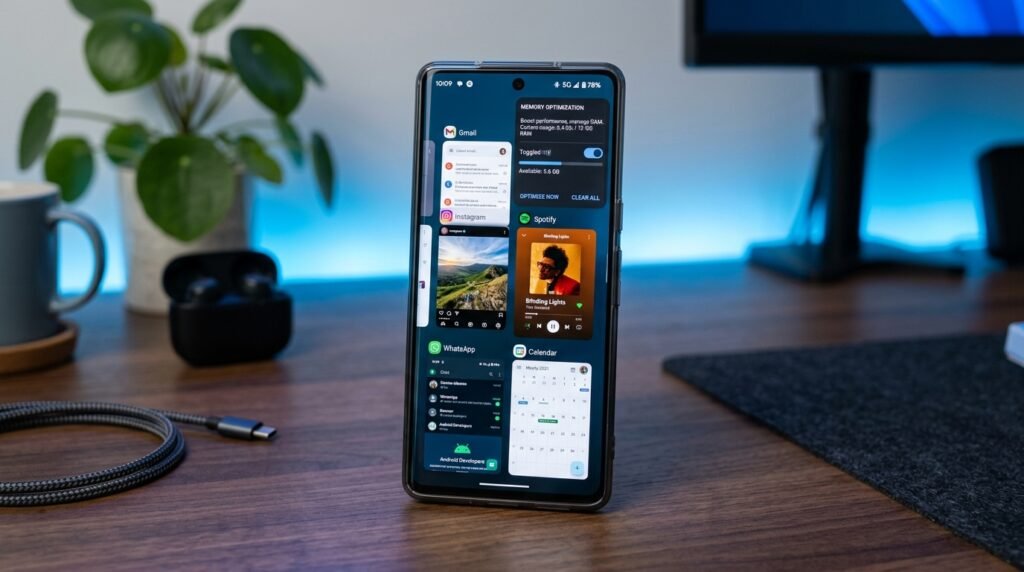
If you have ever missed an urgent WhatsApp call, noticed your fitness tracker stopping mid-run, or opened your podcast app only to find it restarted from the beginning, aggressive OEM battery management is to blame. Major manufacturers like Samsung (running One UI) and Xiaomi (running HyperOS and MIUI) employ heavy-handed proprietary memory killers designed to stretch advertised battery life at the expense of genuine multitasking.
In this practical guide, I break down the exact settings, hidden battery optimization toggles, and developer flags needed to stop Android OEMs from silently killing your essential background applications.
Why Smartphone Manufacturers Kill Background Apps
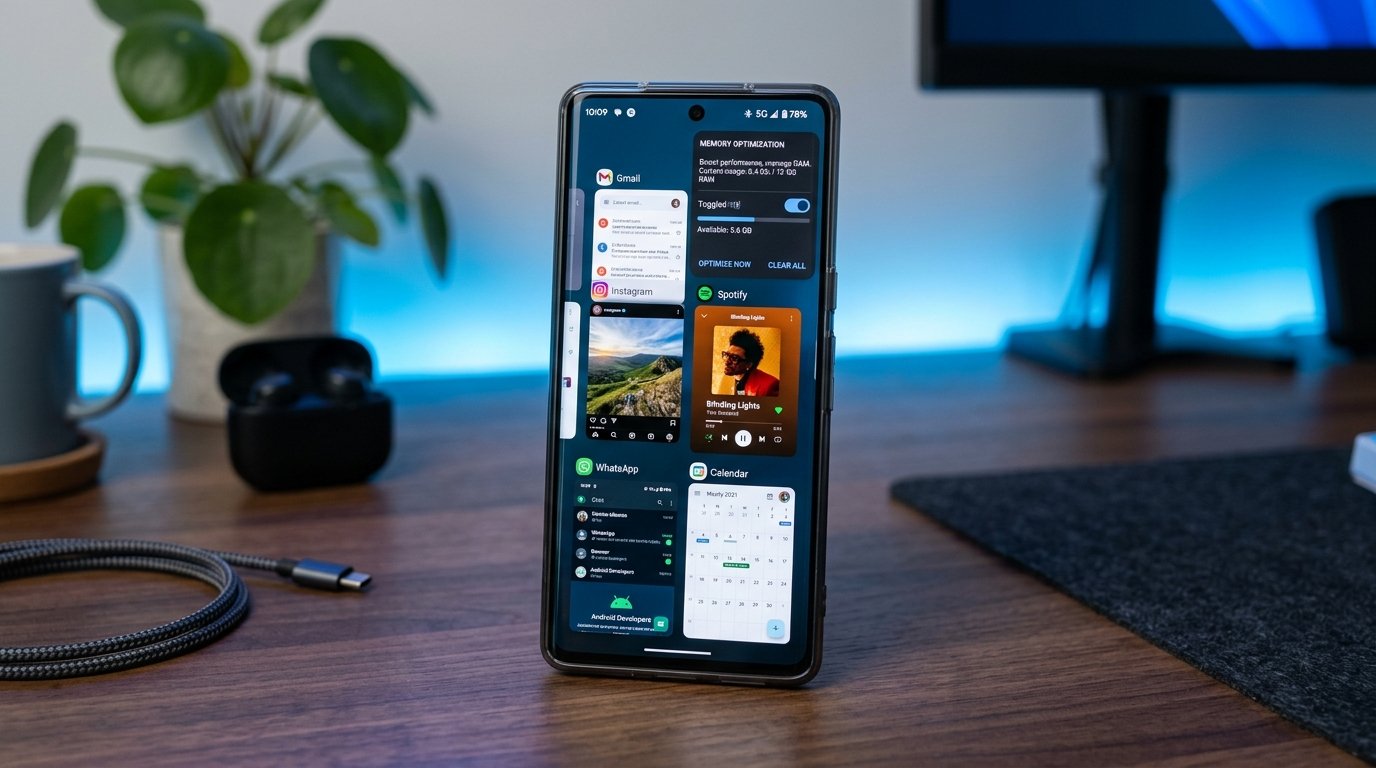
Stock Android developed by Google includes a sophisticated memory management architecture known as the Low Memory Killer Daemon (LMKD). When physical RAM becomes scarce, the system gracefully unloads cached background processes that have remained idle the longest while preserving active background services such as music playback and messaging synchronization.
However, OEMs often override Google’s baseline architecture with customized background management policies. These proprietary background engines aggressively terminate background processes as soon as the screen is locked, preventing push notification listeners from operating and forcing apps to reload from flash storage every time you switch tasks.
Never use third-party ‘RAM Booster’ or ‘Task Killer’ utilities. Modern Android kernels manage Linux memory paging automatically; external task killers force apps into endless kill-and-restart cycles that consume more battery and CPU cycles than leaving apps cached in RAM.
How to Keep Apps Alive on Samsung One UI Devices
Samsung’s One UI software suite incorporates multiple overlapping power-saving mechanisms. To ensure an app never gets killed in the background on Galaxy devices, execute the following three configuration steps:
1. Set Battery Usage to Unrestricted
Long-press the target app icon on your home screen or app drawer and tap the App Info (i) button. Scroll down to Battery and switch the setting from Optimized to Unrestricted. This prevents Samsung’s Device Care daemon from restricting background CPU execution when the screen turns off.
2. Remove the App from Sleeping Apps Lists
Open Settings > Battery > Background usage limits. Verify that Put unused apps to sleep is configured carefully, and check both the Sleeping apps and Deep sleeping apps categories. If your messaging or productivity tool is listed, tap the three-dot menu, select remove, and add the application to the Never sleeping apps list instead.
3. Lock the Application in Recent Apps
Swipe up and hold to access your recent applications carousel. Tap the round app icon above the application card preview and select Lock this app (indicated by a small padlock icon). This signals the memory manager never to purge this specific task when you tap ‘Close All’.
How to Stop Xiaomi HyperOS / MIUI Background Termination
Xiaomi devices are notorious for extreme power-saving algorithms. Restoring reliable background functionality on HyperOS and MIUI requires adjusting autostart permissions in addition to battery saving profiles:
- Open Settings > Apps > Manage Apps and locate your target application.
- Enable the Autostart toggle switch. This grants the application permission to initialize its background service after phone reboots.
- Tap on Battery Saver at the bottom of the App Info page and switch the setting from MIUI Battery saver (recommended) to No restrictions.
- Open the Security system app, navigate to Battery > App battery saver, and confirm the application is marked as exempt from automated background freezes.
OEM Background App Kill Aggressiveness Comparison
Frequently Asked Questions
Will setting apps to Unrestricted severely hurt battery life?
Only if the app is poorly engineered. Messaging apps like Telegram and Signal use efficient push notification listeners that consume negligible battery when running unrestricted. However, setting social media feeds or GPS navigation apps to Unrestricted may cause noticeable standby battery drain.
Why do notification delays happen even when battery saver is disabled?
If background optimization is disabled but notifications remain delayed until you manually unlock the screen, your device’s Wi-Fi or cellular power-saving mode may be sleeping network radios. Verify that Settings > Wi-Fi > Wi-Fi preferences > Keep Wi-Fi on during sleep is set to Always.
Our team creates practical, easy-to-follow Android guides and honest app recommendations. Read more on our About Us page or explore our Privacy Policy.
