
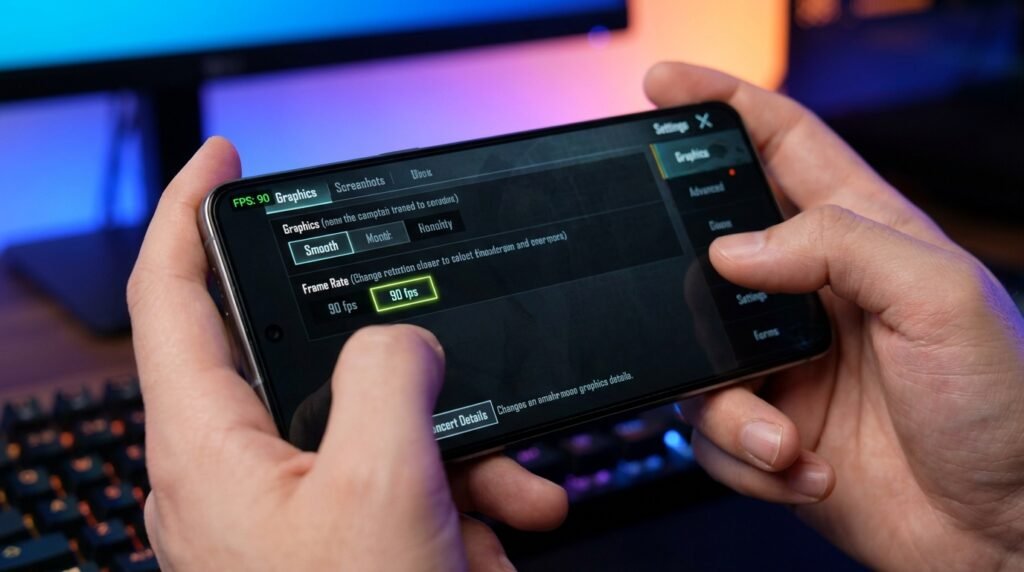
How to Fix PUBG Mobile Lag and Unlock 90 FPS on Android (2026 Performance Guide)
PUBG Mobile remains one of the most demanding battle royale games on Android in 2026. Whether you play on a mid-range phone or an older flagship, frame drops, stuttering during close-range fights, and high ping can ruin your gameplay. Fortunately, you do not need an expensive gaming phone to enjoy smooth, competitive gameplay. In this comprehensive 2026 guide, we cover every proven method to fix PUBG Mobile lag, reduce latency, and unlock smooth 60 FPS / 90 FPS performance on Android.
The tech landscape changes fast. These guides are reviewed regularly to make sure they stay accurate.
Why PUBG Mobile Lags on Android Phones
Before tweaking settings, it helps to understand what causes frame drops and stutter in mobile battle royale games. The four main bottlenecks are:
- Thermal Throttling: As your CPU and GPU heat up after 15-20 minutes of intense battle royale gameplay, Android automatically lowers processor clock speeds to protect the hardware from damage. This causes sudden FPS drops during firefights.
- RAM Bottlenecks & Background Services: Apps like WhatsApp, Instagram, and Chrome running in the background consume RAM and CPU cycles, forcing Android to swap memory mid-game.
- Sub-optimal Graphics Configurations: Setting graphics quality too high (such as HD or HDR) overburdens mid-range GPUs, causing frame pacing instability.
- Network Latency & Packet Loss: High ping, unstable Wi-Fi routing, or background data sync leads to rubber-banding and delayed bullet registration.
1. Best In-Game PUBG Mobile Graphics Settings for Smooth Gameplay
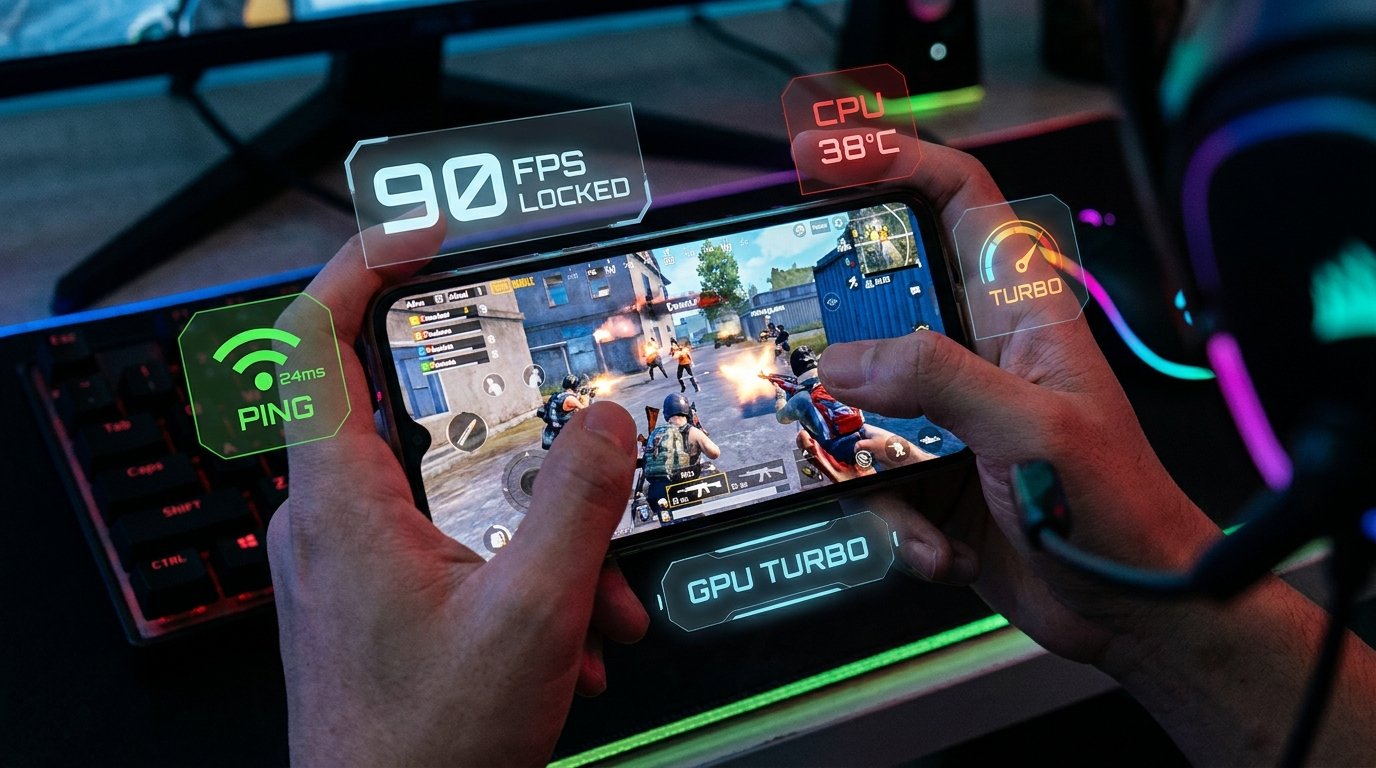
The single most important rule for competitive PUBG Mobile performance is: Prioritize Frame Rate Over Graphics Quality. Beautiful shadows and reflections mean nothing if your screen stutters when an enemy rushes your squad.
Recommended In-Game Configuration:
- Graphics Quality: Set to Smooth (This lowers GPU rendering resolution and turns off heavy shadow shaders).
- Frame Rate: Set to the highest available option — Extreme (60 FPS) or 90 FPS / 120 FPS if supported by your phone’s display.
- Style: Set to Colorful or Classic (Colorful increases enemy contrast making players easier to spot in grass).
- Anti-Aliasing: Set to Disabled or 2x (Disabling Anti-Aliasing frees up GPU memory and prevents thermal buildup).
- Colorblind Mode: Normal or Tritanopia based on personal preference.
- Auto-Adjust Graphics: Disable this setting. If left enabled, PUBG Mobile will dynamically drop your resolution mid-combat causing jarring frame skips.
2. Android Developer Options Tweaks for Max Gaming Performance
Android includes hidden system-level controls in Developer Options that prioritize GPU rendering for active games.
Step-by-Step Developer Setup:
- Go to Settings → About Phone and tap Build Number 7 times rapidly to enable Developer Options.
- Open Settings → System → Developer Options.
- Find Hardware Accelerated Rendering.
- Enable Force 4x MSAA (If your phone has a Snapdragon 7-series or 8-series processor, this improves visual sharpness without impacting FPS).
- Enable Disable HW Overlays (Forces Android to use the GPU directly for screen composition instead of sharing CPU load).
- Set Background Process Limit to At most 2 processes while gaming to keep RAM free for PUBG Mobile.
3. Utilize Built-in Game Booster / Game Space Modes
Most modern Android manufacturers include dedicated gaming optimization software (Samsung Game Launcher / Game Booster, Xiaomi Game Turbo, OnePlus Games, Realme Game Space, ROG Armoury Crate). Always launch PUBG Mobile through your system’s gaming hub to ensure:
- CPU and GPU clock frequencies stay locked in Performance Mode.
- Background notification popups and floating calls are muted.
- Touch sampling rate is boosted for lower touch input latency.
- RAM is automatically flushed before the game launches.
4. Reduce Ping and Network Lag in PUBG Mobile
Even with 90 FPS, high ping (above 100ms) will make gunfights feel unresponsive. Follow these network optimization tips:
- Use 5GHz Wi-Fi over 2.4GHz: 5GHz Wi-Fi has drastically lower interference and jitter compared to crowded 2.4GHz channels.
- Set Private DNS for Faster Routing: Go to Settings → Network → Private DNS and enter
one.one.one.one(Cloudflare) ordns.googleto reduce DNS lookup latency. - Disable Auto-Sync & Cloud Backups: Turn off Google Photos auto-upload, WhatsApp cloud backup, and Play Store auto-updates before starting a match.
- Close VPNs unless required: Free VPNs add extra server hops and significantly increase latency. Only use low-ping gaming servers if geo-routing is necessary.
5. Prevent Thermal Throttling and Heat Buildup
Heat is the number one enemy of sustained mobile gaming performance. As your phone’s internal temperature climbs during long gaming sessions, Android slows the processor to protect the device, which causes frame drops and stutter.
- Remove heavy protective phone cases: Thick rubber or leather cases trap heat against the glass back. Remove your case during long gaming sessions.
- Do NOT play while fast charging: Fast charging generates significant battery heat. Charge your phone to 80% before playing, then unplug.
- Play in a cool environment: Avoid direct sunlight or warm rooms. Using an external phone cooler fan can help keep temperatures down, which supports steadier frame rates during long sessions.
PUBG Mobile Performance Modes Comparison
| Graphics Setting | Target FPS | Battery Consumption | Thermal Impact | Competitive Advantage |
|---|---|---|---|---|
| Smooth + 90 FPS | 90 FPS | High | Moderate-High | ⚡ Maximum (Lowest input lag) |
| Smooth + Extreme | 60 FPS | Moderate | Low-Moderate | 🔥 High (Best stability & battery) |
| HD + Ultra | 40 FPS | Moderate-High | Moderate | ⚠️ Low (Higher input lag) |
| HDR + Extreme | 60 FPS | Very High | Very High (Throttles fast) | ❌ Poor (Heavy frame drops) |
Frequently Asked Questions
Q: Is 90 FPS supported on all Android phones?
A: No. 90 FPS requires a smartphone display with at least a 90Hz or 120Hz refresh rate alongside a supported processor (such as Snapdragon 778G+, 870, 8 Gen 1/2/3, or Dimensity 8100/9000+ series).
Q: Will modifying developer settings void my warranty?
A: No. Developer Options are standard Android system settings built into the OS by Google and do not void warranty or root your device.
Q: How do I measure my real-time FPS in PUBG Mobile?
A: Most system Game Boosters (Xiaomi Game Turbo, Samsung Game Plugins / Perf Z, OnePlus Games) include a real-time FPS counter overlay. You can also use GPUWatch in Developer Options on Samsung devices.
→ How to Optimize Android Gaming Performance: Fix Lag & Maximize FPS
→ How to Stop Your Android Phone from Overheating
→ How to Free Up RAM on Android Without Third-Party Apps
→ Master Android Developer Options: 15 Hidden Settings
This guide was compiled from publicly available documentation and the game’s published specifications, and reviewed in line with our Editorial Policy and Privacy Directives.
Have questions or want to share your own experience? Drop a comment below or reach out to our team. We read every message. You can also learn more about how we test and review on our About Us page.
