
How to Speed Up a Slow Android Phone Without Factory Reset (2026 Guide)
Is your Android phone painfully slow? You are not alone — after a year or two of use, even flagship devices can start lagging, freezing, and stuttering. The good news is that a factory reset is almost never the answer. In this hands-on guide, we walk you through 12 proven methods to speed up your Android phone in 2026, from two-minute quick wins to advanced Developer Options tweaks.
The problem with most ‘best of’ lists is they include too many mediocre options to pad the word count. I’d rather keep it real.
A slow Android phone is one of the most frustrating experiences in modern tech. What was once a snappy, responsive device gradually becomes sluggish — apps take longer to open, animations stutter, and the phone heats up under basic usage. The good news is that you almost certainly do not need a factory reset to fix this. In most cases, targeted software optimizations can restore your phone to near-new performance.
In this guide, we cover 12 practical steps to speed up any Android phone in 2026, from quick wins you can do in two minutes to deeper optimizations using Android’s hidden Developer Options.
Why Android Phones Slow Down Over Time
Understanding why your phone slows down is the first step to fixing it. Most slowdowns are caused by software issues — not hardware failure — which means you can fix them yourself without spending a rupee.
Before diving into fixes, it helps to understand why Android phones slow down. The main culprits are:
- Storage filling up: Android needs at least 10-15% of internal storage free to operate smoothly. Below this threshold, read/write speeds drop dramatically
- Too many background apps: Apps running in the background consume RAM and CPU cycles constantly
- Accumulated app cache: Cache files from apps like YouTube, Instagram, and browsers balloon over months
- Bloatware and auto-starting apps: Pre-installed apps run at startup and consume resources even when you never use them
- Outdated Android version: Older OS versions miss performance optimizations from newer releases
- Thermal throttling: Phones running hot slow down CPU speed to reduce heat
Step 1: Free Up Storage Space
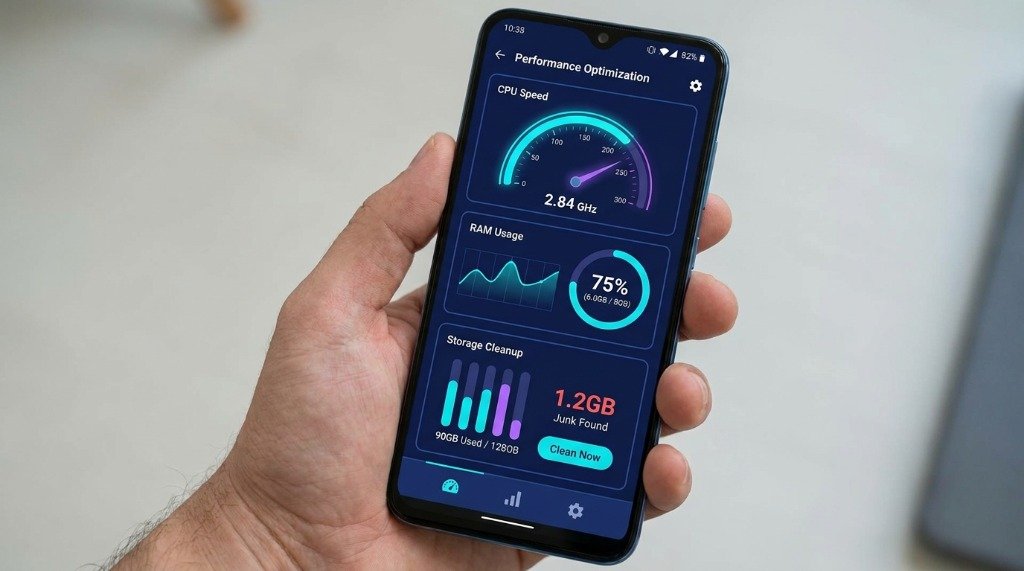
The single fastest way to speed up a slow Android phone is to free up storage. Open Settings → Storage and check how full your storage is. If it is above 80% full, performance will be noticeably impacted.
Use Files by Google to automatically find and delete:
- Duplicate photos and screenshots
- Blurry photos taken automatically
- Large files you have not opened in months
- Downloads folder clutter
- App cache files
Files by Google can typically free up 1-5 GB in just a few minutes on most phones.
Step 2: Clear App Cache (Not Data)
App cache is temporary data apps save to load faster — but over time it accumulates and can actually slow things down. Go to Settings → Apps, tap on heavy apps like YouTube, Chrome, Instagram, and TikTok, then tap Storage → Clear Cache.
Step 3: Disable or Remove Unused Apps
Every installed app — even ones you never open — can run background services that consume RAM and battery. Go through your app drawer and uninstall anything you have not used in the past month. For apps that came pre-installed and cannot be uninstalled, go to Settings → Apps → [App Name] → Disable.
Common candidates to disable on most Android phones: Facebook, Facebook Messenger, LinkedIn, Microsoft Office apps (if pre-installed), Samsung Free, Bixby, and carrier bloatware.
Step 4: Turn Off Animations via Developer Options
This is one of the most effective tricks for making Android feel dramatically faster. Android uses animations for everything — opening apps, switching between them, showing notifications — and these animations take time. Reducing their scale makes the phone feel instant.
- Go to Settings → About Phone
- Tap Build Number seven times rapidly to enable Developer Options
- Go back to Settings → Developer Options
- Find Window Animation Scale and set it to 0.5x
- Set Transition Animation Scale to 0.5x
- Set Animator Duration Scale to 0.5x
The difference is immediately noticeable — your phone will feel like it has a faster processor even though nothing has changed under the hood.
Step 5: Limit Background Processes
Android allows apps to run in the background by default. In Developer Options, you can cap the maximum number of background processes to reduce RAM pressure:
- Open Settings → Developer Options
- Find Background Process Limit
- Set it to At most 2 processes or At most 3 processes
This is especially helpful on phones with 4 GB of RAM or less.
Step 6: Disable Live Wallpapers and AOD
Live wallpapers run continuously and consume both CPU and GPU resources. Switch to a static wallpaper via Settings → Wallpaper & Style. Similarly, Always-On Display (AOD) keeps the screen partially active at all times — disable it under Settings → Lock Screen → Always On Display to reduce CPU and battery load.
Step 7: Update Android and Apps
Outdated app versions often contain memory leaks and performance bugs that have been fixed in newer releases. Open the Google Play Store, tap your profile icon, and select Manage apps & device → Update All. Also check Settings → Software Update for any pending Android OS updates.
Step 8: Use Lite Versions of Heavy Apps
Several popular apps have lightweight alternatives specifically designed for low-RAM devices:
- Facebook → Facebook Lite (uses significantly less RAM)
- Messenger → Messenger Lite
- Chrome → Firefox Lite or Brave Browser
- Instagram → Instagram Lite
- Twitter → Twitter Lite (PWA)
Step 9: Disable Sync for Unused Accounts
Every Google account, social media account, and email account on your phone syncs continuously in the background. Remove accounts you no longer use, or disable their background sync under Settings → Accounts → [Account] → Account Sync.
Step 10: Scan for Malware
Malware and adware running silently in the background can cause dramatic slowdowns, especially if they are mining cryptocurrency or sending data to remote servers. Run a full Google Play Protect scan via the Play Store app (Profile → Play Protect → Scan) and consider running Malwarebytes for a second opinion.
Step 11: Check Battery and Thermal Status
A degraded battery can cause Android to reduce CPU performance to prevent unexpected shutdowns. Check your battery health via Settings → Battery → Battery Health (Samsung) or use an app like AccuBattery to measure real capacity. If your battery is below 80% health, performance will be noticeably impacted.
Step 12: Consider a Lightweight Launcher
Heavy OEM launchers (Samsung One UI, MIUI) consume significant RAM. Switching to a lightweight launcher like Niagara Launcher or Lawnchair can free up 200-400 MB of RAM on older phones.
Speed-Up Methods Comparison Table
| Method | Difficulty | Impact | Time Required |
|---|---|---|---|
| Free up storage | Easy | High | 5 minutes |
| Clear app cache | Easy | Medium | 3 minutes |
| Disable unused apps | Easy | High | 10 minutes |
| Reduce animations | Easy | High | 2 minutes |
| Limit background processes | Medium | Medium | 3 minutes |
| Disable live wallpaper/AOD | Easy | Low-Medium | 2 minutes |
| Update Android and apps | Easy | Medium | 15 minutes |
| Use lite apps | Easy | Medium | 15 minutes |
| Disable account sync | Easy | Low-Medium | 5 minutes |
| Malware scan | Easy | Varies | 10 minutes |
| Check battery health | Easy | Varies | 5 minutes |
| Lightweight launcher | Medium | Medium | 20 minutes |
Frequently Asked Questions
Q: Will these steps void my warranty?
A: No. Everything in this guide uses standard Android settings and does not involve rooting or modifying system files.
Q: My phone is still slow after trying everything. What next?
A: If all else fails, a factory reset is the most thorough fix. Back up your data first using Google One backup, then go to Settings → General Management → Reset → Factory Data Reset.
Q: Does RAM cleaner apps actually help?
A: No — RAM cleaner apps are a myth. Android manages RAM automatically and killing background apps actually makes your phone slower (it has to reload them from scratch next time). Never use RAM cleaner or booster apps.
Q: Which step gives the most speed improvement?
A: Reducing animations (Step 4) and freeing up storage (Step 1) typically give the most immediately noticeable improvements.
→ How to Clear Cache and Free Up Storage on Android
→ How to Remove Pre-Installed Bloatware Without Root
→ How to Fix Android Phone Overheating
→ Master Android Developer Options: 15 Hidden Settings
Written and verified by APKMales’ technical staff. This guide was compiled from publicly available documentation and is published in full compliance with our Editorial Policy and Privacy Directives.
