
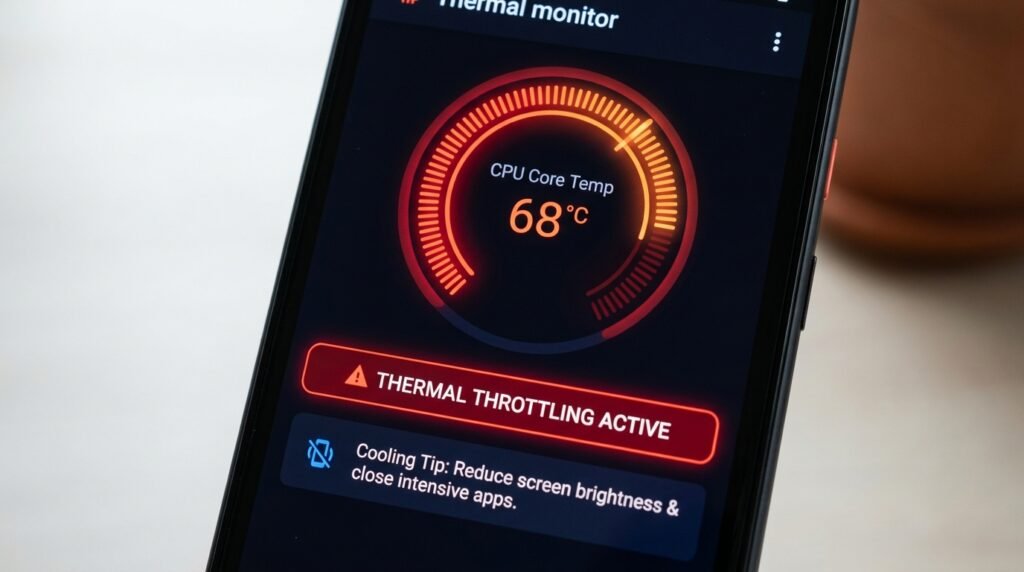
How to Stop Your Android Phone from Overheating: Causes & Proven Fixes
Understanding Mobile Thermal Dynamics: Why Android Devices Overheat
If you are dealing with overheating on your Android phone, you are not alone. This is one of the most common Android issues, but the good news is that most cases can be resolved in minutes with the right steps. This guide covers every proven fix, from simple restarts to advanced solutions.
This guide focuses on the fixes that are genuinely worth your time, based on publicly available documentation and common user reports.
Modern Android smartphones pack extraordinary computing capability into paper-thin glass and metal enclosures. Powered by high-frequency multi-core System-on-Chip (SoC) processors, ultra-fast 5G modems, high-refresh-rate OLED displays, and high-wattage rapid charging circuitry, modern phones generate substantial thermal energy during daily operation. Unlike desktop PCs or laptops, smartphones rely entirely on passive cooling—dissipating heat through internal copper vapor chambers, graphite thermal sheets, thermal paste, and outer device chassis surfaces without active cooling fans.
When internal heat generation outpaces passive thermal dissipation, internal temperatures surge. Left unchecked, excessive heat causes uncomfortable hand warmth, severe CPU/GPU performance throttling, display dimming, battery capacity degradation, and potential hardware thermal shutdown. In this comprehensive diagnostic guide, we examine the underlying causes of Android overheating, explain thermal mechanics, and provide actionable, proven fixes to keep your device cool, fast, and safe in 2026.
• Normal Operating Range (30°C to 40°C / 86°F to 104°F): Standard internal battery temperature during web browsing, messaging, and light video playback.
• Elevated Operating Range (40°C to 45°C / 104°F to 113°F): Expected thermal range during high-wattage fast charging, 3D gaming, or GPS navigation.
• Danger Zone (Above 46°C / 115°F): Extreme battery heat requiring immediate cooling intervention to prevent accelerated chemical degradation and component damage.
Hardware Architecture & Thermal Dissipation Mechanics
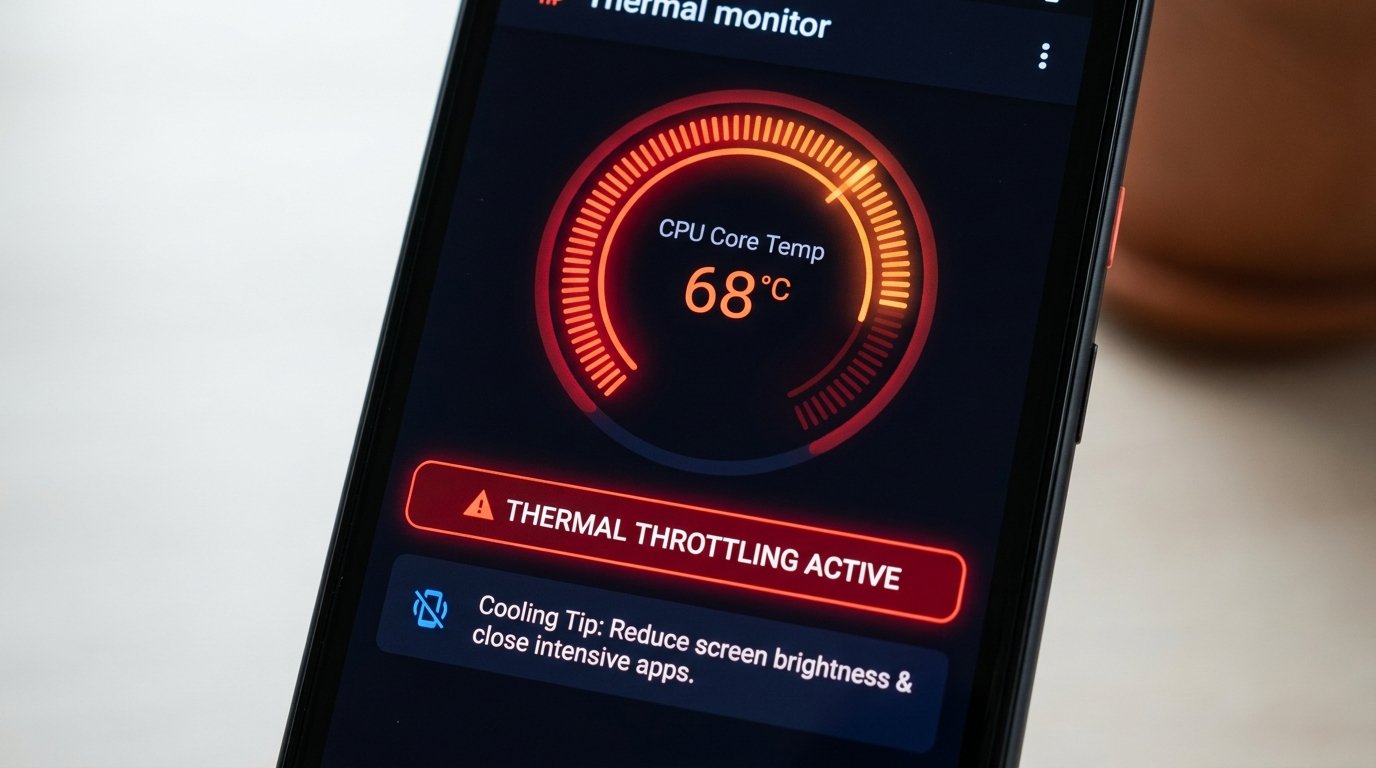
Understanding how modern smartphones manage heat requires examining internal hardware cooling architecture. Modern Android flagship devices employ sophisticated passive cooling assemblies:
- Vapor Chamber (VC) Cooling: Sealed copper enclosures containing microscopic amounts of liquid. When the CPU heats up, the liquid vaporizes, transfers thermal energy across the chamber surface, condenses back into liquid near cooler edges, and recirculates via capillary action.
- Multi-Layer Graphite Sheets: High-conductivity graphite layers spread thermal energy across the larger area of the phone’s back glass and aluminum mid-frame, preventing concentrated thermal hot spots.
- Thermal Throttling Governors: Kernel-level software daemons continuously monitor thermistor sensors. When temperatures breach pre-set hardware thermal limits, the OS forces CPU cores to drop clock frequencies (downclocking), lowering performance to protect silicon components.
Key Causes of Excessive Heat Generation in Smartphones
1. Intensive Gaming & Heavy GPU Workloads
Demanding 3D mobile games (such as open-world RPGs or high-fps competitive shooters) force the CPU and Graphics Processing Unit (GPU) to run at maximum clock frequencies continuously. Rendering high-resolution textures at 90Hz or 120Hz refresh rates generates intense internal heat within minutes of gameplay.
2. High-Wattage Fast Charging & Wireless Charging Heat
Modern fast-charging standards push between 45W and 120W of electric power through lithium-ion battery cells. Internal electrical resistance during rapid energy transfer naturally generates heat. Furthermore, inductive wireless charging pads produce substantial ambient heat due to electromagnetic coil energy loss.
3. Background Rogue Processes & Unoptimized Apps
Poorly coded third-party applications or background malware can trigger CPU “runaway” loops. When an app gets stuck in a continuous processing loop in the background, it keeps high-performance CPU cores locked at maximum frequency, causing the device to heat up rapidly even while resting idle in your pocket.
4. Direct Sunlight Exposure & High Screen Brightness
OLED displays set to maximum outdoor peak brightness (reaching 1500 to 2500 nits) generate significant thermal energy. Combining max display brightness with direct radiant solar heat when using your phone outdoors creates extreme heat trapping inside metal and glass enclosures.
5. Cellular Signal Searching in Weak 5G/LTE Coverage Zones
When operating in regions with weak cellular coverage, your phone’s baseband modem automatically boosts RF transmitter power to maintain a tower handshake connection. Continuous high-power signal searching in poor 5G/LTE coverage zones causes rapid modem overheating and severe battery drain.
Tip: Restart your phone after making these changes so the new settings take effect cleanly.
Step-by-Step Proven Fixes to Cool Down Your Device
Fix 1: Optimize Display Settings and Disable High Refresh Rates
High screen refresh rates (120Hz) force the graphics engine to render twice as many frames per second compared to standard 60Hz displays. During high-temperature alerts, navigate to Settings > Display > Smooth Display / Refresh Rate and lock the refresh rate to 60Hz. Additionally, enable Adaptive Brightness to prevent your screen from remaining locked at maximum backlight intensity outdoors.
Fix 2: Limit Background App Refresh and Audit Rogue Process Memory
Identify and terminate rogue background applications consuming excessive system resources:
- Open Settings > Battery > Battery Usage to review per-app battery consumption over the past 24 hours.
- Locate apps showing abnormally high background runtime relative to active screen time and tap Restrict background activity.
- Uninstall unverified utility apps, third-party cleaners, or unoptimized software flagged for runaway background execution.
Fix 3: Manage Charging Habits and Avoid Heavy Use While Charging
Avoid using demanding applications or playing 3D games while your phone is plugged into a fast charger. Combining heavy CPU workloads with rapid battery charging creates compounding heat buildup. If charging temperatures spike, switch to standard 15W charging adapters or disable Fast Charging inside system battery settings overnight.
Fix 4: Toggle Off Unused Wireless Radios (5G, Bluetooth, Location)
In weak network coverage zones, force your device to use 4G LTE instead of struggling to maintain a high-frequency 5G connection:
- Navigate to Settings > Network & Internet > SIMs > Preferred network type.
- Select LTE / 4G to stop modem overheating caused by continuous 5G tower searching.
- Toggle off unused wireless radios like high-precision GPS Location, Wi-Fi Hotspots, and Bluetooth scanning when not actively required.
Fix 5: Run Battery & Security Diagnostics to Check for Malware Scans
Undetected cryptomining scripts or adware hidden inside dubious APK files operate in background execution threads, draining battery power and generating continuous heat. Run a comprehensive device security scan using Google Play Protect or open-source malware scanners to ensure your device memory is completely clean.
Fix 6: Remove Heavy Phone Cases During High-Load Tasks
Protective phone cases engineered from thick rubber, synthetic leather, or multi-layer plastic act as thermal insulators. Trapping heat against the glass backplate prevents natural air cooling. Remove heavy protective cases when playing demanding 3D games, fast charging, or recording long 4K video clips.
Hardware & Battery Thermal Throttling Matrix
The matrix below outlines how your Android phone’s internal system protection mechanisms react across distinct temperature thresholds:
| Internal Temp (°C / °F) | System Behavior & Throttling Stage | Immediate Action Required | Long-Term Hardware Risk |
|---|---|---|---|
| 30°C – 39°C (86°F – 102°F) | Standard operation; full CPU/GPU clock speeds active | None; normal performance state | Zero risk; optimal operating range |
| 40°C – 44°C (104°F – 111°F) | Minor throttling; charging rate throttled to 50% capacity | Remove thick protective phone cases; stop gaming | Minor chemical degradation if maintained long-term |
| 45°C – 48°C (113°F – 118°F) | Severe CPU clock downclocking; screen brightness capped at 50% | Unplug charger immediately; move to shaded, cool area | Accelerated battery aging; glue adhesive weakening |
| Above 49°C (120°F+) | Emergency Thermal Shutdown triggered by kernel safety daemons | Power off phone; allow ambient cooling for 20 minutes | Permanent battery capacity loss; internal circuit stress |
Typical thermal protection behavior based on published manufacturer documentation; exact thresholds and responses vary by device and manufacturer.
NEVER place an overheating smartphone inside a refrigerator or freezer! Thermal shock from rapid cooling causes moisture condensation inside sealed glass/metal chassis, resulting in permanent liquid damage, motherboard corrosion, and short-circuiting electronic components.
Frequently Asked Questions (FAQ)
Is it normal for my phone to get warm while fast charging?
Yes. Fast charging pushing 30W to 120W of electrical power naturally causes mild warming (up to 40°C / 104°F). However, if the device becomes uncomfortably hot to touch or displays a thermal warning popup, disconnect the charger immediately.
Can a thick protective phone case cause overheating?
Yes. Heavy rubber, leather, or multi-layer armor cases trap heat against the phone’s back glass and metal frame, preventing passive air cooling. Removing your case during intensive gaming sessions or fast charging helps heat dissipate rapidly into ambient air.
Why does my camera app close automatically due to heat?
Recording 4K or 8K video at 60fps requires intense real-time image signal processor (ISP) calculations and continuous high-speed storage writing. If internal temperatures breach safe limits, system thermal daemons automatically disable the camera to protect sensor components.
Does fast charging permanently damage your battery if it gets hot?
Extended exposure to high temperatures (above 45°C) during fast charging accelerates lithium-ion battery degradation. Heat breaks down internal electrolyte solutions and degrades cathode coatings, permanently reducing battery capacity over time. Using adaptive charging or capping charges at 80% mitigates thermal wear.
Are clip-on phone cooling fan accessories effective for mobile gaming?
Yes. Clip-on semiconductor Peltier cooling fans actively dissipate heat from the back glass plate, which can help reduce internal temperatures during demanding gaming sessions. This may help prevent CPU thermal throttling and keep frame rates smoother, though actual results vary by device and accessory.
Conclusion
Managing smartphone thermals is critical to extending device performance and lithium-ion battery health. By understanding heat causes—such as 5G signal searching, runaway background processes, direct sunlight exposure, and fast-charging workloads—and implementing display optimizations, network toggles, and process restrictions, you can keep your Android smartphone operating smoothly and coolly in 2026.
This guide was compiled from publicly available documentation and manufacturer specifications by the APKMales editorial team. Read more in our Editorial Policy and Privacy Directives.
