

How to Free Up RAM on Android Without Third-Party Apps or Root
The RAM Cleaner Myth: Why Most “Memory Booster” Apps Are Useless
If your Android phone feels sluggish, stutters when switching apps, or frequently reloads background tabs, aggressive RAM management is usually the culprit. While shady ‘RAM cleaner’ apps on the Play Store often make battery drain worse, Android includes powerful built-in developer options and background process limits that genuinely free up memory without needing root access. Here is how to reclaim your phone’s performance safely.
I’ve been an Android user since the Galaxy S3 era, and I’ve learned a few things the hard way that I want to share here.
Walk into any Android app store and search for “RAM cleaner” or “memory booster” — you’ll find hundreds of apps promising to speed up your phone, free gigabytes of RAM, and extend your battery life with a single tap. Millions of users install these apps every day. And almost all of them are either completely useless, actively harmful to performance, or both.
The reason comes down to a fundamental misunderstanding of how Android manages memory. Android is not Windows from 2005. It doesn’t benefit from manually freeing RAM. In fact, killing background processes — which is exactly what RAM cleaner apps do — causes your phone to work harder and use more battery, not less.
This guide explains how Android’s memory management actually works, separates fact from fiction, and gives you the legitimate, built-in tools to genuinely improve memory performance on your Android device — no third-party apps, no root required.
How Android Memory Management Actually Works
The Low Memory Killer Daemon (LMKD)
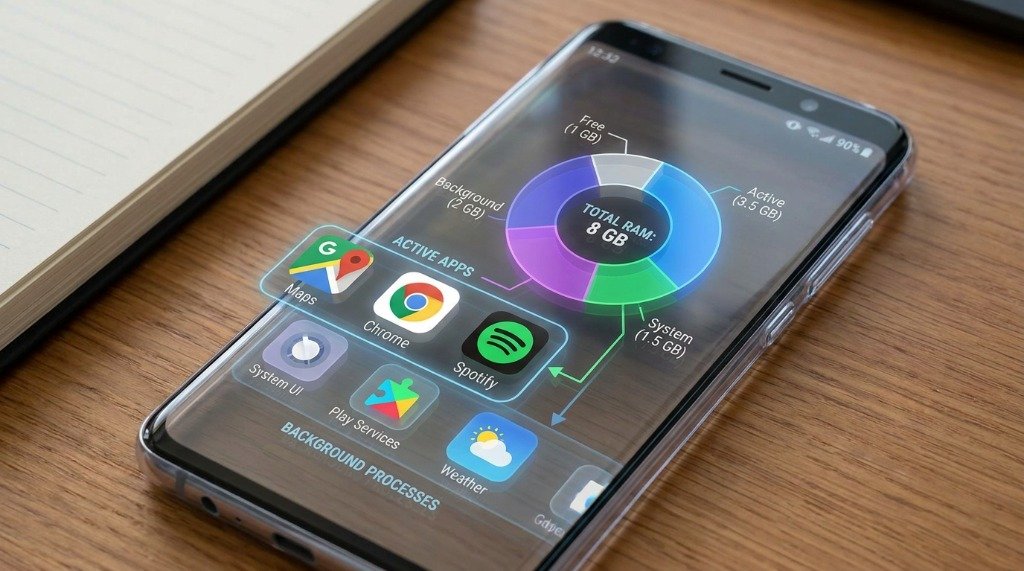
Android uses a kernel-level process called the Low Memory Killer Daemon (LMKD) to automatically manage which processes stay in memory and which get evicted when RAM is needed. LMKD doesn’t run on a schedule — it runs dynamically, killing the lowest-priority processes first only when a new, active process needs RAM.
The priority hierarchy LMKD uses (highest to lowest priority to keep in RAM):
- Foreground processes: The app you’re currently using. Never killed.
- Visible processes: Apps partially visible (e.g., a dialog from another app). Rarely killed.
- Service processes: Background services actively doing work (music playback, sync). Killed only under severe memory pressure.
- Cached processes: Apps you’ve used recently but aren’t actively running. Killed first as needed — this is the normal target.
This means Android already knows which processes to kill and when. A third-party RAM cleaner that kills everything indiscriminately is less intelligent than LMKD, not more.
zRAM: Android’s Compressed Memory Swap
Modern Android devices (Android 11+) use zRAM, a compressed in-memory swap partition. Instead of writing rarely accessed memory pages to slow storage (like traditional swap), Android compresses them and stores them in a dedicated portion of RAM itself.
A typical Android device might allocate 25–50% of physical RAM as zRAM space. Memory that would otherwise cause app eviction gets compressed (often 2:1 or 3:1 ratio), effectively giving the system significantly more usable memory without any storage writes. This is why a 6GB RAM phone can often run as smoothly as an 8GB phone from two generations ago — zRAM efficiency has improved dramatically.
ART Runtime and Memory Optimization
Android’s ART (Android Runtime) performs ahead-of-time (AOT) compilation and profile-guided optimization (PGO) to minimize an app’s memory footprint over time. After you use an app regularly, ART learns your usage patterns and optimizes its code for faster loading with less memory pressure.
This is why apps often feel snappier after you’ve used a new phone for a week compared to day one — ART is actively optimizing in the background. Third-party tools that “clean” app data can inadvertently reset these ART profiles, making apps feel slower.
RAM Usage Myths vs. Facts
| Common Myth | The Real Fact |
|---|---|
| “My phone has 8GB RAM but only 3GB is free — it’s running out of memory!” | Android intentionally fills RAM with cached apps for fast re-launch. “Used” RAM showing 5GB is normal and good. |
| “RAM cleaner apps speed up my phone” | They evict app caches, meaning apps must fully reload from storage next time — which is slower, not faster. |
| “Closing apps in the Recent Apps list saves battery” | Cached apps use near-zero CPU. Killing and relaunching them uses more CPU and battery than leaving them cached. |
| “More RAM always means a faster phone” | RAM capacity matters, but RAM speed, CPU efficiency, and storage speed all affect perceived performance equally or more. |
| “Disabling animations frees up RAM” | Disabling animations makes the phone feel faster (shorter wait times) but doesn’t measurably reduce RAM usage. |
| “Restarting my phone daily keeps RAM healthy” | Rebooting once a week is fine for clearing any memory leaks from buggy apps. Daily reboots offer no additional benefit. |
| “Lite versions of apps always use less RAM” | Lite apps use less storage and may load faster on slow connections, but RAM usage differences are often minimal. |
My Take: This is the section where most people make mistakes. Take your time with these steps and you’ll be fine.
Legitimate Ways to Reduce RAM Pressure on Android
That said, there are real situations where an Android device feels genuinely sluggish due to memory pressure — particularly on devices with 3–4GB RAM running modern apps. Here are the legitimate, built-in approaches that actually work:
1. Limit Background Processes via Developer Options
This is one of the most impactful settings for low-RAM devices and requires no root access. Here’s how:
- Go to Settings > About phone and tap “Build number” seven times rapidly. You’ll see “You are now a developer!”
- Go back to Settings > System > Developer options (location varies by manufacturer — search “Developer options” in Settings).
- Scroll down to find “Background process limit.”
- Change from “Standard limit” to “At most 4 processes” or “At most 3 processes.”
- This tells Android to be more aggressive about evicting cached apps, keeping more RAM free for active use — useful on 3–4GB RAM devices.
Note: Don’t set this to 1 or 2 processes unless your device is extremely RAM-constrained. Setting it too low causes excessive app reloads.
2. Disable (Not Just Force Stop) Unused Bloatware Apps
Pre-installed manufacturer apps (bloatware) often run services in the background consuming RAM even if you never open them. Disabling them completely prevents background activity:
- Go to Settings > Apps (or “Application Manager” on Samsung).
- Tap the three-dot menu and select “Show system apps” to see all installed apps.
- Select any app you never use (e.g., a manufacturer’s music or shopping app).
- Tap “Disable” (if Uninstall isn’t available). Disabling prevents the app from running and removes it from your app drawer.
- Focus on disabling apps with persistent services — you can identify these in Settings > Battery > Battery Usage by looking for apps consuming background battery despite never being opened.
3. Switch to a Lighter Launcher
Your Android launcher (home screen app) runs permanently in foreground memory — it’s never cached, never evicted. Heavy launchers with elaborate animations, widgets, and effects can consume 150–300MB of RAM continuously. Switching to a lighter option makes a measurable, permanent difference:
- Microsoft Launcher: Full-featured but efficient, typically under 100MB active RAM.
- Lawnchair: A Pixel-launcher clone, lightweight and open-source.
- Total Launcher: Minimal launcher with minimal RAM footprint.
- KISS Launcher: Extremely minimal, excellent for very low-RAM devices.
4. Identify and Address Actual Memory Leaks
Some apps have genuine memory leaks — bugs that cause them to consume ever-increasing RAM the longer they run. You can identify these without any third-party tools:
- Go to Settings > Developer options > Memory (on some devices) or check Settings > Battery > Battery Usage.
- Look for apps that show disproportionately high background battery or memory usage relative to how often you use them.
- Force-stopping these specific apps (not all apps) is actually helpful — you’re addressing a real bug, not performing theatrical RAM cleaning.
- Check for updates for any identified apps — memory leak bugs are often fixed in newer versions.
5. Use Android’s Built-In Memory Shortcut (Pixel Devices)
On Google Pixel devices running Android 12+, there’s a hidden shortcut in Developer Options that shows a real-time memory usage overlay:
- In Developer options, enable “Running services” or go directly to Settings > Apps > See all apps > three-dot menu > Show system apps, then look for a “Memory” option.
- This shows which services are actively consuming RAM, their current usage, and how long they’ve been running.
- Use this information to identify actual problem apps rather than blindly killing everything.
6. Reboot Weekly to Clear Accumulated Memory Leaks
A weekly reboot is genuinely useful — it clears any accumulated memory leaks from buggy apps, resets the zRAM partition, and gives Android a clean slate. Schedule it for a convenient time (Sunday evenings work well). Daily reboots provide no additional benefit and disrupt your app cache.
7. Reduce Widgets on Your Home Screen
Every widget running on your home screen runs an active process. Weather widgets that refresh every 15 minutes, email widgets showing real-time inbox counts, and calendar widgets all maintain persistent background processes. Auditing and reducing your widget count — keeping only the ones you actually look at daily — can free 50–150MB of continuously used RAM.
How to Check Your Actual RAM Usage on Android
- Enable Developer Options (tap Build number 7 times as described above).
- Go to Settings > Developer options.
- Scroll to find “Memory” — this section shows total RAM, average usage over 3/6/12 hours, and which apps are using the most memory.
- Tap any app in the list to see its detailed memory breakdown (Java heap, native heap, graphics, etc.).
- Use this data to make targeted decisions rather than blunt RAM clearing.
Frequently Asked Questions
Q: My phone slows down after a few days of use. Is RAM the issue?
It could be a memory leak in a specific app rather than overall RAM exhaustion. Monitor your RAM usage in Developer Options over several days. If one app’s memory footprint keeps growing without bound, that’s a leak. Force-stop that specific app or look for an update. A weekly reboot also clears accumulated leaks.
Q: Does Android Go on low-RAM phones work differently?
Yes. Android Go (for devices under 2GB RAM) uses a more aggressive version of LMKD, limits background processes more strictly, and requires apps to use Android Go-optimized versions with smaller RAM footprints. The advice in this guide still applies, but the thresholds are different.
Q: Should I enable “Don’t keep activities” in Developer Options?
This option destroys every activity (screen/view) as soon as you navigate away, similar to iOS’s memory management approach. It does free RAM aggressively but causes apps to reload from scratch every time you return to them, which can be jarring and slower. Use it only on severely RAM-constrained devices (2GB or less) as a last resort.
Q: Why does my phone show “RAM is full” but performance seems fine?
Because RAM being “full” on Android is normal and intentional — it means Android is efficiently caching apps for fast reloading. You only have a memory problem if the device is actively stuttering, apps are crashing with out-of-memory errors, or frame rates are dropping significantly. “Full RAM” shown in a RAM cleaner is a marketing trick designed to make you think there’s a problem that needs their solution.
Q: Can I add more RAM to my Android phone?
You cannot add physical RAM to a smartphone. However, many Android 12+ phones from Samsung, Xiaomi, Realme, and others offer a “RAM Expansion” or “Virtual RAM” feature that allocates a portion of storage (UFS 3.1 or NVMe) as swap space, functionally similar to zRAM but slower. This can help marginally on 4–6GB devices running memory-intensive tasks, but it’s not a substitute for actual RAM.
Q: Is 6GB RAM enough for Android in 2026?
For most users — social media, streaming, photography, casual gaming — 6GB RAM is comfortable. Power users running multiple simultaneous apps, heavy gaming (especially emulation), or Android developer work benefit from 8–12GB. Budget devices with 4GB RAM are functional but may show occasional app reloads during heavy multitasking.
Written and verified by APKMales’ technical staff. This guide was compiled from publicly available documentation and is published in full compliance with our Editorial Policy and Privacy Directives.
