

How to Fix Android Wi-Fi and Bluetooth Connection Issues (Step-by-Step)
Diagnosing Wireless Connectivity Failure on Android
If you are dealing with Wi-Fi and Bluetooth issues on your Android phone, you are not alone. This is one of the most common Android issues, but the good news is that most cases can be resolved in minutes with the right steps. This guide covers every proven fix, from simple restarts to advanced solutions.
In our hyper-connected digital world, a smartphone without reliable wireless connectivity loses most of its functionality. We rely on Wi-Fi for high-speed web browsing, app updates, and video streaming, while Bluetooth powers our wireless earbuds, smartwatches, car infotainment units, and smart home peripherals. However, Android users frequently encounter frustrating wireless glitches—ranging from Wi-Fi networks stalling on “Obtaining IP Address” to Bluetooth audio stuttering, dropping connections, or failing to pair altogether.
Wireless connection errors stem from a variety of sources: corrupted network stack caches, misconfigured MAC address privacy protocols, wireless frequency band congestion, or outdated system binaries within Google Play Services. In this comprehensive step-by-step troubleshooting guide, we present a systematic methodology to diagnose and resolve persistent Android Wi-Fi and Bluetooth connection issues without performing a nuclear factory data reset.
Step 1: Perform a Clean Reset of Android Network Settings
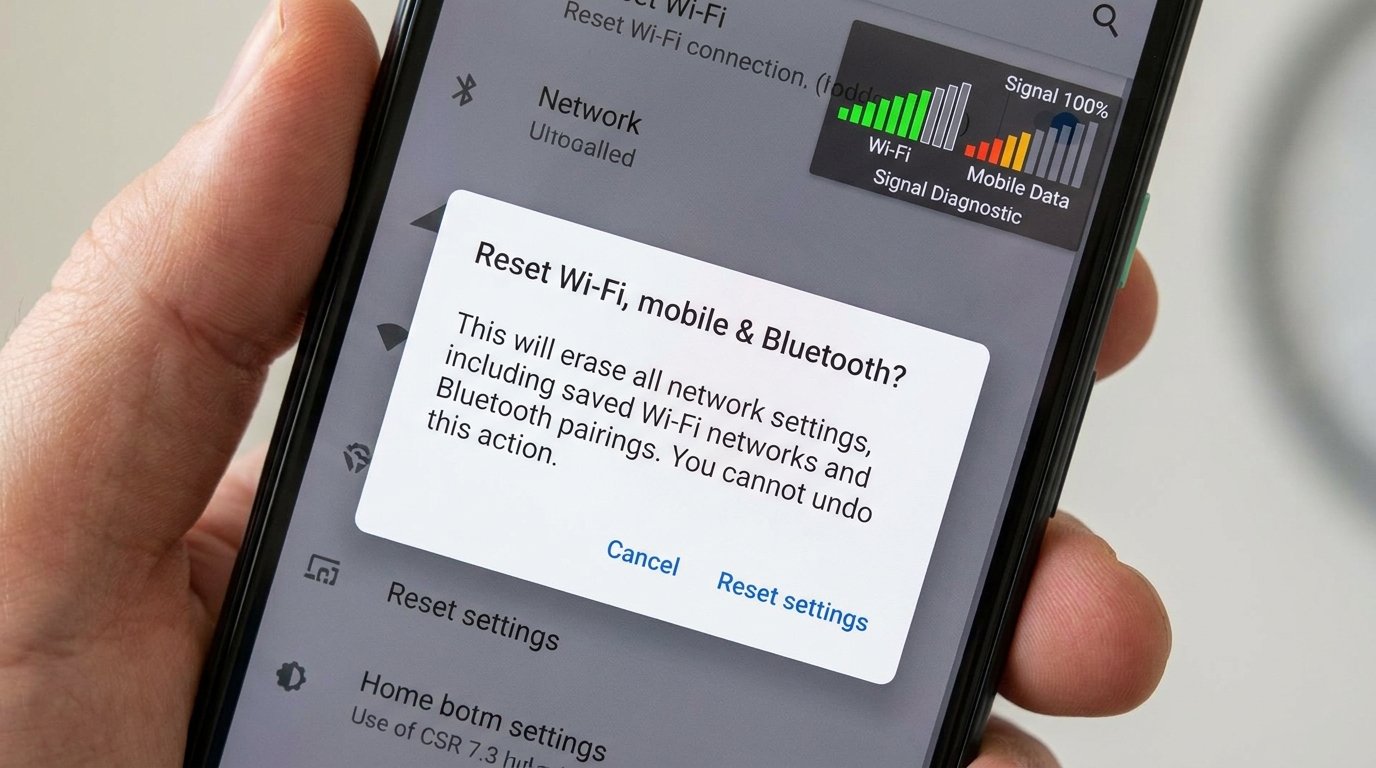
When wireless settings become corrupted due to conflicting network profiles or OS updates, resetting your device’s network stack clears cached routing tables, resets network adapters, and flushes stored connection parameters.
How to Execute a Network Reset (Without Losing Personal Data):
Unlike a factory reset, resetting network settings does not erase your photos, apps, messages, or personal files. It strictly clears saved Wi-Fi networks, paired Bluetooth devices, cellular APN configurations, and VPN profiles.
- Open system Settings and navigate to System > Reset options (on Samsung Galaxy devices, go to General Management > Reset).
- Select Reset Wi-Fi, mobile & Bluetooth (or Reset network settings).
- If prompted, enter your device security PIN, Pattern, or Fingerprint to authorize the administrative operation.
- Tap Reset Settings to confirm. Your device will briefly restart its internal wireless radios.
- Re-connect to your home Wi-Fi network by entering your wireless password, and re-pair your primary Bluetooth peripherals.
Step 2: Fix IP Assignment Errors via MAC Address Randomization Tweaks
Modern Android versions employ MAC Address Randomization by default. Instead of broadcasting your smartphone’s true physical hardware Media Access Control (MAC) address to Wi-Fi routers, Android generates a unique randomized virtual MAC address for every network you join. While this prevents tracking across commercial public Wi-Fi hotspots, it frequently triggers IP assignment loops (“IP Configuration Failure”) on home routers using static IP binding, MAC filtering, or DHCP leases.
How to Switch to Device MAC Address for Home & Work Networks:
- Go to Settings > Network & Internet > Wi-Fi (or Connections > Wi-Fi).
- Tap the Gear icon located next to your problematic Wi-Fi network name.
- Expand the Advanced drop-down menu and locate Privacy.
- Tap Privacy and switch the selection from Use randomized MAC (default) to Use device MAC.
- Disconnect from the network and re-connect. Your router will now recognize your phone’s persistent hardware MAC address, resolving DHCP handshake errors instantly.
Step 3: Wi-Fi Frequency Band Optimization & Developer Settings
Wi-Fi networks operate across distinct frequency bands: 2.4 GHz (longer range, slower speed, high signal penetration through walls), 5 GHz (ultra-fast speed, lower latency, shorter range), and 6 GHz (Wi-Fi 6E/7 super-highways). Inter-band congestion often causes Android devices to hover on weak 2.4 GHz signals when a faster 5 GHz connection is available.
1. Manual Frequency Band Selection & Band Steering Fixes:
If your router broadcasts separate SSID names for 2.4 GHz and 5 GHz bands (e.g., HomeNet_2G and HomeNet_5G), navigate to your phone’s Wi-Fi settings, select HomeNet_2G, tap Forget Network, and lock your connection exclusively to HomeNet_5G when operating close to your router.
2. Disable Wi-Fi Scan Throttling in Developer Options:
By default, Android limits how frequently your device scans for nearby Wi-Fi networks to preserve battery power. However, this scan throttling can cause your phone to drop connections during mobility or delay switching to stronger access points.
- Go to Settings > System > Developer options.
- Scroll down to the Networking sub-header.
- Locate the flag labeled Wi-Fi scan throttling and toggle it OFF.
- Toggle Wi-Fi non-persistent MAC randomization to OFF if you suffer continuous disconnects.
Step 4: Resolve Bluetooth Pairing Failures & Audio Stuttering
Bluetooth protocol handshakes rely on dedicated system background daemons. If your Bluetooth headphones experience micro-stutters, audio drops, or fail to connect, clearing the system Bluetooth cache is the definitive solution.
How to Clear Android System Bluetooth Cache & Data:
- Open Settings > Apps and tap See all apps.
- Tap the three-dots menu icon in the upper-right corner and select Show system apps.
- Scroll down or use the search bar to locate the app named Bluetooth (or Bluetooth Legacy / Bluetooth MIDI Service).
- Select Bluetooth, tap Force Stop, and tap OK.
- Tap Storage & Cache, then select Clear Cache followed by Clear Storage (Data).
- Restart your smartphone. This resets the Bluetooth radio driver without disturbing your personal files. Re-pair your Bluetooth earbuds.
Developer Options Tweaks for Bluetooth Audio Codec Glitches:
If high-definition Bluetooth headphones (supporting Sony LDAC or Qualcomm aptX) drop audio when moving your phone into a pocket, force a lower bit-rate or standard codec:
- Navigate to Settings > System > Developer options > Bluetooth Audio Codec.
- Switch the active codec from LDAC / aptX HD down to AAC or standard SBC.
- Under Bluetooth Audio Sample Rate, lock the rate to 44.1 kHz or 48 kHz to ensure rock-solid stability.
Step 5: Google Play Services (GMS) & Private DNS Troubleshooting
Google Play Services manages the underlying networking stack and location triangulation tools for Android. Corrupted GMS data can cause silent network request dropouts.
1. Clearing Google Play Services Cache:
- Navigate to Settings > Apps > See all apps > Google Play Services.
- Tap Storage & Cache, select Clear Cache, then tap Manage Space and select Clear All Data.
- Restart your phone. Google Play Services will re-initialize clean network configuration tables.
2. Bypassing Private DNS Stalls:
If your Android phone displays a full Wi-Fi signal icon accompanied by an exclamation mark or “Connected, no internet” error message, a custom Private DNS provider may be failing:
- Go to Settings > Network & Internet > Private DNS.
- If set to a custom hostname that is currently offline, temporarily change the selection to Automatic or Off.
- Alternatively, input a reliable public Private DNS provider like Google (
dns.google) or Cloudflare (one.one.one.one).
Android Wireless Troubleshooting Decision Matrix
| Observed Symptom | Probable Root Cause | Primary Resolution Step | Secondary Fix |
|---|---|---|---|
| Stuck on “Obtaining IP Address” | DHCP reject due to MAC Randomization | Switch Wi-Fi Privacy setting to “Use Device MAC” | Reboot home Wi-Fi router & clear network settings |
| “Connected, No Internet” Error | Private DNS lookup failure / Gateway block | Set Private DNS to “Automatic” or “dns.google” | Forget Wi-Fi network and re-authenticate |
| Bluetooth Audio Cuts / Stutters | Corrupted Bluetooth cache / Bit-rate overload | Clear cache for system “Bluetooth” app | Change Bluetooth Audio Codec to AAC/SBC in Developer Options |
| Bluetooth Devices Fail to Pair | Paired device memory cache full / State lock | Reset Network Settings (Wi-Fi & Bluetooth) | Reset Bluetooth accessory into factory pairing mode |
| Frequent Wi-Fi Dropouts while Walking | Wi-Fi Scan Throttling / Aggressive switching | Turn OFF “Wi-Fi scan throttling” in Developer Options | Disable “Adaptive Connectivity” system feature |
Frequently Asked Questions (FAQ)
Will resetting network settings erase my saved Wi-Fi passwords?
Yes. Resetting network settings deletes saved Wi-Fi network names and passwords, paired Bluetooth device keys, and custom VPN profiles. It does not touch your photos, apps, contacts, or internal storage files. Make sure you know your home Wi-Fi password before executing a network reset.
Why does my 2.4 GHz Wi-Fi drop whenever I turn on Bluetooth?
Wi-Fi 2.4 GHz and standard Bluetooth operate on the exact same 2.4 GHz radio frequency spectrum band. On smartphones with shared single-antenna chips, heavy Bluetooth audio streaming can create radio frequency interference with 2.4 GHz Wi-Fi. Resolving this requires migrating your home Wi-Fi network to the 5 GHz or 6 GHz band.
How do I know if my wireless connectivity issue is hardware or software?
If your phone fails to detect any Wi-Fi networks or Bluetooth devices anywhere (even after performing a full network settings reset and booting into Safe Mode), the internal wireless antenna or Wi-Fi/Bluetooth IC chip may have suffered physical hardware damage. If networks appear but fail to connect, it is a software configuration issue.
Conclusion
Resolving Android Wi-Fi and Bluetooth glitches rarely requires drastic measures like factory resetting your device. By systematically resetting network settings, tweaking MAC address randomization, optimizing frequency bands in Developer Options, clearing system Bluetooth caches, and adjusting Private DNS configurations, you can restore fast, stable wireless performance on your Android smartphone in 2026.
Reviewed by the APKMales editorial team. This guide was compiled from publicly available documentation and official Android developer resources. Editorial Policy and Privacy Directives.
