
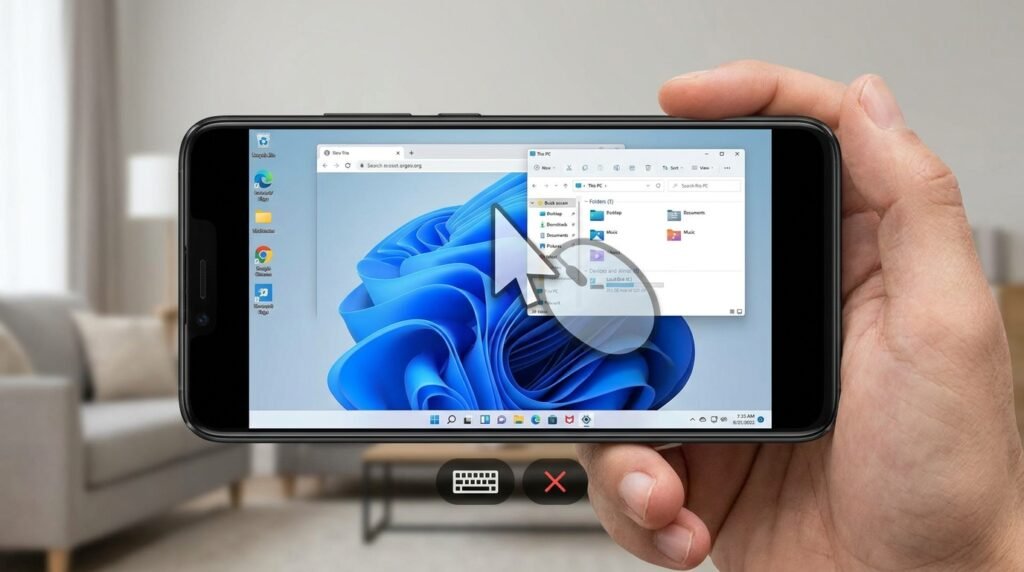
Top 5 Best Remote Desktop Apps for Android to Access PC Anywhere (2026)
Introduction: Transforming Your Android Smartphone into a Mobile Workstation
Finding the right remote desktop pc for your Android device can make a real difference in your daily productivity and experience. In this guide, we have reviewed the top options available in 2026 based on the manufacturers’ published specifications, so you can make an informed decision without spending hours researching.
Modern mobile processors found in today’s Android devices possess astonishing computational power. However, desktop operating systems like Windows, macOS, and Linux remain irreplaceable for intensive workflows—including CAD rendering, video editing, software development in complex IDEs, enterprise database management, and high-end PC gaming. Remote desktop software bridges this gap by streaming your home or office PC interface directly to your Android tablet or smartphone in real-time.
To deliver a seamless desktop experience on a mobile screen, a remote desktop application must excel across five critical technical metrics: latency management, frame rate stability, responsive touch-to-mouse emulation, high-fidelity audio passthrough, and solid end-to-end security encryption. In this guide, we review the 5 best remote desktop applications for Android in 2026 based on their published specifications, detail Wake-on-LAN configuration routines, and compare platform capabilities side-by-side.
Top 5 Remote Desktop Apps for Android Reviewed
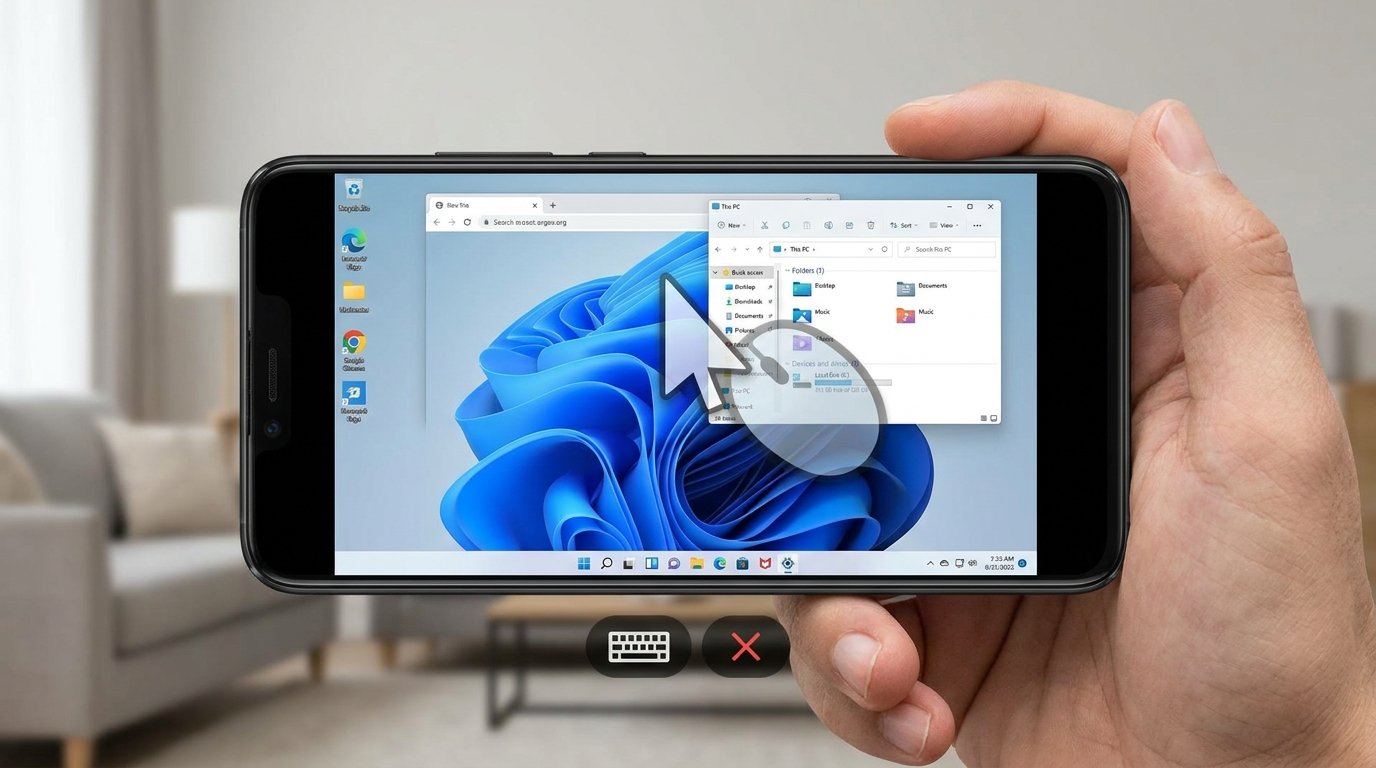
1. Chrome Remote Desktop (Best Overall Free Solution)
Google’s Chrome Remote Desktop remains the most accessible, reliable, and lightweight remote access solution for personal use across Android, Windows, Mac, and Linux environments.
Technical Architecture & Features: Built directly upon WebRTC standards, Chrome Remote Desktop uses Google’s secure NAT-traversal infrastructure to establish direct peer-to-peer (P2P) connections between your PC host and Android client. It requires no complex port forwarding or IP routing configuration.
Key Strengths:
- 100% Free with Zero Licensing Fees: No session time limits, commercial prompts, or premium paywalls.
- Seamless Google Account Integration: Host PCs associated with your Google account appear instantly in the Android app drawer.
- Multi-Monitor Support: Switch between multiple physical PC displays with a single tap on the Android navigation bar.
- Low System Overhead: Minimal CPU and RAM utilization on the host computer.
Drawbacks: Lacks advanced remote administrative tools, such as remote file system browsers or custom macro hotkey toolbars.
2. AnyDesk (Best for Low Bandwidth & Remote Technical Support)
Engineered by former TeamViewer developers, AnyDesk is globally recognized for its proprietary DeskRT codec, designed specifically for low-latency graphical transmission over unstable or slow mobile network connections.
Technical Architecture & Features: AnyDesk’s DeskRT video compression codec compresses computer screen images by identifying changed pixel regions between consecutive frames, reducing mobile data consumption dramatically without sacrificing visual text clarity.
Key Strengths:
- Exceptional Bandwidth Efficiency: Operates smoothly over limited 3G/4G cellular connections; according to the manufacturer’s published specifications, data rates as low as 100 kbps are supported.
- Unattended Access & Custom Aliases: Assign a persistent password and custom address alias (e.g.,
yourname@ad) for instantaneous remote access without host acceptance. - Comprehensive Permission Controls: Fine-tune session rights on the host side, restricting clipboard sharing, audio transmission, or mouse input on a per-session basis.
Drawbacks: Free personal use tier includes session prompt timers if commercial pattern algorithms trigger.
3. TeamViewer (Best for Enterprise & Managed IT Infrastructures)
TeamViewer is the industry-standard remote support suite utilized by enterprise IT departments worldwide. It offers an exhaustive array of administration, diagnostics, and management features.
Technical Architecture & Features: TeamViewer connects client and host endpoints via encrypted routing nodes operating over 256-bit AES session channels. The Android client provides full access to distant file systems, system process managers, and device terminal commands.
Key Strengths:
- Bidirectional File Transfer Manager: Smoothly drag, drop, or copy files between your Android local storage directories and remote PC hard drives.
- Cross-Platform Remote Printing: Print documents stored on your remote PC directly to a local Wi-Fi printer connected to your Android phone.
- Integrated Audio & Video Chat: Facilitates live collaboration and remote troubleshooting sessions with end-users sitting at the host computer.
Drawbacks: Aggressive false-positive commercial use detection algorithms frequently lock out free personal users.
4. Parsec (Best for Low Latency Gaming & High-Frame-Rate Streaming)
Originally designed for cloud gaming and game development collaboration, Parsec is an ultra-high performance remote desktop tool designed for high-frame-rate desktop streaming. Parsec advertises support for up to 120 FPS streams, though actual input latency varies by device and network.
Technical Architecture & Features: Parsec replaces conventional video encoding pipelines with custom low-level H.264 / H.265 (HEVC) hardware accelerated video capture APIs (NVIDIA NVENC, AMD AMF, Intel QuickSync). It handles high-motion video and fast mouse movements without spatial compression artifacting.
Key Strengths:
- High-Frame-Rate Streaming: Supports display refresh rates up to 120 FPS according to the manufacturer’s published specifications, making full PC gaming playable on Android over a strong connection. Actual results vary by device and network.
- Full Gamepad & Controller Passthrough: Connect Xbox, PlayStation DualSense, or Bluetooth gamepads to your Android phone; Parsec maps them natively as XInput virtual controllers on the host PC.
- Immersive Touch Joystick Mapping: On-screen virtual gamepad overlays let you play PC titles without physical peripherals.
Drawbacks: Requires host computer hardware equipped with dedicated GPU hardware video encoders; limited host support on mobile operating systems.
5. RustDesk (Best Open-Source & Self-Hosted Privacy Solution)
For privacy-conscious users, system administrators, and open-source enthusiasts, RustDesk offers a full-featured, zero-trust remote desktop platform that allows complete self-hosting of signaling and relay servers.
Technical Architecture & Features: Written in the Rust programming language for maximum memory safety and speed, RustDesk allows users to bypass third-party cloud infrastructure entirely by hosting their own Docker relay container on a personal VPS or local server.
Key Strengths:
- 100% Open-Source Codebase: Auditable, telemetry-free, and free from licensing costs or hidden fees.
- Self-Hosted Relay Server Architecture: Keeps all screen data stream traffic completely within your private network or self-controlled cloud server.
- End-to-End Encryption (E2EE): Secures session initiation with Ed25519 public-key cryptography and AES-256 stream encryption.
Mouse Emulation vs. Direct Touch Controls
Navigating a desktop interface optimized for mouse and keyboard on a small Android touchscreen requires effective input mapping. Remote desktop applications offer two primary input control modes:
- Trackpad / Mouse Emulation Mode: The Android touchscreen acts as a physical laptop trackpad. Sliding your finger moves a visible desktop cursor, single tapping performs a left-click, two-finger tapping executes a right-click, and two-finger dragging handles scroll wheel movement. This mode provides precise cursor placement on high-resolution 4K displays.
- Direct Touch Mode: Clicking occurs directly beneath where your finger contacts the screen. Tapping an icon opens it instantly, while long-pressing triggers context menus. This mode works best on large Android tablets or when using an active stylus (such as the Samsung S-Pen).
Configuring Wake-on-LAN (WoL) for Anywhere Remote Access
To access your home computer remotely while traveling without leaving your PC powered on continuously, configure Wake-on-LAN (WoL). WoL allows your Android device to broadcast a specially formatted network frame (a “Magic Packet”) that commands your sleeping host computer motherboard to boot up remotely.
Step 1: Enabling WoL in Host PC BIOS/UEFI & OS
- Reboot your host PC and enter the motherboard BIOS/UEFI setup utility (press
DELorF2during boot). - Navigate to Power Management or Advanced Settings and set Wake on LAN (or Power On By PCI-E Device) to Enabled. Save and exit.
- Boot into Windows, open Device Manager, expand Network Adapters, right-click your Ethernet card, and select Properties.
- Under the Power Management tab, check Allow this device to wake the computer and Only allow a magic packet to wake the computer.
- Under the Advanced tab, ensure Shutdown Wake-on-LAN and Wake on Magic Packet are set to Enabled.
Step 2: Router Port Forwarding & Sending Magic Packets from Android
- Log into your home router admin gateway (typically
192.168.1.1). - Create a UDP port forwarding rule forwarding incoming traffic on UDP Port 9 (or Port 7) to your host PC’s internal IP address (or broadcast address
192.168.1.255). - In your Android remote desktop application (such as AnyDesk or TeamViewer) or a dedicated WoL app (like Fing or Wake on LAN), enter your router’s WAN IP address (or Dynamic DNS hostname) and host PC MAC address.
- Tap Wake Up to turn on your PC remotely from anywhere over 5G/LTE before establishing your remote desktop session.
Side-by-Side Application Feature Matrix
| Application | Frame Rate | Primary Use Case | Self-Hosting Support | Cost Tier |
|---|---|---|---|---|
| Chrome Remote Desktop | Varies by device | Casual Personal Remote Access | No (Google WebRTC Cloud) | 100% Free |
| AnyDesk | Varies by device | Low-Bandwidth & Support | Enterprise Only | Freemium / Paid License |
| TeamViewer | Varies by device | Enterprise IT Management | No | Freemium / Subscription |
| Parsec | Varies by device | PC Gaming & Creative Work | No | Free / Pro Features |
| RustDesk | Varies by device | Open-Source Privacy & Self-Host | Yes (100% Full Self-Host) | Free Open-Source |
Note: actual frame rates vary by host hardware and network conditions; figures reflect published specifications rather than lab measurements.
Conclusion
Selecting the optimal remote desktop app for Android depends on your specific operational goals. If you require zero-configuration personal desktop access, Chrome Remote Desktop offers dependable performance for personal use. For severe low-bandwidth mobile environments, AnyDesk reigns supreme. Gamers and creative professionals demanding maximum frame rates and gamepad support should install Parsec, while privacy purists will find RustDesk unbeatable. Paired with Wake-on-LAN routing, your Android device can control your workstation from anywhere on earth.
