
How to Transfer Files Between Android and PC Wirelessly (Fast & Secure)
Introduction to Wireless File Transfer on Android
Transferring high-resolution photos, 4K video footage, and large documents between your Android phone and PC does not require messy USB cables or slow cloud uploads. Tools like Quick Share for Windows, LocalSend, and local FTP network drives deliver fast wireless transfer speeds directly over your home Wi-Fi network.
For over a decade, connecting a smartphone to a desktop PC via a USB cable was the standard method for transferring photos, video recordings, music albums, and work documents. However, physical cables bring frequent inconveniences: faulty USB-C ports, driver incompatibility errors, missing MTP (Media Transfer Protocol) drivers on Windows, physical cable clutter, and slow transfer rates caused by legacy USB 2.0 interface controllers built into many mid-range smartphones.
In 2026, high-speed Wi-Fi 6, Wi-Fi 6E, and Wi-Fi 7 wireless routers are ubiquitous. Wireless transfer protocols have advanced to the point where wireless local peer-to-peer speeds can rival traditional USB cable connections over modern 5GHz/6GHz local networks. Actual transfer speeds vary by device, Wi-Fi hardware, and network conditions. Moving 4K video footage, large photo libraries, or multi-gigabyte ZIP archives between your Android device and Windows PC no longer requires searching for a cable.
However, selecting the right wireless transfer method depends on your specific use case—whether you need quick one-off file shares, continuous automated folder backups, shared clipboard synchronization, or full file explorer integration. In this definitive guide, we explore the top five wireless file transfer solutions for Android and PC, examining setup protocols, security standards, and performance speeds.
Method 1: Quick Share for Windows (Official Google Solution)
Quick Share for Windows (formerly known as Google Nearby Share) is Google’s official, native wireless peer-to-peer file sharing mechanism designed to connect Android smartphones, tablets, Chromebooks, and Windows PCs smoothly.
How Quick Share Works
Quick Share uses Bluetooth Low Energy (BLE) for automatic device discovery and handshaking. Once two devices pair, Quick Share dynamically establishes a direct, encrypted local Wi-Fi Direct connection or peer-to-peer Wi-Fi link between your PC and Android phone. Because files travel over local peer-to-peer Wi-Fi channels, your internet data plan is not touched, and transfer speeds remain fast.
Step-by-Step Setup Guide
- Step 1: Ensure your Windows PC has both Wi-Fi and Bluetooth enabled. Download and install the official Quick Share for Windows app from the Google Android website.
- Step 2: Launch Quick Share on Windows and sign in with your Google Account (signing in allows instant automatic approvals for transfers between your own personal devices).
- Step 3: Set your computer’s visibility preference under Who can share with you to Your devices, Contacts, or Everyone (with a 10-minute temporary timer).
- Step 4: To send a file from Android to PC: Select any photo, document, or video in your Android file manager or gallery, tap the Share button, and tap Quick Share.
- Step 5: Your Windows PC will appear in the nearby devices list. Tap it to send. The file transfers instantly and saves to your PC’s Downloads folder.
- Step 6: To send a file from PC to Android: Simply drag and drop any file directly into the Quick Share desktop window on Windows.
Method 2: LocalSend (Open-Source & Cross-Platform Champion)
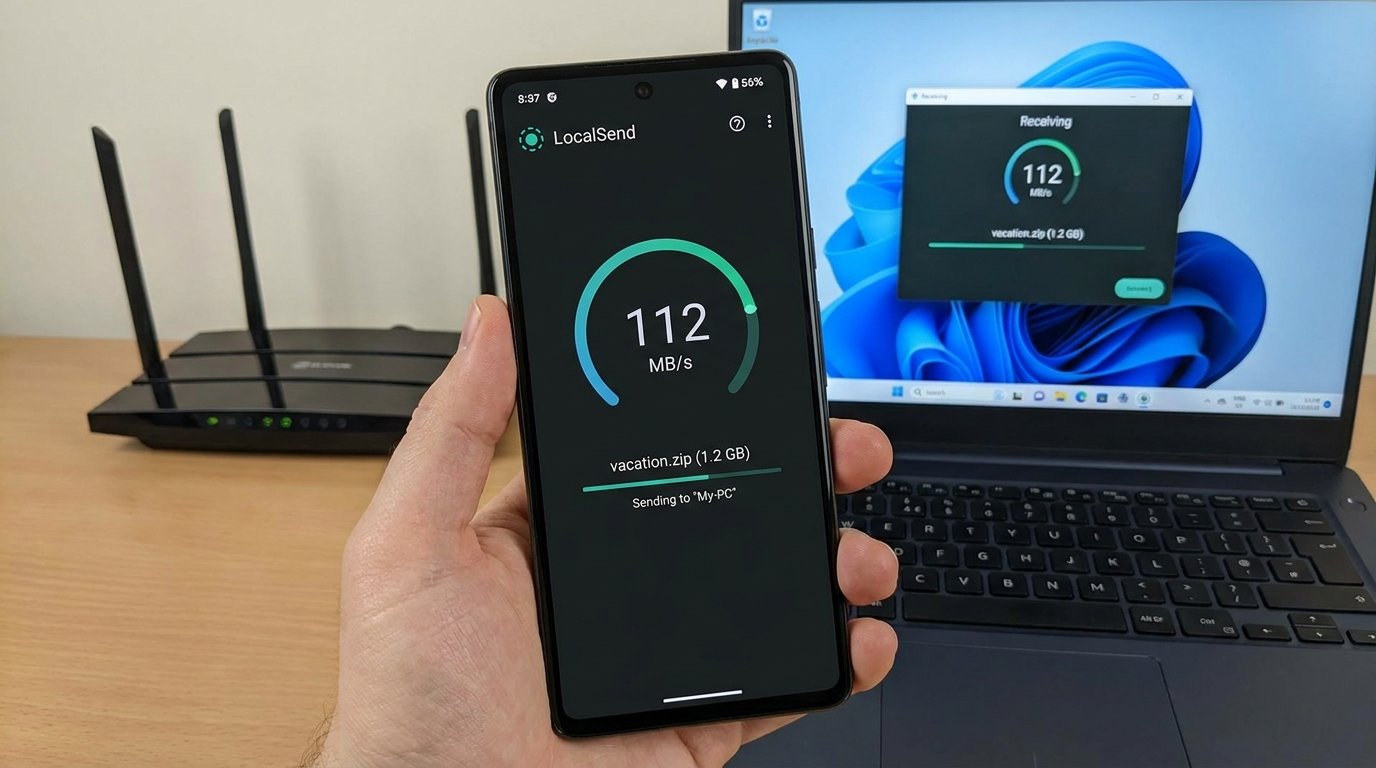
If you prefer an open-source, lightweight utility that requires zero cloud accounts, zero internet access, and zero platform lock-in, LocalSend is arguably the finest wireless file-sharing application available in 2026.
Why LocalSend Is Superior for Privacy
LocalSend is a free, open-source (FOSS) application available for Android, Windows, macOS, Linux, and iOS. It communicates strictly within your local area network (LAN) using a REST API and secure HTTPS protocol. Ephemeral TLS certificates are generated on the fly for every session, ensuring your transfer payload is completely encrypted end-to-end against network sniffing on local routers.
Step-by-Step Usage Guide
- Step 1: Install LocalSend on both your Android phone (via Google Play Store or F-Droid) and your Windows PC (via official installer or winget).
- Step 2: Connect both devices to the same local Wi-Fi network or router.
- Step 3: Open LocalSend on both devices. The app automatically scans your subnet and displays nearby active devices using friendly randomized aliases (e.g., Cool Cucumber or Quick Orange).
- Step 4: On Android, navigate to the Send tab, choose Files, Media, or Text, select your PC target, and tap Send.
- Step 5: Accept the incoming request prompt on your Windows PC (or enable Quick Save in settings to auto-accept transfers from trusted local devices).
Method 3: KDE Connect (Productivity & Ecosystem Synchronization)
For power users seeking far more than simple file sharing, KDE Connect provides deep integration between Android and desktop operating systems (Windows, Linux, macOS).
Complete Feature Set Beyond File Transfer
KDE Connect turns your phone and PC into a unified workstation. In addition to high-speed file transfer, KDE Connect provides:
- Shared Clipboard: Copy text or links on your Android device and paste (
Ctrl + V) instantly on your Windows PC, or vice versa. - Notification Mirroring: Read and reply to Android app notifications directly from your Windows notification center.
- Remote Input & Touchpad: Use your phone’s screen as a wireless trackpad and keyboard controller for your PC during presentations.
- Media Remote Control: Pause, play, skip tracks, and adjust desktop volume from your phone’s lock screen.
- Ring My Phone: Locate your misplaced phone by triggering a loud audible chime from your computer.
Setting Up KDE Connect
- Step 1: Install KDE Connect from the Google Play Store on Android and install KDE Connect for Windows (via Microsoft Store or winget).
- Step 2: Ensure both devices are connected to the same Wi-Fi network.
- Step 3: Open KDE Connect on Android; your PC will appear under Available devices. Tap it and select Request pairing.
- Step 4: Accept the pair notification on your Windows desktop. Grant required permissions (Notification access, Storage access) on Android.
- Step 5: To transfer files, simply use the Send files button in the KDE Connect Android app, or right-click any file in Windows Explorer and choose Send to phone via KDE Connect.
Method 4: Syncthing (Automated Continuous Folder Syncing)
When your workflow demands continuous, background file synchronization—such as automatically mirroring your Android camera roll to a backup folder on your PC desktop without manual intervention—Syncthing is the ultimate solution.
How Syncthing Works
Syncthing is an open-source, continuous file synchronization program. It replaces proprietary cloud sync tools (like Google Drive or OneDrive) by creating an encrypted peer-to-peer mesh connection directly between your devices. Every time you take a photo or save a document on Android, Syncthing detects the filesystem change and updates the designated folder on your PC within seconds.
Setting Up Automated Sync
- Step 1: Install Syncthing-Fork on Android and SyncTrayzor (a user-friendly Windows GUI wrapper for Syncthing) on your PC.
- Step 2: Add your Android device on PC by scanning your phone’s unique Syncthing Device ID QR code.
- Step 3: On Android, tap Add Folder, select your target directory (e.g.,
/Internal Storage/DCIM/Camera), and share it with your paired PC. - Step 4: On Windows, accept the incoming folder request and specify the local hard drive path where you want files to land.
- Step 5: Configure synchronization options: set to Send Only (if you only want files moving from phone to PC) or Send & Receive for bidirectional sync.
Method 5: Setting Up an FTP/SFTP Server via Solid Explorer
If you prefer viewing and managing your Android file system directly inside native Windows File Explorer—using standard drag-and-drop, cut, copy, and paste commands without installing desktop companion software—setting up a local FTP server on your phone is an ideal workflow.
Step-by-Step FTP Setup Guide
- Step 1: Install a powerful file manager like Solid Explorer, CX File Explorer, or MiXplorer on your Android phone.
- Step 2: Open Solid Explorer, open the main side menu, and tap FTP Server.
- Step 3: Tap Configure to set a username and password for security (do not leave server access anonymous on public networks). Set port to default
2121or21. - Step 4: Tap Start. The app will display a server URL, such as
ftp://192.168.1.45:2121. - Step 5: On your Windows PC, press
Win + Eto open File Explorer. Tap the address bar at the top, type the exactftp://address, and press Enter. - Step 6: Enter your configured username and password when prompted. Your entire Android internal storage and SD card will appear as standard folders in Windows Explorer, allowing seamless drag-and-drop transfers over local Wi-Fi!
Speed & Protocol Comparison Table
Compare the technical performance and capability metrics across all five wireless file transfer methods:
| Transfer Method | Speed | Internet Required? | Encryption Level | Desktop App Required? | Best For |
|---|---|---|---|---|---|
| Quick Share (Google) | Varies by device | No (Local Wi-Fi Direct) | E2E TLS / Bluetooth auth | Yes (Quick Share app) | Fast, official one-off file shares |
| LocalSend (FOSS) | Varies by device | No (Pure LAN) | E2E HTTPS / Ephemeral TLS | Yes (LocalSend client) | Privacy, cross-platform (Mac/Linux) |
| KDE Connect | Varies by device | No (Local Network) | TLS 1.3 peer encryption | Yes (KDE Connect client) | Shared clipboard & notification integration |
| Syncthing | Varies by device | No (P2P Local / Relay fallback) | Block Exchange Protocol TLS | Yes (SyncTrayzor service) | Automated continuous folder sync |
| FTP via Solid Explorer | Varies by device | No (Local LAN) | Plain FTP or SFTP option | No (Native Windows Explorer) | Full Android file system management |
Note: actual transfer speeds vary by device, Wi-Fi hardware, and network conditions; figures reflect published specifications rather than lab measurements.
Troubleshooting Common Wireless Transfer Issues
If you encounter slow transfer speeds or connection failures, run through these diagnostic steps:
- Check Router AP Isolation: Many home routers and public Wi-Fi networks enable Access Point Isolation (or Guest Network Isolation), which prevents devices on the same Wi-Fi network from seeing or communicating with each other. Disable AP Isolation in your router settings.
- Switch to 5GHz or 6GHz Wi-Fi: Legacy 2.4GHz Wi-Fi suffers from intense frequency congestion and capping speeds around 5–10 MB/s. Ensure both phone and PC are connected to your router’s 5GHz or 6GHz Wi-Fi band.
- Configure Windows Defender Firewall: If LocalSend or KDE Connect fails to detect your PC, open Windows Settings > Firewall & network protection > Allow an app through firewall and check both Private and Public boxes for your transfer utility.
Conclusion & Recommended Workflow
Wireless file transfer between Android and PC has matured into a seamless, reliable experience in 2026. You no longer need to compromise between convenience and security:
- Use Quick Share for rapid, spontaneous transfers of photos and videos between your Android phone and Windows PC.
- Use LocalSend if you work across multiple platforms (iOS, Mac, Linux) and value FOSS privacy.
- Use KDE Connect if you want your PC and Android device to share clipboards, SMS alerts, and remote touch controls.
- Use Syncthing for set-and-forget background backups of your phone’s camera roll to desktop storage.
Adopting these wireless workflows will save time, streamline desktop productivity, and keep your physical charging ports free from unnecessary wear and tear.
