
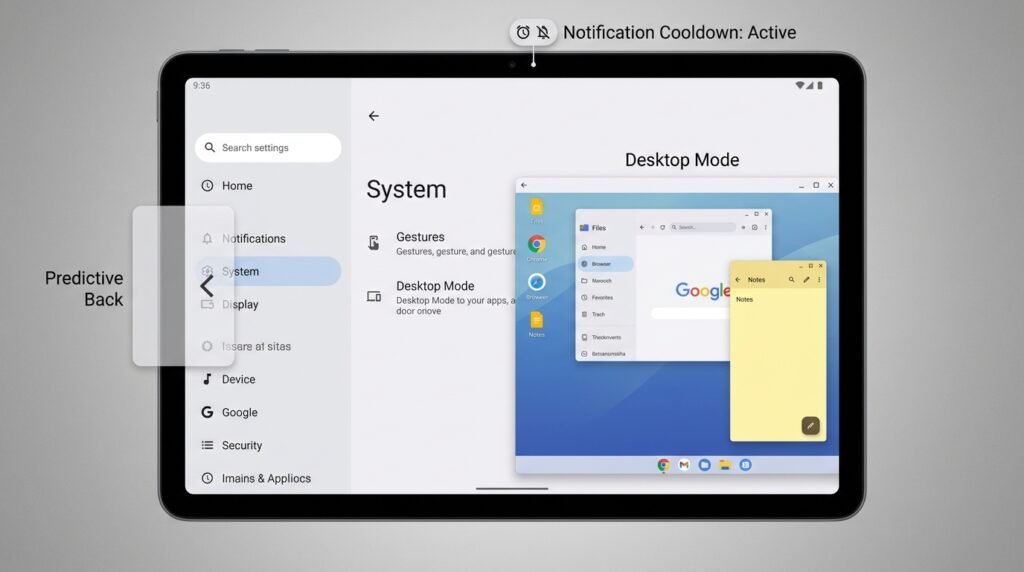
Android 16 Hidden Features and System Settings Every User Should Know (2026 Guide)
Unlocking the Hidden Power of Android 16
With each major release, the Android operating system introduces clever productivity enhancements, enhanced privacy controls, and refined multitasking mechanics that are not always obvious at first glance. Here is our curated breakdown of the most useful Android 16 features and system settings worth enabling right now.
Google’s release of Android 16 represents one of the most substantial architectural shifts in the mobile operating system’s decade-long history. While front-facing changes like refreshed Material You dynamic thematic icons and subtle lock screen clock customizations capture immediate user attention, the true power of Android 16 resides deeper within the operating system. Hidden behind system flags, revamped Developer Options menus, and underlying administrative sub-menus lie powerful tools capable of dramatically transforming device performance, personal privacy safeguards, desktop productivity, and battery longevity.
Whether you are operating a flagship smartphone powered by modern multi-core silicon or managing a mid-range device seeking to maximize system response, navigating Android 16’s concealed capabilities provides unprecedented control over your digital environment. In this comprehensive technical guide, we uncover the critical hidden settings, secret toggles, and under-the-hood enhancements every power user needs to configure in 2026.
1. Mastering Predictive Back Animations: Smooth Navigation & Input Protection
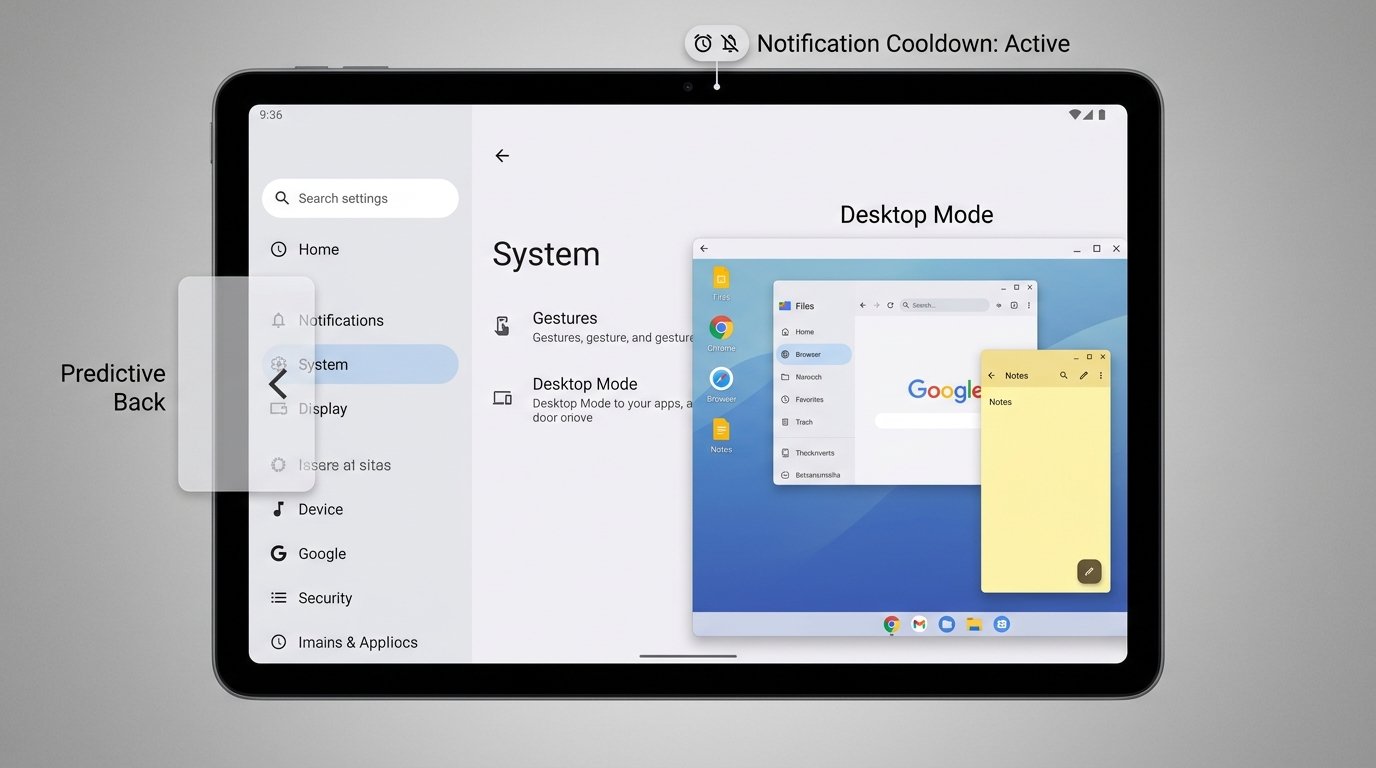
One of Android’s long-standing UI frustrations has been the unpredictable nature of the system back gesture. In previous versions, swiping back from an app edge might take you to the previous screen inside the application, or it might abruptly close the app entirely, causing lost form data or interrupted playback. Android 16 solves this through fully integrated, system-level Predictive Back Animations.
When configured correctly, swiping inwards from the display boundary scales down your current view to reveal a live preview layer of the destination screen—whether it is the home display, an underlying activity layer, or a parent folder—before you commit to completing the physical gesture. If you realize the action will prematurely exit your active workflow, simply slide your thumb back to the edge to cancel the back operation smoothly.
How to Enable Predictive Back Gestures:
- Open system Settings and navigate to System > Developer options.
- Scroll down to the Apps or Drawing category block.
- Locate the switch labeled Predictive back animations and toggle it to On.
- Restart your device to force system UI frameworks to inject back-stack previews across all compatible installed software.
Beyond visual elegance, Android 16 introduces touch gesture cancellation algorithms. When an application detects an active predictive back pull, it automatically serializes state caches, ensuring that unsaved text inputs in messaging clients or browser forms remain completely protected against accidental dismissal.
2. Advanced Desktop Mode Enhancements: Transforming Your Phone into a Workstation
While external display mirror output has existed in rudimentary form for years, Android 16 elevates multi-screen productivity through a drastically redesigned, native Desktop Mode interface. Operating similarly to full-fledged desktop environments like Samsung DeX, Windows, or macOS, Android 16’s desktop engine enables free-form window resizing, dynamic snap grids, persistent taskbar pin management, and external peripheral mapping.
When you plug your USB-C display connector into a hardware monitor or docking station, Android 16 automatically initiates a specialized window manager process. However, to access free-floating app layouts on your device’s secondary screen output, you must unlock hidden desktop toggles inside system submenus.
Step-by-Step Desktop Mode Unlock Setup:
- Navigate to Settings > System > Developer options.
- Scroll down to the hardware-accelerated rendering section and locate Enable freeform windows and toggle it On.
- Enable the flag labeled Force desktop mode to allow secondary displays to host non-phone layouts.
- Turn on Enable multi-window on non-resizable apps to prevent older application packages from throwing compatibility errors when launched in windowed mode.
Android 16 also adds independent scaling controls for dual displays. You can adjust taskbar positioning, configure mouse acceleration curves, assign system hotkeys (such as Alt + Tab and Super + D), and maintain distinct sound output channels—routing media audio to external monitors while directing voice calls to your connected Bluetooth headset.
3. Privacy Sandbox 2.0 & SDK Runtime Isolation
Privacy management in Android 16 takes a major leap forward with the global implementation of Privacy Sandbox 2.0. Traditionally, third-party mobile applications embedded advertising software development kits (SDKs) directly inside their primary execution code. This granted ad networks access to shared device identifiers, background memory space, and peripheral data channels without explicit user authorization.
Android 16 introduces SDK Runtime Isolation. Advertising libraries and analytics code now execute in a separate, isolated runtime environment isolated from the host app’s core code block. This architecture prevents covert cross-app tracking and prevents rogue tracking code from silently harvesting location records, media storage, or device clipboard data.
Configuring Privacy Sandbox Telemetry & Opt-Out Controls:
- Navigate to Settings > Security & Privacy > Privacy > Ad Privacy.
- Select Ad Topics and review the auto-generated interest buckets compiled locally on your device. Toggle off topics you wish to withhold from ad networks.
- Tap App-measured ads to disable telemetry tracking cross-reference checks between distinct software packages.
- Toggle Fledge API Sandbox runtime isolation to Maximum Enforced Security to isolate persistent tracking attempts completely.
4. Smart Notification Cooldown & Adaptive Alerting
Notification overload is a pervasive modern smartphone problem, particularly during active group chats or multi-channel social alerts. Android 16 solves notification fatigue with an intelligent Notification Cooldown engine that evaluates incoming message frequency in real time.
When an individual application generates a rapid succession of alerts within a few seconds, Android 16 automatically dampens the audio volume and reduces haptic vibration intensity for subsequent notifications from that source, while preserving full alert volume for high-priority single notifications from selected contacts or critical security apps.
Customizing Cooldown Intensity:
- Go to Settings > Notifications > Notification Cooldown.
- Choose between three distinct operation thresholds: Apply to all notifications, Apply to conversations only, or Off.
- Enable Vibration dampening during active display state to eliminate phone movement when you are actively looking at the screen.
5. Satellite Connectivity & Direct-to-Cell SOS Settings
Building upon initial emergency satellite features, Android 16 introduces fully normalized, system-level support for Direct-to-Cell Satellite Communications. Partnering with global mobile satellite networks, compatible hardware running Android 16 can send non-emergency text communications and emergency SOS transmissions when operating outside terrestrial cellular towers and Wi-Fi networks.
Hidden deeper within mobile network settings are specialized diagnostic tools and manual alignment routines that assist users in connecting to passing low-Earth orbit (LEO) satellite constellations.
Configuring Satellite Messaging & Emergency Parameters:
- Open Settings > Network & Internet > SIMs / Mobile Networks.
- Select your primary carrier entry and locate the sub-menu labeled Satellite Connection Settings.
- Enable Automatic Emergency Satellite Handover to authorize your device to establish satellite links automatically when cellular connectivity stays degraded for longer than two minutes.
- Access the Satellite Alignment Assistant to practice calibrating your device’s internal phased-array antennas using built-in interactive orbital guides.
6. Battery Health Telemetry & Cycle Count Diagnostics
Monitoring battery degradation has historically required third-party utility applications with variable accuracy. Android 16 integrates native, enterprise-grade Battery Health Telemetry directly into the core operating system, surfacing real-time data regarding actual battery capacity, cycle history, and charging health.
The system constantly tracks chemical capacity wear, maximum voltage intake rates, internal resistance metrics, and total charge cycles completed over the hardware lifetime.
Accessing Advanced Battery Diagnostics:
- Open Settings > Battery > Battery Health.
- View your precise Maximum Capacity Percentage relative to the original factory rating.
- Review your cumulative Cycle Count metric (representing full 0% to 100% discharge cycles).
- Toggle on Charging Optimization (80% Limit) to prevent continuous trickle-charging overnight, drastically extending total lithium-ion cell longevity over multi-year ownership.
7. Power-User Developer Options Tweaks
In addition to core system toggles, Android 16’s Developer Options menu contains several hidden adjustments that boost user interface responsiveness, customize audio pipelines, and improve application multitasking behavior:
- Quick Settings Developer Tiles: Enable custom diagnostic tiles in your notification shade, including instant toggles for Sensors Off, GPU Profiling, and Wireless ADB Debugging.
- Bluetooth LE Audio Broadcast Routing: Broadcast your audio stream to an unlimited number of nearby Auracast-compatible Bluetooth headphones or speakers simultaneously without individual device pairing.
- Per-App Dark Theme & Language Overrides: Force legacy applications that lack internal dark mode themes to render modern dark backgrounds natively using system color inversion engines.
- Background Process Limit Tightening: Limit standard background cached execution loops to 3 or 4 processes to free up RAM on devices running intensive mobile workloads.
Android System Version Feature Matrix
The comparative matrix below details the structural architectural advancements introduced between Android 15 and Android 16:
| Feature Capability | Android 15 Implementation | Android 16 System Upgrade | Power User Benefit |
|---|---|---|---|
| Predictive Back | Opt-in developer preview in limited screens | System-wide full activity animation rendering | Prevents accidental application exits & data loss |
| Desktop Mode | Basic window mirroring without taskbar controls | Full taskbar, window snapping, & multi-display output | Turns phone into PC workstation replacement |
| Privacy Isolation | Permission prompts & Privacy Dashboard logs | Privacy Sandbox 2.0 & SDK Runtime Isolation | Blocks cross-app tracking at hardware level |
| Battery Diagnostics | Estimated battery usage percentage graphs | Native cycle counts & chemical capacity tracking | Precise battery health monitoring without 3rd party apps |
| Satellite Messaging | Emergency SOS messaging via carrier partners | Direct-to-cell two-way data & text routing | Off-grid communications anywhere without cellular towers |
Frequently Asked Questions (FAQ)
Does enabling Developer Options reduce my device security?
Simply turning on Developer Options does not inherently weaken system security. However, changing specific flags like OEM Unlocking or authorizing unverified Wireless Debugging connections from untrusted networks can introduce security vectors. Stick strictly to the UI rendering and predictive gesture settings highlighted in this guide for maximum safety.
Will Predictive Back Animations work on older third-party applications?
Yes. In Android 16, Google updated the window management framework to synthesize predictive back transition surfaces automatically, even for legacy applications built on older API targets. However, apps explicitly updating to Android 16 SDK targets deliver the smoothest animations.
How does the 80% Battery Charging Limit improve cell lifespan?
Lithium-ion batteries experience exponential stress, heat generation, and voltage degradation when pushed past 80% state of charge during rapid charging cycles. Hard-stopping daily automatic charges at 80% reduces ion polarization stress and significantly slows capacity loss over hundreds of charge cycles.
Conclusion
Android 16 is far more than an incremental visual polish release. By surfacing advanced system frameworks—ranging from predictive gesture cancellation and windowed desktop environments to isolated privacy runtimes and satellite communications—Google has handed complete power back to end users. Experimenting with these hidden system toggles allows you to tailor your Android experience specifically to your performance, privacy, and battery demands in 2026.
Written and reviewed by APKMales’ technical staff. This guide was compiled from publicly available documentation and reviewed by the APKMales editorial team, in line with our Editorial Policy and Privacy Directives.
