
Top 5 Best File Manager Apps for Android: Advanced Storage Control
The Evolution of File Management on Modern Android
The Android operating system has always stood apart from competing mobile platforms thanks to its open file system architecture. Unlike restricted sandbox operating systems, Android empowers users to organize folders, manage downloads, transfer documents over local networks, extract compressed archives, and interact directly with internal and external storage partitions. However, as Google introduced Scoped Storage and tightened the Storage Access Framework (SAF) in Android 14, 15, and 16 to enhance security, stock file management utilities have become increasingly limited.
To unlock true storage control, power users rely on advanced third-party file manager applications equipped with MANAGE_EXTERNAL_STORAGE privileges. A top-tier Android file manager must do far more than copy and paste photos; it must handle dual-pane side-by-side operations, mount remote network protocol storage (SMB 3.0, FTP, SFTP, WebDAV), integrate cloud storage providers, support strong archive encryption (7z, ZIP, RAR), and provide root partition access for system modifications. In this definitive 2026 review, we analyze the 5 best file manager apps for Android that deliver ultimate storage control.
1. Solid Explorer: The Gold Standard for Power Users
Solid Explorer is widely regarded as the premier file manager on the Android platform. It combines a visually stunning Material You user interface with exceptional dual-pane functionality and enterprise-grade security protocols.
Key Features & Power-User Tools:
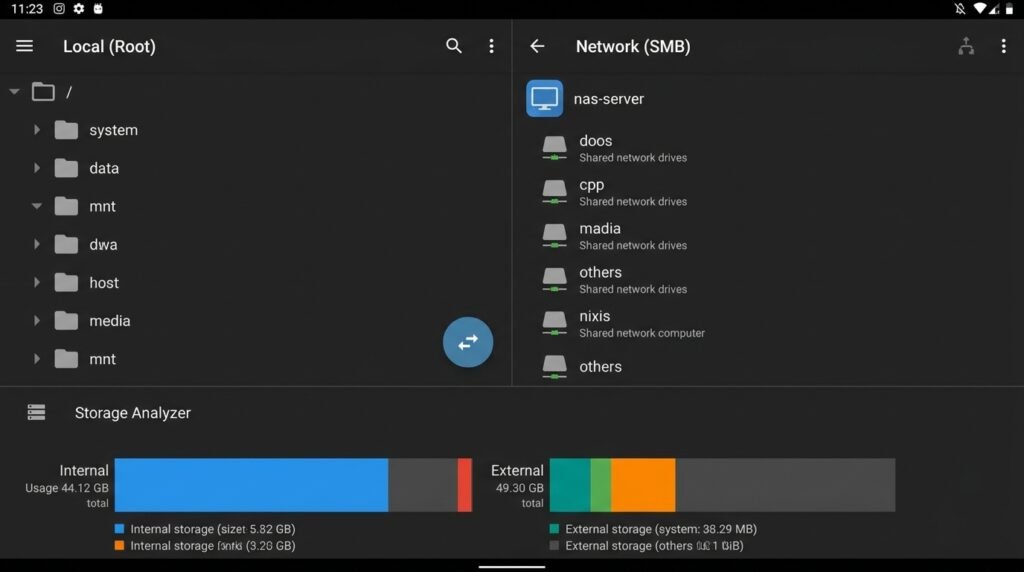
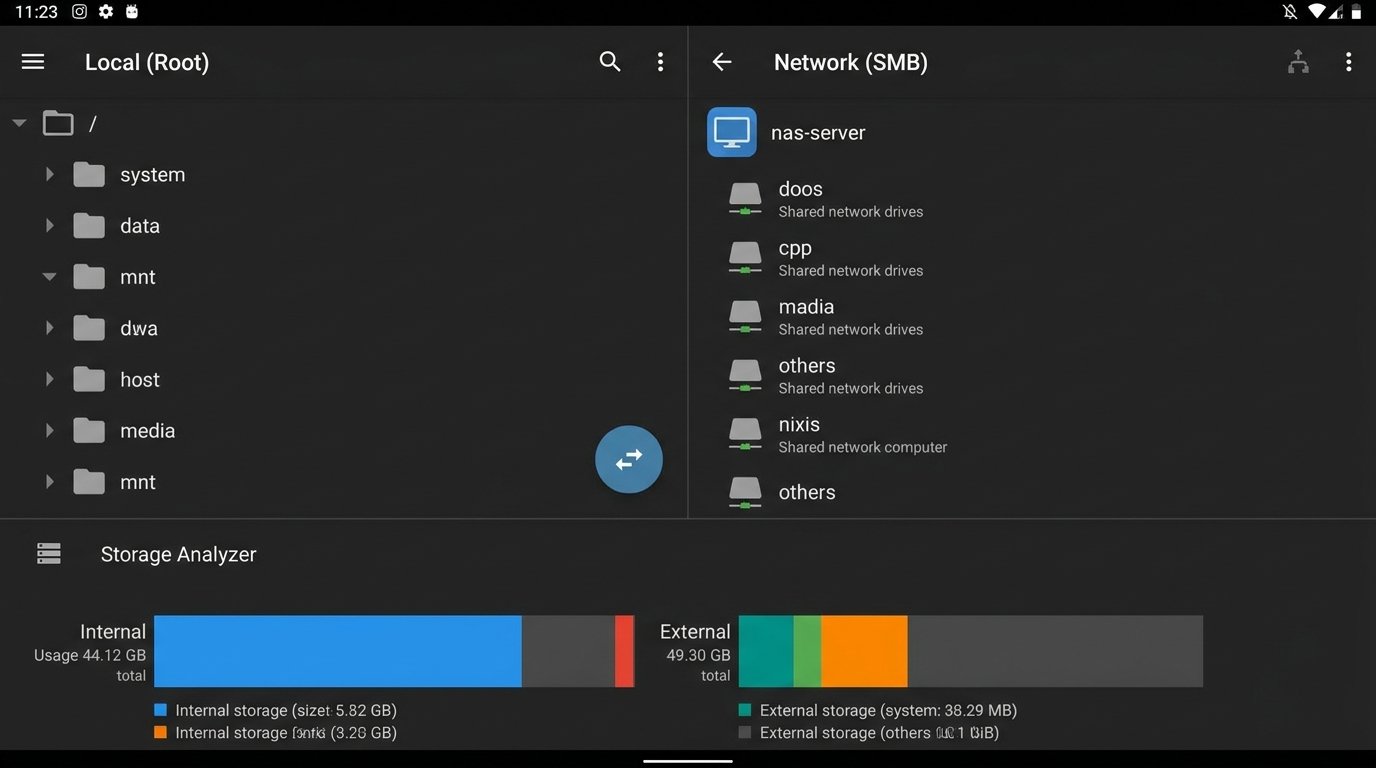
- Dual-Pane Side-by-Side Interface: Rotating your smartphone into landscape orientation (or operating on a tablet) splits Solid Explorer into two independent browsing panels. You can drag and drop files, folders, and archives smoothly between local directories, SD cards, and connected cloud services without navigating back and forth.
- Cloud and Remote Network Mounting: Natively connects to major cloud platforms—including Google Drive, OneDrive, Dropbox, Box, Mega, and pCloud. It also supports network protocol mounting for local NAS drives via SMB (v1, v2, v3), FTP, SFTP, and WebDAV.
- AES-256 File Encryption: Protect confidential documents by encrypting individual files or entire folders with bank-grade AES-256 encryption, secured behind password protection or biometric fingerprint authentication.
- Root Explorer & Archive Support: Includes complete root access capabilities for rooted devices, along with full support for reading and creating ZIP, 7z, TAR, and RAR archives.
Pros & Cons:
- Pros: Elegant dual-pane workflow, flawless cloud/network integration, built-in media viewer, strong AES-256 security features.
- Cons: 14-day free trial, after which a minor one-time license purchase is required.
2. MiXplorer / MiXplorer Silver: Unmatched Customization & Swiss-Army Utility
Originally developed on the XDA Developers forums, MiXplorer (and its Google Play counterpart MiXplorer Silver) is a power user’s dream software package. Highly modular and lightweight, it packs an astonishing array of utilities into an ad-free environment.
Key Features & Advanced Functionality:
- Tabbed & Dual-Pane Browsing: Supports unlimited open tabs alongside side-by-side dual-pane layouts. You can copy, move, and compare files across dozens of open directories simultaneously.
- Built-In Media & Code Editors: Includes a full-featured code editor with syntax highlighting, an advanced image viewer, an MP3/FLAC audio player, and a text editor capable of handling large log files without lag.
- Integrated Local Server Hosting: Turn your Android phone into an instant local network server. MiXplorer can host FTP, HTTP, WebDAV, and SMB servers directly from your device, allowing laptop computers to access your phone storage wirelessly without extra software.
- Comprehensive Archive Compression: Supports unpacking and packing over 30 archive formats—including ZIP, 7z, TAR, ISO, CAB, and RAR.
Pros & Cons:
- Pros: Exceptional performance speed, completely ad-free, built-in code/text editors, integrated FTP/HTTP server hosting.
- Cons: Advanced settings menu has a steep learning curve for non-technical users.
3. Files by Google: Fast, Simple, & Intelligent Storage Cleanup
For users who prefer a streamlined, clutter-free file management experience backed by intelligent storage recommendations, Files by Google is the ideal choice. Pre-installed on many Android devices, it focuses on daily organization and storage liberation.
Key Features & Ecosystem Tools:
- AI-Powered Storage Cleanup: Identifies duplicate photos, large leftover video files, unused app installation packages (APKs), and temporary system cache files, allowing you to free up gigabytes of storage space with a single tap.
- Encrypted Safe Folder: Secure sensitive personal documents, financial receipts, or private photos inside a PIN-protected or pattern-locked encrypted folder that hides contents from other apps.
- Offline Quick Share Integration: Uses Google’s native Quick Share (formerly Nearby Share) protocol to transfer heavy files, movies, and documents to nearby Android phones, tablets, or Windows PCs wirelessly without cellular data at speeds up to 480 Mbps.
Pros & Cons:
- Pros: Clean zero-ad UI, excellent automatic storage cleaner, native Quick Share integration, completely free.
- Cons: Lacks dual-pane layouts, network storage mounting (SMB/FTP), root access, and advanced 7z archive creation.
4. Cx File Explorer: Visual Storage Analysis & Network Simplicity
Cx File Explorer strikes a perfect balance between power-user tools and an accessible, modern user interface. It is particularly renowned for its visual storage analysis tools and effortless local network setup.
Key Features & Network Integration:
- Visual Storage Analyzer: Renders a clear graphical tree map breakdown of your device’s internal storage and SD card partitions, instantly highlighting which media folders, apps, or game cache files consume the most space.
- Dedicated Network Tab: Connecting to home Wi-Fi NAS drives or desktop PC shared folders over SMB or SFTP takes seconds. Cx File Explorer automatically scans your local Wi-Fi subnet to discover active network shares.
- App Management Suite: Features an integrated app manager that allows users to back up installed app APK files, uninstall unwanted bloatware, and inspect package memory footprint.
Pros & Cons:
- Pros: Completely free with zero advertisements, outstanding visual storage analyzer graph, easy SMB/FTP network setup.
- Cons: Lacks dual-pane view on small screens and advanced root partition tweaking features.
5. Total Commander: Classic Desktop-Class Power Tool
Brought to Android by the developers of the legendary Windows desktop utility, Total Commander brings old-school, uncompromising file management efficiency to mobile screens.
Key Features & Plugin Architecture:
- Classic Dual-Panel Layout: Features persistent side-by-side file panels designed for rapid file copying, directory comparisons, and mass file operations.
- Extensive Plugin Ecosystem: Expand functionality by installing official lightweight plugins for WebDAV, FTP/SFTP, LAN (SMB), Google Drive, and cloud storage providers.
- Root Directory Modification & Batch Renaming: Provides unrestricted root access to modified system folders on rooted devices, alongside an industry-leading multi-file batch renaming tool that supports regular expressions.
Pros & Cons:
- Pros: Zero bloatware, lightweight memory footprint, powerful multi-file batch renaming engine, 100% free with no ads.
- Cons: Retro design aesthetic may feel dated compared to modern Material You interfaces.
Feature Comparison Matrix: Best Android File Managers
| File Manager App | Dual-Pane Layout | Cloud & Network Mounting | Root Explorer | Archive Formats | Price Model |
|---|---|---|---|---|---|
| Solid Explorer | Yes (Drag & Drop) | SMB 1/2/3, FTP, SFTP, Drive, Dropbox, OneDrive | Yes | ZIP, 7z, TAR, RAR | Free Trial / Low One-Time Unlock |
| MiXplorer | Yes (Tabs + Dual Pane) | SMB, FTP, SFTP, WebDAV, 19+ Cloud Providers | Yes | 30+ Formats (ZIP, 7z, ISO, TAR) | Free (XDA) / Paid Play Store App |
| Files by Google | No | No (Local Storage Only) | No | ZIP Extraction Only | 100% Free (No Ads) |
| Cx File Explorer | Single Window / Tabbed | SMB, FTP, SFTP, Drive, OneDrive, Dropbox | Basic Root | ZIP, 7z Extraction | 100% Free (No Ads) |
| Total Commander | Yes (Classic Side-by-Side) | SMB, FTP, WebDAV, Cloud (via Plugins) | Full Root Access | ZIP, 7z, TAR, RAR | 100% Free (No Ads) |
Deep-Dive: Harnessing Network Storage Mounting (SMB & FTP)
One of the most powerful capabilities of apps like Solid Explorer, MiXplorer, and Cx File Explorer is mounting local network storage protocols. Instead of plugging USB cables into your phone to transfer media files, you can link your Android device directly to home computers or Network Attached Storage (NAS) units over Wi-Fi.
How to Set Up an SMB (Server Message Block) Connection:
- Ensure your Android phone and desktop PC/NAS are connected to the same local Wi-Fi router network.
- On your Windows PC, right-click the folder you want to share, select Properties > Sharing > Advanced Sharing, and enable folder sharing.
- Open your Android file manager app (e.g., Solid Explorer), tap the + (Add) button, and select New Network Connection > SMB.
- The app will scan your network and display your PC’s IP address. Tap it, enter your PC username and password, and tap Connect.
- Your PC’s hard drives will now mount inside your Android file manager as an active storage partition, allowing instant wireless streaming and file editing.
Frequently Asked Questions (FAQ)
Why can’t I edit files inside the Android/data folder on Android 14 or 15?
Starting with Android 11 and further restricted in Android 14/15/16, Google blocked standard file apps from accessing the system Android/data and Android/obb sub-directories to prevent malware tampering. To access these folders, power-user apps like Solid Explorer or MiXplorer utilize specialized Shizuku framework hooks or Storage Access Framework document picker prompts to request folder-specific access authorizations.
Is it safe to grant file managers “All Files Access” permissions?
Granting MANAGE_EXTERNAL_STORAGE gives an application full read and write access to all non-system files stored on your phone. Stick strictly to verified, reputable file managers—such as the five reviewed in this guide—that maintain clean privacy records and zero suspicious background telemetry.
What is the difference between ZIP and 7z archive formats?
ZIP is the universal standard format recognized natively across all operating systems. 7z (7-Zip) is a modern open-source archive format that delivers significantly higher compression ratios (often reducing file size by 15% to 30% more than ZIP) and supports stronger AES-256 encryption engines.
Conclusion
Selecting the ultimate Android file manager depends on your technical needs. For an unbeatable combination of dual-pane elegance, cloud connectivity, and file encryption, Solid Explorer remains the premier overall choice. If you seek maximum technical flexibility, internal server hosting, and code editing without paying a cent, MiXplorer and Total Commander stand unmatched. Meanwhile, casual users seeking fast, intelligent storage cleanup will find Files by Google to be the perfect companion.
Written and verified by APKMales’ technical staff. This guide was compiled from publicly available documentation and is published in full compliance with our Editorial Policy and Privacy Directives.
