
How to Manage and Limit Background Data Usage on Android
Introduction to Background Data on Android
Uncontrolled background data usage from social media syncs, auto-updating media apps, and hidden analytics can rapidly devour your monthly cellular data allotment. This guide covers how to enable Android Data Saver, enforce per-app background data restrictions, and set automated billing cycle alert limits.
Modern mobile operating systems rely heavily on silent, continuous background communication. Even when your smartphone sits idle on a desk with its screen turned off, dozens of installed applications are actively polling remote servers. They download push notifications, upload diagnostic telemetry, synchronize cloud databases, fetch location updates, and pre-load social media feeds. While these processes ensure your apps deliver instant updates and fresh information the moment you unlock your device, they come at a substantial cost: accelerated mobile data consumption and increased battery drain.
For users on capped cellular plans, international roaming passes, or limited prepaid data buckets, unmonitored background data can exhaust high-speed monthly allowances within days. Unexpected background syncs from video streaming apps, cloud photo backups, or auto-updating app stores can lead to severe speed throttling or expensive overage charges. Furthermore, constantly keeping mobile radios active in the background consumes precious battery cycles, shortening daily device longevity.
Fortunately, Android provides solid, granular controls designed to put users in total command of their network activity. By combining system-wide Data Saver modes, per-application data restrictions, metered Wi-Fi designations, and optimized sync intervals, you can drastically reduce unnecessary bandwidth consumption without sacrificing essential connectivity. In this guide, we will explore every layer of Android’s background data management ecosystem and show you how to tailor it to your exact needs in 2026.
Understanding How Android Handles Background Data
To effectively control background data, it is important to understand how Android categorizes network traffic and manages app execution states. Android differentiates between two distinct operational states: foreground tasks and background tasks.
When an application is actively displayed on your screen, it operates in the foreground. In this state, network requests are prioritized, and the app consumes bandwidth freely to fulfill your immediate requests—such as streaming a video, loading a web page, or sending a messaging prompt. However, when you swipe an app away or switch to another app, the initial application transitions to the background or a suspended state.
In modern Android versions (Android 12 through Android 16), the operating system utilizes sophisticated frameworks like Doze Mode, App Standby Buckets, JobScheduler, and WorkManager to batch background tasks. Instead of allowing every app to wake up the cellular radio individually, Android groups network requests together to minimize radio awake cycles. However, apps with high-priority push notification permissions, background sync flags, or persistent service permissions can bypass standard sleep cycles to pull data from the internet.
Understanding which apps consume data in the background requires monitoring system metrics. Android tracks mobile data and Wi-Fi usage per application, distinguishing between foreground megabytes and background megabytes. Recognizing this distinction is the first step toward reclaiming control over your mobile data plan.
Method 1: Enabling System-Wide Data Saver Mode
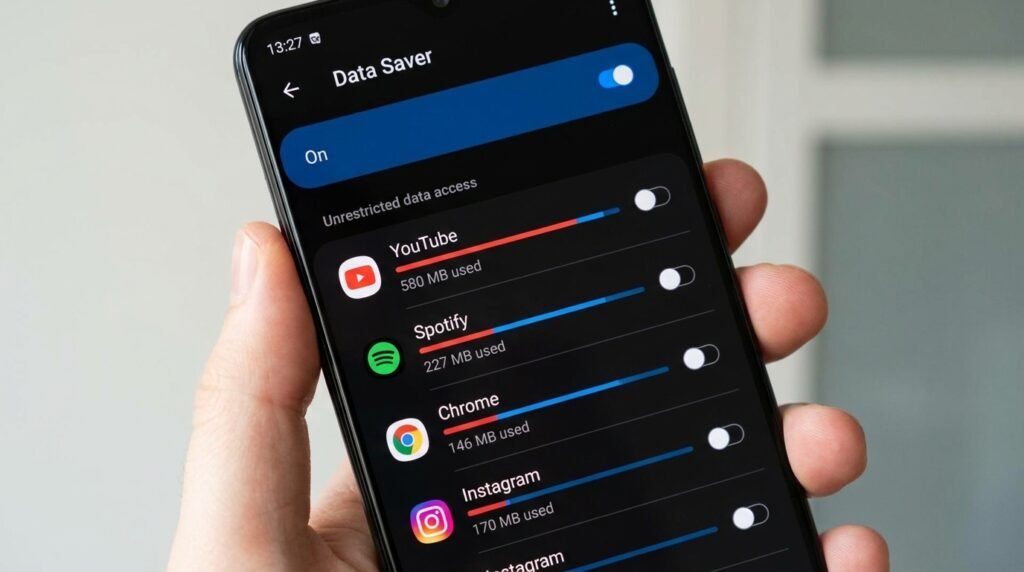
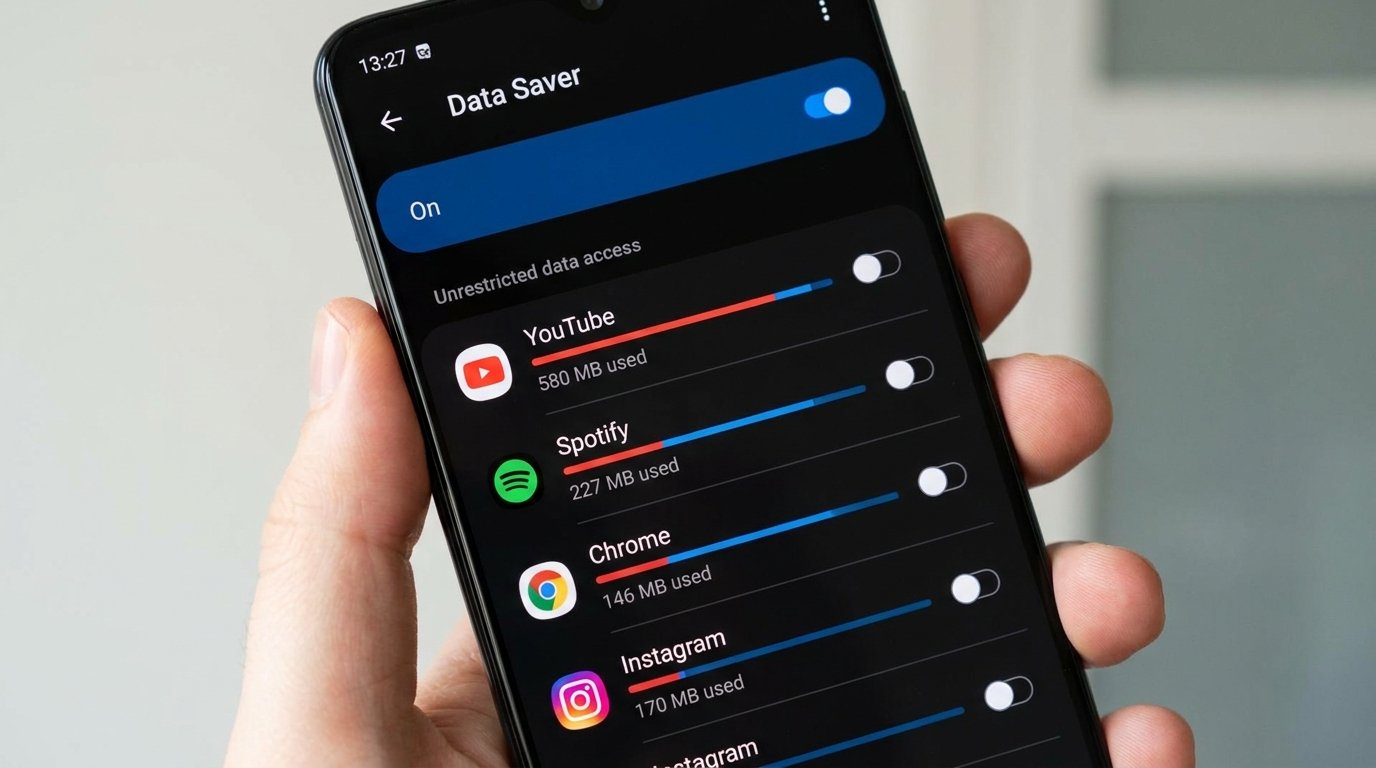
The fastest and most powerful way to curtail background data usage across your entire Android device is by enabling the built-in Data Saver feature. Introduced in native Android and refined in modern OEM software interfaces like Samsung One UI, Xiaomi HyperOS, Google Pixel UI, and OnePlus OxygenOS, Data Saver acts as a global master switch.
When Data Saver is turned on, Android prevents most background apps from sending or receiving data over cellular connections. If you are connected to cellular data, background apps will simply queue their requests until you reconnect to an unmetered Wi-Fi network or open the specific app in the foreground.
Step-by-Step Instructions to Enable Data Saver
- Step 1: Open the Settings app on your Android phone.
- Step 2: Tap on Network & internet (or Connections on Samsung Galaxy devices).
- Step 3: Select Data Saver (or Data usage > Data Saver).
- Step 4: Toggle the switch next to Use Data Saver to the ON position. A small icon resembling a circle with a shield or ‘+’ sign will appear in your top status bar.
Whitelisting Essential Applications
While Data Saver is highly effective, blocking all background data can inadvertently delay critical incoming communications, such as emergency messages on WhatsApp, Signal, or Telegram, or real-time updates from ride-hailing services. To solve this, Android allows you to whitelist specific applications so they can bypass Data Saver restrictions.
- While inside the Data Saver menu, tap on Unrestricted data (or Allowed to use data while Data Saver is on).
- Scroll through your list of installed apps.
- Toggle the switch ON for vital communication tools, emergency services, navigation apps, or work email clients that must maintain instant push connectivity regardless of your data mode.
Method 2: Restricting Background Data for Individual Apps
If you do not want to enable system-wide Data Saver mode because it feels too restrictive, Android allows you to target specific bandwidth-heavy applications individually. Social media platforms, short-form video apps, news aggregators, and cloud storage utilities are notorious for consuming gigabytes of background data without user intervention.
How to Block Background Data per App
- Step 1: Open Settings and navigate to Apps (or Apps & notifications).
- Step 2: Tap See all apps and locate the specific app you suspect of heavy data consumption (e.g., Instagram, TikTok, Facebook, YouTube, Google Photos).
- Step 3: Tap on Mobile data & Wi-Fi (or Data usage).
- Step 4: Toggle off Background data. This prevents the selected app from using mobile data when it is running in the background.
- Step 5: Ensure that Unrestricted data usage is also turned off for that specific application.
Method 3: Managing Metered Wi-Fi Networks
A common misconception among Android users is that connecting to Wi-Fi automatically solves all data usage problems. However, if you are connecting your smartphone to a portable Wi-Fi hotspot hosted by another phone, a cellular pocket router, or a capped home internet connection, background downloads can rapidly consume that hotspot’s data limit.
By default, Android treats all Wi-Fi networks as unmetered unlimited connections. Consequently, when your phone detects a Wi-Fi connection, it triggers heavy background activities: downloading Google Play Store app updates, backing up full-resolution photos to cloud storage, downloading Android system firmware patches, and pre-buffering media content.
How to Designate a Wi-Fi Connection as Metered
To prevent background data hogs when connected to mobile hotspots or capped Wi-Fi routers, you must configure the network as “Metered” in Android settings:
- Step 1: Connect to the specific Wi-Fi network you want to restrict.
- Step 2: Go to Settings > Network & internet > Wi-Fi (or Connections > Wi-Fi).
- Step 3: Tap the gear icon next to the currently connected Wi-Fi network to view Network details.
- Step 4: Tap on Advanced or scroll down to find Metered network (or Network usage).
- Step 5: Change the setting from Detect automatically to Treat as metered.
Once designated as metered, Android will treat this Wi-Fi network as if it were a cellular data connection. Background app updates, automatic system backups, and large media syncs will be immediately paused, protecting your hotspot data allocation.
Method 4: Monitoring Data Usage Cycles & Setting Hard Limits
Effective background data management relies on real-time awareness of your consumption pattern. Android includes built-in telemetry tools that measure data consumption per application and allow you to set strict warnings and automatic mobile data shut-offs.
Setting Billing Cycles and Data Limits
- Step 1: Go to Settings > Network & internet > SIMs (or Data usage).
- Step 2: Select Data warning & limit (or Billing cycle and data warning).
- Step 3: Tap App data usage cycle and set the start date to match your mobile carrier’s monthly billing cycle date (e.g., the 1st or 15th of each month).
- Step 4: Toggle on Set data warning and enter a threshold value (for example, 4 GB on a 5 GB plan). Your phone will pop up a notification when your total data usage reaches this mark.
- Step 5: Toggle on Set data limit and enter your plan’s maximum allowance (for example, 5 GB). When your data usage reaches this limit, Android will automatically turn off cellular data entirely, ensuring you never incur unexpected overage charges.
Method 5: Optimizing In-App Sync and Push Notification Intervals
System settings provide high-level controls, but many major Android applications include internal sync and media controls that can further optimize bandwidth usage without completely disabling background functionality.
1. Email Clients (Gmail, Outlook, Spark)
Email applications continuously query servers for new messages. If you receive dozens of non-urgent emails daily, change your sync settings:
- In Gmail, open Settings > select your account > tap Sync Gmail to adjust sync frequency or select specific folders to sync automatically.
- In Outlook, change folder sync settings from Automatic Push to Every 1 Hour or Manual Fetch.
2. Cloud Photo & File Backups (Google Photos, OneDrive, Dropbox)
Cloud photo services are among the biggest background data consumers because high-resolution photos and 4K videos auto-upload in the background:
- Open Google Photos > tap your profile icon > Photos settings > Backup.
- Under Daily limit for mobile data, select No data or set a low threshold like 10 MB or 30 MB.
- Ensure Back up videos over data is switched OFF so heavy video files upload only over unmetered Wi-Fi.
3. Social Media Apps (X/Twitter, Instagram, Facebook, TikTok)
Social feeds frequently pre-load high-definition videos in the background so they play instantly as you scroll:
- In Instagram, go to Settings > Account > Cellular data use > toggle ON Use less data.
- In TikTok, navigate to Settings and privacy > Data Saver > toggle ON Data Saver.
- In X (Twitter), go to Settings and privacy > Accessibility, display, and languages > Data usage > enable Data Saver and disable Autoplay videos on cellular.
Method 6: Utilizing Local Firewall Apps for Granular Control (No Root Required)
For power users who demand ultimate control over every byte of data entering or leaving their Android device, installing a local firewall application offers unmatched protection. Tools like NetGuard or NoRoot Firewall operate locally on your device by creating an internal Android VPN interface. Unlike remote commercial VPNs, local firewalls do not route your internet traffic through external servers; instead, they inspect all outbound connection attempts locally on your chip.
Key Advantages of Local Firewalls
- Per-Network Access Controls: You can explicitly allow an app to access Wi-Fi while blocking its access to mobile data, or vice versa.
- Complete Internet Blocking: Offline games, utility tools, calculators, and flashlight apps have no legitimate reason to access the internet. Blocking their network permissions prevents them from downloading background ads and sending diagnostic telemetry.
- Traffic Logging: View real-time socket connections to identify hidden servers contacted by background applications.
Comparison Table: Android Background Data Reduction Methods
To help you decide which background data management strategy fits your routine, here is a comparative overview of all available methods:
| Method | Scope | Impact on Push Notifications | Battery Savings | Recommended Use Case |
|---|---|---|---|---|
| System Data Saver | Global (System-wide) | Delayed for non-whitelisted apps | Varies by device | Strict data caps, roaming, low daily allowances |
| Per-App Background Restrict | Specific targeted apps | Delayed only for restricted apps | Varies by device | Stopping specific hogs (Instagram, TikTok, FB) |
| Metered Wi-Fi Designation | Per Wi-Fi Network connection | Minimal | Varies by device | Mobile hotspots, travel Wi-Fi, capped routers |
| In-App Data Saver Settings | Individual app media/sync | None (Notifications active) | Varies by device | Preserving functionality while stopping HD video pre-loads |
| No-Root Firewall (NetGuard) | Granular app/port level | Blocked if network denied | Varies by device | Advanced users, privacy enthusiasts, offline games |
Frequently Asked Questions (FAQ)
1. Will restricting background data delay my WhatsApp or Telegram messages?
If you restrict background data for messaging apps like WhatsApp, Telegram, or Signal without whitelisting them, you will not receive incoming messages or push notifications while connected to cellular data unless the app is currently open on your screen. However, you will receive all accumulated messages as soon as you connect to Wi-Fi or open the app. To prevent message delays, always add your primary messaging tools to the Unrestricted data whitelist.
2. Why does “Android System” or “Google Play Services” consume background data?
Google Play Services and Android System manage core infrastructure tasks, including location services, device synchronization, security checks, push notification delivery (via Firebase Cloud Messaging), and account authentication. While some background data usage by these core components is normal and necessary for device operation, unusual spikes can occur if automated cloud backups or app updates get stuck. Clearing the cache of Google Play Services often resolves unexpected spikes.
3. Does turning off background data improve battery life?
Yes, significantly. Mobile network radios consume considerable power when switching between idle and active data transmission states. By preventing apps from making frequent background network requests, your device keeps its cellular radio in low-power sleep states for longer periods, leading to noticeably improved daily battery life.
4. How do I reset my Android data usage statistics?
Data usage statistics automatically cycle based on the monthly billing start date configured in your Data warning & limit settings. If you wish to reset tracking immediately after changing SIM cards or purchasing an add-on data pass, simply change the billing cycle start date to today’s date in your system settings.
Conclusion & Best Practices Checklist
Managing background data on Android does not require sacrificing the modern smartphone experience. By implementing a proactive data strategy, you can easily enjoy seamless instant messaging and navigation while cutting out wasteful background downloads that drain your wallet and battery.
Follow this simple checklist for optimal Android data management:
- Enable Data Saver mode on limited cellular plans and whitelist essential messaging apps.
- Restrict background data permission for heavy social media and streaming apps.
- Mark mobile Wi-Fi hotspots and travel routers as Metered immediately upon connecting.
- Set a realistic Data Warning and Data Limit matching your mobile carrier contract.
- Configure Google Photos and cloud tools to back up videos exclusively over unmetered Wi-Fi.
Taking ten minutes to configure these settings today will ensure long-term peace of mind, consistent battery life, and complete freedom from unexpected data bill surprises.
Reviewed by the APKMales editorial team. This guide was compiled from publicly available documentation.
