
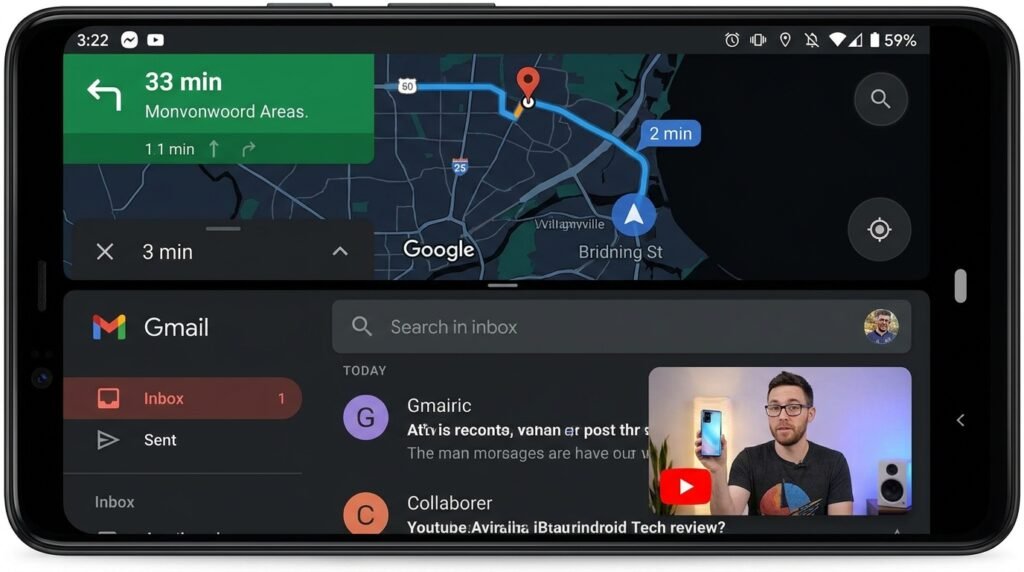
Master Android Multitasking: Split Screen, Picture-in-Picture, and Floating Windows
Unlocking the Power of Modern Android Multitasking
Modern Android devices boast large, high-resolution screens that are built for multi-window productivity. Mastering split-screen app pairing, pop-up floating windows, and Picture-in-Picture (PiP) video controls allows you to take notes while watching lectures or compare documents side-by-side with zero friction.
Modern Android smartphones and tablets possess computing power that rivals desktop computers from just a few years ago. With multi-core processors, high-refresh-rate displays, and up to 16GB or 24GB of physical RAM, mobile devices are no longer limited to running one application at a time. However, many users continue to interact with Android sequentially—opening an app, finishing a task, returning home, and launching another.
By mastering Android’s native multitasking framework, you can fundamentally transform how you work, study, and navigate digital workflows. Whether you need to reference a document while writing an email, watch a video lecture while taking handwritten notes, or track a live navigation route while managing messaging apps, Android offers an extensive suite of multi-window capabilities. In this guide, we examine every layer of Android multitasking—from split-screen gestures and App Pairs to Picture-in-Picture tweaks, freeform floating windows, Samsung Smart Popup tools, and taskbar configurations on foldables and tablets.
1. Mastering Split-Screen Mode: Step-by-Step Gesture Navigation
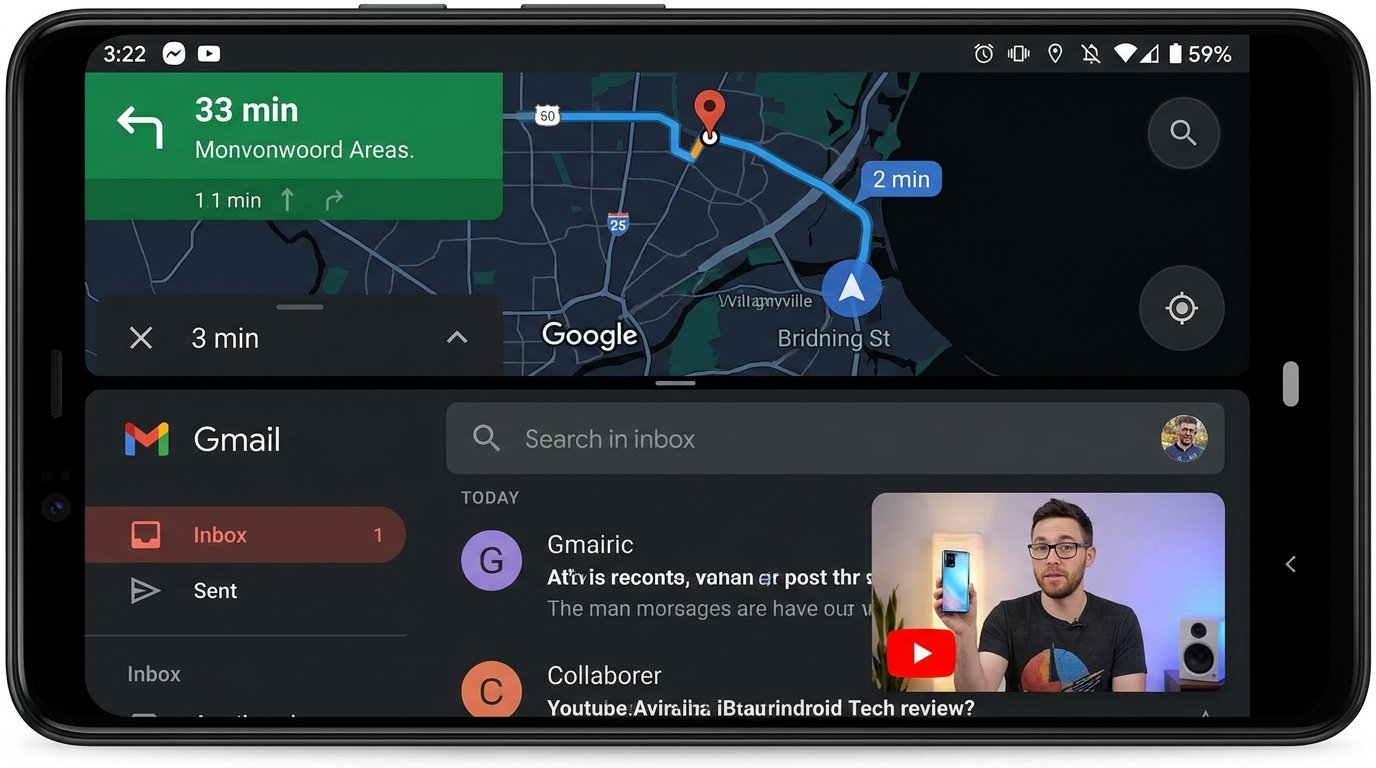
Split-screen mode allows you to divide your mobile display into two independent, active window panes. You can operate both applications simultaneously without continuously toggling back and forth through the Recents app switcher menu.
How to Launch Split-Screen Mode on Stock Android & Google Pixel UI:
- Gesture Navigation: Swipe up from the bottom line of your display and hold for a brief moment to open the Recents (Overview) app switcher screen.
- Select Primary App: Locate the first app you wish to use in split-screen mode, then tap on the app icon located directly above its preview card.
- Tap Split Top: Select Split top (or Split screen) from the drop-down options menu. The primary app will dock into the top half (or left half in landscape orientation) of your screen.
- Select Secondary App: Your home display or app carousel will appear in the remaining space. Tap any second app from your launcher or Recents list to dock it into the bottom or right pane.
Launching Split-Screen on Samsung One UI, Xiaomi HyperOS, & OnePlus OxygenOS:
OEM skins offer custom gestures to initiate split-screen even faster:
- Samsung One UI: Swipe up with two fingers from the bottom edge of the screen to instantly split the current app. Alternatively, drag any app icon directly from the Edge Panel into the top or bottom half of the display.
- Xiaomi HyperOS / MIUI: Open the Recents menu, long-press on the app card, and tap the dual-rectangle split icon.
- OnePlus OxygenOS: Swipe up with three fingers on any compatible app screen to split the view instantly.
Adjusting Split Ratios and Inter-App Drag and Drop:
Once two apps are docked, a central divider bar separates them. Drag the black divider handle up or down (or left and right in landscape) to adjust the split ratio to 50/50, 70/30, or 30/70 based on your focus. To end split-screen mode, drag the divider line completely to the top or bottom edge of the display.
Android also supports seamless drag-and-drop inter-app file transfers. For instance, with Google Photos open on the top pane and Gmail on the bottom, you can tap and hold an image in Photos and drag it directly into your email draft body to attach it instantly without navigating file pickers.
2. Saving and Launching App Pairs for Instant Workflows
If you frequently pair specific applications together—such as Google Maps with Spotify during commutes, or YouTube with Google Keep for note-taking—re-creating the split-screen layout manually every time can become tedious. Android solves this through App Pairs.
An App Pair is a saved home screen icon or taskbar shortcut that launches two designated apps simultaneously in your preferred split-screen layout with a single tap.
How to Create an App Pair:
- Establish your desired split-screen configuration following the steps above.
- Tap the central divider line separating the two applications.
- Tap the Save App Pair icon (represented by a star icon or dual-app icon with a plus symbol).
- Select where to place the shortcut: Home Screen or Taskbar / Edge Panel (on supported Samsung, Pixel, and foldable devices).
When you tap the newly generated shortcut icon on your home screen, Android initializes both applications instantly, bypassing individual app load sequences and saving valuable seconds during high-productivity tasks.
3. Harnessing Picture-in-Picture (PiP) Playback Controls
Picture-in-Picture (PiP) opens video streams and turn-by-turn navigation sessions into a floating thumbnail window that stays visible while you navigate anywhere else across the operating system.
Configuring Picture-in-Picture System Permissions:
If an application fails to shrink into a floating thumbnail when you exit to your home screen, its system-level PiP permission may be disabled:
- Navigate to Settings > Apps > Special app access > Picture-in-picture.
- Review the list of installed applications (such as YouTube, VLC, Google Maps, Netflix, Twitch, and Chrome).
- Select the target application and verify that the switch for Allow picture-in-picture is toggled On.
Mastering PiP Gestures & Controls:
- Resizing PiP Windows: Double-tap the floating video window to toggle between compact and expanded sizes. Alternatively, pinch outwards with two fingers on the video frame to scale it dynamically.
- Stashing PiP off-screen: Drag the PiP window to the extreme left or right edge of your screen. The video will slide partially off-display, leaving a minimal pull-tab handle while audio playback continues uninterrupted.
- Media Controls: Tap once on the active PiP window to surface overlay controls, allowing you to pause, play, skip tracks, or jump back to full-screen mode instantly.
4. Pop-Up View & Floating Windows (Freeform Multi-Window)
While split-screen anchors applications into static halves, Pop-Up View (or floating windows) converts applications into resizable desktop-style windows that float freely over your underlying home screen or main apps.
Enabling Floating Windows in Developer Options:
If your device manufacturer does not expose pop-up view tools by default, you can unlock full freeform floating windows via Android Developer Options:
- Go to Settings > About phone and tap Build number seven times to unlock Developer Options.
- Navigate to Settings > System > Developer options.
- Scroll down to the Apps section and enable Enable freeform windows and Force activities to be resizable.
- Restart your smartphone.
Once enabled, opening the Recents menu and long-pressing an app preview card will reveal a new menu choice: Freeform / Pop-up window. Tapping this renders the app inside a window equipped with desktop-style title bars, minimize buttons, maximize toggles, and close controls.
Samsung Smart Popup View & Edge Panel Integration:
Samsung One UI features the industry’s most refined pop-up window architecture through Smart Popup View. When a notification arrives from selected messaging apps (like WhatsApp, Telegram, or Messages), it surfaces as a small floating circle bubble icon. Tapping the bubble expands the conversation into a floating window over your current app, allowing you to reply without interrupting your primary workflow, and collapse it back into a bubble when finished.
5. Taskbar Configuration on Tablets & Foldables
With Android 14, 15, and 16, Google introduced a permanent taskbar designed specifically for large-screen form factors, including foldables (like the Galaxy Z Fold and Google Pixel Fold) and Android tablets (such as the Xiaomi Pad series and Galaxy Tab line).
Persistent vs. Transient Taskbars:
- Transient Taskbar: Appears when you perform a small swipe up from the bottom handle indicator and automatically hides when you interact with app content, maximizing total screen real estate.
- Persistent Taskbar: Stays permanently anchored across the bottom of your screen, mirroring desktop operating systems like macOS or Windows. To switch between transient and persistent modes, press and hold an empty spot on the taskbar.
Launching Split-Screen directly from the Taskbar:
The taskbar serves as an active multitasking launchpad. To open a second app while operating a primary full-screen application, simply press and drag any app icon from your pinned taskbar row directly to the left, right, top, or bottom edge of your screen. Android automatically splits the viewport and docks the application instantly.
Android Multitasking Modes Comparison Matrix
The comparative table below outlines when to utilize each Android multi-window feature for maximum efficiency:
| Multitasking Feature | Best Used For | Supported Form Factors | Key Gesture / Shortcut |
|---|---|---|---|
| Split Screen | Side-by-side research, typing notes while watching lectures, comparing documents | Smartphones, Foldables, Tablets | Recents menu icon > Split top / 3-finger swipe up |
| App Pairs | Instant 1-tap launching of daily dual-app setups (Maps + Music) | Smartphones, Foldables, Tablets | Tap divider bar > Save App Pair to Home screen |
| Picture-in-Picture | Background video watching and turn-by-turn navigation monitoring | All Android Devices (Android 8.0+) | Swipe Home while video/maps active |
| Pop-Up / Floating Window | Quick calculator access, messaging bubbles, floating note pads | Smartphones, Foldables, Tablets | Recents app menu > Open in pop-up view |
| Taskbar Dock | Desktop-style application switching and multi-window dragging | Foldables & Large Tablets | Drag app icon from taskbar to screen edge |
6. Performance Optimization and RAM Management for Multitasking
Running multiple active apps simultaneously demands higher system memory (RAM) and CPU resources. If you notice split-screen apps lagging or reloading unexpectedly, apply these optimization tweaks:
- Exclude Productivity Apps from Battery Saver Restrictions: Go to Settings > Apps, select your primary multitasking tools (like Office suites or note apps), tap Battery, and set them to Unrestricted so the OS does not freeze them in the background.
- Lock Apps in Recents: Open the Recents app switcher, tap the app icon, and select Lock this app. This prevents Android’s Low Memory Killer (LMK) daemon from clearing the app during background memory purges.
- Virtual RAM (RAM Expansion): Modern Android skins offer Virtual RAM (Memory Extension). While helpful for keeping secondary background apps cached in storage swap files, physical RAM remains significantly faster. Ensure your physical RAM usage is optimized before relying solely on storage swap partitions.
Frequently Asked Questions (FAQ)
Why do some apps refuse to enter Split-Screen mode?
Certain legacy applications or bank security software restrict multi-window rendering to protect UI integrity or prevent screen scraping. You can override this limitation by going to Settings > System > Developer options and enabling Force activities to be resizable. Once turned on, restart your phone to force reluctant apps into split screen.
Can I open two instances of the exact same app side-by-side?
Yes, but native support depends on the app and manufacturer. Web browsers like Chrome, Edge, and Samsung Internet natively support dual instances (tap the three-dots menu and select Open new window). For apps that lack native multi-window cloning, Samsung One UI and Xiaomi HyperOS offer “Dual Messenger” or “Cloned Apps” utilities that allow running two distinct instances side-by-side.
Does using Split-Screen mode drain smartphone battery significantly faster?
Operating split screen increases active display area rendering and forces the CPU/GPU to maintain dual application runtime states simultaneously. Battery consumption typically increases by 15% to 25% compared to single-app usage, particularly when streaming high-definition video alongside web browsing.
Conclusion
Android’s multitasking framework is among the most versatile operating system assets in modern personal technology. By mastering split-screen gesture controls, pinning custom App Pairs, tailoring Picture-in-Picture playback, and taking advantage of taskbars on large-screen devices, you can unlock productivity capabilities that redefine your mobile workflow in 2026.
Reviewed by the APKMales editorial team. This guide was compiled from publicly available documentation and official Android developer resources. Editorial Policy and Privacy Directives.
