
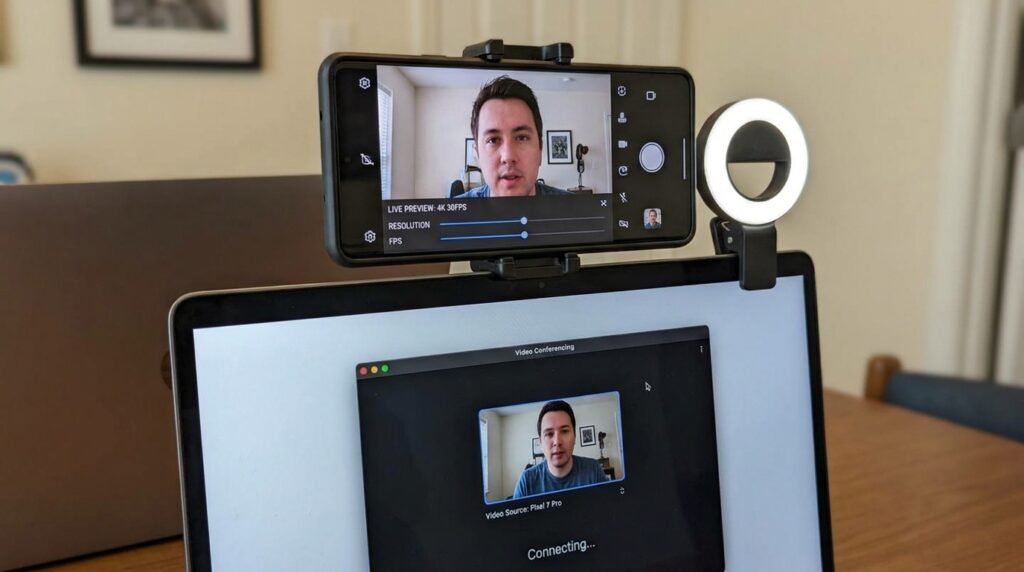
How to Use Your Android Phone as a High-Definition PC Webcam (2026 Guide)
Why Your Android Camera Sensor Crushes Dedicated Webcams
If your computer’s built-in webcam produces grainy, washed-out video during Zoom meetings and live streams, your Android phone’s rear camera offers a massive quality upgrade. Thanks to native Android USB webcam protocols and dedicated low-latency wireless streaming utilities, turning your smartphone into a crisp 1080p or 4K PC camera takes just a few minutes to configure.
Based on published specifications and official app documentation, modern Android phone cameras offer significantly larger sensors and better optics than most built-in laptop webcams. Here’s an honest overview.
Knowing how to use your Android phone as a webcam correctly can save you time, money, and frustration. Whether you are a beginner or an experienced Android user, this complete 2026 tutorial will walk you through every step clearly and simply.
In our modern era of hybrid remote work, virtual job interviews, online education, and live video streaming, having a clear, high-definition webcam is essential. However, the built-in webcams embedded into most desktop monitors and laptops remain remarkably disappointing. Even premium laptops often feature small 720p or 1080p camera modules with tiny image sensors that produce noisy, grainy video in low-light environments, blown-out background highlights, and inaccurate skin tones.
Meanwhile, the Android smartphone resting on your desk houses optics, multi-lens camera systems, large physical image sensors, rapid phase-detection autofocus (PDAF), high dynamic range (HDR) processing, and dedicated Neural Processing Units (NPUs). By converting your Android device into a PC or Mac webcam, you can instantly achieve studio-grade 1080p or 4K video quality for Zoom meetings, Microsoft Teams calls, Google Meet sessions, and OBS live streaming without spending hundreds of dollars on dedicated DSLR capture hardware. In this guide, we cover the top four methods to use your Android phone as a PC webcam in 2026.
Method 1: Native Android 14+ USB Webcam Protocol (UVC Driver)
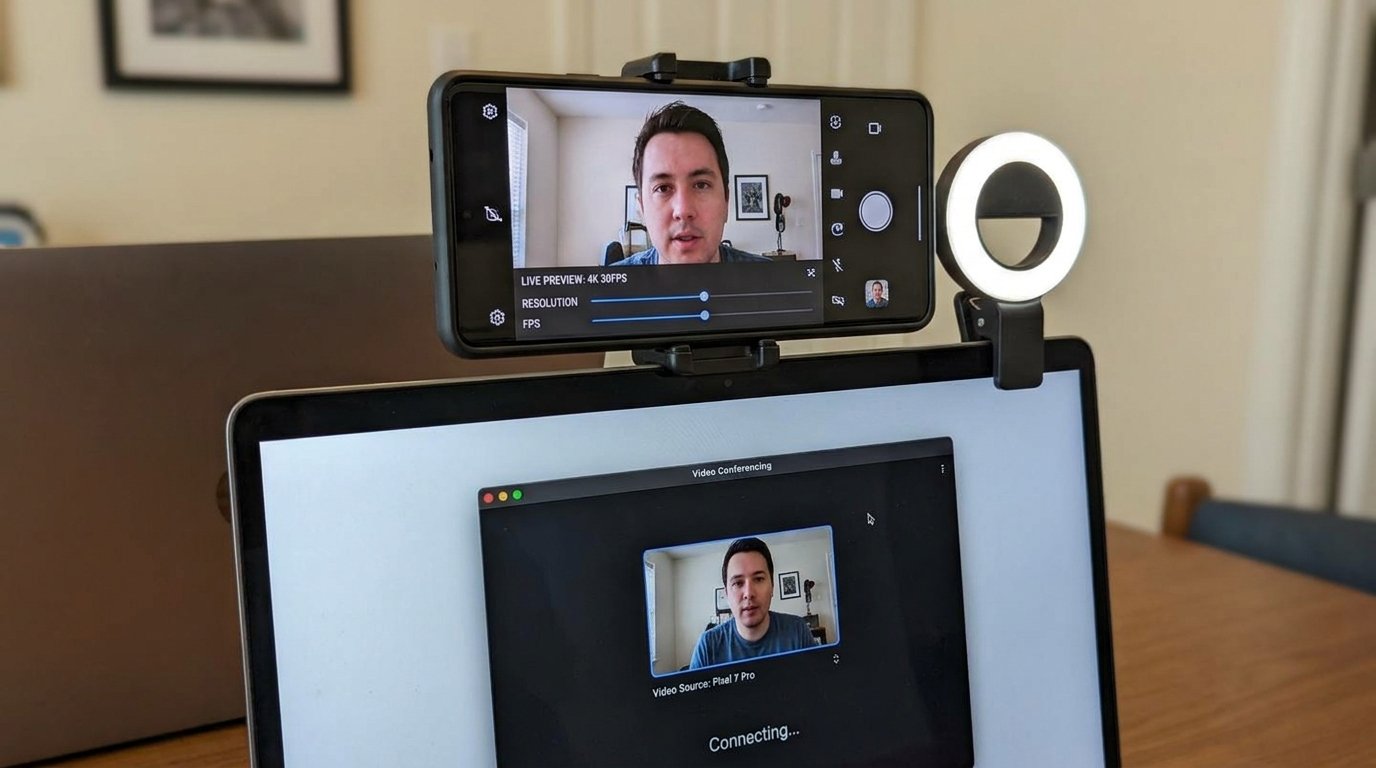
Starting with Android 14 and refined across Android 15 and 16, Google integrated native support for the universal USB Video Class (UVC) protocol. This means compatible Android devices can function as plug-and-play USB webcams on Windows, macOS, ChromeOS, and Linux desktop PCs without installing any third-party apps or desktop drivers.
Step-by-Step Native USB Webcam Setup:
- Connect your Android phone to your PC or Mac using a high-speed USB-C data cable (USB 3.0 or USB 3.2 recommended).
- Swipe down from the top of your Android screen to expand the notification shade and tap Charging this device via USB (USB Preferences).
- Under the Use USB for options menu, select Webcam.
- A preview screen titled Webcam Configuration will launch on your smartphone display. Here, you can toggle between the rear and front cameras, adjust digital zoom levels (1x, 2x), and select high quality mode.
- Open Zoom, Microsoft Teams, OBS Studio, or Google Meet on your computer. Navigate to video settings and select Android Device / USB Camera as your active video source.
Method 2: DroidCam & DroidCam OBS (The Reliable Industry Standard)
For smartphones running Android 13 or older, or for users seeking advanced control over video resolution, frame rates, and OBS Studio integration, **DroidCam** remains the gold standard third-party software solution.
Step-by-Step DroidCam Setup:
- Install the free DroidCam Wireless Webcam app from the Google Play Store onto your Android smartphone.
- Download and install the official DroidCam Client software on your Windows or Linux PC (available at dev47apps.com).
- Connection via USB (Recommended for Low Latency): Enable USB Debugging in Android Developer Options. Plug your phone into your PC via USB cable, open the PC client, select the USB Icon, and click Start.
- Connection via Wi-Fi: Ensure both your phone and PC are connected to the same Wi-Fi router. Open the DroidCam app on your phone to view your device’s local IP address (e.g.,
192.168.1.45). Type this IP address into the DroidCam PC client and click Start. - DroidCam feeds your smartphone video and microphone audio directly into your PC as a virtual webcam device.
Method 3: Camo by Reincubate (Pro Studio Controls & Bokeh Blur)
If you want professional studio video quality featuring computational background bokeh blur, granular color grading, precise exposure framing, and lens selection, **Camo by Reincubate** is the most advanced software suite available for Windows and macOS.
Key Camo Features & Setup:
- Pro Camera Controls: Adjust ISO, shutter speed, manual focus point, white balance color temperature, contrast, saturation, and exposure compensation in real time from your desktop monitor.
- Lens Switching: Smoothly switch between your phone’s Main wide lens, Ultrawide lens (great for whiteboard presentations), and Telephoto zoom lens.
- AI Portrait Bokeh & Framing: Apply hardware-accelerated background blur (portrait mode) and auto-tracking smart framing that keeps your face centered as you move around your desk.
- Install Camo from the Google Play Store onto your Android phone.
- Install Camo Studio onto your Windows PC or Mac from reincubate.com/camo.
- Connect your phone via USB cable or scan the desktop client’s pairing QR code over Wi-Fi. Video feeds instantly render with pro studio fidelity.
Method 4: Iriun Webcam (4K Wireless Solution)
For users who want to stream video in true 4K resolution (3840 x 2160) wirelessly over Wi-Fi, Iriun Webcam offers an exceptionally fast, high-resolution setup compatible across Windows, macOS, and Linux.
Setup & 4K Resolution Configuration:
- Download Iriun 4K Webcam for PC and Mac from the Play Store onto your Android device.
- Install the corresponding desktop server software on your PC.
- Launch both apps simultaneously while connected to the same 5 GHz Wi-Fi router.
- In the Iriun desktop client settings, select 3840×2160 (4K) from the resolution drop-down menu. Your Android phone will stream crystal-clear 4K video feeds directly to your desktop apps.
USB Cable vs. Wi-Fi Connection: Performance & Latency Comparison
When configuring your Android webcam setup, selecting the right connection protocol between your phone and computer is critical:
| Connection Type | Maximum Resolution | Connection Stability | Battery Impact |
|---|---|---|---|
| USB 3.0 / USB-C Cable | 4K (3840×2160) @ 60 FPS | Very stable | Charges phone while streaming |
| 5 GHz Wi-Fi Wireless | 1080p / 4K @ 30 FPS | High (Requires clean Wi-Fi spectrum) | Moderate battery drain over time |
| 2.4 GHz Wi-Fi Wireless | 720p / 1080p @ 30 FPS | Prone to stuttering and interference | Higher battery drain due to retries |
Camera Settings Optimization & Thermal Management
To maintain professional video output during multi-hour video calls without your smartphone overheating or draining battery, implement these expert tweaks:
1. Locking Exposure & Auto-Focus (AE/AF Lock):
When streaming video, ambient lighting changes can cause your smartphone camera to constantly re-focus and adjust brightness. In your webcam app settings (or using tap-to-lock), lock your **Auto-Focus (AF)** and **Auto-Exposure (AE)** once your lighting is set. This prevents distracting focus hunting during live broadcasts.
2. Thermal Management & Overheating Prevention:
Processing high-definition video continuously generates internal heat. Prevent thermal throttling by following these tips:
- Turn Off Screen Display: Ensure your webcam application dims or turns off the phone display screen entirely while video streaming continues over USB.
- Remove Thick Protective Cases: Heavy rubber phone cases trap heat against the phone’s back glass chassis. Remove the case during long calls to promote air cooling.
- Avoid Wireless Charging Pads: Do not place your phone on a wireless Qi charging pad while streaming video, as wireless charging generates substantial induction heat. USB wired charging keeps temps lower.
3. Mounting Hardware Accessories:
Invest in an inexpensive mounting solution to position your Android phone at natural eye level directly above your PC monitor:
- Monitor Top Clamp / MagSafe Laptop Mount: Clips onto the top bezel of your laptop or monitor display screen, holding your phone horizontally at eye level.
- Gooseneck Desktop Tripod: Flexible clamped arm that allows precise angle adjustments for desk setups.
Software Solution Comparison Matrix
| Webcam Solution | Connection Methods | Max Resolution | Supported Desktop OS | Best Used For |
|---|---|---|---|---|
| Native Android 14+ UVC | USB Cable Only | 1080p High Quality | Windows, macOS, Linux, ChromeOS | Zero-install plug & play daily calls |
| DroidCam / DroidCam OBS | USB & Wi-Fi | 1080p @ 60 FPS | Windows, Linux | OBS live streaming & legacy Android phones |
| Camo by Reincubate | USB & Wi-Fi | 1080p / 4K Pro Studio | Windows, macOS | Executive presentation video & portrait bokeh |
| Iriun Webcam | USB & Wi-Fi | 4K (3840×2160) | Windows, macOS, Linux | Ultra-high-definition wireless 4K streaming |
Frequently Asked Questions (FAQ)
Can I use my Android smartphone microphone as my PC microphone during video calls?
Yes. Native Android UVC, DroidCam, Camo, and Iriun all support microphone audio passthrough. In your video conference software settings (Zoom/Teams), select your Android device virtual audio device as your primary microphone input.
Will using my Android phone as a webcam damage its battery?
Streaming video for hours while connected to a power charger produces heat, which can gradually accelerate lithium-ion battery wear over time. To preserve battery health, ensure your phone display screen is dimmed during calls, remove protective cases to aid heat dissipation, and avoid streaming in direct sunlight.
Why does my Android camera video look flipped or mirrored in Zoom?
Video conferencing applications like Zoom and Microsoft Teams automatically apply a horizontal mirror effect to your self-view video so it feels natural to you (like looking in a mirror). The remote participants on the call see your un-mirrored video feed correctly. You can disable self-view mirroring inside Zoom settings under Video > Mirror my video.
Conclusion
Upgrading your desktop video quality does not require buying expensive external webcams or DSLR cameras. By repurposing your Android smartphone’s advanced optics—whether via native Android 14+ USB webcams, DroidCam OBS, Camo studio controls, or Iriun 4K streaming—you can deliver studio-grade, crystal-clear 1080p or 4K video streams for every virtual meeting and broadcast in 2026.
Reviewed by the APKMales editorial team. This guide was compiled from publicly available documentation.
