
How to Turn Your Android Phone into a Smart Home Hub (Google Home Guide)
The Evolution of Smartphone-Centric Smart Home Control
You do not need expensive proprietary smart hubs to automate your living space. With the Google Home ecosystem, Quick Settings device controls, and Home Assistant integration, your Android phone can coordinate smart lighting, thermostats, Matter-compatible plugs, and automated geofencing routines with seamless ease.
This guide focuses on the practical details that matter most when setting up an Android-powered smart home.
The modern smart home landscape has evolved rapidly from isolated voice-controlled smart speakers into interconnected, multi-protocol ecosystems. Central to this transformation is your Android smartphone. Rather than serving merely as a basic remote control, modern Android devices possess the processing power, wireless connectivity protocols, and software frameworks required to function as an intelligent smart home command hub.
Through system-level integration with the Google Home platform, open-source Home Assistant dashboards, dedicated Quick Settings hardware tiles, location-based geofencing triggers, and modern smart home connectivity protocols like Matter and Thread, your phone can orchestrate complex home automation workflows smoothly. In this comprehensive technical guide, we show you how to turn your Android smartphone into the ultimate central smart home control hub in 2026.
• Matter: A universal, open-source application layer standard supported by Google, Apple, Amazon, and Samsung that permits smart home devices from different manufacturers to communicate locally over Wi-Fi and Thread without cloud dependencies.
• Thread: A low-power, self-healing mesh networking protocol engineered specifically for smart home accessories (smart plugs, sensors, locks), eliminating latency and Wi-Fi network congestion.
Essential Building Blocks for an Android-Powered Smart Home Hub
1. Mastering Google Home Routines & Automation Triggers
Google Home Routines serve as the primary automation engine for Android users. Routines permit a single trigger event—such as a voice command, specific time of day, sunrise/sunset event, or device sensor state—to execute a sequence of actions across multiple connected smart accessories.
Android 16 expands routine capabilities by introducing conditional logic (“If-Then” rules). For instance, you can configure a routine where “IF motion is detected in the hallway AND the time is between 11 PM and 6 AM, THEN turn on hallway light strips at 10% brightness.” Advanced users can build custom script automations using Google Home’s YAML script editor for precise home control.
2. Home Assistant Android App Dashboard & Local Control
For power users who prefer complete privacy and local network independence, integrating the open-source Home Assistant server platform with its official Android companion application provides unmatched automation capabilities. Home Assistant aggregates thousands of device integrations into a unified dashboard hosted locally inside your home network.
The Home Assistant Android app exposes rich smartphone telemetry to your local home server—including phone battery level, charging state, active Wi-Fi SSID, cellular connection status, ambient light levels, and precise location coordinates. This allows your home automation system to trigger routines based on your phone’s real-time physical state.
3. Utilizing Quick Settings Device Control Tiles
Accessing smart home controls should not require opening individual applications. Android features a dedicated Device Controls interface accessible directly from the Quick Settings drop-down shade or lock screen shortcut menu.
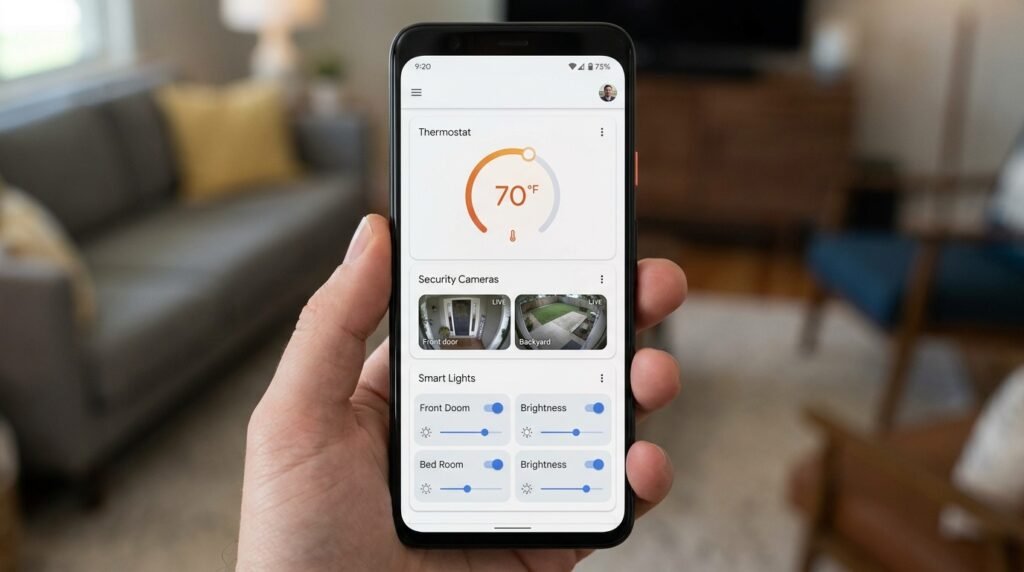
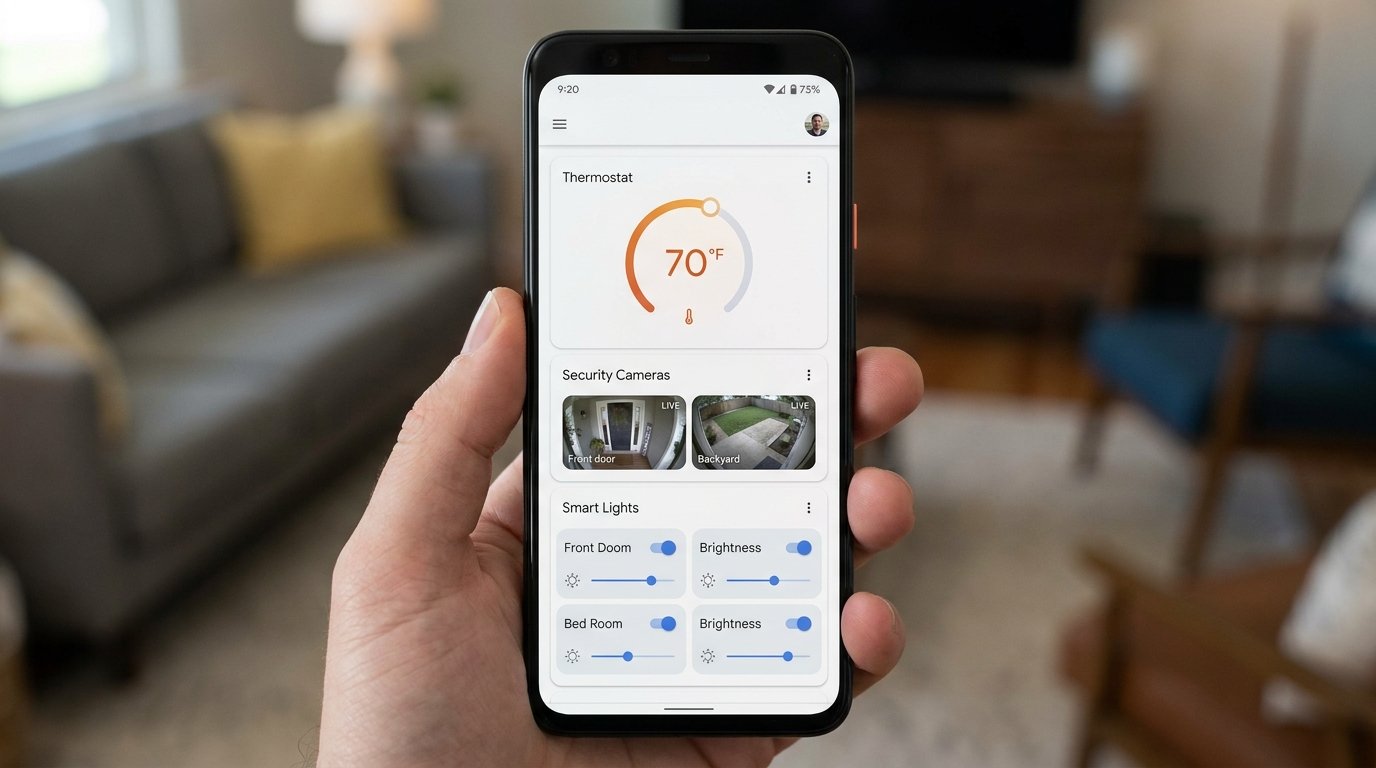
By tapping the Device Controls tile, users can access an interactive grid of favorite smart lights, thermostats, security cameras, and door locks. You can adjust light brightness sliders, lock doors, and view live camera streams instantly without unlocking your device or launching full applications.
4. Setting Up Automated Geofencing & Location Triggers
Geofencing transforms your smart home into an autonomous ecosystem that responds to your physical presence. Utilizing your Android device’s background fused location provider (combining cell tower triangulation, Wi-Fi beaconing, and GPS), you can establish virtual boundary zones around your residence.
When your phone crosses the exit geofence boundary, the system can automatically arm security cameras, turn off climate control HVAC systems, ensure garage doors are closed, and power off smart plugs. Conversely, crossing the entry boundary triggers welcoming routines—disarming alarms, adjusting room temperatures, and illuminating driveway lights before you step through the front door.
5. Voice Command Shortcuts & Google Assistant Integration
System-wide voice integration allows users to control smart devices effortlessly. By setting up custom voice command shortcuts or assigning Assistant activation to a long-press of the power button, you can trigger complex home scenes instantly (e.g., saying “Movie Night” to dim living room lights, turn on the TV media system, and set smart blinds to closed).
Smart Home Protocol & Integration Matrix
The comparative matrix below details the communication protocols, hardware requirements, latency ratings, and offline capabilities across modern smart home systems:
| Protocol / System | Required Hardware | Control Latency | Offline Capability | Best Use Case |
|---|---|---|---|---|
| Matter over Wi-Fi | Standard Wi-Fi Router | Varies by device | Full Local Control | High-bandwidth devices (Cameras, Speakers) |
| Matter over Thread | Thread Border Router Hub | Varies by device | Full Local Mesh Control | Battery sensors, smart plugs, light bulbs |
| Google Home Cloud | Android Phone / Internet | Varies by device | Partial (Requires Cloud) | Multi-brand ecosystem routines & Assistant voice |
| Home Assistant Local | Local Server (Raspberry Pi / PC) | Varies by device | 100% Offline Local Control | Advanced power users & local privacy automation |
| Zigbee / Z-Wave | Dedicated Bridge / Dongle | Varies by device | 100% Offline Local Control | Legacy dedicated smart home sensors & door locks |
Latency varies by network, hardware, and setup; values are general estimates, not laboratory measurements.
Step-by-Step Guide: Setting Up Your Android Smart Home Command Center
Follow these detailed configuration steps to centralize smart home control on your Android phone:
- Step 1: Configure Quick Settings Device Controls: Swipe down twice from the top of your screen to open full Quick Settings. Tap the edit pencil icon, drag the Device Controls tile into your active grid, and select your primary smart home app (Google Home or Home Assistant). Pin your most frequently accessed light switches, door locks, and thermostats.
- Step 2: Pair New Matter Accessories Smoothly: Ensure your phone’s Bluetooth and Wi-Fi are active. When you power on a new Matter-certified device, a native Android Fast Pair pop-up banner will automatically appear on your screen. Tap Set up, scan the Matter QR code on the packaging, and assign the device to a home room.
- Step 3: Build Arrival and Departure Routines: Open the Google Home app, select Automations, tap Add, and select Household Routine. Set the trigger to “When someone arrives home” (selecting your phone as the location presence sensor). Add actions to turn on entryway lights, adjust the thermostat to 21°C (70°F), and disarm security sensors.
- Step 4: Enable Lock Screen Control: Go to Settings > Display > Lock Screen and toggle on Control from locked device. This permits quick toggling of smart lights and scenes directly from your lock screen without entering your device PIN every time.
Frequently Asked Questions (FAQ)
Do Matter smart home devices work if my internet connection goes down?
Yes! One of the major architectural benefits of the Matter standard is native local control. Because Matter devices communicate directly across your local Wi-Fi or Thread mesh network, your Android phone can continue controlling lights, plugs, and switches even if your ISP internet connection drops entirely.
Can multiple family members share the same geofencing routines?
Yes. In the Google Home or Home Assistant apps, you can invite family members to your home group. Presence sensing routines can be set to activate departure mode only when the last person leaves the house, and arrival mode when the first person returns.
Does running background geofencing drain significant phone battery?
Modern Android operating systems utilize low-power Fused Location Providers. Rather than keeping high-power GPS hardware constantly active, Android relies on passive cell tower shifts and Wi-Fi beacon scans, causing only minimal additional battery drain in typical use.
Conclusion
Turning your Android phone into a smart home command hub unlocks unprecedented convenience, energy efficiency, and home security. By pairing system-level Quick Settings controls with Google Home routines, Home Assistant dashboards, location geofencing, and Matter protocol cross-compatibility, you can orchestrate an autonomous, responsive living environment right from your pocket in 2026.
This guide was compiled from publicly available documentation and manufacturer specifications by the APKMales editorial team. Read more in our Editorial Policy and Privacy Directives.
