
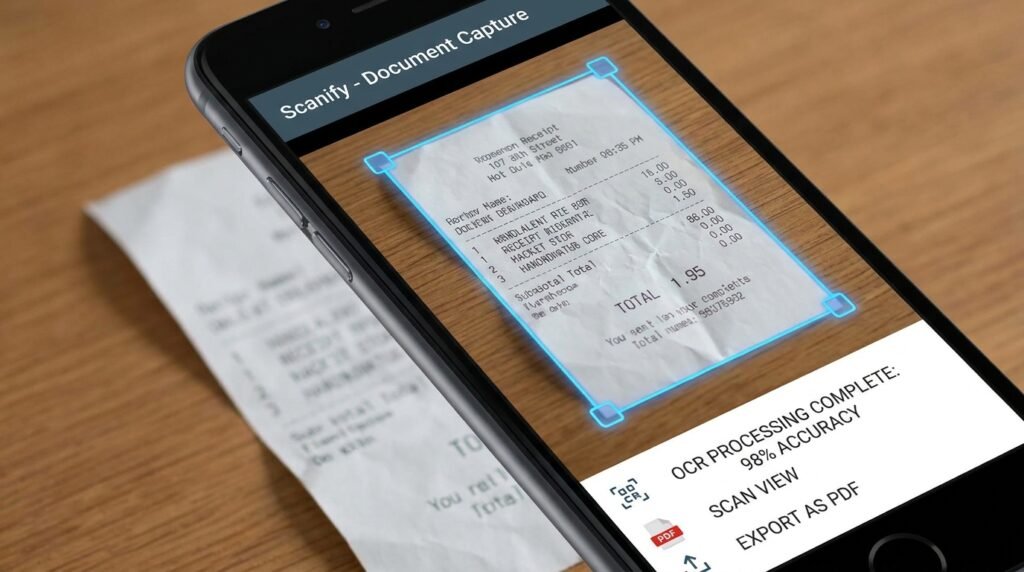
Top 6 Best Mobile Document Scanner Apps for Android (2026)
Introduction: The Death of the Flatbed Scanner
In 2026, standalone physical desktop scanners have largely been rendered obsolete for daily administrative work. Contemporary Android smartphones come equipped with high-resolution camera sensors, dedicated Neural Processing Units (NPUs), and sophisticated Optical Character Recognition (OCR) algorithms. With the right mobile document scanner application, your smartphone turns into an intelligent pocket scanner capable of converting receipts, multipage contracts, whiteboards, and textbook pages into searchable PDF documents in seconds.
This guide compares the leading document scanner apps based on the developers’ published specifications and documented features — actual results vary by device.
However, selecting the right scanner app requires evaluating critical factors beyond basic photo cropping. Features such as OCR accuracy, privacy compliance, cloud storage integration, watermarking policies, and batch-processing speeds differentiate outstanding tools from mediocre ones. In this guide, we review and compare the top 6 document scanner apps available for Android in 2026.
How This Guide Compares Scanner Apps
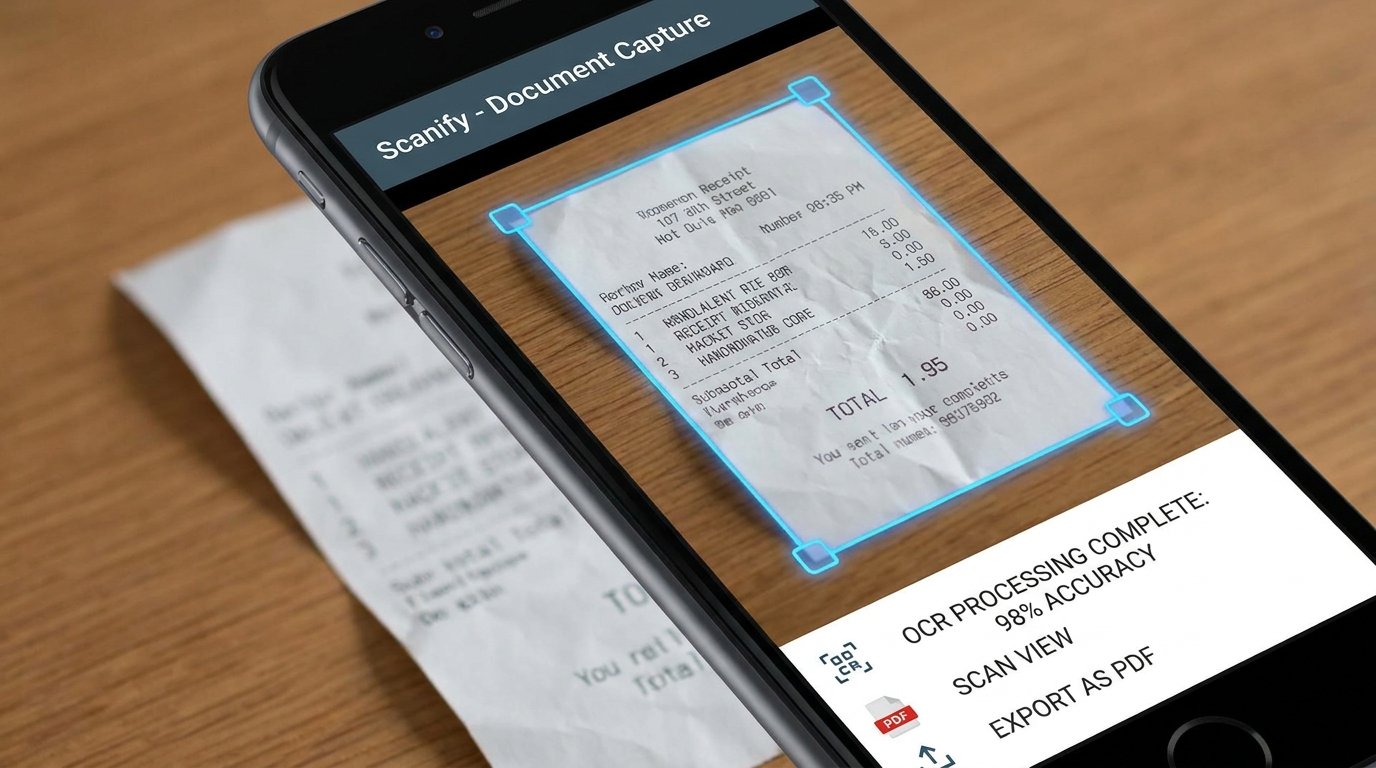
This guide compares the apps below against six core criteria:
- Automatic Edge Detection & Perspective Correction: How accurately the app isolates document borders against complex backgrounds and flattens angled photos.
- OCR Accuracy & Language Support: The fidelity of text extraction across printed fonts, handwriting, tables, and multiple languages.
- PDF Export & Editing Capabilities: Options for multi-page PDF compilation, file compression, password protection, and digital signatures.
- Cloud Integration: Seamless auto-sync capabilities with Google Drive, OneDrive, Dropbox, and WebDAV.
- Privacy & Security Compliance: Whether document processing happens locally on-device or requires cloud upload, alongside data logging policies.
- Monetization & Free Tier Generosity: Evaluation of intrusive ads, paywalls, and watermark restrictions.
1. Adobe Scan: The Ecosystem Workhorse
Adobe Scan remains one of the gold standards in mobile document digitization, leveraging Adobe’s long-standing expertise in PDF creation and Adobe Sensei AI vision processing.
Key Features & Workflow
Adobe Scan automatically detects document boundaries, sharpens typography, removes glare, and applies intelligent color cleanup instantly upon capturing an image. Its integration with the broader Adobe Acrobat ecosystem makes it an exceptional choice for business professionals.
- Advanced AI Image Processing: Automatically cleans up shadows, folds, and ink smudges without washing out official stamps or colored signatures.
- Form Recognition & Fillable Fields: Recognizes form elements, allowing users to quickly add text or sign documents via Adobe Acrobat.
- Cloud Sync: Automatically stores all scans in Adobe Cloud for immediate access on desktop Acrobat software.
2. Microsoft Lens: Best for Office 365 & Academic Users
Microsoft Lens (formerly Office Lens) is a completely free, highly reliable scanner app engineered to integrate smoothly into Microsoft 365 services such as Word, OneNote, PowerPoint, and OneDrive.
Key Features & Workflow
Microsoft Lens excels in converting non-standard media into editable office documents. In addition to standard Document mode, it features specialized modes for Whiteboard, Business Card, and Photo captures.
- Direct OCR to Word & PowerPoint: Converts scanned documents directly into fully editable Microsoft Word (.docx) files or PowerPoint (.pptx) slides while maintaining layout structure.
- Immersive Reader Integration: Features built-in read-aloud functionality, making scanned text instantly accessible for visually impaired users or language learners.
- Zero Watermarks & Completely Free: Does not enforce intrusive subscription prompts or watermark scanned pages.
3. Google Drive Built-in Scanner: Clean, Native, and Fast
For Android users who prefer not to install third-party utility applications, the built-in scanner function inside the official Google Drive app provides an efficient, lightweight solution.
Key Features & Workflow
Accessible directly via the ‘+’ action button or a dedicated home screen widget in Android, Google Drive Scanner captures documents, applies automatic geometric alignment, and saves scans directly to Google Cloud storage.
- Automatic Server-Side OCR: Once a PDF is saved to Google Drive, Google’s cloud OCR automatically indexes every word in the document, allowing instant full-text search directly from the Drive search bar.
- Zero App Overhead: Requires no extra background services or external app installations.
- Workspace Collaboration: Easily share scanned PDFs directly with team members via Google Workspace links.
4. Genius Scan: The Privacy-First Offline Solution
Developed by Grizzly Labs, Genius Scan stands out in the document scanning ecosystem due to its strict focus on user privacy and local on-device document processing.
Key Features & Workflow
Unlike many modern scanner applications that upload images to remote servers for processing, Genius Scan executes all edge detection, image enhancement, and OCR algorithms locally on your Android device’s hardware.
- On-Device Architecture: Your documents never pass through third-party servers unless you explicitly configure a cloud export target.
- Smart Document Organization: Automatically tags documents, applies custom naming templates (e.g., [Date]_[Tag]_[Name]), and categorizes scans.
- Enterprise Encryption: Supports password-protected PDF export with strong AES encryption.
5. vFlat Scan: The Ultimate Book & Curved Page Scanner
Scanning thick books, bound manuals, or magazines with standard scanner apps usually results in distorted text near the spine and awkward shadow gradients. vFlat Scan specifically solves this problem using deep learning vision models.
Key Features & Workflow
vFlat uses AI to flatten curved book pages, remove visible thumb fingertips holding down pages, and automatically separate two-page spreads into individual clean PDF pages.
- Two-Page Auto Scan: Position your phone over an open book; vFlat detects both left and right pages simultaneously, auto-flattens the page curvature, and snaps both pages in a single shutter trigger.
- Automatic Finger Eraser: Uses generative AI fill to remove fingers holding down page margins.
- High Precision OCR: Extracts text cleanly even from dense academic textbooks and multi-column layouts.
6. CamScanner Alternatives (Modern Security & Privacy Landscape)
CamScanner was historically the most popular scanner app on Android. However, past security concerns and aggressive monetization strategies have led many power users to seek solid alternatives. Modern CamScanner versions offer rich features, but users should carefully evaluate its privacy settings.
Evaluating Feature Set vs. Ad Footprint
- Feature Richness: Offers comprehensive ID card scanning modes, watermarking tools, PDF conversion, and cloud storage options.
- Subscription Considerations: Advanced OCR features, cloud storage expansion, and watermark removal require a paid premium subscription, making apps like Genius Scan or Microsoft Lens more cost-effective for budget users.
Comprehensive Android Document Scanner Comparison Matrix
| Application | Pricing Model | OCR Engine Location | Cloud Ecosystem Sync | Standout Specialty |
|---|---|---|---|---|
| Adobe Scan | Free (Optional Premium) | Adobe Cloud AI | Adobe Document Cloud | Clean PDF typography & Acrobat form integration |
| Microsoft Lens | 100% Free | On-Device & Cloud | OneDrive, OneNote | Direct export to editable Word/PowerPoint files |
| Google Drive Scanner | 100% Free | Google Cloud Engine | Google Drive | Zero install footprint & instant full-text search |
| Genius Scan | Free / Paid License | Strictly On-Device | Multi-Cloud (Dropbox, Box, WebDAV) | Maximum data privacy & offline batch management |
| vFlat Scan | Free (Credits for OCR) | On-Device Deep Learning | Google Drive, Local Storage | AI page flattening & thumb removal for book scans |
| CamScanner | Freemium Subscription | Cloud Server OCR | Proprietary Cloud & Third Party | Extensive editing & formatting suite |
Pro Tips for Capturing High-Quality Document Scans on Android
Regardless of which application you select, following standard capture techniques will drastically improve OCR accuracy and visual output quality:
- Ensure High-Contrast Backgrounds: Place light papers on dark tables (or dark receipts on light surfaces). High contrast allows edge detection algorithms to frame document borders precisely.
- Optimize Ambient Lighting: Avoid direct overhead single-point lights that create harsh hand shadows across the document. Position lighting angled from the side or use natural diffused light.
- Keep the Camera Parallel: Holding your phone at a steep angle forces perspective correction math to warp typography, slightly degrading OCR precision. Hold the camera flat parallel to the page surface.
- Enable Camera Flash in Low Light: Most scanner apps include a forced flash toggle, which eliminates ambient shadows and provides crisp illumination for dark documents.
Final Recommendation: Which Scanner App Should You Choose?
Your ideal document scanner app depends on your primary workflow requirements:
- Choose Microsoft Lens if you want a 100% free solution with seamless Word and PowerPoint export.
- Choose Adobe Scan if you regularly manage PDF contracts and sign official documents.
- Choose Genius Scan if you handle sensitive financial, legal, or medical records and require strict on-device data privacy.
- Choose vFlat Scan if you frequently digitize physical textbooks, bound notebooks, or thick documents.
