
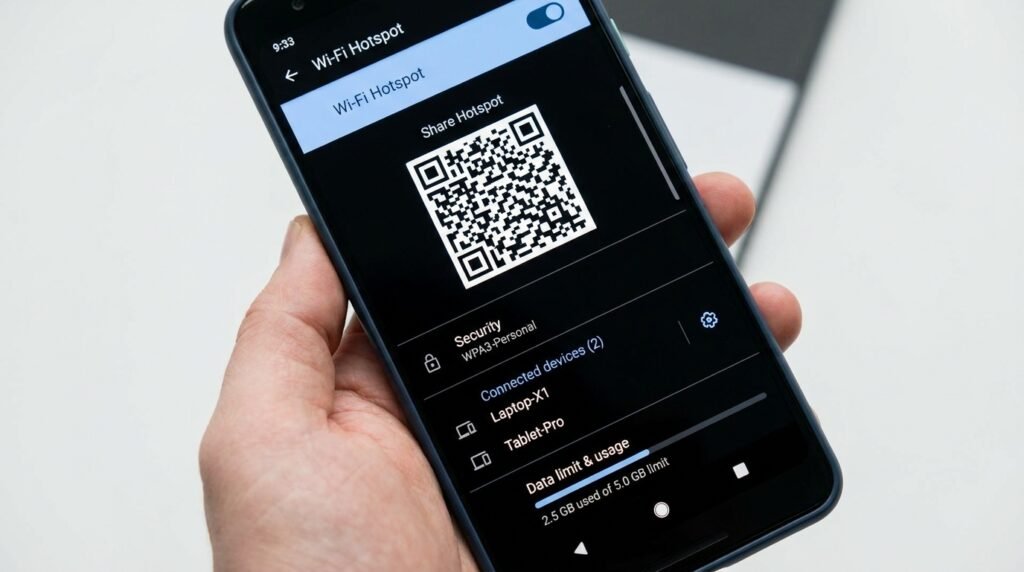
How to Turn Your Android Phone into a Secure Mobile Hotspot
Introduction: Mobile Tethering in Modern Android Ecosystems
Turning your Android phone into a personal mobile hotspot is an essential skill when working remotely or traveling without secure public Wi-Fi. However, choosing the correct Wi-Fi frequency band (2.4GHz vs 5GHz), configuring WPA3 encryption, and setting strict data thresholds are vital to ensure your cellular connection remains both blazing fast and protected from unauthorized data hogs.
Knowing how to as hotspot correctly on Android can save you time, money, and frustration. Whether you are a beginner or an experienced Android user, this complete 2026 tutorial will walk you through every step clearly and simply.
Modern Android smartphones possess remarkable cellular connectivity capabilities, frequently serving as mobile gateways with 5G Standalone (SA) speeds exceeding gigabit thresholds. Leveraging your smartphone as a personal Wi-Fi hotspot enables laptops, tablets, portable gaming consoles, and secondary devices to access fast internet wherever cellular reception is available. However, configuring a mobile hotspot involves far more than simply toggling a quick-settings switch. To achieve optimal performance, uncompromised security, and strict control over cellular data consumption, power users must master frequency band selection, encryption standards, hardware tethering interfaces, APN provisions, and connected client management.
Whether you are setting up a temporary remote workspace, sharing connectivity during travel, or using tethering as a secondary home broadband backup, this comprehensive guide will walk you through every technical layer of Android mobile hotspot configuration. We will explore the physics of 2.4 GHz, 5 GHz, and 6 GHz Wi-Fi bands, step through WPA3 encryption implementation, compare USB vs. Bluetooth vs. Wi-Fi tethering, bypass carrier provisioning throttles safely via APN tuning, and secure your tethered network against unauthorized piggybacking.
Understanding Wi-Fi Frequency Bands: 2.4 GHz vs. 5 GHz vs. 6 GHz (Wi-Fi 6E/7)
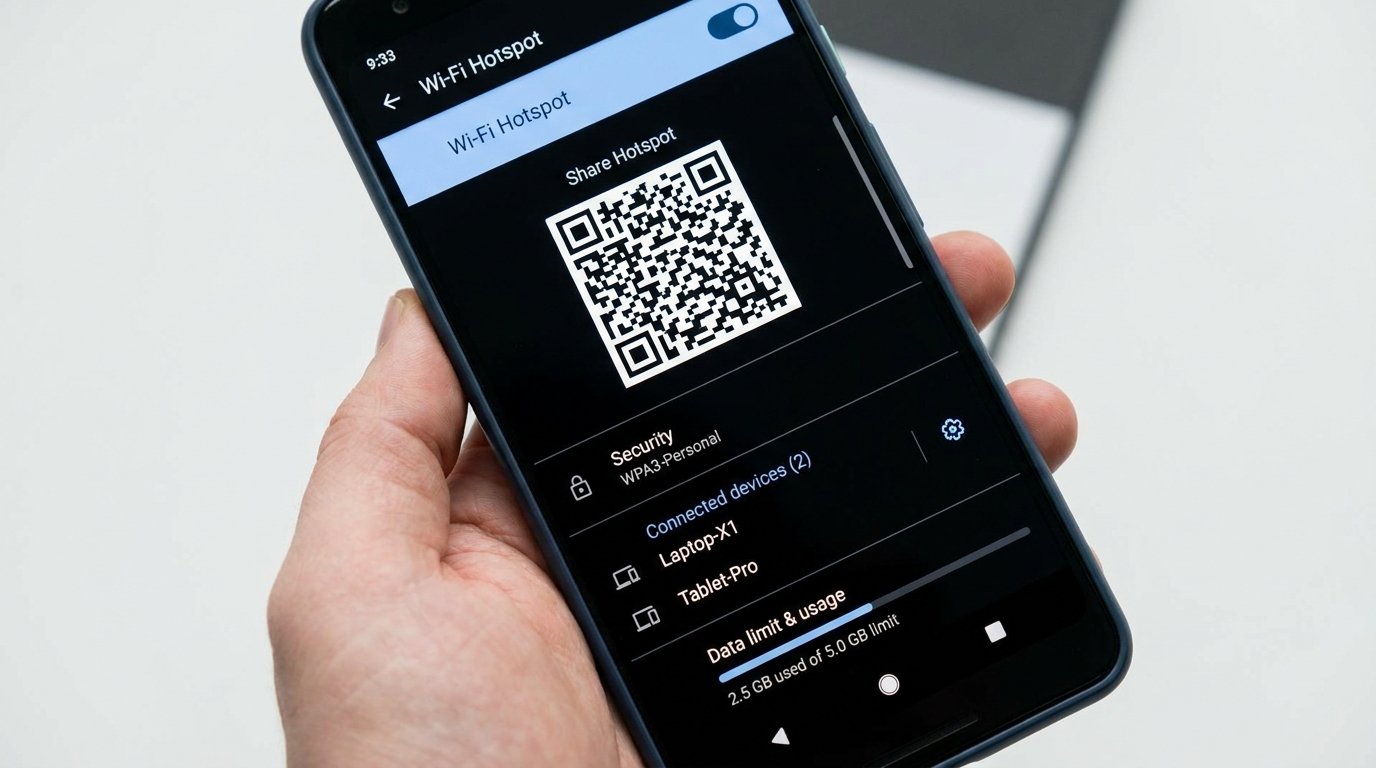
When broadcasting a mobile hotspot from your Android device, selecting the correct radio frequency band dictates both network throughput speeds and physical broadcast range. Modern Android smartphones running Android 12 through Android 16 support multi-band hotspot broadcasting across three distinct spectrum blocks:
1. 2.4 GHz Band: Maximum Range & Legacy Compatibility
The 2.4 GHz frequency spectrum operates using longer radio waves capable of penetrating solid walls, doors, and structural obstacles effectively. It provides the broadest physical coverage area around your smartphone (up to 30–50 meters outdoors). However, the 2.4 GHz band suffers from significant wireless congestion because Bluetooth devices, microwave ovens, wireless mice, and neighboring Wi-Fi routers share the same narrow 83.5 MHz spectrum split into only three non-overlapping channels (1, 6, and 11). Maximum real-world data throughput on 2.4 GHz hotspot broadcasts is generally capped between 50 Mbps and 150 Mbps depending on Wi-Fi standard support (Wi-Fi 4 / 802.11n).
2. 5 GHz Band: High Throughput & Low Latency
The 5 GHz frequency band offers significantly wider channel bandwidths (20 MHz, 40 MHz, 80 MHz, and up to 160 MHz channels), enabling real-world transfer speeds ranging from 400 Mbps to over 1.2 Gbps on Wi-Fi 5 (802.11ac) and Wi-Fi 6 (802.11ax) enabled handsets. Because 5 GHz radio waves operate at shorter wavelengths, physical range is reduced compared to 2.4 GHz, and signal attenuation increases noticeably when passing through concrete or brick walls. For remote work, 4K video streaming, and online gaming on tethered laptops within 5 to 10 meters of your handset, the 5 GHz band is the recommended standard.
3. 6 GHz Band (Wi-Fi 6E / Wi-Fi 7 Hotspot Support)
Flagship Android smartphones equipped with Qualcomm Snapdragon 8 Gen 2/Gen 3/Gen 4 or MediaTek Dimensity 9200/9300/9400 series processors support Wi-Fi 6E and Wi-Fi 7 hotspot broadcasting over the ultra-wide 6 GHz spectrum. Operating across 1,200 MHz of newly opened, non-overlapping spectrum, 6 GHz hotspots eliminate legacy Wi-Fi congestion entirely. Tethered devices can achieve multi-gigabit throughput with ultra-low latencies below 3 milliseconds. Note that client devices (such as your laptop or tablet) must also feature Wi-Fi 6E or Wi-Fi 7 network cards to detect and connect to 6 GHz hotspot broadcasts.
Securing Your Hotspot: WPA2-Personal vs. WPA3-Personal Encryption
Broadcasting an unencrypted or weakly secured mobile hotspot exposes your cellular data plan to unauthorized bandwidth hijacking and opens tethered client devices to local packet sniffing attacks. Android provides three core security protocol options:
WPA2-Personal (AES / CCMP)
WPA2-Personal has served as the global wireless security standard for over two decades. It utilizes WPA2-PSK (Pre-Shared Key) paired with AES-CCMP encryption. While universally supported by virtually every Wi-Fi-enabled client device manufactured since 2006, WPA2 is susceptible to offline dictionary brute-force attacks if attackers capture the initial 4-way handshake using wireless monitoring tools like Wireshark or Aircrack-ng.
WPA3-Personal (SAE – Simultaneous Authentication of Equals)
WPA3-Personal introduces SAE (Simultaneous Authentication of Equals), a key exchange protocol based on Dragonfly cryptography. SAE renders offline dictionary brute-force attacks completely ineffective, even if an attacker chooses a weak password. Furthermore, WPA3 enforces Protected Management Frames (PMF), protecting tethered devices from rogue deauthentication attacks where malicious actors send forged disconnect packets to force clients off your network.
WPA2/WPA3-Personal Hybrid Mode
To balance bulletproof security with legacy device accessibility, Android allows configuration of a dynamic dual-mode standard. Client devices supporting WPA3 connect using SAE encryption, while legacy clients negotiate connections using WPA2-AES.
| Security Standard | Key Exchange Protocol | PMF Enforced | Brute-Force Resistance | Device Compatibility |
|---|---|---|---|---|
| None (Open) | None | No | None (Vulnerable) | Universal |
| WPA2-Personal | 4-Way Handshake (PSK) | Optional | Moderate (Vulnerable to handshake capture) | Legacy & Modern |
| WPA3-Personal | Dragonfly SAE | Mandatory | Extremely High (Forward Secrecy) | Modern Devices (Android 10+, Windows 11, iOS 13+) |
| WPA2/WPA3 Transition | Dynamic Negotiated (SAE / PSK) | Capable | High | Universal |
Tethering Interfaces Compared: Wi-Fi vs. USB vs. Bluetooth
Android supports three primary physical tethering methods to share cellular internet with external hardware. Each interface offers distinct trade-offs in speed, wireless latency, power consumption, and setup complexity.
1. Wi-Fi Tethering (Wireless Broadcast)
Wi-Fi tethering turns your phone into an independent wireless Access Point (AP). It supports multiple simultaneous client connections (up to 10–32 devices depending on handset hardware). The primary downside of Wi-Fi tethering is high power consumption and thermal dissipation; running a dual-band Wi-Fi hotspot continuously can drain a 5,000 mAh phone battery within 4 to 6 hours while producing noticeable thermal heating.
2. USB Tethering (RNDIS / NCM Hardware Connection)
USB tethering connects your Android smartphone directly to a host PC or laptop via a USB-C interface cable. Using standard Remote Network Driver Interface Specification (RNDIS) or Network Control Model (NCM) drivers, the host PC recognizes the phone as a high-speed wired network adapter.
- Zero Wireless Interference: Eliminates Wi-Fi signal dropouts, RF congestion, and co-channel interference.
- Ultra-Low Latency: Reduces ping times compared to Wi-Fi broadcasts (actual improvement varies by device), making it ideal for latency-sensitive remote desktop work or competitive gaming.
- Simultaneous Power Pass-Through: The host PC continuously charges your Android handset during data transfer, preserving phone battery life.
3. Bluetooth Tethering (PAN Profile)
Bluetooth tethering utilizes the Personal Area Networking (PAN) Profile over Bluetooth 5.0+. While maximum throughput is hardware-capped at approximately 2 Mbps to 3 Mbps—making it unsuitable for high-definition video streaming—Bluetooth tethering consumes less than 20% of the electrical power required by a Wi-Fi hotspot. It is an exceptional backup choice for tethering smartwatch devices, e-readers, or performing low-bandwidth background email synchronization during long journeys.
| Tethering Method | Max Real Throughput | Ping Latency | Battery Consumption | Max Simultaneous Devices |
|---|---|---|---|---|
| Wi-Fi Hotspot (5/6 GHz) | Varies by device | Varies by device | Very High (varies by device) | Varies by device |
| USB Cable Tethering | Varies by device | Varies by device | Negative (Charges phone battery) | 1 Host PC |
| Bluetooth PAN | Varies by device | Varies by device | Ultra Low (varies by device) | 1 Paired Device |
Setting Up Data Limits, Automation Timers, and Power Management
To avoid unexpected mobile data overage charges or battery drain, Android includes built-in bandwidth throttling, quota management, and auto-sleep timers.
1. Enforcing One-Time Data Quotas
Navigate to Settings > Network & Internet > Mobile Hotspot > One-time Data Limit. You can configure precise data caps (e.g., 500 MB, 2 GB, 5 GB, or custom limits). Once tethered client devices collectively consume the assigned data allowance, Android automatically disables the hotspot broadcast and notifies you via system banner.
2. Automatic Inactivity Turn-Off
Leaving a Wi-Fi hotspot active when no devices are connected drains idle power and broadcasts network identifiers needlessly. Enable Turn off hotspot automatically in hotspot settings. When no active Wi-Fi clients remain connected for 5 to 10 minutes, the Android OS automatically shuts down the Wi-Fi broadcast radios, switching back to standard cellular standby.
3. Client Device Metering Protocols
When connecting a Windows 11 laptop or macOS device to your Android mobile hotspot, the laptop OS may initiate background system updates, cloud storage backups (OneDrive, Google Drive), or high-bitrate media pre-fetching. To prevent this:
- On Windows 11: Go to Settings > Network & Internet > Wi-Fi > [Hotspot SSID Properties] and switch on Set as metered connection.
- On Android Clients: Go to Settings > Network & Internet > Internet > [Hotspot Properties] > Network usage and set to Treat as metered.
APN Configurations & Carrier Hotspot Entitlement Protocols
Certain mobile network operators (MNOs) enforce tethering restrictions or apply separate data caps for mobile hotspot traffic vs. direct smartphone traffic. Carriers accomplish this detection through network provisioning queries, APN (Access Point Name) routing flags, and packet inspection.
Understanding Carrier Hotspot Provisioning Mechanics
When you enable mobile hotspot on an OEM-customized Android build (such as carrier-branded devices), the system calls an internal OS function: CarrierConfigManager.KEY_CARRIER_SUPPORTS_TETHERING_BOOL or sends a check command to carrier servers. If hotspot provisioning fails or your plan lacks tethering entitlements, the toggle switch automatically reverts to off.
Configuring DUN APN Types for Native Routing
In carrier-independent Android devices where carrier provisioning checks are not strictly enforced on the SIM level, proper APN configuration ensures tethered traffic routes smoothly through standard mobile gateway protocols without dropping IP packets.
- Navigate to Settings > Network & Internet > SIMs > Access Point Names.
- Tap your active carrier APN setting.
- Scroll down to the APN type field.
- Append
,dunto the existing APN configuration list (e.g., changedefault,supltodefault,supl,dun). - Tap the three-dot menu icon in the upper-right corner and select Save.
- Toggle Airplane Mode on and off to reset network interfaces.
Packet Inspection Mechanics: TTL (Time To Live) Adjustments
Carriers inspect network packet headers to distinguish handset data from laptop tethered data. Every IP packet originating from an operating system has an initial TTL (Time To Live) value. Standard Android handset packets originate with a TTL of 64. When a laptop tethered over Wi-Fi sends a packet through your phone, the phone acts as a router, decrementing the packet’s TTL from 64 to 63 before forwarding it to the cellular tower. Cellular deep packet inspection (DPI) engines detect incoming packets with TTL 63, flagging them as tethered traffic.
Advanced users utilizing ADB (Android Debug Bridge) or custom network configurations align outgoing packet TTL values using terminal scripting or router bridge configs to ensure consistent network packet flow across all connected endpoints.
# Check current tethering DUN requirement state via ADB Shell
adb shell settings get global tether_dun_required

# Force disable tethering DUN restriction check (Requires developer settings)
adb shell settings put global tether_dun_required 0
Managing Connected Clients & Enforcing Access Control
Maintaining security over your mobile network requires continuous monitoring of connected client hardware. Android provides built-in tools for real-time device management.
1. Real-Time Device Monitoring & MAC Identification
Opening the Connected Devices sub-menu under Mobile Hotspot display real-time active connections. Android lists each client by its advertised hostname (e.g., DESKTOP-89AB12 or MacBook-Pro), local assigned IPv4 address (typically within the 192.168.43.x subnet), and unique hardware MAC address.
2. Setting Maximum Connection Limits
To preserve total bandwidth and prevent CPU overhead on your phone’s Wi-Fi chip, restrict the maximum permitted simultaneous clients. Under Hotspot Settings, set Max Connections Allowed to your precise required device count (e.g., 2 or 3 devices).
3. Hiding SSID Broadcasts (Hidden Hotspot)
To prevent nearby unauthorized users from detecting your mobile network, enable Hide SSID or Hidden Network in Hotspot Settings. When enabled, your phone stops broadcasting its network name in beacon frames. To connect new devices, you must manually type the exact Network Name (SSID) and security passphrase into the client device Wi-Fi settings.
4. QR Code Instant Connection Sharing
Instead of reading complex WPA3 passphrases aloud in public settings, modern Android versions generate an encrypted QR code directly within the hotspot management screen. Secondary Android or iOS devices can scan the QR code using their camera app to join the tethered network instantly without manually entering credentials.
Troubleshooting Common Mobile Hotspot Issues
If client devices connect to your Android mobile hotspot but fail to load web pages, review the following troubleshooting matrix:
- “Connected, No Internet” Status: This issue commonly stems from DNS server resolution failures on client hardware. On your connected laptop or tablet, manually assign custom DNS servers (such as Google Public DNS:
8.8.8.8/8.8.4.4or Cloudflare DNS:1.1.1.1/1.0.0.1) inside the client network adapter properties. - Thermal Throttling & Disconnections: Continuous 5G data reception paired with 5 GHz Wi-Fi broadcasting generates significant internal heat. If the phone reaches high thermal thresholds (above 42°C / 107°F), the Android kernel automatically shuts off high-power radios to protect battery health. Avoid placing your phone in direct sunlight or heavy protective cases while operating high-throughput hotspot sessions.
- VPN Interruption on Tethered Clients: If your Android phone has an active Virtual Private Network (VPN) connection running, standard Android network stack rules split tethered traffic outside the local VPN tunnel by default. To route tethered client traffic through your phone’s active VPN connection, enable “Allow local network bypass” or “Tethering VPN routing” options within your VPN application settings.
Conclusion: Best Practices for Android Hotspots
Turning your Android phone into a secure, mobile hotspot provides connectivity for your entire workstation on the move. By selecting the optimal Wi-Fi band (5 GHz or 6 GHz for speed, 2.4 GHz for distance), enforcing WPA3-Personal encryption, using USB tethering when docked at a PC, and establishing strict data usage quotas, you ensure fast performance, long battery health, and airtight network security.
