

How to Fix Android App Crashing and Freezing Issues (Complete Guide)
Apps constantly crashing, freezing on splash screens, or closing unexpectedly mid-use is one of the most annoying Android glitches. From corrupted WebView updates to RAM pressure and cache conflicts, app crashes can usually be resolved in under 5 minutes without losing your data. Here is our step-by-step diagnostic guide to fix Android app crashing and freezing issues in 2026.
Why Android Apps Crash and Freeze
If you are dealing with apps crashing and freezing on your Android phone, you are not alone. This is one of the most common Android issues, but the good news is that most cases can be resolved in minutes with the right steps. This guide covers every proven fix, from simple restarts to advanced solutions.
Few experiences are more frustrating than an Android application suddenly freezing, crashing back to the home screen, or displaying a persistent pop-up warning: “Application Not Responding” (ANR). Whether it occurs during mobile gaming, financial transactions, or navigation, app instability disrupts productivity and compromises smartphone reliability.
Android applications crash or freeze due to a combination of system resource exhaustion, software incompatibilities, corrupt cached data, and broken background framework dependencies. Key underlying causes include:
- Uncaught Runtime Exceptions: Null pointer errors, memory leaks, or unhandled code exceptions within the application codebase.
- Android System WebView Outages: Corrupt or out-of-date system web rendering engines causing web-dependent applications (e.g., banking, social media, shopping apps) to instantly crash upon launch.
- RAM Pressure & Low Memory Killer (LMK): Insufficient system memory forcing the Linux kernel to terminate background app processes abruptly.
- Corrupt App Cache & Database Indexing: Damaged SQLite internal databases preventing an app from reading local user data.
- Aggressive OEM Battery Optimization: Background battery management scripts terminating required app threads mid-execution.
- Thermal Throttling & Storage Congestion: Excessive CPU/GPU heat or low internal flash storage space (<10% free space) causing I/O bottleneck freezes.
This comprehensive diagnostic manual provides step-by-step solutions to fix Android app crashing and freezing issues permanently.
Step 1: Fix Android System WebView & Google Play Services
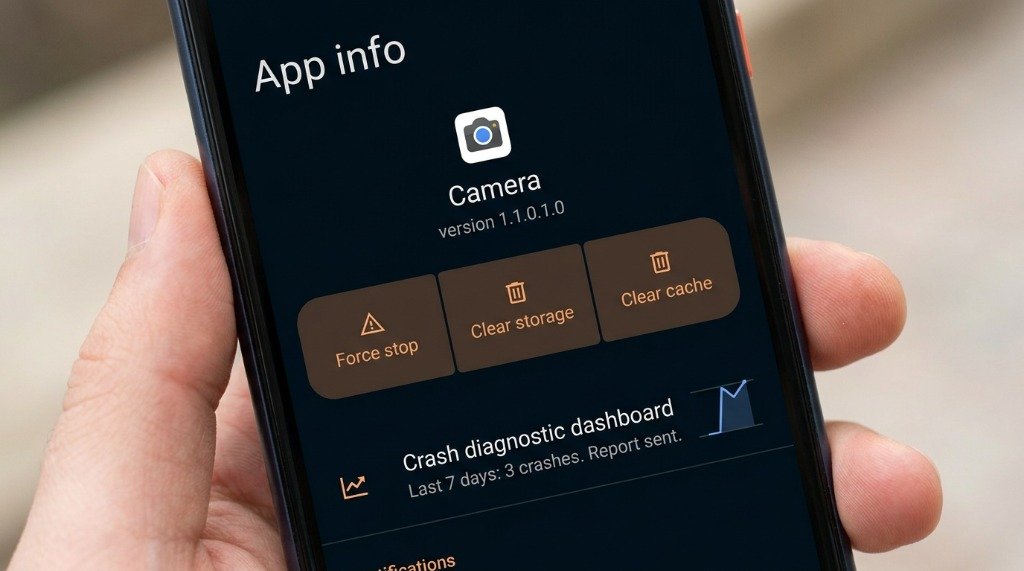
Many unexpected mass app crashes on Android stem from issues with Android System WebView—the core system component responsible for rendering web content inside non-browser applications. If WebView or Google Play Services experiences a corrupt update, dozens of apps will crash simultaneously upon launch.
Clearing WebView Cache and Uninstalling Problematic Updates
- Open Settings on your Android device and tap Apps (or Manage Apps).
- Tap the three dots in the top-right corner and select Show System Apps.
- Scroll down and select Android System WebView.
- Tap Storage & Cache, then tap Clear Cache followed by Clear Data / Clear Storage.
- If app crashes persist, tap the three dots in the top-right corner of the WebView app info screen and select Uninstall Updates. This restores WebView to its stable factory version.
- Open the Google Play Store, search for Android System WebView, and install the latest stable update.
Resetting Google Play Services Core Framework
Google Play Services provides core APIs for location services, push notifications, and authentication. To resolve Play Services crashes:
- Go to Settings > Apps > Show System Apps > Google Play Services.
- Select Storage & Cache > Manage Space > Clear All Data.
- Reboot your device to force Play Services to rebuild its security tokens and internal caches.
Step 2: Cache vs Data Clearance Diagnostics
Understanding when to clear an app’s cache versus performing a full data reset is critical for effective troubleshooting without losing sensitive personal files.
Clearing App Cache (Non-Destructive)
App Cache contains temporary files, rendered images, network response buffers, and web stylesheets stored to accelerate app load times. Clearing cache is completely non-destructive—your login sessions, settings, and personal data remain intact.
- Navigate to Settings > Apps > [Target App Name] > Storage & Cache.
- Tap Clear Cache. This resolves minor temporary file corruption and frees up immediate storage space.
Clearing App Storage / Data (Hard Reset)
Clear Data completely wipes all user configuration files, local databases, stored credentials, and offline media, resetting the app to its factory-fresh installation state. Use this step when an app freezes on a specific splash screen or experiences SQLite database corruption.
- Navigate to Settings > Apps > [Target App Name] > Storage & Cache.
- Tap Clear Storage / Clear Data and confirm the warning prompt. Re-open the app and log back into your account.
Step 3: RAM Pressure & Out-Of-Memory (OOM) Management
When your smartphone runs low on available RAM, Android’s Low Memory Killer (LMK) daemon monitors process priorities. If an active application requests more RAM than is physically available, LMK forcibly kills background processes. In severe cases, active foreground apps will instantly crash back to the home screen.
Managing RAM Exhaustion & Virtual RAM Pitfalls
- Close Memory-Heavy Background Apps: High-end games and video editing suites require substantial contiguous memory blocks. Swipe away background apps from your Recents overview before launching heavy applications.
- Beware of Virtual RAM / RAM Expansion Features: Modern OEMs (Samsung RAM Plus, Xiaomi Memory Extension, Realme Dynamic RAM) convert internal flash storage (UFS) into virtual swap memory. Because flash storage read/write speeds (1,000 to 4,000 MB/s) are dramatically slower than physical LPDDR5X RAM (up to 64,000 MB/s), enabling large virtual RAM allocations often causes severe micro-stuttering and app freezes. Recommendation: Disable virtual RAM in system settings for smoother real-time app performance.
Step 4: Battery Optimization & Background Exemptions
Android’s aggressive power management framework—known as Doze Mode—restricts background CPU usage and network access for apps that haven’t been opened recently. However, aggressive OEM battery savers often kill critical background background threads, causing messaging, navigation, or music apps to freeze or stop functioning.
Granting Battery Optimization Exemptions
- Open Settings and navigate to Apps > Special App Access > Battery Optimization (or App Battery Usage).
- Select the app experiencing background freezing or crash issues.
- Change the battery setting from Optimized / Smart Control to Unrestricted.
- For Chinese OEM ROMs (MIUI/HyperOS, ColorOS), also enable Auto-Start / Background Autostart in app management permissions.
Step 5: Storage Thresholds & System Partition Congestion
Android smartphones require at least 10% to 15% free internal storage space to operate efficiently. When internal flash storage falls below critical thresholds, local SQLite app databases struggle to perform basic write operations, leading to severe app freezes and system lockups.
Resolving Low Storage I/O Bottlenecks
- Check your available storage under Settings > Storage. Ensure you maintain at least 15GB of free space on modern devices.
- Delete large cached media files, unneeded WhatsApp video downloads, and temporary APK installation files using official tools like Google Files.
- Transfer high-resolution 4K video recordings to external cloud storage or a PC desktop.
Step 6: Thermal Throttling & Hardware Instability
Modern smartphone processors (SoCs) generate significant heat under heavy continuous workloads. When thermal sensors detect internal chip temperatures exceeding 45°C – 50°C, the system triggers severe thermal throttling, drastically reducing CPU/GPU clock frequencies to prevent hardware damage. This sudden drop in computing performance often causes demanding apps and games to freeze or force-close.
Step 7: ANR & Logcat Diagnostic Manual
For persistent crashes that resist standard troubleshooting, analyzing system crash logs using Android’s native Logcat tool provides exact technical explanations for why an app failed.
What is an ANR (Application Not Responding) Error?
An ANR popup occurs when the main UI thread of an application is blocked for longer than 5 seconds. This happens when an app attempts to perform heavy network operations, disk I/O, or database queries directly on the main UI thread instead of offloading work to background worker threads.
Capturing Crash Logs via Developer Options or ADB
To inspect exact crash log tracebacks without root access:
- Enable Developer Options on your smartphone.
- Reproduce the app crash on your phone screen.
- Connect your phone to your PC via USB cable and open an ADB terminal prompt.
- Execute the following command to filter logcat outputs for fatal crash errors:
adb logcat *:E | grep -i "fatal\|crash\|anr" - Logcat will display the exact exception stack trace (e.g.,
java.lang.NullPointerExceptionorOutOfMemoryError) identifying the broken line of code or missing permission.
Comprehensive Diagnostic Matrix: Symptoms, Root Causes & Fixes
Use this diagnostic table to quickly match app crash symptoms with actionable solutions:
| Observed Crash Symptom | Probable Root Cause | Primary Actionable Fix |
|---|---|---|
| App opens briefly, displays black screen, then closes immediately | Android System WebView corruption or missing Play Services token | Clear cache/data of Android System WebView and update via Play Store |
| App freezes after 5 seconds with “Application Not Responding” pop-up | Main UI thread blocked by heavy background disk I/O or deadlocked thread | Force stop app, clear cache, and check background battery exemption settings |
| App crashes randomly during heavy usage or gaming sessions | Thermal throttling, RAM pressure, or Low Memory Killer (LMK) execution | Disable Virtual RAM expansion, close background apps, allow phone to cool |
| App crashes immediately when tapping camera, storage, or location features | Missing or corrupted system app runtime permission grant | Navigate to App Info > Permissions, toggle missing permissions OFF and back ON |
| Multiple Google apps crash simultaneously after software update | Corrupted Google Play Services cache or broken system update patch | Uninstall updates for Google Play Services / Play Store, reboot, and re-update |
Preventive Maintenance Checklist for Flawless Performance
Follow these preventative maintenance habits to keep your Android device running smoothly without app crashes:
- Perform Weekly Device Restarts: Rebooting your smartphone clears temporary system memory buffers, terminates rogue background daemons, and refreshes system swap files.
- Keep Android System WebView & Play Services Updated: Enable automatic updates in Google Play Store for critical system framework libraries.
- Maintain Storage Space Hygiene: Keep at least 15% of your internal flash storage free to prevent SQLite database degradation.
- Avoid Unofficial modified APK Files: Never install tampered or modified APK files from untrusted third-party websites, as missing digital signatures often cause fatal app crashes.
