
How to Make Your Android Phone Last 5+ Years: Software & Hardware Maintenance
Introduction: The Case for a 5-Year Smartphone Lifespan in 2026
Smartphone prices keep rising, but you do not need to upgrade your phone every two years. With proper maintenance, battery management, and software care, a flagship or mid-range Android device can easily run smoothly for 4 to 5 years. In this guide, we share 10 practical habits to extend your Android phone’s lifespan in 2026.
Knowing how to extend lifespan correctly on Android can save you time, money, and frustration. Whether you are a beginner or an experienced Android user, this complete 2026 tutorial will walk you through every step clearly and simply.
Modern Android flagship and upper-midrange smartphones represent significant financial investments. With processor performance plateauing, silicon fabrication nodes reaching sub-3nm efficiencies, and display technology maturing, annual hardware upgrades yield diminishing returns. Recognizing this shift, major manufacturers like Google and Samsung now pledge up to 7 years of official Android operating system updates and security patches for flagship lineups.
However, software commitment alone does not guarantee a phone will survive half a decade. Hardware degradation—specifically lithium-ion battery capacity loss, flash storage write fatigue, AMOLED subpixel burn-in, port debris accumulation, and physical impact damage—gradually degrades device performance over time. By executing a disciplined maintenance strategy covering battery chemistry preservation, storage TRIM management, custom ROM updates post-EOL, screen burn-in prevention, and physical port cleaning, you can keep your Android device running at peak performance for 5 years or longer.
1. Battery Chemistry Health Preservation: Mastering Electrochemical Care
The lithium-ion (Li-ion) and lithium-polymer (Li-Po) pouch batteries powering Android smartphones degrade electrochemically over time. Every charge-discharge cycle causes structural degradation of the graphite anode and cobalt/nickel cathode, alongside chemical growth of the Solid Electrolyte Interphase (SEI) layer. After approximately 500 to 800 full charge cycles, a typical smartphone battery loses 20% of its total design capacity.
1. The 20-80% Charge Rule & Mechanical Voltage Stress Curves
Lithium-ion cells experience maximum mechanical stress at extreme states of charge (SOC). Charging a smartphone cell to 100% pushes internal cell voltage to 4.35V or 4.40V, straining the cathode crystal lattice. Conversely, discharging below 20% drops cell voltage under 3.5V, promoting copper anode dissolution.
Operating your device within a conservative 20% to 80% charge window drops peak cell voltage to approximately 3.85V to 4.05V. This reduces electrochemical stress dramatically, extending overall battery cycle life from 500 full cycles to over 1,500 to 2,000 partial cycles (effectively tripling physical battery lifespan).
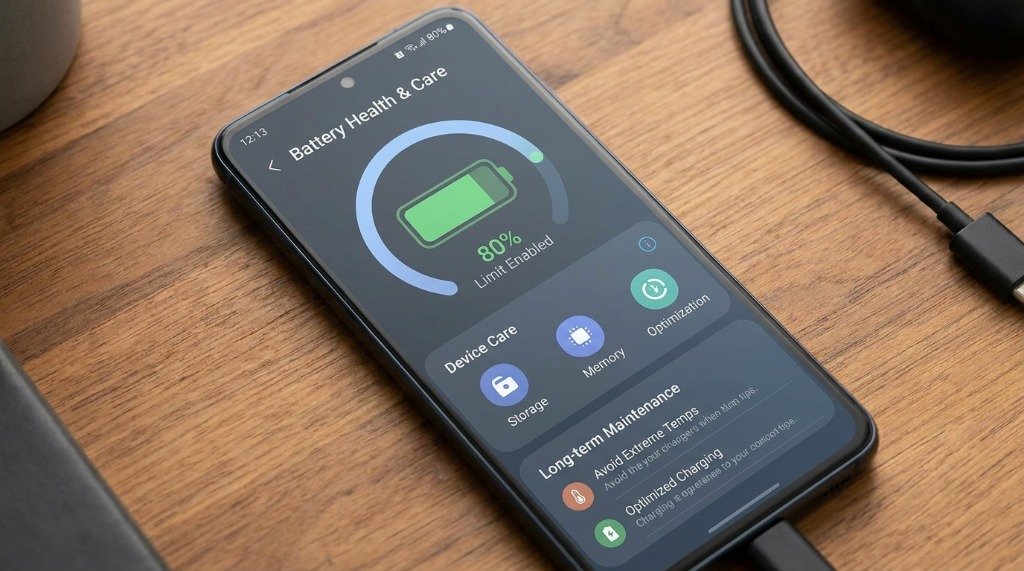
On modern Android builds (Android 14 through 16), navigate to Settings > Battery > Battery Protection / Health. Enable Protect Battery (Basic or Maximum). “Maximum” caps daily charging automatically at 80% or 85%, while “Adaptive” uses machine learning to pause charging at 80% overnight, finishing the final 20% right before your morning alarm.
2. Thermal Management & Fast Charging Safeguards
Heat is the primary catalyst for lithium battery degradation. Exposing a lithium battery to internal temperatures above 40°C (104°F) while at a high state of charge accelerates chemical electrolyte decomposition exponentially.
- Fast Charging Thermal Trade-offs: Ultra-fast charging technologies (65W to 120W+) push high electrical currents into the cell, raising core battery temperatures. Use high-wattage fast chargers only when emergency power is needed. For routine overnight charging, use slow 10W–15W standard USB-PD power adapters to keep temperatures under 32°C.
- Bypass Charging for Gaming & Navigation: When using your phone for heavy gaming or GPS dashboard navigation, enable Bypass Charging / Charge Bypass (available on gaming phones and modern flagships from Samsung, ASUS, and Sony). Bypass charging routes wall power directly to the motherboard chipset, bypassing the battery entirely—eliminating battery heating and wear.
| Charging Habit | Peak Cell Voltage | Core Operating Temp | Expected Cycle Lifespan | 5-Year Usable Capacity |
|---|---|---|---|---|
| 0–100% + Overnight Fast Charge | 4.35V – 4.40V | 38°C – 45°C | 400 – 600 Cycles | ~55% (Requires replacement) |
| 20–80% Limit + Slow Charge | 3.85V – 4.05V | 25°C – 32°C | 1,500 – 2,000 Cycles | ~82% (Healthy operational state) |
2. Storage Wear Mitigation & Flash Memory Speed Maintenance
Modern Android devices utilize UFS (Universal Flash Storage 3.1 / 4.0) or eMMC NAND flash memory modules. NAND flash memory chips have finite write endurance measured in TBW (Total Bytes Written). Over time, heavy file writes and fragmented memory blocks cause read/write throughput slowdowns, app launch delays, and system UI lag.
1. Maintaining the 15-20% Free Storage Buffer
NAND flash memory controllers rely on Wear Leveling Algorithms and dynamic SLC (Single-Level Cell) write caches to distribute write operations evenly across memory blocks. When internal storage becomes more than 85–90% full:
- The flash controller runs out of clean, erased blocks, forcing slow erase-before-write operations (write amplification).
- Dynamic SLC cache space collapses, significantly reducing sequential write speeds.
- Background system garbage collection (TRIM) fails to execute efficiently.
To preserve original UFS read/write speeds, always maintain at least 15% to 20% unallocated free storage space on your device (e.g., keep 38 GB free on a 256 GB handset).
2. Manually Triggering TRIM & Clearing Application Caches
The Linux kernel underlying Android executes the fstrim command periodically to notify the flash storage controller about unallocated data blocks. To trigger TRIM manually and clean storage decay:
- Navigate to Settings > Storage > Free Up Space.
- Use built-in clean-up utilities (or open Google Files) to clear temporary app cache files, redundant messaging media, and unneeded APK installers.
- Restart your phone once a week; during the system boot phase, Android runs file system integrity checks and TRIM garbage collection routines automatically.
3. Software Lifecycle Extension: Official Updates vs. Custom ROMs
Software support is vital for protecting personal data against emerging security vulnerabilities. While recent flagship devices receive 7 years of official OS upgrades, millions of budget and legacy mid-range handsets lose official vendor software support after 2 to 3 years.
1. Navigating End-of-Life (EOL) Official Updates
When your manufacturer officially stops issuing Monthly Security Patches (EOL status), continuing to use the device without software safeguards exposes your banking apps and personal data to unpatched system exploits.
2. Extending Lifespan with Custom ROMs (LineageOS & GrapheneOS)
The Android Open Source Project (AOSP) enables independent developer communities to build custom operating system distributions for older hardware, extending device functionality for years beyond manufacturer abandonment.
- LineageOS: The largest, most stable aftermarket Android distribution. LineageOS brings updated Android versions (e.g., Android 15/16) and current Monthly Security Patches to hundreds of legacy devices whose manufacturers stopped support years ago.
- GrapheneOS: The premier security-hardened Android operating system (primarily for Google Pixel hardware). It provides advanced sandboxing, hardened memory allocators, and strict permission controls.
- Project Treble & GSIs (Generic System Images): Modern Android devices launched with Android 8.0+ incorporate Project Treble, which decouples the low-level vendor Hardware Abstraction Layer (HAL) from the high-level Android OS framework. This allows flashing standardized AOSP Generic System Images (GSIs) onto broad chipsets without writing custom device drivers from scratch.
4. AMOLED/OLED Screen Burn-in & Image Retention Prevention
Active-Matrix Organic Light-Emitting Diode (AMOLED) displays produce vibrant colors and deep true blacks because each individual pixel emits its own light. However, organic blue subpixels degrade faster electrochemically than red and green subpixels under high luminance. Displaying static UI elements continuously at high brightness leads to permanent screen burn-in (ghost images of status bar icons, navigation buttons, or clock displays).
Step-by-Step Screen Preservation Protocols:
- Switch to Full-Screen Gesture Navigation: Replace legacy 3-button navigation bars (Back, Home, Recents) with full-screen swipe gestures. Static white navigation buttons are a primary cause of lower-screen burn-in. (Navigate to Settings > Display > Navigation Bar > Gesture Navigation).
- Enable System-Wide Dark Mode: Dark Mode turns off black pixels completely on AMOLED displays. This eliminates organic subpixel wear across vast areas of the screen while reducing display power consumption by up to 30%.
- Use Auto-Hide Status Bar & Dynamic Wallpapers: Choose dynamic or live wallpapers that shift pixel positions slightly over time. Android incorporates built-in Pixel Shifting (subtly moving status bar icons by 1–2 pixels every few minutes), but reducing screen timeout to 30 seconds or 1 minute further minimizes static exposure.
- Avoid Max Manual Brightness Outdoors: Limit prolonged use of manual 100% screen brightness under direct sunlight. High brightness generates local panel heat, accelerating organic subpixel decay rates.
5. Physical Hardware & USB-C Port Maintenance
Hardware failures are frequently caused by physical lint accumulation or acoustic blockages rather than broken electronic circuits. Performing routine physical maintenance prevents common hardware failures.
1. Safe USB-C Port Cleaning & Debris Removal
Over months of pocket storage, dense clothing lint and micro-debris compress inside the bottom of your phone’s USB-C charging port. Eventually, inserted USB-C cables fail to seat flush against the port contacts, causing intermittent charging, slow data transfers, or loose cable connections.
- Power off the smartphone completely.
- Use a non-conductive, thin tool such as a wooden toothpick, plastic dental pick, or specialized anti-static precision pick.
- Gently slide the pick along the bottom perimeter floor of the port, scraping out packed lint behind the center pin array.
- Use short bursts of dry compressed air to blow out loosened dust particles.
2. Cleaning Speaker Grilles & Microphone Acoustic Meshes
Muffled call audio and quiet speaker output are usually caused by earwax, dust, and oils clogging the fine acoustic mesh coverings. Clean these areas using a clean, dry, ultra-soft toothbrush or specialized adhesive cleaning putty (audio putty), dabbing gently against the speaker openings to pull debris out without pushing it deeper into the acoustic chamber.
3. IP Rating Water Seal Care
If your device carries an IP68 dust/water resistance rating, remember that rubber gaskets and adhesive waterproofing seals degrade over time due to ambient heat, skin oils, and chemical exposure (such as swimming pool chlorine or saltwater). Avoid exposing devices older than 2 years to submersion, as aging seals can fail without visual warning.
6. Protective Case Engineering & Glass Protection Standard
Physical drop impacts remain the single largest cause of premature smartphone destruction. Selecting engineered protective cases and screen protection preserves structural chassis integrity over half a decade.
1. Case Material Engineering: TPU vs. Polycarbonate vs. Aramid Fiber
- TPU (Thermoplastic Polyurethane): Flexible, rubberized material offering superior shock absorption by absorbing kinetic impact energy through elastic deformation. Look for cases with Air Cushion Corners that create internal air gaps around vulnerable chassis corners.
- Polycarbonate (PC): Rigid hard-shell plastic that provides structural rigidity against compression and puncture forces. Premium cases combine a soft inner TPU sleeve with a hard PC outer shell (dual-layer protection).
- Aramid Fiber (Kevlar): Ultra-lightweight, high-strength material providing scratch resistance and slim styling, though offering less kinetic shock absorption during high drops than thick TPU bumpers.
- Raised Screen Bezels (Lip Elevation): Ensure your case features at least 1.2 mm of raised lip elevation around the front display perimeter and rear camera module to prevent direct glass contact with flat surfaces during drops.
2. Tempered Glass Protectors & Oleophobic Coating Refresh
Always apply a high-quality Tempered Glass Screen Protector rated at 9H hardness on the MOHS scale. Tempered glass acts as a sacrificial impact layer, absorbing point impact stress that would otherwise shatter the underlying AMOLED Gorilla Glass display.
Over time, the factory oleophobic (oil-repellent) coating on your screen wears away due to finger friction, resulting in fingerprint smudges. You can refresh this coating annually by applying aftermarket liquid oleophobic coating solutions (fluorosilane liquids), restoring silky touch friction and smudge resistance.
Comprehensive 5-Year Maintenance Schedule Checklist
| Frequency | Target Component | Maintenance Action Required |
|---|---|---|
| Daily | Battery Chemistry | Maintain 20–80% charge window; avoid heat exposure while charging. |
| Weekly | System Memory & Storage | Reboot device to execute background TRIM garbage collection and clear RAM. |
| Monthly | Storage Capacity | Clear cached download files; ensure 15–20% unallocated free space remains available. |
| Quarterly (Every 3 Mo.) | Hardware Ports & Speakers | Scrape lint from USB-C port using wooden pick; clean speaker mesh with soft brush. |
| Bi-Annually (Every 6 Mo.) | Software & System Audit | Audit app permissions; backup personal media off-device; check system update status. |
| Annually (Every 12 Mo.) | Display & Protection | Replace chipped tempered glass protectors; reapply liquid oleophobic coating. |
Conclusion: Sustaining Peak Android Performance for Half a Decade
Extending your Android smartphone’s operational lifespan to 5 years or longer is both economically smart and environmentally responsible. By enforcing the 20-80% battery charging rule, maintaining a 15% free storage buffer for UFS wear-leveling, utilizing Dark Mode to prevent AMOLED burn-in, keeping USB-C ports free of lint, and transitioning to custom ROMs post-EOL, you ensure your mobile device remains fast, secure, and reliable for half a decade of daily use.
