

Master Android Accessibility Features: TalkBack, Live Transcribe, and Voice Access
Introduction: Inclusive Technology in Modern Android
Android incorporates an extensive suite of accessibility technologies designed to make smartphones accessible to everyone. From TalkBack screen reading and real-time Live Transcribe captions to hands-free Voice Access navigation, here is how to master Android’s accessibility ecosystem.
Accessibility features in mobile operating systems are often viewed strictly as tools for individuals with permanent disabilities. However, Google’s Android Accessibility Suite has evolved into a sophisticated collection of assistive technologies, AI vision tools, and hands-free control mechanisms that benefit a vast spectrum of users—including elderly individuals, users recovering from temporary injuries, power users seeking workflow automation, and individuals with visual, auditory, or motor sensitivities.
Modern Android operating systems feature deep OS-level integration of real-time machine learning, text-to-speech engines, directional audio amplification, and hands-free navigation. In this guide, we will examine how to configure, customize, and master core accessibility services including TalkBack, Live Transcribe, Voice Access, Switch Access, display scaling tools, and Sound Amplifier.
1. Mastering TalkBack: Android’s Built-in Screen Reader
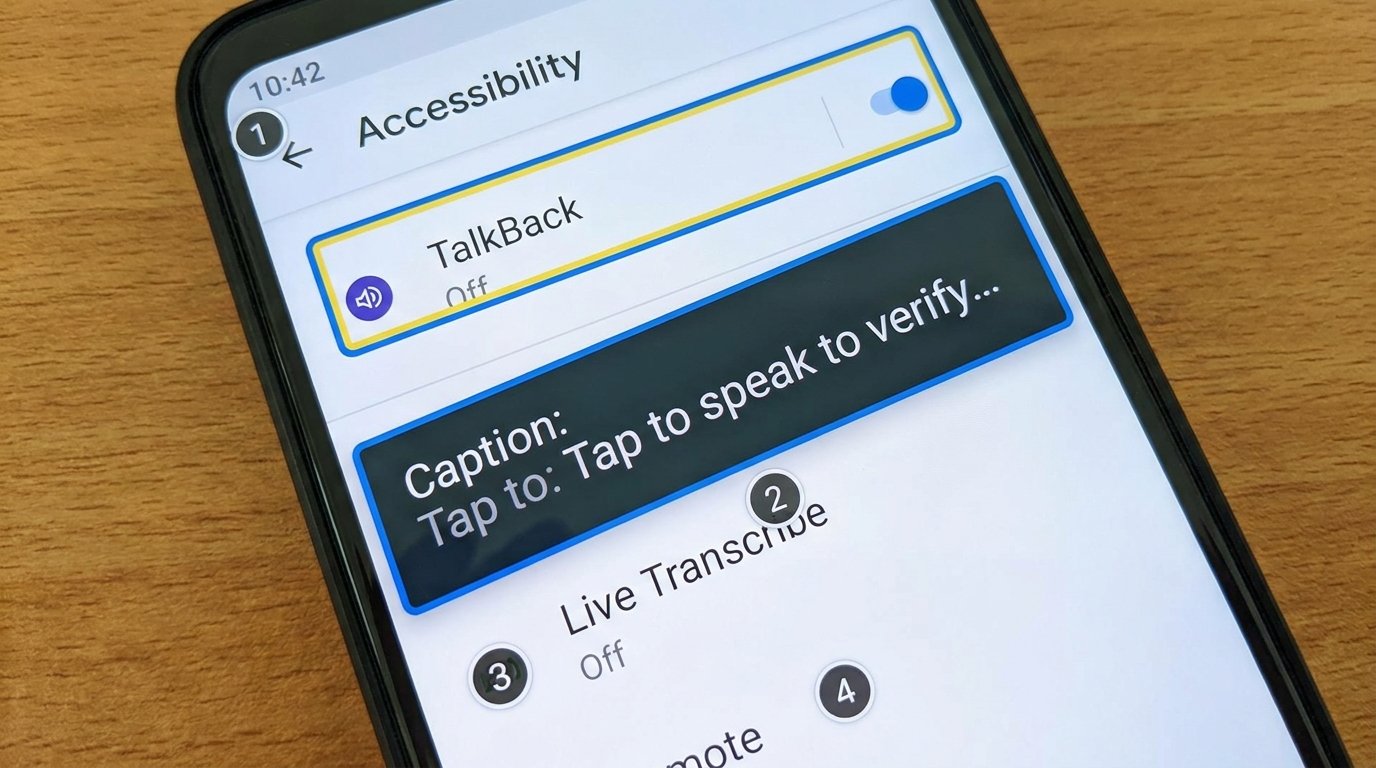
TalkBack is Google’s native screen reader integrated directly into Android. It provides spoken feedback and haptic vibration cues, allowing visually impaired or blind users to work through their smartphone entirely without looking at the screen.
Enabling and Initial Setup
Navigate to Settings > Accessibility > TalkBack and toggle the service on. Alternatively, on most Android devices, pressing and holding both volume keys simultaneously for three seconds triggers the TalkBack shortcut.
Core Navigation Gestures
Once TalkBack is active, touch interactions change from standard taps to spoken exploration mode:
- Explore by Touch: Drag one finger slowly across the screen. TalkBack reads aloud icons, text labels, buttons, and structural elements under your fingertip.
- Select an Item: Tap anywhere once to focus on an element, then double-tap anywhere on the screen to activate it.
- Scrolling Pages: Swipe with two fingers simultaneously to scroll through menus, home screens, or web pages.
- TalkBack Context Menu: Swipe down then right in a single continuous stroke to open the global context menu for controls over reading speed, language settings, and navigation granularity.
2. Real-Time Speech-to-Text with Live Transcribe & Sound Notifications
Developed in collaboration with Gallaudet University, Live Transcribe provides instant, real-time speech-to-text captions for deaf or hard-of-hearing users, displaying spoken conversations directly on the device display as text.
Key Features & Customization
- Multi-Language & Dialect Support: Supports real-time speech transcription in over 80 languages and regional dialects, with quick switching between two primary languages.
- Custom Vocabulary Dictionary: Users can add specialized technical terms, unique names, or local jargon to ensure high transcription accuracy during meetings or lectures.
- Offline Mode Support: Core language transcription models can be downloaded locally to your Android phone, allowing full transcription functionality in remote areas without internet access.
Sound Notifications for Environmental Hazards
Integrated within Live Transcribe is the Sound Notifications feature. The phone’s microphones continuously analyze ambient background audio to alert users to critical acoustic events—such as a smoke alarm sounding, a door knock, a dog barking, an infant crying, or a running water faucet—delivering strong haptic vibrations and flashing camera LED alerts.
3. Hands-Free Navigation with Voice Access
Voice Access allows users with motor impairments, paralysis, arthritis, or temporary hand injuries to operate their entire Android smartphone using simple voice commands.
How Voice Access Controls the UI
Voice Access operates through three distinct interaction modes:
- Grid Navigation: Overlays a numbered grid across your screen. Saying numbers (e.g., “Tap 4”, “Zoom in on 7”) executes precise touch commands on specific screen regions.
- Text Labeling Mode: Automatically detects on-screen buttons and assigns visual numbers next to every clickable element. Saying “Tap 12” clicks the corresponding button.
- Direct Natural Language Commands: Supports conversational spoken commands such as “Open Gmail”, “Scroll down”, “Type ‘I will arrive at 5 PM’”, or “Go to Home screen”.
4. Switch Access & Camera Switches: Touchless Control
For users unable to use voice commands or direct touchscreen taps, Switch Access provides alternative control inputs via external hardware switches or facial expressions captured by the front selfie camera.
External Hardware vs. Camera Switches
- External Hardware Switches: Connects specialized Bluetooth or USB switches, foot pedals, or sip-and-puff devices. Pressing a switch moves an on-screen highlight box from item to item across the display.
- Camera Switches (Facial Gestures): Uses the Android device’s front camera to detect specific facial gestures as switch inputs. For example, opening your mouth can trigger a “Next” command, while raising your eyebrows triggers a “Select / Click” command.
5. Vision Enhancements: Scaling, High-Contrast, and Magnification
Android offers extensive display tuning tools to assist users with low vision, color blindness, or eye strain.
Customizing Display & Typography
- Display & Font Size Sliders: Located under Settings > Display > Display Size and Text, users can scale font sizing up to 200% while adjusting UI component scaling independently.
- High-Contrast Text: Outlines text characters in bold black or white borders, improving readability against low-contrast background images or colored app panels.
- Color Correction & Inversion: Features specialized color blindness filters tailored for Deuteranomaly (red-green), Protanomaly (red-green), and Tritanomaly (blue-yellow), alongside full system grayscale modes.
- Screen Magnification: Enabling Magnification allows users to triple-tap or press a floating accessibility button to zoom into any portion of the screen up to 8x magnification.
6. Audio Adjustments: Sound Amplifier & Hearing Aid Compatibility
Android provides dedicated audio enhancement tools designed to boost speech clarity while filtering out annoying background noise.
Sound Amplifier Tuning
Sound Amplifier uses your wired or Bluetooth headphones to customize ambient audio based on your personal hearing profile:
- Connect your headphones and open Settings > Accessibility > Sound Amplifier.
- Adjust the Noise Reduction slider to isolate human speech frequencies while suppressing ambient background hums (such as HVAC fans or traffic noise).
- Tune left and right ear sound levels independently to match individual ear sensitivity.
Audio Streaming for Hearing Aids (ASHA Standard)
Modern Android smartphones support the Audio Streaming for Hearing Aids (ASHA) protocol over Bluetooth Low Energy (BLE). This allows users to pair compatible direct-to-ear hearing aids directly to their Android phone, streaming phone calls, media audio, and navigation prompts with minimal latency and minimal battery drain.
Android Accessibility Suite Matrix
| Accessibility Service | Primary User Audience | Core Operational Mechanism | Offline Support? |
|---|---|---|---|
| TalkBack | Blind & Low Vision Users | Spoken screen reading, haptic cues, & touch exploration | 100% Offline |
| Live Transcribe | Deaf & Hard-of-Hearing Users | Real-time speech-to-text captions & sound alerts | Yes (With downloaded offline speech packs) |
| Voice Access | Motor Impairment & Hands-Free Power Users | Spoken voice commands, grid overlays, & label targets | Yes (Offline speech recognition engine) |
| Switch Access | Severe Motor Impairments | External hardware switches or facial gesture camera tracking | 100% Offline |
| Sound Amplifier | Users with Hearing Loss / Noisy Environments | Directional microphone amplification & noise reduction | 100% Offline |
How Accessibility Features Benefit Everyday Power Users
Beyond assistive needs, many accessibility tools double as power-user productivity hacks:
- Live Transcribe for Note Taking: Record spoken lectures or business meetings in real-time, copying the transcribed text directly into note-taking apps.
- Voice Access for Hands-Free Cooking: Control recipes, scroll pages, or set timers while working in the kitchen with messy hands.
- Sound Amplifier in Loud Environments: Boost human voice frequencies when trying to hear a conversation in a noisy coffee shop or airport terminal.
Conclusion
Android’s comprehensive accessibility ecosystem represents a benchmark in inclusive tech design. By exploring and customizing TalkBack, Live Transcribe, Voice Access, display scaling, and audio tuning, users can adapt their Android smartphone to match their physical preferences, operational needs, and daily productivity workflows perfectly.
