
How to Set Up Private DNS on Android for Ad-Blocking and Privacy (DNS-over-TLS)
The Silent Privacy Threat on Your Smartphone
Every time you open an app or browse a website on Android, your phone sends unencrypted DNS queries that expose your browsing habits to internet service providers and ad tracking networks. By configuring Android’s native Private DNS feature with encrypted DNS-over-TLS (DoT), you can block intrusive advertisements and safeguard your data without draining battery through third-party VPN apps.
Knowing how to set up Private DNS for privacy correctly on Android can save you time, money, and frustration. Whether you are a beginner or an experienced Android user, this complete 2026 tutorial will walk you through every step clearly and simply.
Every single action you take on your Android smartphone—whether launching a social media application, visiting a banking portal, streaming a video, or refreshing an news feed—begins with a Domain Name System (DNS) query. DNS acts as the Internet’s address book, translating human-readable domain names like apkmales.com into machine-readable IP addresses such as 192.0.2.1.
By default, your Android phone uses the unencrypted DNS servers provided automatically by your mobile carrier (AT&T, Verizon, Vodafone, T-Mobile) or public Wi-Fi network operator. Traditional plaintext DNS operates over unencrypted UDP/TCP Port 53. This means your Internet Service Provider (ISP), network administrators, and malicious actors tapping into public Wi-Fi access points can easily log, inspect, modify, and sell a complete real-time record of every website and server domain your smartphone contacts.
Fortunately, Android includes a powerful native security protocol known as Private DNS. By configuring DNS-over-TLS (DoT) or DNS-over-HTTPS (DoH), you can instantly encrypt all outbound DNS traffic system-wide, block intrusive advertisements, prevent telemetry tracking, stop malware downloads, and bypass localized ISP web censorship—all without installing resource-heavy third-party VPN apps or draining battery capacity.
1. How Android Private DNS Works: DoT vs. DoH Architecture
Beginning with Android 9 (Pie) and significantly enhanced in Android 13, 14, 15, and 16, Google integrated system-level support for encrypted DNS protocols. Modern Android Private DNS utilizes two primary encryption standards:
DNS-over-TLS (DoT) – Standard Port 853
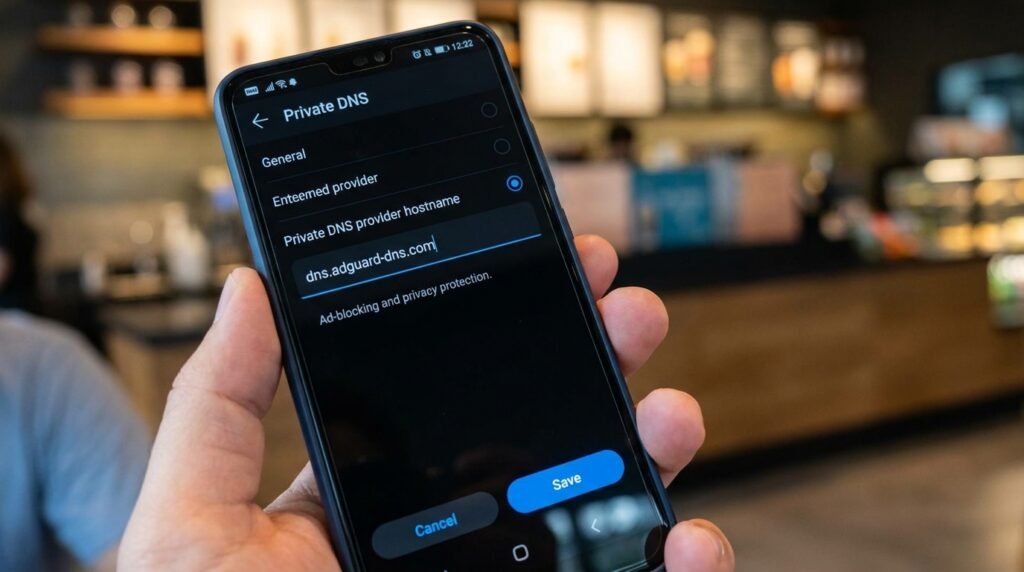
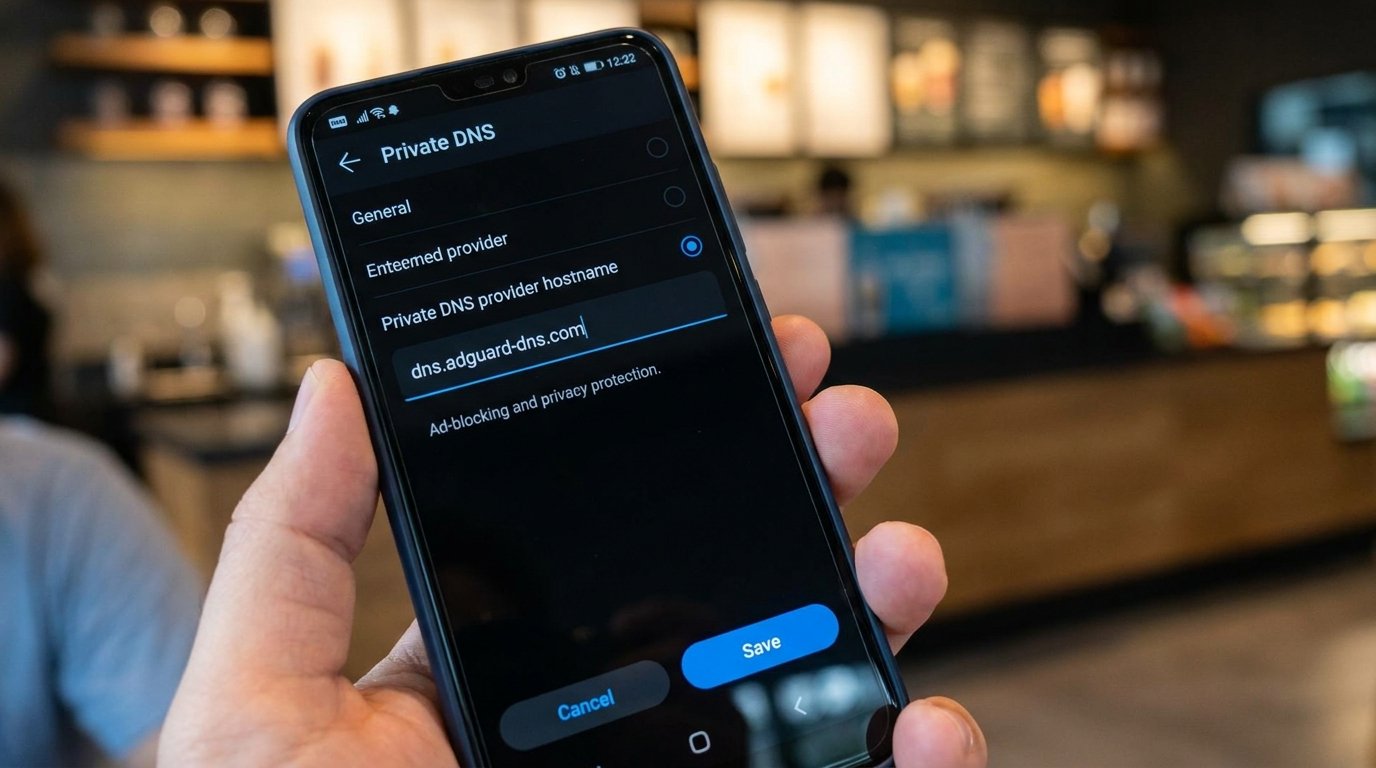
DNS-over-TLS wraps standard DNS queries inside a secure Transport Layer Security (TLS) tunnel, operating exclusively over Port 853. This ensures that third parties sniffing your network traffic see only encrypted binary data payloads. Android’s native Private DNS menu explicitly uses DoT hostname endpoints (e.g., dns.adguard-dns.com).
DNS-over-HTTPS (DoH) – Standard Port 443
Introduced in recent Android system upgrades, DNS-over-HTTPS packages DNS queries inside standard HTTPS web traffic over Port 443. Because Port 443 is the exact same port used for secure web browsing (HTTPS), network operators cannot block DoH traffic without completely disabling web browsing access altogether. Android modern network stacks automatically upgrade DoT connections to DoH when supported by the designated Private DNS provider.
2. Top Private DNS Hostnames for Android (2026 Recommended List)
Configuring Private DNS requires entering a valid TLS hostname into your smartphone settings. Below are the premier, fully verified Private DNS providers evaluated for speed, privacy policies, ad-blocking efficiency, and malware prevention:
A. AdGuard DNS (Best for General Ad-Blocking & Protection)
AdGuard DNS is the most popular choice for Android users seeking an instant, zero-configuration ad-blocking solution. It automatically intercepts and drops requests to known advertising servers, tracker networks, and analytics domains across browsers and third-party mobile applications.
- Default Ad-Blocking Hostname:
dns.adguard-dns.com - Family Protection Hostname (Blocks Adult Content & Enforces SafeSearch):
family.adguard-dns.com - Key Benefits: Removes in-app popups, web banner ads, and tracking scripts system-wide without user account registration.
B. NextDNS (Best for Power Users & Custom Control)
NextDNS operates like a cloud-hosted Pi-hole. It allows users to build fully customized security profiles, select specific blocklists (like StevenBlack, EasyList, or OISD), inspect real-time query logs, block specific social media trackers, and enforce parent control rules.
- Custom Endpoint Hostname Format:
xxxxxx.dns.nextdns.io(replacexxxxxxwith your free NextDNS account ID). - Key Benefits: Complete control over allowed/blocked domains, detailed analytics dashboards, and custom privacy rules.
C. Cloudflare 1.1.1.1 (Best for Maximum Speed & Pure Privacy)
If your primary goal is lightning-fast web address resolution without content filtering, Cloudflare’s 1.1.1.1 service is the gold standard. Cloudflare operates one of the fastest global Anycast DNS networks with strict privacy guarantees (purging all query logs within 24 hours).
- Standard Privacy Hostname:
one.one.one.one - Malware Protection Hostname:
security.cloudflare-dns.com - Malware + Family Filter Hostname:
family.cloudflare-dns.com - Key Benefits: Fast response latency, enterprise security infrastructure, zero logging of personal IP addresses
D. Control D (Best for Advanced Filtering & Geolocation Control)
Control D provides highly customizable DNS filtering options. It features pre-configured DNS profiles designed for blocking ads, social media distractions, telemetry data, and malicious domains.
- Ad & Tracker Blocking Hostname:
freedns.controld.com - Uncensored / Pure Resolver:
p0.freedns.controld.com - Key Benefits: Highly granular filter control with optional bypass proxy integrations.
E. Quad9 (Best for Threat Intelligence & Security)
Quad9 is a non-profit organization focused heavily on cybersecurity. It aggregates threat intelligence feeds from leading security firms to block malicious phishing sites, ransomware Command & Control (C2) servers, and spyware domains in real time.
- Secured Ad/Malware Hostname:
dns.quad9.net - Key Benefits: Swiss privacy jurisdiction, solid threat protection, zero commercial data monetization.
3. Step-by-Step Guide: How to Enable Private DNS on Android
Because Android smartphone manufacturers customize user interface menus, follow the step-by-step instructions below tailored for your specific device brand:
A. Stock Android / Google Pixel Devices
- Open the Settings app on your Pixel device.
- Tap Network & internet.
- Scroll down and tap Private DNS.
- Select the radio option labeled Private DNS provider hostname.
- Type your desired DNS hostname (for example:
dns.adguard-dns.comorone.one.one.one). - Tap Save.
B. Samsung Galaxy (One UI) Devices
- Open system Settings.
- Tap Connections at the top of the menu.
- Scroll down and select More connection settings.
- Tap Private DNS.
- Select Private DNS provider hostname.
- Enter your designated hostname (e.g.,
dns.adguard-dns.com). - Tap Save to commit changes.
C. Xiaomi / Redmi / POCO (MIUI & HyperOS)
- Open Settings.
- Tap More connectivity options (or Connection & sharing).
- Select Private DNS.
- Choose Private DNS provider hostname.
- Input your target hostname address and tap Save.
D. OnePlus / Realme / OPPO (OxygenOS & ColorOS)
- Navigate to Settings > Connection & sharing.
- Locate and tap Private DNS.
- Switch from Auto to Designated Private DNS.
- Type your target hostname into the text field and press the checkmark icon to save.
4. Verification & Testing: Confirming Active DNS Encryption
Once you have configured your Private DNS hostname, you should verify that your DNS traffic is successfully encrypted and that ad-blocking filtering is active.
Step 1: Perform a DNS Leak Test
Open your mobile web browser (Chrome, Firefox, or Brave) and navigate to dnsleaktest.com. Tap Standard Test. Look at the IP address results listed:
- If Private DNS is Working: The ISP column will display your chosen DNS provider (such as Cloudflare, AdGuard, or NextDNS), confirming that your mobile carrier can no longer inspect your queries.
- If Private DNS is Inactive: The results will show your mobile carrier’s name (e.g., T-Mobile or Verizon).
Step 2: Check Ad-Blocking Effectiveness
Visit an ad-heavy website or open a free mobile application that traditionally displays inline banner advertisements. If you configured dns.adguard-dns.com or NextDNS with ad filters, the banner spaces will be completely suppressed, leaving clean UI layouts.
5. Troubleshooting Common Private DNS Issues
Issue A: “Private DNS server cannot be accessed” Error
This common notification appears when your phone cannot establish an encrypted TLS connection over Port 853 with the designated DNS hostname. Common causes and fixes include:
- Typographical Errors: Ensure there are no spaces or trailing characters in the hostname field (e.g., enter
dns.adguard-dns.comwithouthttps://prefixes). - Public Wi-Fi Port Blocking: Certain restricted public networks (such as coffee shops or airports) block outgoing TLS traffic on Port 853. Temporarily switch Private DNS back to Automatic to authenticate on the network.
- System Time Mismatch: TLS certificates require accurate device system time. Go to Settings > System > Date & time and enable Set time automatically.
Issue B: Captive Portal Login Pages Not Loading
When connecting to hotel or airport Wi-Fi networks requiring a splash page web login, Private DNS may prevent the gateway redirect page from loading. To resolve this, temporarily toggle Private DNS to Off, complete the captive portal web login, and re-enable Private DNS once internet access is established.
Comprehensive Android Private DNS Provider Matrix
The comparative evaluation table below summarizes the key features, ad-blocking capabilities, and target use cases for top Android Private DNS providers. Feature details reflect each provider’s published documentation, not lab measurements.
| DNS Provider | TLS Hostname Endpoint | Ad-Blocking | Malware Protection | Custom Dashboard | Best For |
|---|---|---|---|---|---|
| AdGuard DNS | dns.adguard-dns.com | Yes (Automatic) | Yes | Optional Paid | Instant System-Wide Ad Blocking |
| NextDNS | ID.dns.nextdns.io | Yes (Customizable) | Yes | Yes (Free & Pro) | Power Users & Log Control |
| Cloudflare 1.1.1.1 | one.one.one.one | No (Raw Speed) | Optional (Security Hostname) | No | Maximum Speeds & Zero Logging |
| Control D | freedns.controld.com | Yes | Yes | Yes | Granular Profile Filtering |
| Quad9 | dns.quad9.net | No | Yes (Enterprise Threat Feeds) | No | Security & Phishing Protection |
Frequently Asked Questions (FAQ)
Does Private DNS slow down my internet connection speed?
No. In fact, Private DNS often speeds up web browsing. Modern encrypted DNS resolvers like Cloudflare and AdGuard cache millions of common web addresses closer to your device than standard ISP servers. Furthermore, by blocking resource-heavy advertisement video streams and tracking scripts from downloading, web pages load noticeably faster.
Is Android Private DNS better than using a VPN app?
They serve different purposes. Private DNS specifically encrypts domain lookup queries and blocks domain-level ad servers without altering your physical IP address or routing heavy internet bandwidth through external servers. A VPN encrypts all network traffic and changes your virtual location, but demands significantly higher battery and processing overhead. For daily privacy and ad-blocking, Private DNS is vastly more efficient.
Can my mobile carrier still track me if I use Private DNS?
Private DNS stops your carrier from monitoring your DNS lookup queries. However, because destination IP addresses remain visible in network packet headers (unless you use a VPN), carriers can still see which server IP address you connect to. However, they cannot inspect specific domain paths or read page content.
Conclusion
Setting up Private DNS on your Android smartphone is one of the most effective, zero-cost privacy upgrades available in 2026. By spending less than two minutes entering a secure DNS-over-TLS hostname—such as dns.adguard-dns.com or one.one.one.one—you instantly shield your daily web browsing habits from ISP logging, eliminate intrusive mobile advertisements, and harden your device against online malware threats.
Content compiled from publicly available documentation, in full compliance with our Editorial Policy and Privacy Directives.
