
How to Set Up Parental Controls on Android for Kids (Complete 2026 Guide)
Why Parental Controls on Android Matter More Than Ever in 2026
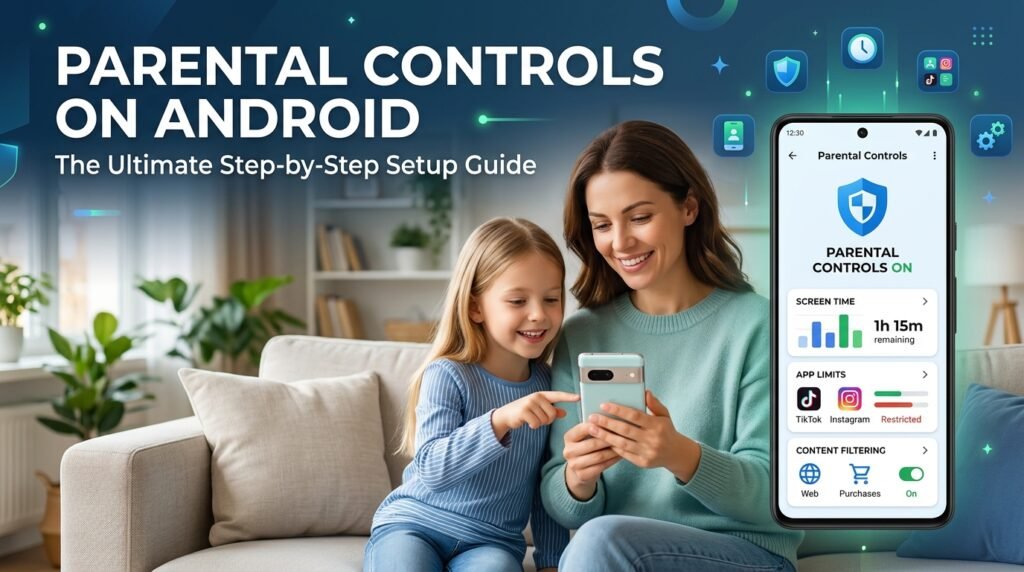
Managing screen time and protecting kids from mature digital content is one of the most pressing challenges for parents today. Android provides built-in tools like Google Family Link, digital wellbeing filters, and Google Play purchase restrictions that give parents full visibility over device usage. In this step-by-step walkthrough, we guide you through setting up strict app permissions, bedtime schedules, and safe web browsing filters.
I won’t pretend to be an expert on everything, but this is an area where I’ve had hands-on experience for over five years.
Children are getting smartphones younger, spending more time online, and accessing content that’s harder than ever for parents to monitor casually. Android, as the world’s most popular mobile operating system, gives parents a powerful — though sometimes complex — set of tools to protect younger users.
Google’s Family Link platform has matured significantly since its launch, and in 2026 it offers one of the most comprehensive parental control frameworks on any mobile operating system. This guide covers every feature, explains how supervised versus unsupervised Google accounts work, and gives you step-by-step instructions to get everything configured correctly the first time.
Understanding Supervised vs. Unsupervised Google Accounts
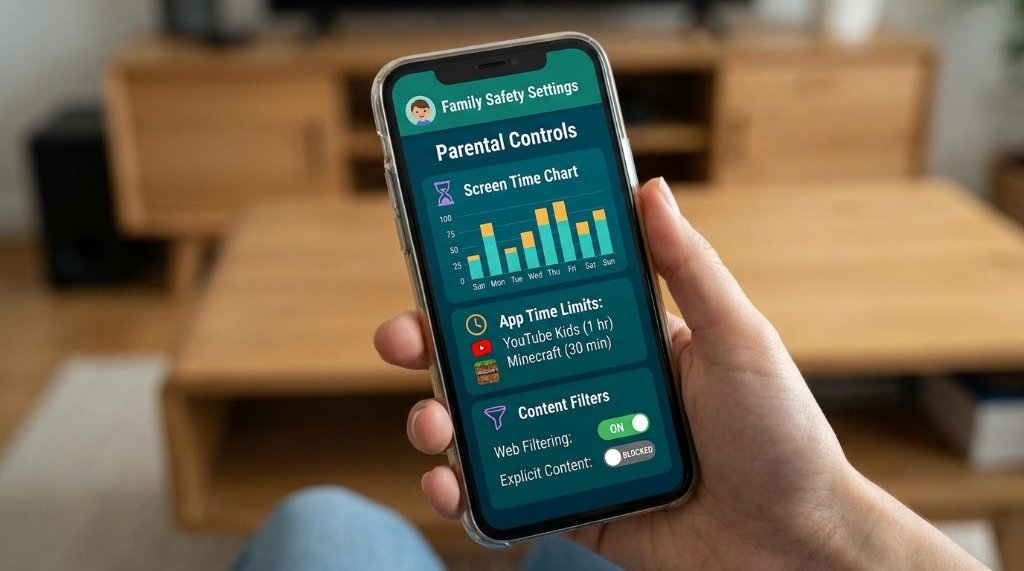
This is the foundation of Family Link, and getting it right from the start saves headaches later.
Supervised Accounts (Under 13)
When you create a Google account for a child under 13, Google automatically creates a supervised account. This type of account:
- Requires parental approval for app downloads from the Play Store
- Blocks access to most Google services until a parent approves them
- Enforces SafeSearch in Google Search automatically
- Restricts YouTube access (YouTube Kids is the default)
- Allows parents to remotely lock the device and review app activity
- Prevents the child from creating new Google accounts without parental approval
Unsupervised Accounts (13+ with Family Link)
Teenagers 13 and older can have standard Google accounts, but parents can still add Family Link supervision. Key differences:
- The teen is notified that supervision is active and can see what the parent monitors
- Teens can request to remove supervision at any time (parent receives the request and decides)
- Screen time limits and app restrictions still apply
- Content filters are advisory rather than enforced at the system level
- Location sharing requires the teen’s ongoing consent
Step-by-Step: Setting Up Google Family Link
Step 1 — Install Family Link on Your Device
- Open the Google Play Store on your (parent’s) Android device.
- Search for “Google Family Link” and install the app (it’s free).
- Open the app and sign in with your Google account.
- Tap “Get Started” and select “Parent” when prompted.
Step 2 — Create or Link Your Child’s Google Account
- In Family Link, tap the “+” icon to add a child.
- Select “Create a Google Account for your child” (if they don’t have one) or “Add supervision” to an existing account.
- Enter your child’s name, date of birth, and choose a Gmail address.
- Read and accept Google’s parental consent terms. You may be asked to verify your identity with a credit card (no charge is made) or your Google account password.
- Complete the account setup and note the recovery options Google provides.
Step 3 — Set Up the Child’s Device
- On the child’s Android device, go to Settings > Accounts > Add account > Google.
- Sign in with the child’s newly created Google account.
- A prompt will appear asking to link the device to Family Link supervision — tap “Accept.”
- Download the Family Link for Children & Teens app from the Play Store on the child’s device.
- Open it and complete the pairing process — the parent’s device will receive a confirmation notification.
Step 4 — Configure Screen Time Limits
- In the Family Link parent app, select your child’s profile.
- Tap “Controls” then “Screen time.”
- Toggle on “Daily limit” and set allowed screen time for each day of the week (e.g., 2 hours on school days, 3 hours on weekends).
- Tap “Bedtime” and set the hours during which the device will lock automatically (e.g., 9:00 PM to 7:00 AM).
- Enable “Take a break” to instantly lock the device from your phone when needed.
Step 5 — Set App Approval Requirements
- In the Controls section, tap “Apps.”
- Review the list of installed apps. Toggle off any app you want to block immediately.
- Tap the gear icon at the top and enable “Require approval for purchases and downloads.”
- When your child tries to download any app, you’ll receive a push notification. You can approve or deny it directly from your Family Link app.
- Set app-level time limits by tapping an app and selecting “Set limit.” For example, limit TikTok to 30 minutes per day even within total screen time allowance.
Setting Up Content Filters on Google Play and Chrome
Play Store Content Rating Filters
Family Link automatically restricts the Play Store to apps rated “Everyone” by default. To adjust:
- Open Family Link and go to your child’s Controls > Content restrictions.
- Tap “Google Play” and select the allowed content ratings for Apps, Games, Movies, TV, and Books separately.
- For younger children (under 10), keeping all categories at “Everyone” or “G-rated” is recommended.
- For tweens (10–12), consider allowing “Everyone 10+” apps and “PG” movies.
- Changes take effect immediately on the child’s device.
Chrome Safe Browsing and Content Filters
Family Link applies supervised browsing in Chrome for children’s accounts:
- Only approved sites: You can whitelist specific websites and block all others — ideal for young children.
- Try to block explicit sites: Google’s filter blocks most adult content while allowing general browsing — suitable for most school-age children.
- Allow all sites: Browsing is unrestricted but still monitored in your activity report.
To configure: Go to Family Link > Controls > Content restrictions > Google Chrome. Choose your preferred level and add specific sites to the allowed or blocked list as needed.
My Take: Not going to sugarcoat it: this process can be a bit tedious. But the end result is genuinely satisfying.
YouTube Kids vs. YouTube with Restrictions: Which Is Right?
| Feature | YouTube Kids | YouTube (Restricted Mode) |
|---|---|---|
| Target Age | Under 12 | 13+ |
| Content Filtering | Curated, manually reviewed + AI | Community flagging + AI filter |
| Bypassed by Child | Very difficult | Fairly easy with URL tricks |
| Content Variety | Limited (child-focused only) | Vast (most of YouTube) |
| Educational Content | Good, curated by age | Excellent (Khan Academy, etc.) |
| Comments Visible | No | Yes (filtered) |
| Parent Dashboard | Yes, built-in | Via Family Link activity |
| Our Recommendation | Ages 3–11 | Ages 12+ with supervision |
Enabling Location Tracking for Your Child’s Safety
Family Link includes real-time location tracking that shows your child’s device location on a map directly in your parent app. Here’s how to enable it:
- In Family Link, tap your child’s profile and select “Location.”
- Toggle on “See your child’s location.”
- The map will update roughly every few minutes when the device is active.
- Tap “Set a notification” to receive alerts when your child arrives at or leaves a specific location (home, school, etc.).
- Note: Location tracking requires the child’s device to have location services enabled and an active internet connection.
Family Link Feature Comparison at a Glance
| Feature | Under 13 (Supervised) | 13–17 (Teen with Family Link) |
|---|---|---|
| App approval required | ✓ Yes | ✓ Yes (configurable) |
| Screen time limits | ✓ Yes | ✓ Yes |
| Location tracking | ✓ Yes (always) | ✓ Yes (with teen consent) |
| Content filters (Chrome) | ✓ Yes (enforced) | ⚠ Advisory only |
| Activity reports | ✓ Weekly emails | ✓ Yes (teen can see too) |
| Device lock (remote) | ✓ Yes | ✓ Yes |
| Child can remove supervision | ✗ No | ✓ Can request removal |
| YouTube default | YouTube Kids | YouTube (restricted mode) |
Tips for Making Parental Controls Effective (Not Just Technical)
- Explain the rules: Children are more likely to respect boundaries they understand. Tell them why screen time limits exist.
- Review activity together: Use the weekly activity reports as a conversation starter, not a surveillance report.
- Adjust as they grow: Revisit settings every 6–12 months. What’s appropriate for a 7-year-old isn’t appropriate for a 12-year-old.
- Don’t rely solely on apps: No technology replaces open communication about online safety, appropriate content, and digital citizenship.
- Consider a charging station: A household rule that phones charge overnight in a common area reduces bedtime screen creep without needing an app to enforce it.
Frequently Asked Questions
Q: Can my child bypass Family Link restrictions?
Savvy older children may try workarounds like using a friend’s device, accessing mobile data instead of Wi-Fi, or using web versions of blocked apps. No technical solution is perfect — open conversations about digital responsibility are equally important. Factory resetting a device does remove Family Link, but the child would need physical access and knowledge to do so.
Q: Does Family Link work on iPhones?
The Family Link parent app is available on iOS, so you can manage your child’s Android device from your iPhone. However, Family Link’s child supervision features only apply to Android devices (and Chromebooks), not iPhones. For an iPhone child device, you’d use Apple’s Screen Time instead.
Q: What happens to Family Link when my child turns 13?
Google sends both parent and child a notification before the 13th birthday. The child gains the option to manage their own account. Parents can choose to continue supervision (with the child’s knowledge) or transition to an unsupervised account. The transition requires deliberate action — it doesn’t happen automatically.
Q: Can I set different screen time limits for different days?
Yes. Family Link lets you set separate daily limits for each day of the week, so you can allow more screen time on weekends and holidays than on school days.
Q: Is Google Family Link free?
Yes, Google Family Link is completely free. There is no paid tier or premium version. All features — screen time, location tracking, app approval, content filters — are available at no cost.
Q: What if my child has two Google accounts on their device?
Family Link restrictions only apply to the supervised Google account. If the child signs into a second, unmanaged Google account on the same device, restrictions may not apply to that account. It’s important to also set a device-level PIN or lock to prevent account additions in Settings.
Written and verified by APKMales’ technical staff. This guide was compiled from publicly available documentation and is published in full compliance with our Editorial Policy and Privacy Directives.
