
How to Record Phone Calls on Android Safely and Legally (2026 Guide)
Is It Legal to Record Phone Calls?
Knowing how to record calls legally correctly on Android can save you time, money, and frustration. Whether you are a beginner or an experienced Android user, this complete 2026 tutorial will walk you through every step clearly and simply.
Google introduced restrictions on call recording through the Accessibility API in Android 10 and further tightened them in Android 14 to protect user privacy. However, device manufacturers who build their own phone dialers can integrate call recording at the operating system level — bypassing the API restrictions entirely because their software has privileged system access. This is why native OEM call recording is so much more reliable than third-party apps on modern Android.
Samsung One UI Call Recording
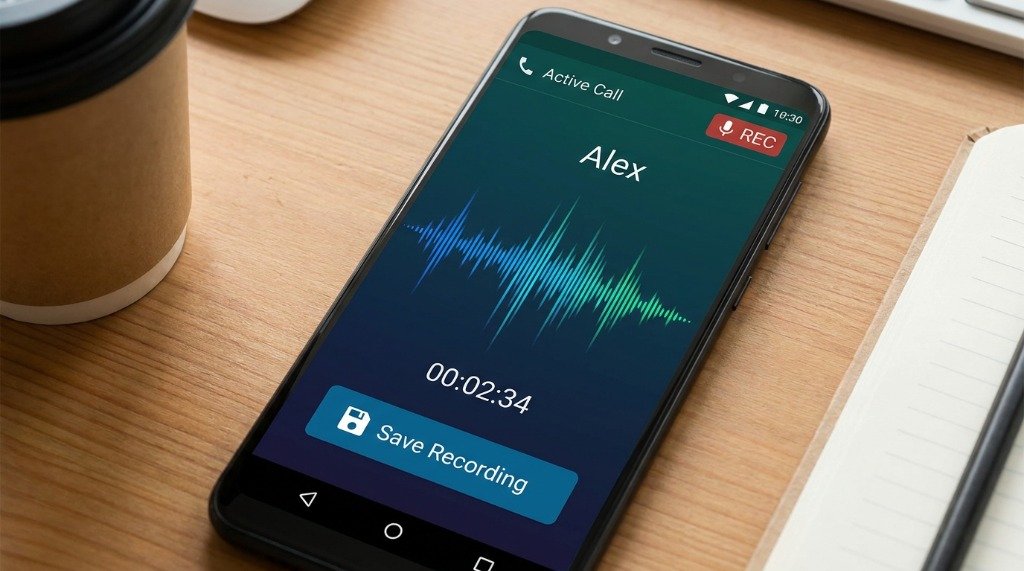
Samsung’s Galaxy phones running One UI offer native call recording available on most hardware globally, though regional availability depends on your country’s laws. Samsung enforces localisation — phones sold in regions with strict call recording laws may have the feature disabled at the firmware level, but phones with open firmware regions have it available.
How to Enable and Use Samsung Call Recording
- Open the Phone app on your Galaxy device.
- Tap the three-dot menu (⋮) in the top right corner and select Settings.
- Tap Record calls.
- Enable Auto record calls to record all calls automatically, or leave it off to record manually.
- If the option is missing, your Samsung firmware region has it disabled. You can change firmware region using Samsung’s SamFW tools, but this voids certain warranties and is an advanced procedure.
During a live call, tap the Record button in the call screen. Samsung will play an audible beep and display "Recording" on screen. Recordings are saved to Internal Storage → Call in MP3 format and can be accessed from the Phone app’s Recents → Recorded calls section.
Xiaomi HyperOS / MIUI Call Recording
Xiaomi, Redmi, and POCO phones running HyperOS (formerly MIUI) have some of the most accessible native call recording features on the market. The feature is enabled by default in many regions and requires no setup for manual use.
How to Record Calls on Xiaomi HyperOS
- During a call, look for the Record button in the on-screen call controls (it may be in a second row or accessible via a three-dot menu).
- Tap Record to start. The other party hears an automated announcement that the call is being recorded (this is a Xiaomi default compliance feature).
- To auto-record all calls: Open Phone → Settings → Call recording → Auto-record calls.
- Recordings are stored in Internal Storage → MIUI → sound_recorder → call_rec in AMR or AAC format.
Google Phone App Call Recording
Google’s native Phone app (available on Pixel phones and on Android Go devices, and downloadable on some other Android phones) includes built-in call recording in select countries. As of 2026, Google Phone call recording is available in India, Mexico, Indonesia, Brazil, Spain, Italy, Israel, Japan, and about 15 other countries. It is not available in the US, UK, Germany, France, Australia, or Canada at the OS level due to local regulations.
How to Use Google Phone App Recording
- During a call in the Google Phone app, look for the Record button (circle with a dot).
- Tap it — both parties hear an automated message: "This call is now being recorded."
- Tap Stop recording to end. The audio file appears in your Recents tab.
- Recordings are accessible via Phone app → Recents → tap the entry → Play recording.
OEM Call Recording Support Comparison Table
| OEM / App | Method | Auto-Record | Beep / Notice | Format | Availability |
|---|---|---|---|---|---|
| Samsung One UI | Native system | ✅ | Beep on screen | MP3 | Region-dependent |
| Xiaomi HyperOS | Native system | ✅ | Voice announcement | AMR / AAC | Most regions |
| Google Phone App | Native system | ❌ | Voice announcement | AAC | ~15 countries |
| OnePlus (OxygenOS) | Native system | ✅ | Beep | MP3 | Select regions |
| Cube ACR (3rd party) | Accessibility API | ✅ | Optional beep | MP3 / M4A | Wide (limited on Android 14+) |
| Oppo / ColorOS | Native system | ✅ | Voice announcement | AAC | Select regions |
Setting Up Cube ACR for Third-Party Call Recording
If your phone does not have a native OEM call recorder, Cube ACR is the most capable third-party option available on the Google Play Store. It uses the Android Accessibility API to capture audio, which means audio quality depends heavily on how Android routes call audio on your specific device. On Android 9 and 10, Cube ACR worked excellently. On Android 13 and 14, Google has significantly restricted Accessibility API audio capture, which has reduced its effectiveness on some devices.
Cube ACR Setup Tutorial
- Install Cube ACR from the Google Play Store.
- Open the app. It will request Accessibility Service permission — this is required for call detection. Go to Settings → Accessibility → Cube ACR and enable it.
- Grant microphone and storage permissions when prompted.
- In Cube ACR settings, set Recording Source. Try Voice Call first, then Microphone or Earpiece if call audio captures only one side.
- Enable Auto-record all calls for automatic recording, or use the floating button that appears during calls for manual control.
- Test by calling a contact and checking the recording quality before relying on it for important calls.
Audio Routing Issues with Cube ACR
On many Android phones with recent firmware, Cube ACR can only capture microphone audio (your voice) without the incoming call audio. This is a deliberate Android privacy restriction. Workarounds include:
- Speaker mode: Putting the call on speakerphone allows the microphone to pick up both sides of the conversation. Quality is reduced and background noise is increased, but both voices are captured.
- Bluetooth headset: Some Bluetooth audio stacks route call audio differently, allowing Cube ACR to capture both sides without speaker mode.
- Root access (advanced): Rooted phones running Magisk can install audio capture modules that bypass Android’s API restrictions. This voids warranties and is only recommended for advanced users.
Privacy Safeguards When Recording Calls
Even in jurisdictions where call recording is legal, responsible use of this capability matters. Here are the privacy safeguards every Android call recorder should implement:
- Announce the recording: Inform all parties at the start of the call that it is being recorded, regardless of what the law requires in your location.
- Secure your recordings: Store recordings in an encrypted folder or encrypted app. Apps like Files by Google or Solid Explorer can encrypt folders. Never leave recordings accessible in a plain folder on your device.
- Delete when no longer needed: Retained recordings are a liability. Set a review schedule and delete recordings you no longer need for any legitimate purpose.
- Do not share without consent: Sharing a legally made private recording without consent of all parties may itself be illegal in many jurisdictions and is a privacy violation in all of them.
- Business calls have different rules: If you are recording calls in a professional capacity, check your employer’s call recording policy, your telecom provider’s terms of service, and any industry-specific regulations (such as financial services regulations in the EU or UK that mandate specific disclosure language).
Backing Up and Managing Your Call Recordings
Call recordings can accumulate rapidly and consume significant storage. A one-hour call in MP3 format at 128 kbps uses about 56 MB. Here is how to manage your recording library efficiently:
- Use a file manager to browse call recording folders and set up monthly cleanup reminders.
- Back up important recordings to Google Drive, Dropbox, or your PC over USB.
- Rename files immediately after recording with a descriptive name (date, contact, topic) so you can find them later.
- For long recordings, use an audio editor app like WaveEditor or AudioLab to trim silence and export transcripts if needed.
- Consider transcription: Google Recorder app (Pixel exclusive) transcribes calls in real time and stores searchable transcripts alongside audio.
The Google Pixel Recorder App Advantage
Pixel phone owners have access to the Recorder app, which provides real-time AI transcription for voice recordings. While it does not record calls directly, you can use it alongside Google Phone call recording to get automated transcripts of recorded calls. The transcripts are stored locally on the device, fully searchable, and never uploaded to Google’s servers without explicit permission.
Recording phone calls on Android in 2026 is more straightforward than ever on OEM devices that support it natively. Samsung, Xiaomi, OnePlus, and Oppo users have excellent built-in options that handle legal disclosures automatically. For everyone else, Cube ACR remains the best third-party alternative, with the important caveat that audio routing restrictions on newer Android versions may require speaker mode as a workaround. Always know your local laws, announce your recording, secure your files, and delete data you no longer need.
