
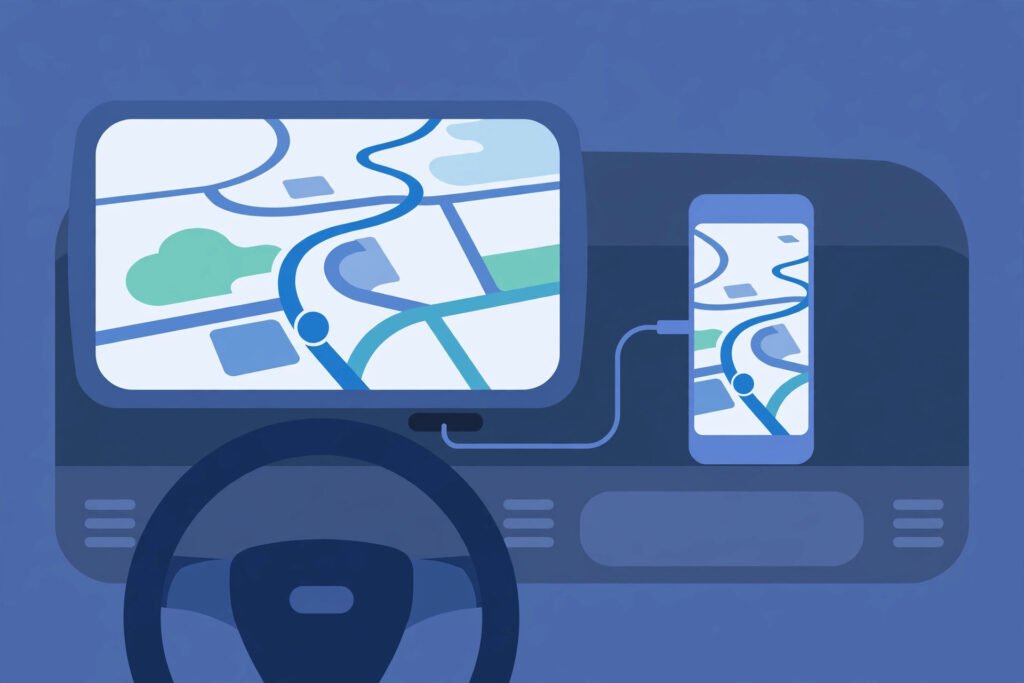
How to Fix Android Auto Connection Issues: Wireless & USB Troubleshooting Guide
Android Auto failing to connect, freezing mid-drive, or showing a black screen can turn your daily commute into a hassle. Whether you are using a wired USB connection or wireless Android Auto, connection issues usually stem from bad cables, cache corruption, or battery optimization settings. Here is our complete troubleshooting guide to fix Android Auto connection issues in 2026.
How to Fix Android Auto Connection Issues: Wireless & USB Troubleshooting Guide
Android Auto is one of the most convenient features a modern car can offer — your maps, music, messages, and hands-free calling all projected onto the dashboard with a familiar interface. But when it refuses to connect, the experience flips from delightful to infuriating in seconds. Whether you’re staring at a black screen, getting a “Connection failed” error, or watching your phone charge but never mirror, this guide covers every fix you need.
We’ll walk through USB requirements, Google service cache issues, wireless Android Auto configuration, black screen recovery, and common error codes — all in plain, actionable language.
1. The Most Common Culprit: Your USB Cable
If you are dealing with fix auto connection issues on your Android phone, you are not alone. This is one of the most common Android issues, but the good news is that most cases can be resolved in minutes with the right steps. This guide covers every proven fix, from simple restarts to advanced solutions.
This is the single most overlooked cause of Android Auto USB connection failures. Not all USB cables are created equal. The cable bundled with budget chargers or power banks is almost always a charge-only cable — it carries power but has no data pins connected. Android Auto requires full data transfer capability to function over USB.
How to Identify a Data Cable vs. a Charge-Only Cable
- Try file transfer: Plug your phone into a laptop. If it only charges and never prompts for file access (MTP/PTP mode), it’s charge-only.
- Check the wiring: Cheap cables often omit D+ and D− data lines to cut costs.
- Look for USB-IF certification: Cables certified by the USB Implementers Forum are required to carry data.
- Cable length matters: Cables over 6 feet (1.8m) can cause signal degradation that mimics data-line failure.
Recommended Cable Standards for Android Auto
For reliable Android Auto, use a cable rated for USB 2.0 data transfer or higher. USB-C to USB-A cables from brands like Anker Powerline, Belkin, or the OEM cable that shipped with your phone are safe bets. Avoid generic white-label cables from discount bins. If your car uses a USB-C port, ensure the cable supports USB 2.0 full-speed at minimum — not just charging.
2. Clear Google Play Services and Android Auto Cache
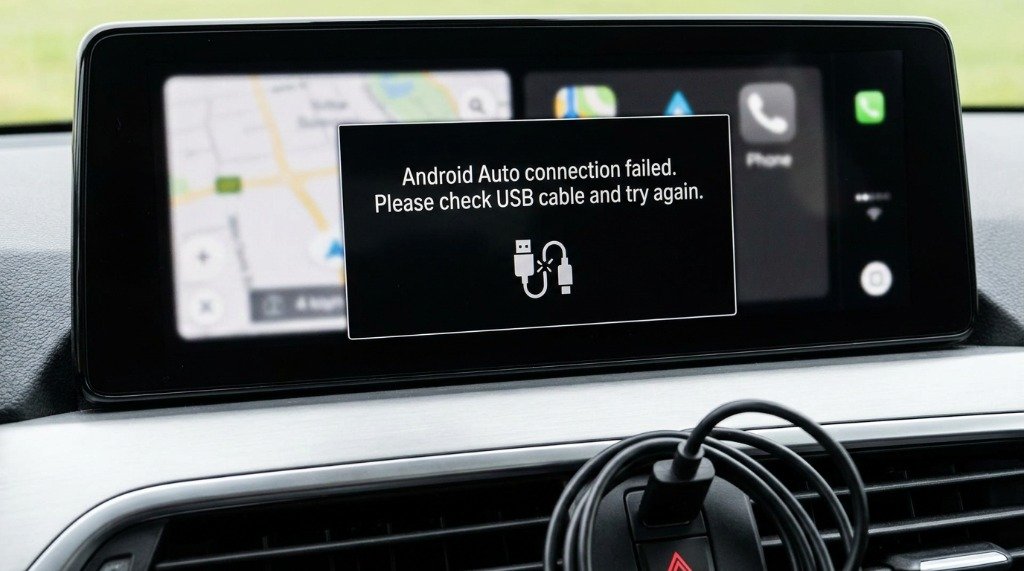
Android Auto relies heavily on Google Play Services to authenticate your device and maintain its session. When these caches become corrupted — often after a system update — connections drop silently or hang at the splash screen.
Step-by-Step Cache Clearing
- Open Settings → Apps (or Application Manager).
- Tap the three-dot menu → Show system apps.
- Find Google Play Services → tap Storage → Clear Cache.
- Return to the app list, find Android Auto → Storage → Clear Cache and Clear Data.
- Repeat for Google App (the main search/assistant app).
- Restart your phone, reconnect to the car.
3. Wireless Android Auto: 5GHz Wi-Fi Setup
Wireless Android Auto is a really useful — no cable clutter, instant connection when you start the car. But it has stricter requirements than the wired version, and misconfigured Wi-Fi is the top reason it fails.
Requirements for Wireless Android Auto
- Phone: Android 11 or later, with a phone model supported by Google (most flagships from 2019 onward).
- Head unit: Must natively support wireless Android Auto — not all units do, even expensive ones.
- Wi-Fi band: 5GHz is mandatory. Wireless Android Auto will not function on 2.4GHz networks.
- Initial pairing: Wired USB connection is required for first-time setup on most head units.
Configuring 5GHz Wireless Projection
- Go to Settings → Wi-Fi. Connect your phone to a 5GHz network (or confirm your router broadcasts on 5GHz).
- On first use, plug in via USB. Android Auto will prompt to enable wireless. Accept.
- After initial setup, disconnecting the cable should automatically trigger wireless reconnection within 20–30 seconds.
- If it doesn’t auto-connect, open the Android Auto app → Connected cars → tap your car and choose Connect wirelessly.
Using the AAWireless Dongle
If your car has a wired-only Android Auto head unit, the AAWireless dongle (and similar devices like the Motorola MA1) lets you add wireless capability. These plug into your car’s USB port and act as a wireless bridge — your phone connects to the dongle’s hotspot, and the dongle communicates with the head unit over USB. Setup takes about 5 minutes and requires installing the companion app for firmware updates. The AAWireless Pro model even supports faster 5GHz-only operation to reduce latency.
4. Black Screen Fix: The Most Frustrating Issue
You plug in, Android Auto launches on the head unit — and then the screen goes black. The phone shows it’s connected, the car shows the Android Auto logo briefly, then nothing. This is a known issue that has several different root causes.
Fix 1: Disable Battery Optimization for Android Auto
- Settings → Apps → Android Auto → Battery.
- Set to Unrestricted or disable optimization entirely.
- Do the same for Google Play Services.
Fix 2: Toggle USB Debugging
- Enable Developer Options: Settings → About Phone → tap Build Number seven times.
- Go to Settings → Developer Options.
- Toggle USB Debugging on, confirm the RSA fingerprint prompt in the car.
- Some head units require this to properly initialize the data channel.
Fix 3: Force Stop and Restart Android Auto
Sometimes the Android Auto service gets stuck in a broken state. Go to Settings → Apps → Android Auto → Force Stop. Wait 10 seconds, then reconnect the cable. This clears in-memory state without erasing your data.
Fix 4: Head Unit Firmware Update
If the car’s infotainment system hasn’t received a firmware update in over a year, the Android Auto protocol version it supports may be out of sync with your phone’s newer client. Check the manufacturer’s website (Kenwood, Pioneer, Alpine, Sony, or your car’s OEM app) for pending updates.
5. Head Unit Compatibility Checks
Not every aftermarket head unit advertised as “Android Auto compatible” is created equal. Some older units only support Android Auto over USB 1.1 speeds, causing disconnects. Others require proprietary apps to bridge the connection.
Key Compatibility Checklist
- ✅ Verify the unit is on Google’s official compatible head unit list (androidauto.google.com/intl/en_us/compatibility).
- ✅ Confirm your car’s OEM infotainment version — factory systems sometimes require a dealer software update.
- ✅ For aftermarket units, ensure the USB port is data-capable (some have USB ports wired for charging only).
- ✅ Check if your head unit requires a specific USB port (some units have multiple USB ports but only one supports Android Auto).
My Take: Real talk: if this doesn’t improve your situation, your device might have a hardware issue. Don’t waste time on software fixes in that case.
6. Common Android Auto Error Messages and Fixes
“Android Auto has stopped”
Usually caused by an outdated Android Auto app. Open the Play Store → My apps → update Android Auto. Also check if Google Maps and Google Play Services are fully updated.
“Unable to connect. Try again.”
This generic error most often points to a cable issue or a port issue on the head unit. Try a different USB cable and a different USB port on the head unit. Also try revoking USB debugging authorizations (Developer Options → Revoke USB debugging authorizations) and re-pairing.
“Phone not compatible”
Your phone may not be on Google’s supported devices list for wireless Android Auto. Check google.com/intl/en/about/products for the current supported device list. For wired Android Auto, almost any Android 6.0+ phone should work.
“Connection timed out”
A timeout during wireless Android Auto setup usually means the 5GHz Wi-Fi handshake is failing. Forget the car’s network on your phone and reconnect from scratch. Also ensure no VPN is active on the phone — VPNs can intercept the local Wi-Fi traffic Android Auto needs.
7. Developer Settings for Wireless Projection
Power users can fine-tune wireless Android Auto behavior through Developer Options. These settings are optional but can resolve stubborn connection issues.
Useful Developer Options for Android Auto
- Wi-Fi scan throttling: Disable this so your phone can quickly discover the car’s 5GHz hotspot.
- Mobile data always active: Keep this ON to ensure the phone doesn’t drop mobile connectivity while connected to the car’s Wi-Fi hotspot (Android Auto uses the car’s Wi-Fi for the video stream but your phone’s data for maps and services).
- Bluetooth AVRCP version: Set to 1.6 for better Bluetooth audio synchronization with the head unit.
Wireless vs. Wired Android Auto: Full Comparison
| Feature | Wired Android Auto | Wireless Android Auto |
|---|---|---|
| Android Version Required | Android 6.0+ | Android 11+ |
| Connection Speed | Instant (2–5 sec) | 15–30 seconds |
| Phone Charging | Yes (via cable) | No (drains battery) |
| Latency | Very Low (~10ms) | Low–Moderate (20–60ms) |
| Cable Required | Yes (data cable) | No |
| Wi-Fi Requirement | None | 5GHz Wi-Fi mandatory |
| Retrofit Possible | Yes (most head units) | Yes (with dongle) |
| Reliability | Very High | Good (Wi-Fi dependent) |
| Audio Quality | Excellent | Excellent |
| Convenience | Moderate | High |
8. Final Checklist Before Giving Up
Before concluding your head unit or phone is defective, run through this final checklist:
- ✅ Tested at least two different, known-good data cables
- ✅ Updated Android Auto, Google Maps, Google Play Services, and Google app
- ✅ Cleared cache for Android Auto and Google Play Services
- ✅ Disabled VPN and battery optimization for Android Auto
- ✅ Verified head unit is on the official compatibility list
- ✅ Checked for head unit firmware update
- ✅ Tried a different USB port on the head unit
- ✅ Performed a factory reset of Android Auto (if all else fails)
Conclusion
Android Auto connection issues almost always boil down to one of five causes: a bad cable, stale app caches, incorrect Wi-Fi settings, outdated firmware, or a compatibility mismatch. Work through the fixes in order — start with the cable (cheapest fix) and move toward firmware updates (most involved). For wireless setups, ensuring 5GHz Wi-Fi and up-to-date software resolves the vast majority of problems. With a little patience, you’ll have a rock-solid Android Auto experience on every drive.
