
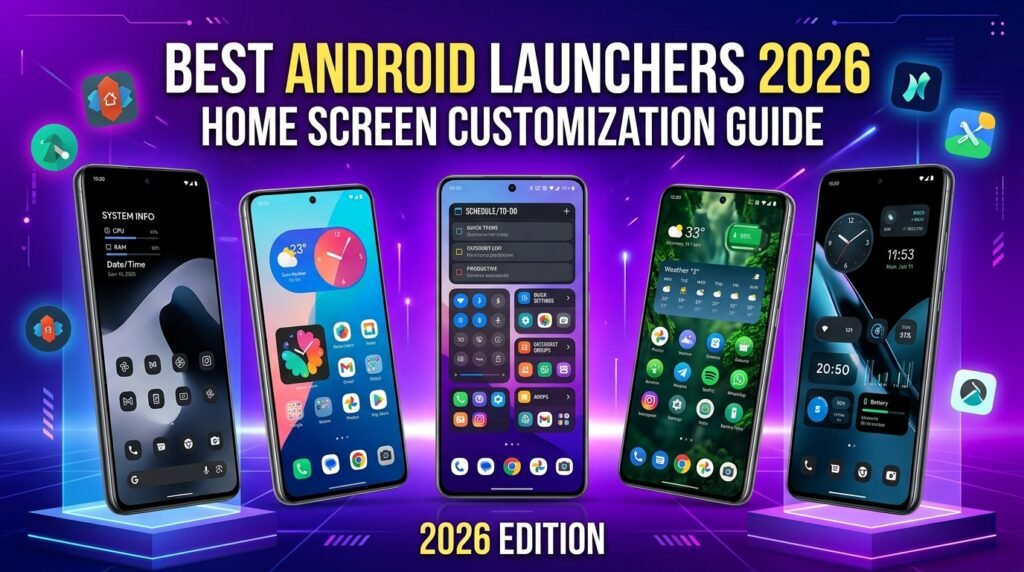
Best Android Launchers for Customization and Speed in 2026 (Nova vs Lawnchair vs Niagara)
The launcher is the single most important app on your Android device — it defines how your home screen looks, how your app drawer works, and how smoothly you navigate your phone. Whether you want deep custom gesture controls, a minimal distraction-free setup, or stock Android aesthetics, this guide compares five of the most popular Android launchers for 2026.
This guide breaks down what each launcher offers — from customisation depth to privacy — so you can pick the one that fits your style.
The State of Android Home Screen Customization in 2026
Android’s identity has always been rooted in unmatched customization, and the home screen launcher remains the central command hub of every user’s smartphone experience. While stock user interfaces like Samsung’s One UI 6/7, Google’s Pixel Launcher, and Xiaomi’s HyperOS have introduced refined design languages, fluid animations, and dynamic Material You color schemes, they still enforce strict grid limitations, fixed icon packs, and rigid layout paradigms. For power users, minimalists, and aesthetics enthusiasts, third-party launchers provide the ultimate key to unlocking true Android freedom.
However, navigating the Android launcher ecosystem in 2026 requires understanding key system updates. Ever since Google introduced predictive back gestures, smooth gesture navigation transitions, and restrictive system API access for non-system apps in Android 14 and Android 15, third-party launchers have faced unique challenges regarding gesture fluidity. Fortunately, modern launchers use Android’s accessibility APIs, QuickSwitch modules, and optimised animation engines to keep everyday navigation feeling smooth.
This 2026 guide compares five popular Android launchers: Nova Launcher Prime, Lawnchair 14, Niagara Minimalist Launcher, Smart Launcher 6, and the FOSS launcher Kvaesitso. It covers custom icon pack masking, gesture customisation, Material You dynamic theming support, and backup and restore features, based on each developer’s published specifications.
1. Nova Launcher Prime (v8+): The Legacy Customization Titan
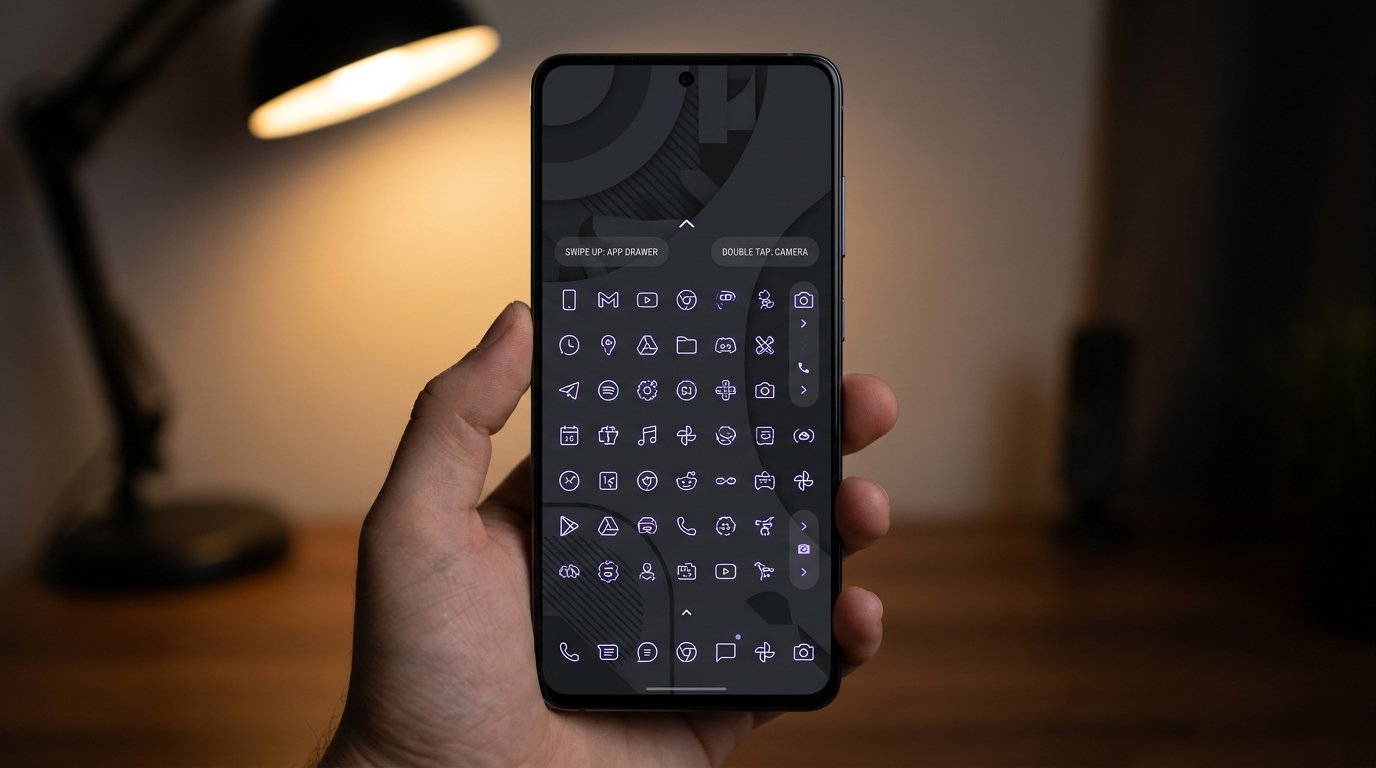
Nova Launcher remains the undisputed titan of home screen customization. Now in its version 8+ lifecycle, Nova continues to refine its core engine while adopting native Material You dynamic color matching, redesigned setting menus, and expanded gesture APIs.
Customization Depth & Layout Options
Nova Launcher Prime offers pixel-perfect control over every millimeter of your desktop. Its sub-grid positioning feature allows users to place icons and widgets halfway between grid cells, eliminating the rigid alignment constraints found in stock launchers. You can adjust grid dimensions up to 12×12, customize icon padding, modify text labels with custom fonts, and apply custom icon masks to force un-themed legacy apps into uniform shapes.
Gesture Controls & Navigation Integration
Nova Prime shines brightly in its gesture mapping suite. Users can assign custom actions to single-finger swipes, two-finger swipes, pinch in/out, double taps, and home button presses. Useful gesture shortcuts include:
- Swipe Down on Desktop: Expand system notification shade without reaching for the top status bar.
- Swipe Up on App Icons: Launch secondary app shortcuts or open hidden folders (e.g., swiping up on the Camera icon opens Google Photos).
- Double-Tap: Instantly lock the screen using accessibility-based display timeout to maintain biometrics functionality.
Material You & Backup Workflows
Nova’s dynamic theme engine extracts color palettes from your wallpaper and automatically accents search bars, app drawer backgrounds, and folder containers. Furthermore, Nova’s solid JSON-based backup and restore utility allows seamless migration across different smartphone brands without losing a single icon coordinate or widget configuration.
2. Lawnchair 14: Pixel Launcher Aesthetic with Open-Source Power
For users who love the clean aesthetic of Google’s native Pixel Launcher but want advanced customisation without telemetry, Lawnchair 14 is a strong open-source option. Built on the Android Open Source Project (AOSP) Launcher3 codebase, Lawnchair delivers authentic Pixel aesthetics paired with FOSS flexibility.
Material You Dynamic Color Engine
Unlike third-party launchers that rely on basic colour extraction libraries, Lawnchair 14 uses Google’s official Monet colour engine. It natively adapts themed app icons, dock search bars, folder backgrounds, and pop-up menus to match your active wallpaper theme across system light and dark modes.
QuickSwitch & Gesture Fluidity
On stock Android devices without root, third-party launchers can occasionally experience brief animation stutters when returning home using full-screen gestures. For rooted users, Lawnchair supports QuickSwitch — a Magisk module that registers Lawnchair directly as the system recents provider, which can smooth out system-level task switcher animations. Non-rooted users can still use Lawnchair’s built-in transition engine.
3. Niagara Minimalist Launcher: One-Handed Efficiency
Niagara Launcher breaks away from traditional multi-page desktop paradigms. Designed explicitly for ergonomic one-handed operation and digital minimalism, Niagara replaces clutter with a single clean vertical list paired with an intuitive arc alphabet index.
The Ergonomic Wave Alphabet & One-Handed Ergonomics
Instead of forcing users to stretch their thumbs across large AMOLED displays, Niagara features an interactive alphabetical index along the right or left edge of the screen. Dragging your thumb along the index produces a smooth wave animation, allowing fast access to any app.
Notification Snapshots & Inline Media Controls
Niagara integrates incoming notifications directly onto your home screen adjacent to relevant app titles. You can read, expand, and reply to instant messages, emails, and calendar reminders directly from the desktop without opening separate app windows. Integrated media widgets automatically display active playback controls, album art background gradients, and progress sliders.
4. Smart Launcher 6: Automated Categorization and Adaptive Grid
Smart Launcher 6 is engineered for productivity enthusiasts who want a hyper-organized desktop without spending hours manually tweaking folder structures. Its defining feature is an intelligent, self-sorting app drawer powered by localized neural classification algorithms.
Automated App Categorization
Upon installation, Smart Launcher 6 automatically scans your installed applications and organizes them into intuitive side tabs: Communication, Internet, Games, Multimedia, Utilities, and System Settings. This structure eliminates app drawer clutter while learning your daily usage patterns to prioritize your most frequently accessed tools.
Ambient Theme Engine & Modular Page Layouts
Smart Launcher 6 features an ambient theme system that dynamically alters menu styling, accent highlights, and container translucency based on desktop wallpaper brightness. Its home screen supports free-form widget positioning, allowing widgets to overlap cleanly with custom Z-index ordering and custom acrylic glass blur effects.
My take: Smart Launcher 6 is aimed at users who want an organised app drawer without spending time on manual setup — its automated categorisation does the heavy lifting.
5. Kvaesitso: The Search-Centric FOSS Powerhouse
Kvaesitso is an innovative, fully open-source launcher built around a search-first user experience. Rather than treating the search bar as an ancillary tool, Kvaesitso positions search as the core interface of the smartphone operating system.
Global Search Architecture & Extensions
Kvaesitso allows users to query installed applications, contacts, local files, device settings, calendar events, calculator equations, and web search engines directly from a single unified prompt. Through modular FOSS extensions, users can plug in Wikipedia search, direct unit conversions, currency exchange calculators, and weather forecasts directly into the primary launcher view.
Privacy-First Design & Minimal Resource Footprint
With zero tracking scripts, network telemetry, or advertising frameworks, Kvaesitso offers strong privacy safeguards. Its lightweight codebase is designed to keep background activity to a minimum.
Feature Comparison Overview
The table below compares key features of these five launchers, based on the developers’ published specifications rather than lab benchmarks:
| Launcher Name | Material You Engine | Open Source | Primary Strengths |
|---|---|---|---|
| Nova Launcher Prime | Native / Advanced | No | Unmatched customization & gesture mapping |
| Lawnchair 14 | Official Monet Engine | Yes (GPLv3) | Authentic Pixel UI & zero telemetry |
| Niagara Launcher | Adaptive Minimalist | Partially | One-handed speed & notification workflow |
| Smart Launcher 6 | Ambient Palette System | No | Automatic app drawer classification |
| Kvaesitso | Dynamic FOSS Engine | Yes (GPLv3) | Search-centric desktop & plugin extension hub |
Material You Dynamic Color Engine & Icon Masking Deep-Dive
The introduction of Material You redefined Android UI guidelines by establishing system-wide color harmony. However, third-party app developers do not always include themed monochrome icon assets inside their APK builds. This creates a visual mismatch where branded app icons disrupt dynamic wallpaper color palettes.
Resolving Un-themed Icons with Icon Masking
Modern launchers solve this visual inconsistency using two primary techniques:
- Algorithmic Tinting: Launchers like Lawnchair 14 and Nova 8 automatically parse un-themed APK icon vectors, extract foreground glyphs, convert them to monochrome silhouette paths, and apply dynamic system accent shades.
- Custom Icon Packs: Support for third-party icon packages (such as Lawnicons, Material Files Icon Pack, or Delta) allows users to apply thousands of hand-crafted vector icons while masking un-supported packages into unified geometric shapes.
Advanced Gesture Controls & System Compatibility Workarounds
Since Android 10, Google’s native full-screen gesture navigation (swipe home, swipe back, recents overview) has been handled by the default system launcher process (com.google.android.apps.nexuslauncher or OEM equivalent). When switching to a third-party launcher, system gesture animations can occasionally experience minor redraw delays or momentary flickering.
- Go to Settings > Accessibility and ensure high-contrast text or legacy accessibility overlays are disabled, as they can bypass hardware animation hardware acceleration.
- Enable Developer Options and set Window Animation Scale, Transition Animation Scale, and Animator Duration Scale to
0.5xfor instantaneous response times. - On Samsung devices running One UI, install Good Lock (NavStar) to force third-party launcher gesture handler priority.
Step-by-Step Launcher Backup, Migration, & Restore Workflows
Switching devices or experimenting with custom launchers should never mean recreating your perfect desktop grid from scratch. Follow this universal workflow to safely backup and restore launcher states:
Exporting Your Launcher Configuration
- Open your launcher’s settings menu (e.g., Nova Settings > Backup & Import Settings or Niagara Settings > Advanced > Back Up).
- Select Create Backup. Choose an uncompressed backup format or native
.novabackup/.jsonoutput file. - Save the backup file directly to a cloud drive (Google Drive, Nextcloud) or an external storage directory. Ensure widget placement settings and custom app assignments are checked.
Restoring Configuration on a New Smartphone
- Install the launcher on your destination phone and grant necessary Storage and Notification listener permissions.
- Set the app as your default home application in Settings > Apps > Default Apps > Home App.
- Navigate to the launcher’s restore settings, tap Restore Backup, select your exported file, and confirm layout restoration. Third-party widgets will prompt for re-granting configuration permissions upon first tap.
Final Verdict & Recommendation Matrix
Choosing the ideal Android launcher in 2026 depends on your personal balance between granular visual customization, digital minimalism, and raw system performance.
- Choose Nova Launcher Prime if: You want total control over sub-grid placements, endless gesture mappings, multi-layer dock pages, and legacy customization flexibility.
- Choose Lawnchair 14 if: You love the clean, modern Pixel Launcher aesthetic with native Monet color engine integration, zero tracking, and open-source stability.
- Choose Niagara Launcher if: you want a distraction-free, one-handed-friendly interface with a sleek minimalist vertical layout.
- Choose Smart Launcher 6 if: You want automated app organization, modular acrylic widgets, and an adaptive ambient layout engine requiring minimal manual setup.
- Choose Kvaesitso if: you are a privacy advocate who values search-driven workflows and open-source modularity.
Final thoughts: your experience may differ depending on your device and Android version. Let us know how it goes for you.
Have questions or want to share your own experience? Drop a comment below or reach out to our team. We read every message. You can also learn more about our editorial approach on our About Us page.
