
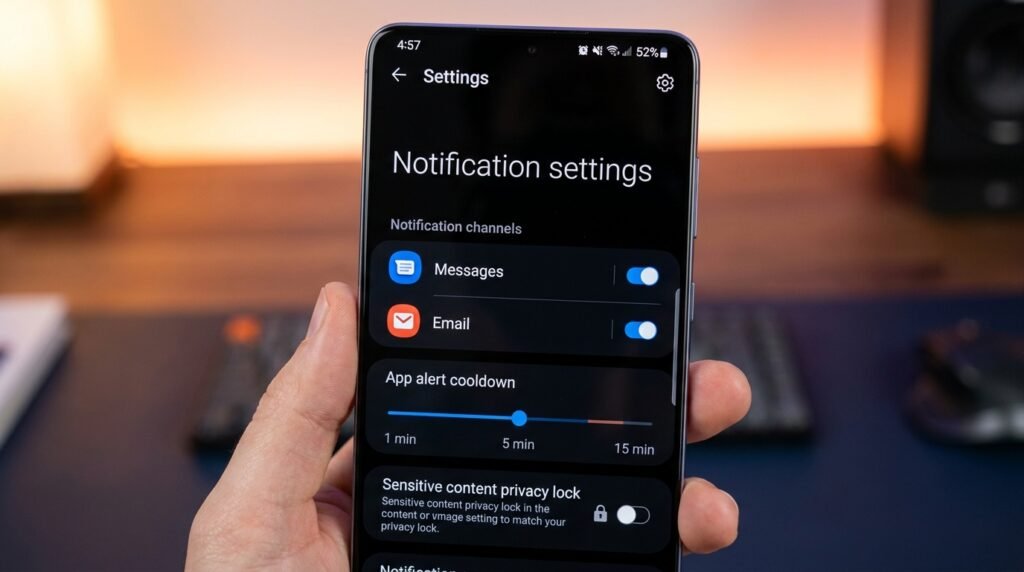
Master Android Notification Management: Notification Channels, Cooldown & Privacy
Introduction: Taming the Digital Noise on Modern Android
Between promotional popups, social media pings, and delivery updates, the modern Android notification shade can quickly turn into overwhelming clutter. Fortunately, Android includes granular Notification Channels, notification history logs, lock screen privacy masking, and intelligent notification cooldown algorithms to put you back in complete control of your digital peace.
Your notification management privacy on Android is more important than ever in 2026. With mobile threats constantly evolving, understanding how to protect your device and data is essential for every Android user. This guide covers everything you need to know.
In an era dominated by instant messaging alerts, social media nudges, promotional push notifications, system updates, and ambient application alerts, smartphones can easily become sources of continuous cognitive interruption. Unmanaged notifications not only fragment productivity and drain battery resources but also expose personal data, two-factor authentication (2FA) one-time passcodes, and private chat messages to unauthorized onlookers when your screen lights up in public spaces.
Fortunately, Android provides the most advanced, granular notification control framework of any mobile operating system. Beginning with the introduction of Notification Channels in Android 8.0 and culminating in the intelligent Notification Cooldown algorithms introduced in Android 15 and expanded in Android 16, users possess total authority over how, when, and where applications command their attention. This masterclass guide will walk you through every aspect of Android notification management—from granular channel customization and historical log recovery to lock screen privacy masking, automated Do Not Disturb (DND) rule architectures, and notification throttling algorithms.
1. Android Notification Channels & Categories: Granular Alert Architecture
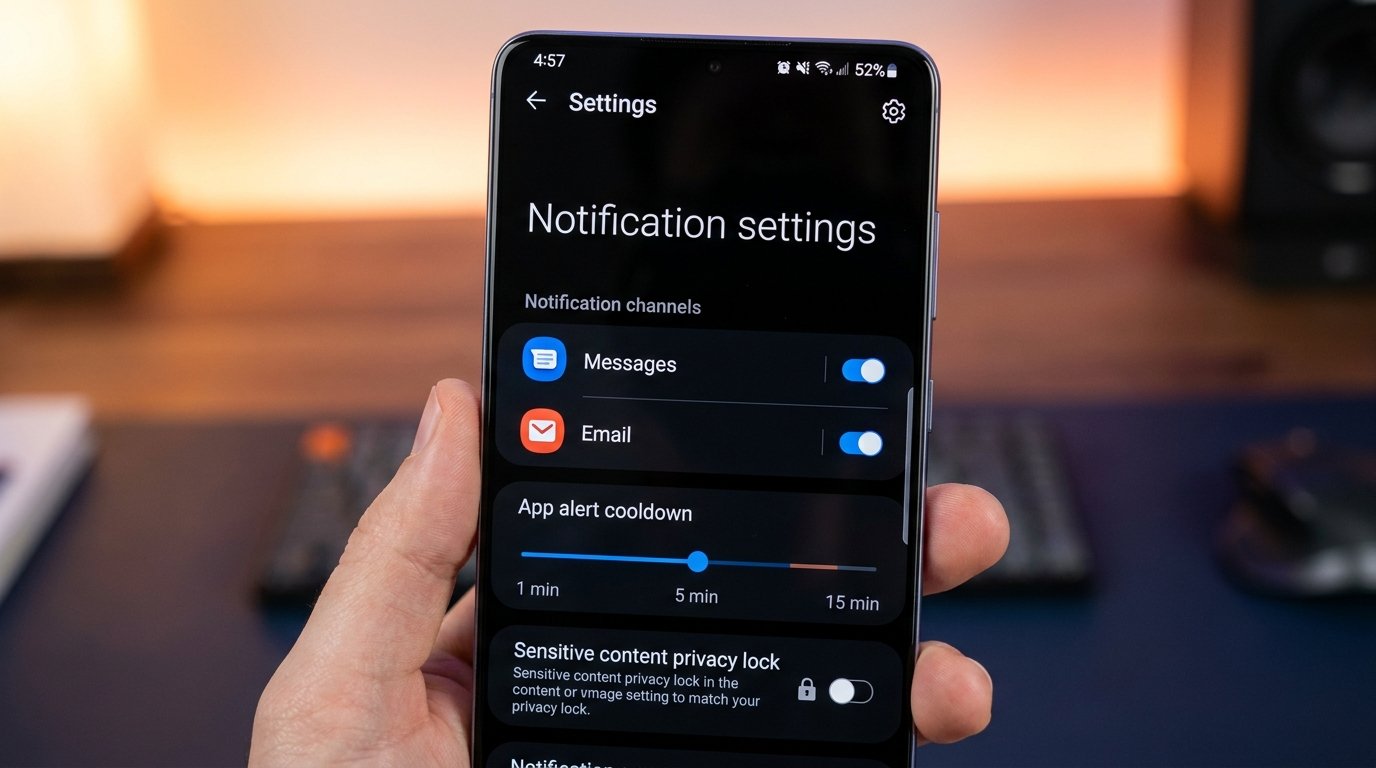
Prior to Android 8.0 (Oreo), notifications were managed on an all-or-nothing per-app basis; you either permitted an application to send alerts or blocked it entirely. Modern Android architectures mandate that developers divide application alerts into distinct, user-configurable paths called Notification Channels (or Notification Categories).
How Notification Channels Work Under the Hood
When an application registers with the Android OS (via NotificationChannel instances created by NotificationManager), it categorizes different notification types into separate channels. For instance, a social media app like Instagram registers discrete channels for Direct Messages, Comments, Likes, Live Video Alerts, and Product Promotions.
As a user, you can configure each individual channel independently without affecting other notifications from the same app. To access an application’s channels, long-press any notification banner, tap the gear icon (Settings), or navigate to Settings > Apps > [App Name] > Notifications.
Channel Importance Levels & Alert Behaviors
Android assigns one of four strict importance levels to every notification channel. You can override developer default importance settings for any channel manually:
| Importance Level | Visual Behavior | Audible Chime / Haptics | Lock Screen Banner | Recommended Use Case |
|---|---|---|---|---|
| Urgent (High) | Heads-up pop-up banner on top of screen | Plays notification sound & custom vibration | Visible | Direct Messages, Emergency Alerts, Calls |
| Default (Medium) | Appears in status bar & shade (No pop-up) | Plays standard notification chime | Visible | Emails, Calendar Events, Task Reminders |
| Low (Silent) | Appears only when pulling down notification shade | Silent (No sound, no vibration) | Hidden or Minimized | Weather updates, Battery status, Downloads |
| Min (Minimized) | Collapsed silently at bottom of shade | Silent (No sound, no vibration) | Hidden | Background sync notifications, Pedometer count |
2. Android 15 & 16 Notification Cooldown Engine
One of the most persistent annoyances on mobile devices occurs when group chat threads, sports apps, or news platforms blast 15 to 20 rapid-fire messages within a single minute, triggering continuous chimes and vibration bursts. Android 15 introduced—and Android 16 refined—a system-level algorithmic engine called Notification Cooldown.
How Notification Cooldown Algorithmic Throttling Works
Notification Cooldown monitors incoming notification rates across all installed applications in real-time. When an application fires successive notifications within a short time window (e.g., more than 2 notifications in 5 seconds from the same app package):
- Volume Attenuation Decay: The initial notification chime plays at full system volume. The second alert plays at 50% volume. Subsequent alerts within the rapid-fire window are automatically muted down to silent, tactile-free alerts while still rendering visually in the notification shade.
- Channel Prioritization Bypass: The OS automatically exempts high-priority channels—such as incoming voice/video calls, alarm clocks, emergency broadcast alerts, and starred contact communications—from notification cooldown throttling.
- Cooldown Reset Interval: Once the bursts of notifications cease for 15 seconds, the application’s cooldown multiplier resets, restoring full audible chime capabilities for the next incoming alert message.
To configure Notification Cooldown, navigate to Settings > Notifications > Notification Cooldown and choose between Apply to all notifications or Apply to group conversations only.
3. Lock Screen Privacy & Sensitive Content Masking
Lock screen notifications present a significant privacy risk. By default, incoming notifications can display full text messages, sensitive corporate email excerpts, financial transaction alerts, and Two-Factor Authentication (2FA) passcodes on an unauthenticated lock screen, allowing nearby individuals to read sensitive data.
1. Enforcing Content Redaction on Lock Screen
Navigate to Settings > Notifications > Notifications on Lock Screen. Select Hide sensitive content (or Show alert notifications only). When this mode is active, the lock screen displays the app icon and sender name (e.g., “WhatsApp: 1 new message”) while completely redacting the body text. Once you unlock the phone via fingerprint scanner or 3D face recognition, the notification body automatically expands in real-time.
2. Android’s Enhanced Sensitive Notification Protection (2FA Shield)
Recent Android versions incorporate specialized runtime safeguards that block untrusted third-party apps with Notification Listener permissions (such as custom smart watch sync apps or notification widgets) from reading incoming One-Time Passwords (OTPs) sent via SMS or email. The OS automatically identifies alphanumeric OTP patterns (e.g., “Your verification code is 492-018”) and hides the code payload from third-party notification listener APIs.
4. Notification History & Recovering Dismissed Alerts
Have you ever accidentally swiped away a critical notification before reading it? Android includes a native, comprehensive logging mechanism called Notification History that records every alert received by your device over a rolling 24-hour period.
Enabling and Accessing Notification History
- Navigate to Settings > Notifications > Notification History.
- Toggle the switch to ON. (Once enabled, Android begins caching all incoming notification metadata).
- To inspect dismissed notifications, pull down the notification shade, scroll to the bottom, and tap the History button. Alternatively, visit the Notification History menu in Settings.
The history log organizes alerts chronologically, displaying exact arrival timestamps, dismissed alerts, channel categories, and full text payloads—even if the original notification was cleared by an app auto-dismiss command.
5. Mastering Notification Snoozing & Reminder Loops
When an important alert arrives while you are busy, clearing it off your screen risks forgetting about it entirely. Android’s Notification Snooze feature temporarily hides an alert, setting a background timer to re-deliver the notification with full audible chimes at a later time.
How to Snooze a Notification
- Ensure snoozing is enabled by visiting Settings > Notifications > Allow notification snoozing.
- When an alert banner arrives in your shade, tap the small Snooze (Zzz) icon in the lower corner of the notification card.
- Select your desired delay interval: 15 minutes, 30 minutes, 1 hour, or 2 hours.
- The notification will vanish immediately and pop back up at the top of your shade once the snooze timer expires.
6. Do Not Disturb (DND) Masterclass: Automation & Priority Rules
Do Not Disturb (DND) is the cornerstone of Android focus management. Rather than operating as a simple silent switch, Android DND allows you to construct sophisticated, conditional filter rules that permit critical communications through while silencing routine distractions.
1. Configuring Exception Rules (Priority Bypass)
Navigate to Settings > Sound & Vibration > Do Not Disturb > People (and Apps) to define override exceptions:
- Messages & Calls: Choose between Anyone, Contacts Only, or Starred Contacts Only. Starred contacts (family, key colleagues) bypass DND silence rules automatically.
- Repeat Callers Override: Enable Allow repeat callers. If the same phone number calls you twice within a 15-minute window, Android recognizes the potential emergency and allows the second call to ring at normal volume.
- App-Specific Override: Grant priority bypass to essential operational tools (such as Home Security alarm apps, Slack emergency channels, or medical monitor alerts) under Apps > Add Apps.
2. Scheduling Automated Focus Modes & Routines
Do Not Disturb can be automated dynamically based on triggers:
| Automation Trigger | Rule Logic | Resulting DND Profile |
|---|---|---|
| Time-Based Schedule | Mon–Fri from 10:00 PM to 7:00 AM | Nighttime Sleep Profile (Starred Contacts Only) |
| Calendar Event Trigger | Active event on Google Calendar marked “Busy” | Meeting Focus Profile (Total Silence) |
| Driving / Android Auto | Bluetooth connects to Car Head Unit | Driving Safety Mode (Hands-free calls only) |
| Gaming Mode Trigger | Launch designated full-screen game app | Game Booster (Blocks all heads-up banners) |
7. System Badges, Ambient Displays & Status Bar Decluttering
Maintaining a clean visual interface reduces subconscious micro-distractions every time you glance at your phone screen.
1. Controlling App Icon Notification Dots (Badges)
Notification dots appear as small colored badges over app icons on your home screen and app drawer. If red badge counters trigger unnecessary urge to open apps, turn off Notification dot on app icon under Settings > Notifications globally, or per individual application channel.
2. Cleaning Status Bar Icon Clutter
Accumulating dozens of small app icons in your top status bar creates visual noise. By configuring notification channels to Low (Silent), Android automatically removes their persistent icons from the top status bar, keeping them stored out of sight inside the pull-down notification shade.
3. Ambient / Always-On Display Privacy Controls
On devices featuring AMOLED Always-On Displays (AOD), select Settings > Display > Lock Screen > Ambient Display and configure it to show Icons Only rather than full notification text previews, preserving both display battery consumption and personal privacy.
Conclusion & Recommended Notification Optimization Setup
By leveraging Android’s solid notification controls, you transform your smartphone from an intrusive interruption machine into an organized, quiet personal assistant. Follow this summary checklist to optimize your device today:
- Audit installed applications: Silently set or disable marketing and promotion notification channels.
- Enable Notification Cooldown (Android 15/16) to eliminate rapid-fire group chat chimes.
- Turn on Notification History so you never lose accidentally swiped alerts.
- Enforce Hide Sensitive Content on the lock screen to protect OTP codes and private messages.
- Build automated Do Not Disturb schedules for work, sleep, and driving routines.
