
How to Fix Overnight Battery Drain on Android: Standby Power Optimization
Introduction: Resolving Abnormal Overnight Android Battery Drain
If your Android phone loses a significant charge overnight, you are not alone. This is one of the most common Android issues, but the good news is that most cases can be resolved in minutes with the right steps. This guide covers every proven fix, from simple restarts to advanced solutions.
Overnight battery drain is one of the most common Android complaints. This guide brings together the most effective standby power optimization methods, compiled from Android’s official developer documentation and manufacturer guidance.
Beginning with Android 6.0 Marshmallow and refined continuously through Android 16, Google implemented a core power management architecture known as Doze Mode.
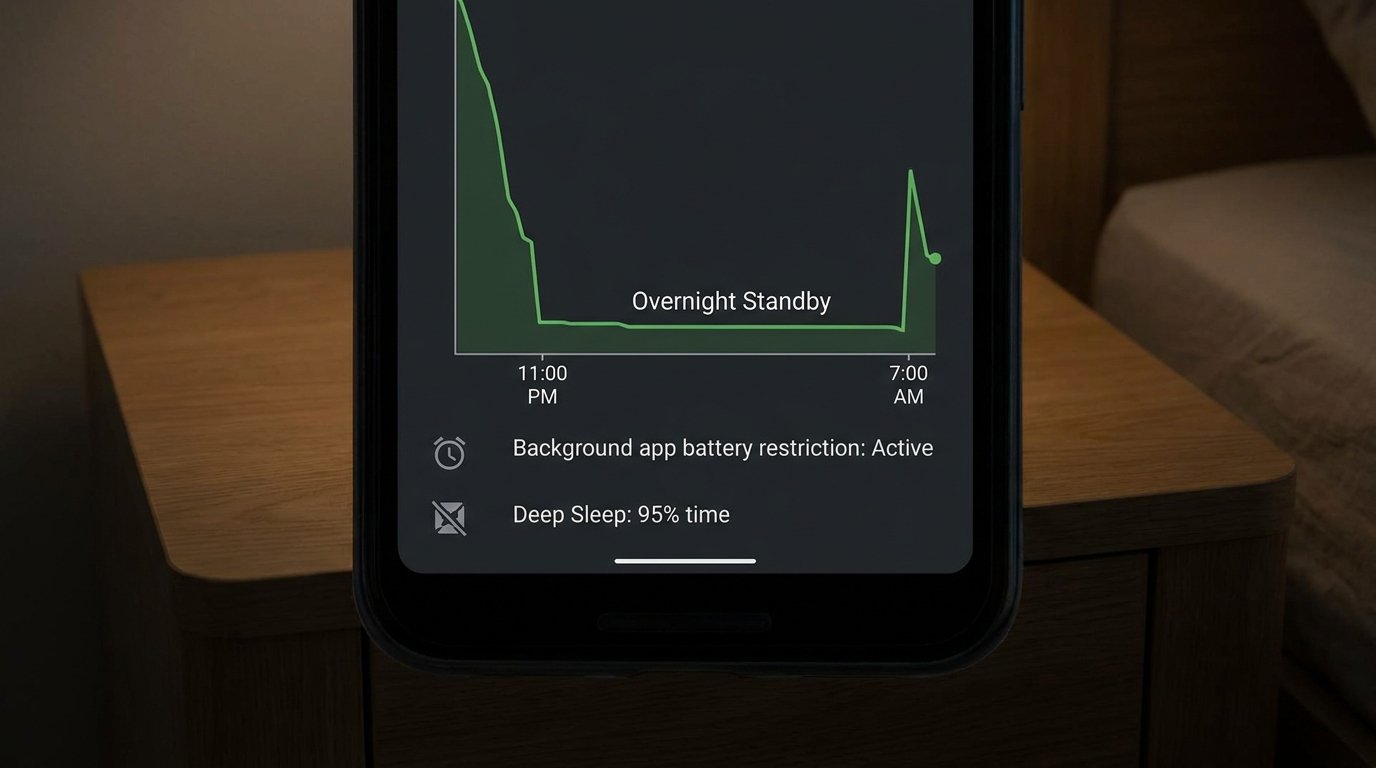
Doze Mode reduces battery consumption by deferring application background CPU activity and network polling when your phone is stationary and uncharged with the screen off for an extended period.
How Doze Mode Cycles Through Power States
- Light Doze Mode: Triggered within minutes of the screen turning off while the device is in motion (e.g., in a pocket). The OS restricts app network access and defers background sync jobs to brief periodic maintenance windows.
- Deep Doze Mode: Triggered when the phone remains stationary on a flat surface (detected via the hardware Significant Motion Detector / SMD sensor). In Deep Doze, the Android operating system puts the CPU into a deep sleep state, suspends Wi-Fi/Cellular network scans, ignores non-high-priority sync alarms, and halts GPS location polling.
- Maintenance Windows: At expanding intervals (e.g., every 15 minutes, then 30 minutes, expanding to several hours), the OS briefly opens a narrow “maintenance window” allowing apps to process queued push notifications, complete background syncs, and update location metrics before returning the CPU to deep sleep.
If an improperly coded app continuously forces the CPU to stay awake, it breaks the Deep Doze cycle, causing severe battery drain.
Decoding Wakelocks: Kernel Wakelocks vs. App Partial Wakelocks
The primary culprit behind severe overnight battery drain is an unresolved system software phenomenon known as a Wakelock.
A Wakelock is a software mechanism used by app developers and system services to keep the device active even when the screen turns off. Android categorizes wakelocks into two operational types:
1. Partial Wakelocks (App Level)
A PARTIAL_WAKE_LOCK keeps the CPU core clocks running in the background while allowing the screen and keyboard backlight to turn off. For example, a music streaming app uses a partial wakelock so audio playback continues uninterrupted while your phone is in your pocket. However, if a social media app, cloud sync client, or messaging app requests a partial wakelock and fails to release it due to a software bug, the CPU runs continuously at high clock frequencies overnight, rapidly depleting the battery.
2. Kernel Wakelocks (Hardware / System Level)
Kernel wakelocks originate at the Linux kernel driver level. They keep the processor awake in response to hardware events, such as continuous Wi-Fi packet interrupts, cellular radio signal hunting (when operating in low-coverage zones), Bluetooth antenna polling, or hardware sensor input loops (such as touch-to-wake or lift-to-wake sensors).
Fix 1: Diagnosing & Eliminating Google Play Services Battery Drain
In battery diagnostic menus, Google Play Services (com.google.android.gms) frequently appears at the top of power consumption charts during overnight standby. Google Play Services acts as the background communication bridge for push notifications, location framework requests, account sync routines, and Google Fitness tracking.
Step-by-Step Resolution Routine for Play Services Drain:
- Clear Google Play Services Storage Cache:
- Open Settings > Apps > See All Apps.
- Select Google Play Services.
- Tap Storage & Cache > Clear Cache. Next, tap Manage Space / Clear All Data. (This will not delete personal files; it simply resets corrupt background sync tokens).
- Disable Redundant Account Auto-Sync Items:
- Navigate to Settings > Passwords & Accounts (or Accounts and Backup).
- Select your primary Google account and tap Account Sync.
- Toggle off background auto-sync for services you do not actively use (e.g., Google Fit Data, Google Play Movies/TV, Contacts sync if backed up elsewhere).
- Leave Google Play Services Beta Testing Programs: If enrolled in Google Play Services Beta via the Play Store, opt out immediately. Beta builds frequently contain unoptimized background telemetry loops that trigger heavy partial wakelocks.
Fix 2: Optimizing Radio Antennas & Background Location Polling
Cellular and Wi-Fi modems are among the most power-hungry hardware components in an Android phone. Poor antenna configuration can drain 20% battery overnight without a single screen-on minute.
1. Fixing Poor Cellular Signal Power Escalation
When your phone detects a weak cellular signal (e.g., 1 bar of LTE or 5G inside a bedroom), the baseband modem automatically boosts its RF transmission power output (increasing transmission power from 10 milliwatts to up to 500 milliwatts) to maintain connection with distant cell towers. This continuous power amplification heats up the phone and drains the battery rapidly overnight.
2. Disabling Wi-Fi & Bluetooth Location Scanning
Even when Wi-Fi and Bluetooth toggles are turned off in Quick Settings, Android’s background location framework continuously scans nearby Wi-Fi SSIDs and Bluetooth Low Energy (BLE) beacons to assist location accuracy.
- Navigate to Settings > Location > Location Services.
- Turn off Wi-Fi Scanning.
- Turn off Bluetooth Scanning.
- This ensures hardware antennas powered down when toggled off remain entirely dormant while you sleep.
Fix 3: Always-On Display (AOD) & Lift-To-Wake Calibration
Always-On Display (AOD) features render time, notification icons, and widgets on OLED screens continuously. While modern LTPO OLED panels drop their refresh rate to 1Hz when displaying static AOD images, AOD still consumes between 0.5% and 1.5% battery per hour.
Recommended AOD & Gesture Settings for Overnight Power Saving:
- Set AOD to Schedule Mode: Navigate to Settings > Display > Always On Display and select Set Schedule (e.g., active between 7:00 AM and 11:00 PM, automatically turning off completely overnight).
- Switch to “Tap to Show”: Configures AOD to remain completely black overnight until you explicitly tap the glass.
- Disable Sensitive Lift-to-Wake Gestures: If your bedside table vibrates or if your phone rests on a soft surface, sensitive Lift to Wake or Double Tap to Wake motion routines can repeatedly wake the processor throughout the night. Disable these under Settings > Advanced Features > Motions and Gestures.
Advanced Diagnostics: Capturing System Telemetry Logs via ADB
If overnight battery drain persists after applying basic fixes, you can capture exact hardware telemetry data directly from the Android Linux kernel using Android Debug Bridge (ADB).
Extracting Batterystats Bugreport via ADB Commands
- Enable Developer Options on your phone (tap Settings > About Phone > Build Number 7 times). Enable USB Debugging.
- Connect your phone to your PC via USB cable and open a terminal window.
- Reset background battery tracking statistics by issuing the following command:
adb shell dumpsys batterystats --reset
- Unplug your phone, charge it to 100%, turn off the screen, and let it sit undisturbed overnight (minimum 6-8 hours).
- In the morning, reconnect your phone to your PC and generate a complete diagnostic bugreport:
adb bugreport overnight_battery_report.zip
- Upload the generated
.zipfile to Google’s open-source Battery Historian web tool (or parse the log locally) to view precise graphical timelines showing exact kernel wakelocks, CPU alarm triggers, and app package names responsible for waking the phone.
Actionable Overnight Battery Preservation Checklist
| Optimization Feature | Recommended Action | Expected Battery Savings Overnight |
|---|---|---|
| Doze Mode Execution | Keep phone stationary on flat surface face-down | Varies by device |
| Google Play Services Cache | Clear Storage Cache & Opt Out of Beta builds | Varies by device |
| Wi-Fi / BLE Scanning | Disable Scanning toggles in Location Services | Varies by device |
| Cellular Radio Band | Switch 5G to 4G/LTE overnight if signal is low | Varies by device |
| Always-On Display (AOD) | Set Schedule Mode or Tap-to-Show | Varies by device |
Conclusion
Overnight battery drain is not an inevitable reality of owning an Android phone; it is a symptom of misconfigured system services, active wakelocks, or unoptimized radio state transitions. By clearing Google Play Services cache, turning off background antenna scanning, scheduling Always-On Display, and utilizing ADB telemetry tools to identify rogue background applications, you can ensure your Android phone enters deep sleep overnight and retains maximum power for the day ahead.
