
How to Blur Sensitive Details in Google Photos on Android
You are about to list a used bicycle for sale, and the photo you took in the driveway is perfect — except that the car behind it has a clearly readable number plate, and the house number is visible on the wall. Nothing about the picture is secret, exactly, but you would rather not hand those details to every stranger who scrolls past the listing. Until recently, fixing that on an Android phone usually meant opening a separate editing app, painting over the plate by hand, and hoping the result looked tidy. Google Photos has now added a simpler answer: a Redact tool inside its Markup editor that lets you blur sensitive details before you share a photo or a screenshot.
What the Redact Tool Actually Does
Redact sits in the Markup editor in Google Photos, which is the same place you would go to draw on a picture or add a highlight. Instead of covering something with a solid block of colour, it applies a blur to the area you choose, so the underlying shape stays visible but the detail — a plate number, an account number, a name on a document — becomes unreadable. That distinction is worth understanding before you rely on it. A blur is a practical privacy step for casual sharing, not a forensic erasure. If a photo is going somewhere adversarial, where someone might try hard to recover the original, the safest choice is still not to share that photo at all, or to crop the sensitive part out entirely.
According to reports of the rollout in late 2026, Redact began reaching Android users globally through Google Photos without a beta sign-up, which means most people should find it by updating the app rather than joining a test programme. As with most Google rollouts, though, availability can vary by device and region for a while, so this guide also covers what to do if the tool has not appeared on your phone yet. The steps below describe the typical route; wording on screen may differ slightly between phones and app versions.
Before You Blur Anything: A Quick Reality Check
Blurring feels reassuring, and most of the time it is genuinely useful. It is worth pausing for ten seconds first, though, because there are a few things a blur cannot fix. First, a blur applied to a copy does not change the original photo still sitting in your gallery. If you share the original by mistake later, the detail is still there. Second, context can give things away even when the detail itself is hidden: a blurred plate on a car parked outside a house with a visible street name still narrows things down. Third, some details are not in the image at all but in the photo’s metadata, such as location data, which is a separate question from what is visible in the picture.
None of that makes Redact pointless. It makes it one step in a short habit, rather than the whole habit. Blur what is visible, check the result at full size, share only the edited copy, and think about location data separately if the photo was taken somewhere private. That combination covers the situations most people actually face: selling something online, sharing a screenshot of a receipt or a booking, or posting a photo that happens to catch a document in the background.
Blurring a Detail, Step by Step
The route below assumes Google Photos is up to date and the Redact tool is available on your phone. If a step looks different on your screen, look for the same idea under a slightly different label rather than forcing the exact wording:
- Open Google Photos and find the photo or screenshot you want to share. Tap it to open it, then tap Edit.
- Look for Markup in the editing options. On many phones this sits among the tools at the bottom of the editor, alongside Crop, Adjust, and Filters.
- Inside Markup, look for Redact. It is presented as a tool for hiding sensitive details, rather than as a general drawing or highlighting pen.
- Draw or drag over the detail you want to hide — a number plate, an account number, a name, an address line. Cover the whole detail with a little margin around it, not just the middle of it. A blur that clips the first or last character of a plate is not really a blur at all.
- Zoom in and check the result before you do anything else. The thumbnail view can flatter a weak blur; the full-size view tells the truth. If any character is still readable, widen the blurred area and check again.
- When you are happy, save the edited copy. Be careful here: if Photos offers to save over the original, consider saving a copy instead, so you keep an unedited version for yourself and share only the redacted one. Our guide to recovering deleted photos on Android is a reminder of how easy it is to lose the only copy of something — the same caution applies in reverse when you are about to overwrite one.
- Share the edited copy from Photos, and double-check the preview in the app you are sharing to. A share sheet preview is the last chance to catch the wrong version going out.
The step people skip most often is the zoomed-in check. It takes about three seconds and it is the difference between a photo you can share with confidence and one you have to worry about afterwards. Get into the habit of checking at full size, every time, and redaction becomes a reliable routine rather than a guess.
What Is Worth Blurring? A Practical Decision Guide
| Situation | Details to check for | Why it matters |
|---|---|---|
| Selling something online | Number plates, house numbers, reflections showing an address | Listings reach strangers, and photos stay online long after the sale |
| Sharing a screenshot | Account numbers, balances, email addresses, phone numbers | Screenshots often contain far more than the part you meant to show |
| Posting a photo of a document | Names, signatures, reference numbers, barcodes | A document photo can be reused in ways a casual snapshot cannot |
| Photos of children or other people | School logos, name badges, uniforms with names | Small clues can identify a place or a person |
| Work photos and whiteboards | Internal project names, passwords on sticky notes, client details | Background details are easy to miss when you are focused on the subject |
The table is a prompt, not a rulebook. The useful question before sharing any photo is a simple one: if a stranger studied this image for a minute, what could they learn that I did not intend to tell them? Run through the corners and the background as well as the centre of the frame, because the detail that causes trouble is almost never the subject of the photo. It is the thing behind the subject that you stopped noticing because you see it every day.
Sharing Safely After You Redact
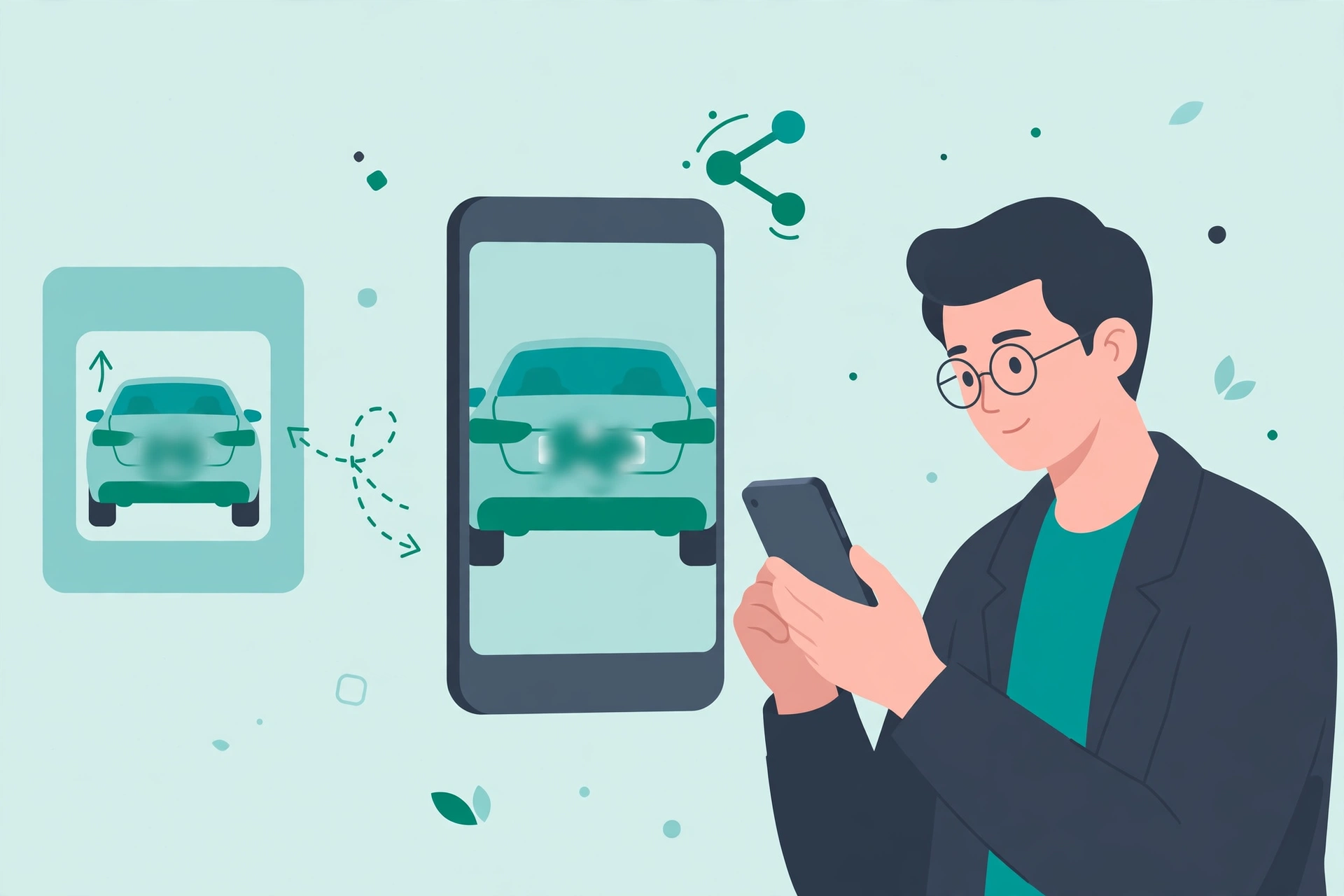
Redaction changes what is in the image, but it does not change where the image goes, and that second half deserves the same attention. A redacted photo sent to a public marketplace listing is still public. A redacted screenshot sent to a group chat can still be forwarded. Neither of those is a reason not to redact — it is a reason to match the sharing method to the sensitivity of the photo. For something mildly private, a redacted copy in a public listing is a sensible balance. For something genuinely sensitive, such as a document, a smaller audience and a direct message are usually the better choice, and you may want to crop rather than blur.
It is also worth thinking about duplicates. Many phones back photos up automatically, and messaging apps often save received images to the gallery. If you redact a photo and share it, the unedited original may still exist in a backup or in the recipient’s chat history if you shared it before. That is not a failure of the tool; it is just how photo sharing works. The practical response is to redact before the first share, not after, and to keep the original somewhere you control. If storage is getting tight because of duplicate edited and unedited copies, our guide to freeing up Google Photos storage covers how to tidy up without deleting things you meant to keep.
If Redact Has Not Appeared on Your Phone Yet
Rollouts are gradual, and a missing tool is usually a timing issue rather than a problem with your phone. The first thing to check is the Play Store: open it, search for Google Photos, and install any update offered. If there is no update, the tool may simply not have reached your account or region yet, and waiting a few days is a reasonable step before assuming anything is wrong.
In the meantime, you are not stuck. The Markup editor’s drawing tools can cover a detail with a solid shape, and cropping the sensitive part out of the frame works just as well for many photos — sometimes better, since a crop removes the information entirely rather than obscuring it. A third-party photo editor can also blur, but be cautious about which one you choose: an editor that uploads your photos to a server to process them is a poor trade when the whole point is privacy. A well-known editor that works on the device, with no account required, is the safer fallback. Our guide to Android app permissions and privacy explains how to check what an app can access before you hand it your photos.
Frequently Asked Questions
Do I need a new Android version to use Redact?
Not necessarily. Redact is a Google Photos feature, so it arrives through an app update rather than a full Android version upgrade. Keeping Google Photos updated in the Play Store is the more useful check, though availability can still vary by device and region during a rollout.
Does blurring a detail remove it permanently?
It hides it in the edited copy you share, but it does not erase the detail from the original photo on your phone, and it is not a guarantee against a determined attempt to recover it. For anything truly sensitive, cropping the detail out — or not sharing the photo at all — is the safer choice.
Can I redact more than one detail in the same photo?
Yes, in principle: apply the tool to each detail in turn, giving each one a little margin, and check the whole image at full size before saving. It is easy to blur the obvious plate and miss a second detail, such as a house number in the corner, so a final scan of the frame is worth the few seconds.
Should I save over the original or save a copy?
Saving a copy is usually the better habit. It keeps an unedited version for your own records — useful if you later need the original for a return, a claim, or a warranty — while ensuring that only the redacted version is the one you share.
Does Redact remove location data from a photo?
No. Redact changes what is visible in the image; location and other metadata are a separate matter. If a photo was taken somewhere private, check your sharing settings and consider whether location data should be stripped before sharing, particularly for public listings.
A Small Check Before Every Share
Redact is at its best when it becomes boring: a ten-second habit before a photo leaves your phone, not a dramatic rescue after the fact. Open the photo, blur anything a stranger does not need to see, check it at full size, share the edited copy, and move on. The tool does not make a photo safe on its own, and no tool can. But paired with a quick look at the background and a sensible choice about where the photo goes, it removes the most common reason people regret sharing a picture — the detail they never meant to include in the first place.
