
How to Mirror Your Android Screen to a TV or PC
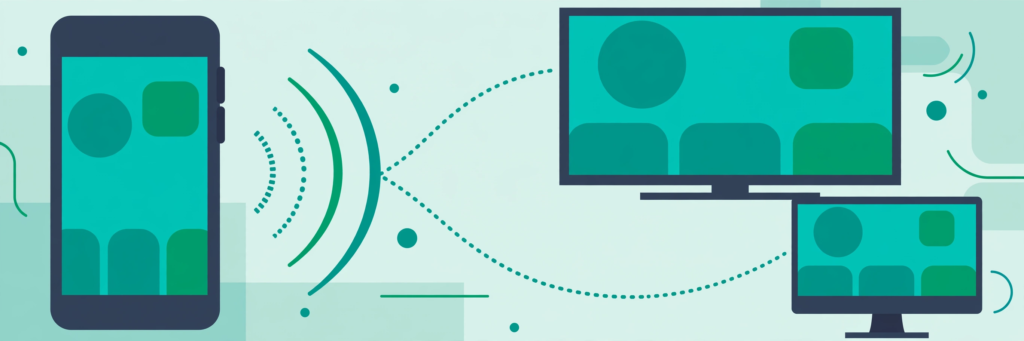
Screen mirroring puts whatever is on your Android phone — videos, photos, apps, even games — onto a bigger display like a TV or a computer monitor. It is genuinely useful: showing holiday photos to family without passing the phone around, presenting slides from your handset, or watching mobile videos on the living-room TV.
This guide explains every reliable way to mirror an Android screen in 2026: the built-in wireless option, streaming sticks, mirroring to a Windows PC, and the wired method. No special technical knowledge is needed, and every method below uses either features already on your phone or inexpensive, widely available hardware.
Before you start: what mirroring needs
Almost all wireless mirroring methods share the same basic requirements:
- Your phone and the receiving device on the same Wi-Fi network. This is the single most common reason mirroring fails — one device on the 5 GHz band and the other on 2.4 GHz, or one on a guest network, is enough to break discovery.
- A TV or receiver that supports it. Most smart TVs sold in the last several years have Chromecast built in (often listed as “Chromecast built-in” or “Google Cast”), and many also support Miracast. Streaming sticks like Chromecast or Fire TV add support to any TV with an HDMI port.
- A reasonably modern phone. The screen-cast feature has been part of Android for many years, so nearly any phone running a recent Android version supports it. Samsung phones label it “Smart View”.
One distinction worth knowing: casting (sending a specific video from YouTube or Netflix to the TV) is not the same as mirroring (duplicating your entire screen). This guide covers mirroring; casting usually works even when mirroring does not, because the phone just hands the TV a link rather than streaming its display.
Method 1: Use your phone’s built-in screen cast feature
This is the fastest method and costs nothing. According to Google’s documentation, Android’s Cast feature streams your screen to any Chromecast-enabled display on the same network.
- Turn on your TV (or streaming stick) and make sure it is connected to your home Wi-Fi.
- On your phone, swipe down twice to open the full Quick Settings panel.
- Tap Screen Cast (on Samsung phones: Smart View; on some phones it may be called Wireless Display or appear under Settings > Connected devices > Connection preferences > Cast).
- Wait a few seconds for your TV’s name to appear, then tap it.
- Accept any prompt on the TV. Your phone screen should appear within a few seconds.
- To stop, open the notification that says you are casting and tap Disconnect.
If your TV does not appear in the list, double-check that both devices are on the same Wi-Fi network — this fixes the problem more often than anything else. Restarting the TV and toggling your phone’s Wi-Fi off and on also resolves most discovery issues.
Method 2: Mirror with a Chromecast or streaming stick
If your TV is older or simply does not support casting, a streaming stick adds the capability to any TV with a spare HDMI port. Devices in this category include Google’s Chromecast / Google TV streamers and Amazon’s Fire TV sticks.
- Plug the stick into an HDMI port on your TV and power it via the included adapter or a USB port.
- Complete the on-screen setup and connect the stick to your home Wi-Fi — the same network your phone uses.
- On a Chromecast or Google TV device, use Method 1 above to mirror. On a Fire TV stick, go to the Fire TV’s settings and enable screen mirroring (often under Display & Sounds), then cast from your phone.
A streaming stick is also the most reliable fix for TVs whose built-in casting is flaky, since the stick’s software is updated independently of the TV. If you regularly share your phone’s screen, it is a worthwhile one-time purchase.
Method 3: Mirror your screen to a Windows PC
Mirroring to a computer is handy for presentations, recording tutorials, or just using a bigger screen at your desk. Windows 10 and 11 include a built-in wireless display receiver, though it is not installed by default on every edition.
- On your Windows PC, open Settings > Apps > Optional features (on Windows 11) and add the Wireless Display feature if it is not already installed.
- Open the Start menu and launch the Wireless Display app — leave it open and waiting for a connection.
- Make sure the PC and your phone are on the same Wi-Fi network.
- On your phone, use the Screen Cast feature from Method 1 and select your PC’s name when it appears.
- Accept the connection prompt on the PC. Your phone screen will appear in the Wireless Display window.
Samsung phone owners have an additional option: the Phone Link app (formerly Your Phone) supports screen mirroring for many Galaxy models when linked to a Windows PC via your Microsoft account, according to Microsoft’s documentation. And if you need to do more than view the screen — actually controlling a distant computer from your phone — that is a different task covered in our guide to the best remote desktop apps for Android.
Method 4: Use a USB-C to HDMI cable (wired)
Wired mirroring has one big advantage: latency. A cable connection is noticeably more responsive than Wi-Fi, which matters for gaming or anything interactive. It also works with no network at all.
- Check that your phone supports video output over USB-C — this varies by manufacturer and model, so look for “DisplayPort Alt Mode” or “HDMI output” in the manufacturer’s published specifications for your phone. Not all phones support it.
- Get a USB-C to HDMI adapter or cable. Some setups need the phone to be charged simultaneously, in which case use an adapter with a power pass-through port.
- Connect the cable between your phone and the TV or monitor, then switch the display to the correct HDMI input.
- Your screen should appear automatically. Some phones ask you to choose between mirroring and a desktop-style mode — pick mirroring for a straight duplicate.
If nothing appears, the most likely cause is that your phone model does not support video output over USB-C. In that case, fall back to one of the wireless methods above.
Common screen mirroring problems and fixes
| Problem | Likely cause | Fix |
|---|---|---|
| TV or PC does not appear in the cast list | Devices on different networks | Put both on the same Wi-Fi network (same band, not a guest network); restart both devices |
| Video stutters or lags | Weak or congested Wi-Fi | Move closer to the router, switch to the 5 GHz band, or pause large downloads |
| Picture but no sound | Audio routing issue | Raise volume on both devices; on the TV, check it is not muted or set to another input’s audio |
| Black screen in Netflix or other video apps | DRM copy protection | This is intentional — protected content cannot be mirrored. Use the app’s built-in Cast button instead |
| Connection drops after a few minutes | Phone battery optimization killing the cast | Keep the phone awake and charging; disable battery optimization for the casting process if your phone allows it |
| Mirroring works but looks blurry | Low bandwidth | Reduce the distance to the router and close bandwidth-heavy apps on the network |
Tips for a better mirroring experience
- Rotate to landscape before mirroring videos so they fill the TV screen instead of appearing as a small portrait window.
- Enable Do Not Disturb while mirroring — notifications, messages, and incoming calls appear on the big screen too.
- Keep the phone charged. Mirroring is demanding on the battery; plug in for long sessions.
- Use your phone as a hotspot only as a last resort. You can mirror over a phone hotspot in a pinch (see our guide on using your Android phone as a mobile hotspot), but expect higher latency and mobile data use if the content streams from the internet.
- For moving files instead of your screen — for example, getting photos onto the PC you just mirrored to — a direct transfer is faster than any screen method. See our guide to fast wireless file transfer between Android and PC.
Frequently asked questions
Do I need Wi-Fi to mirror my screen?
For the standard methods, yes — both devices need to be on the same Wi-Fi network. The wired USB-C method needs no network at all, and some Miracast-based connections can link directly between devices, though in practice most people use their home Wi-Fi.
Does screen mirroring use mobile data?
Mirroring itself is local traffic between your phone and the TV or PC, so it does not consume mobile data. However, whatever you display — a YouTube video, for instance — still uses data normally if you are not on Wi-Fi.
Why is there a delay between my phone and the TV?
A small delay (typically a fraction of a second to a couple of seconds) is normal with wireless mirroring because the video is encoded, transmitted, and decoded in real time. A congested or distant Wi-Fi connection makes it worse; a wired connection makes it nearly disappear.
Why can’t I mirror Netflix, Disney+, or other streaming apps?
These apps use DRM (digital rights management) copy protection, which deliberately blocks screen mirroring and shows a black screen. This is by design and cannot be worked around with settings. Use the app’s own Cast button, which streams the video directly to the TV instead of mirroring your phone.
Is mirroring the same as casting from YouTube or Netflix?
No. Casting sends just the video to the TV — your phone becomes a remote control and can do other things. Mirroring duplicates your entire screen, so everything you do is visible and your phone’s battery drains faster. For watching videos, casting is the better option when available.
The bottom line
For most people, the built-in Screen Cast feature (Method 1) is all you will ever need — it is free, already on your phone, and takes under a minute to set up. Add a streaming stick if your TV lacks support, use the Wireless Display app for a Windows PC, or go wired with USB-C to HDMI when latency matters. And if screen sharing has you thinking about a smarter living room in general, our Android smart home automation guide covers what to connect next.
