
How to Remove Pre-Installed Bloatware on Android Without Root (ADB Guide)
Why Smartphones Come with Bloatware & The Benefits of Debloating
Pre-installed bloatware from carriers and manufacturers (like Samsung, Xiaomi, and carrier apps) consumes internal storage, drains battery in the background, and clutters your app drawer. While Android does not let you uninstall these apps normally, you can easily disable or completely remove bloatware without rooting your device using Universal ADB Debloater. Here is our step-by-step guide to removing bloatware on Android in 2026.
Knowing how to remove bloatware without rooting your Android device can save you time, storage space, and frustration. Whether you are a beginner or an experienced Android user, this complete 2026 tutorial will walk you through every step clearly and simply.
When you purchase a brand-new Android smartphone from major manufacturer brands such as Samsung, Xiaomi, Realme, or Motorola, the device comes pre-loaded with dozens of pre-installed applications. Commonly referred to as bloatware, these apps range from redundant OEM app stores, diagnostic telemetry trackers, sponsored games, and duplicate browser engines to persistent social media background services.
Smartphone vendors pre-install bloatware primarily due to corporate partnerships and revenue agreements. App developers pay hardware manufacturers to bundle their services directly onto system partitions. While this practice helps subsidize hardware pricing, it directly impacts the end-user experience in several critical ways:
- Background RAM & CPU Consumption: Services like Facebook App Installer, Glance Lockscreen, and OEM analytics continually run background daemons, consuming valuable system memory and CPU cycles.
- Battery Drain & Thermal Throttling: Unnecessary background wake-locks prevent your Android processor from entering low-power CPU sleep states, shortening overall battery life and increasing operating temperatures.
- Storage Space Congestion: Pre-installed apps and their accumulated cache files occupy gigabytes of internal UFS storage that could otherwise store high-resolution photos, games, or media.
- Privacy & Telemetry Concerns: Background analytics services harvest device identifiers, location patterns, and usage telemetry without explicit opt-in user consent.
Fortunately, you do not need to root your phone or void your manufacturer warranty to reclaim control over your device. By utilizing Android’s native Android Debug Bridge (ADB) interface, you can safely uninstall pre-installed bloatware for the primary system user (User 0).
pm uninstall -k --user 0 removes applications from the active primary user space without modifying the read-only /system OS partition. This means your device remains fully eligible for official over-the-air (OTA) system updates, banking app security compliance (SafetyNet / Play Integrity), and simple factory reset restoration.Understanding ADB Debloating: How pm uninstall -k --user 0 Works
To perform safe ADB debloating, it is essential to understand what happens under the hood when executing package manager commands in the ADB shell terminal environment.
User 0 Space vs. Read-Only System Partition
Android operates on a multi-user permission architecture. The default system owner profile is designated as User 0. Pre-installed bloatware binaries reside inside the system partition (e.g., /system/priv-app/ or /product/app/), which is mounted as read-only on non-rooted devices.
When you execute the standard debloating command:
adb shell pm uninstall -k --user 0 <package.name>The flags execute the following operations:
pm uninstall: Invokes Android’s internal Package Manager daemon to deregister the app.-k: Instructs the system to retain the app’s cache and user data directories (preventing orphan system file errors).--user 0: Specifies that the package should be uninstalled exclusively for the primary user account.
Because the underlying APK binary file remains untouched inside the read-only system partition, the application ceases to run, execute background processes, consume RAM, or show up in your app drawer. Should you ever need to restore an accidentally uninstalled package, a single command brings it back instantly without downloading anything from the internet.
Prerequisites & ADB Setup Guide
Setting up ADB takes less than five minutes. Follow these step-by-step instructions for Windows, macOS, or Linux systems.
Step 1: Download Official Android SDK Platform-Tools
Download the official Google Platform-Tools package directly to your computer:
- Windows: Extract
platform-tools-latest-windows.ziptoC:\platform-tools. - macOS / Linux: Extract the archive to your home directory or install via terminal (e.g.,
brew install android-platform-toolson macOS).
Step 2: Enable Developer Options & USB Debugging on Your Smartphone
- Open Settings on your Android phone and navigate to About Phone.
- Locate Build Number (or MIUI/HyperOS Version on Xiaomi devices, Software Version on Lenovo/Motorola).
- Tap Build Number 7 consecutive times until you see the pop-up toast notification: “You are now a developer!”.
- Return to Settings > System > Developer Options (or Additional Settings > Developer Options).
- Scroll down and toggle ON USB Debugging. On Xiaomi/Realme devices, also toggle ON USB Debugging (Security Settings) if present.
Step 3: Connect Phone and Authorize ADB Connection
- Connect your phone to your computer using a high-quality USB-C data cable. Set the USB connection mode to File Transfer (MTP).
- Open a terminal window (Command Prompt / PowerShell on Windows, Terminal on Mac/Linux) and navigate to your platform-tools directory:
cd C:\platform-tools - Type the following command to check device detection:
adb devices - Look at your smartphone screen. A prompt will appear asking: “Allow USB debugging from this computer?” Check the box marked Always allow from this computer and tap Allow.
- Re-run
adb devices. You should see your device serial number followed by the worddevice.
Safe Debloat vs. Critical System Framework Dependencies
Before executing uninstall commands, you must distinguish between safe bloatware packages and critical system dependencies. Removing a core framework component can result in a bootloop or systemic application crashes.
com.android.systemui(System User Interface engine)com.google.android.webvieworcom.android.webview(System Web Engine)com.android.settings(Primary System Settings app)com.android.phone/com.android.providers.telephony(Cellular & Calling services)com.google.android.gms(Google Play Services framework core)
Comprehensive OEM Package Lists
Below are detailed, verified lists of safe-to-remove packages across major smartphone manufacturers. Match the package names carefully before running uninstall commands.
1. Samsung (One UI 5 / 6 / 7) Safe Debloat List
Samsung One UI comes bundled with Bixby, Facebook background agents, AR tools, and duplicate utility suites. The packages listed below can be safely uninstalled without breaking main phone functions:
| Feature / Service | Package Name | Safety Status |
|---|---|---|
| Bixby Voice Agent | com.samsung.android.bixby.agent |
Safe to Remove |
| Bixby Service Core | com.samsung.android.bixby.service |
Safe to Remove |
| Facebook App Installer | com.facebook.system |
Safe to Remove |
| Facebook Services Daemon | com.facebook.services |
Safe to Remove |
| Facebook App Manager | com.facebook.appmanager |
Safe to Remove |
| Samsung AR Zone & Emoji | com.samsung.android.arzone |
Safe to Remove |
| Samsung Pay Stub | com.samsung.android.spayfw |
Safe if not using Samsung Pay |
| Game Launcher Telemetry | com.samsung.android.game.gamehome |
Safe to Remove |
| Samsung Link Sharing | com.samsung.android.app.simplesharing |
Safe to Remove |
2. Xiaomi (MIUI / HyperOS) Safe Debloat List
Xiaomi devices are notorious for advertising frameworks (MSA) and analytics services. Removing these drastically reduces background battery drain:
| Feature / Service | Package Name | Safety Status |
|---|---|---|
| MIUI System Ads (MSA) | com.miui.msa.global |
Safe to Remove (Recommended) |
| Xiaomi Analytics Daemon | com.miui.analytics |
Safe to Remove (Recommended) |
| GetApps Store | com.xiaomi.mipicks |
Safe to Remove |
| Mi Browser | com.mi.globalbrowser |
Safe to Remove |
| Mi Pay Daemon | com.mipay.wallet.in |
Safe to Remove |
| Yellow Pages Caller ID | com.miui.yellowpage |
Safe to Remove |
| Mi Daemon Diagnostics | com.miui.daemon |
Safe to Remove |
3. Realme / Oppo (ColorOS / Realme UI) Safe Debloat List
| Feature / Service | Package Name | Safety Status |
|---|---|---|
| Glance Lockscreen Ads | com.glance.internet |
Safe to Remove |
| HeyTap Cloud / Partner Services | com.heytap.cloud |
Safe to Remove |
| App Market Store | com.heytap.market |
Safe to Remove |
| FinShell Pay Services | com.finshell.fin |
Safe to Remove |
| Game Space Analytics | com.coloros.gamespace |
Safe to Remove |
4. Motorola (My UX) Safe Debloat List
| Feature / Service | Package Name | Safety Status |
|---|---|---|
| Motorola Notifications Telemetry | com.motorola.ccc.notification |
Safe to Remove |
| Facebook System Agent | com.facebook.system |
Safe to Remove |
| Moto Demo Mode | com.motorola.demomode |
Safe to Remove |
| Gametime Shopping Ads | com.motorola.gamemode |
Safe to Remove |
Step-by-Step Command Execution Tutorial
Once your computer recognizes your smartphone via ADB, execute debloating commands using the following step-by-step procedure:
1. Enter ADB Shell Mode
In your terminal window, launch the interactive Android shell:
adb shellYour command prompt will change to show a shell prompt like phone_codename:/ $.
2. List Installed Packages to Verify Names
To find the exact package string of any app installed on your phone, run:
pm list packages | grep samsung(Replace samsung with xiaomi, facebook, or google depending on your target manufacturer app).
3. Execute Package Uninstallation
To uninstall a bloatware app, enter the standard removal command:
pm uninstall -k --user 0 com.facebook.systemIf successful, the terminal will instantly output: Success.
How to Restore & Reinstall Accidentally Removed System Apps
If you accidentally uninstall an application and discover a missing feature or system malfunction, you can restore the app immediately without internet connectivity or factory resetting your phone.
Enter ADB shell mode (adb shell) and execute the package re-installation command:
cmd package install-existing <package_name>Example: To restore the Samsung Bixby Voice agent, enter:
cmd package install-existing com.samsung.android.bixby.agentThe package manager will instantly re-link the original system binary back into User 0 space and output: Package com.samsung.android.bixby.agent installed for user: 0.
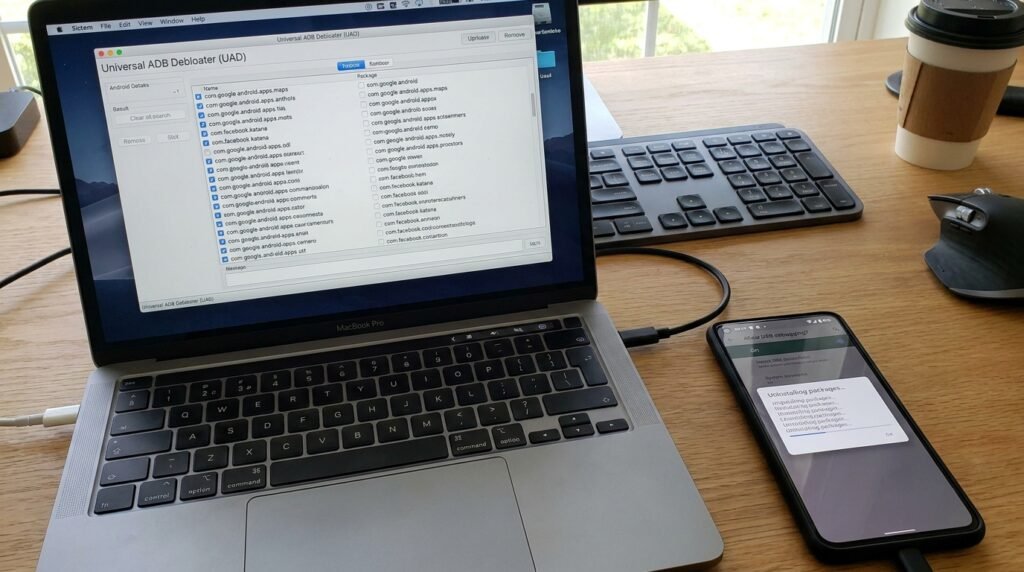
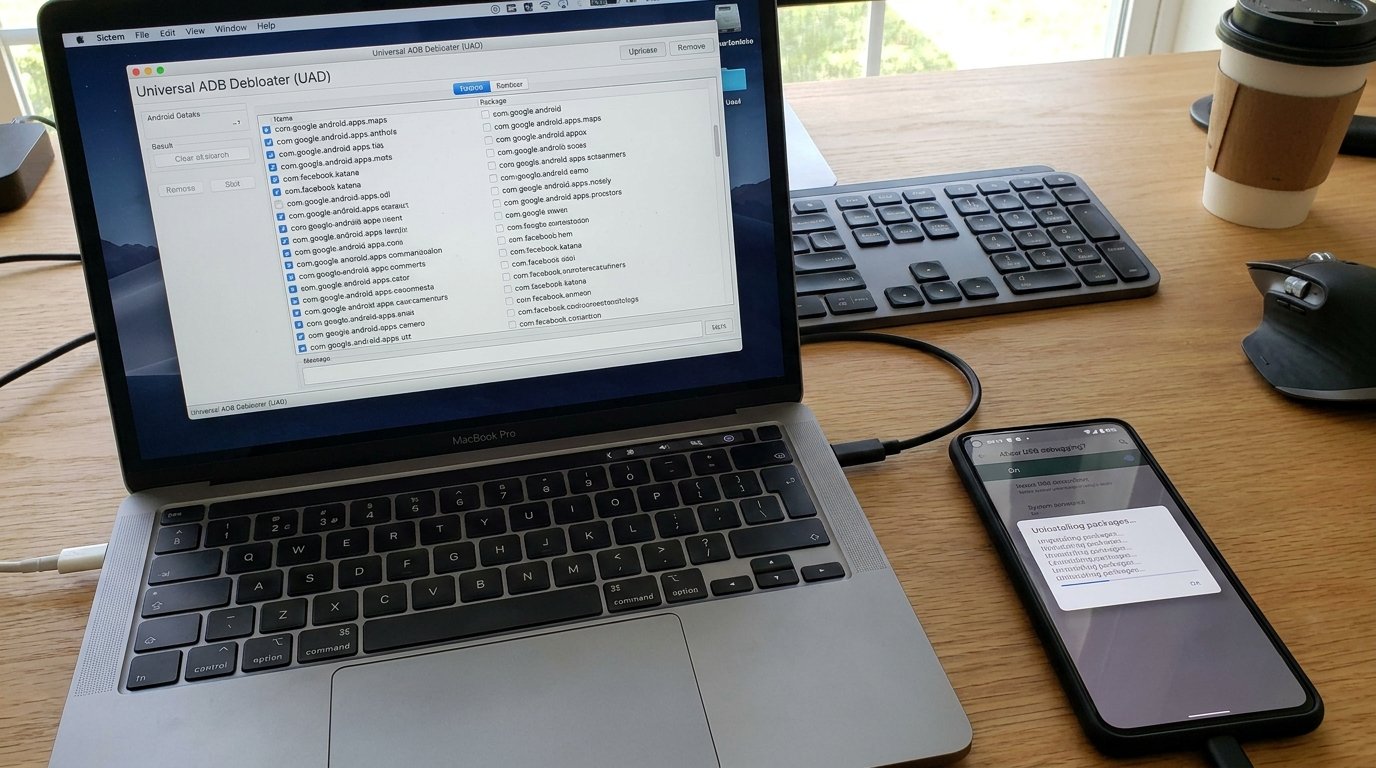
Modern GUI Alternatives for ADB Debloating (Universal Android Debloater)
If you prefer an intuitive visual interface over command-line tools, open-source developers have created cross-platform graphical user interfaces for ADB debloating.
Universal Android Debloater (UAD-GUI) Tutorial
Universal Android Debloater (UAD) is an open-source tool written in Rust that features a clean visual interface and built-in community package safety ratings.
- Download the latest release of UAD-GUI from its official GitHub repository for Windows, macOS, or Linux.
- Ensure ADB is installed and USB Debugging is authorized on your phone.
- Launch the UAD executable. The software will automatically detect your phone model and OEM skin.
- Filter packages by categories: Recommended, Advanced, Expert, or Unsafe. Select Recommended for automated safe debloating.
- Check the apps you wish to remove and click Uninstall Selection. UAD performs the ADB commands safely behind the scenes and maintains a batch restore list.
Comparison Matrix: OEM Bloatware Levels & Post-Debloat Impact
The table below summarises typical bloatware levels and the general impact of debloating across major Android OEM interfaces. Figures vary widely by device model, carrier customisation, and usage:
| OEM UI Skin | Pre-installed Bloat Packages | RAM Savings Post-Debloat | Idle Battery Drain Improvement | Risk Level |
|---|---|---|---|---|
| Samsung One UI 6/7 | Varies by model and carrier | Varies by device and usage | Varies by device and usage | Low (Safe Restore Available) |
| Xiaomi MIUI / HyperOS | Varies by model and carrier | Varies by device and usage | Varies by device and usage | Low – Medium (Avoid Mi Account Core) |
| Realme UI / ColorOS | Varies by model and carrier | Varies by device and usage | Varies by device and usage | Low |
| Motorola My UX | Varies by model and carrier | Varies by device and usage | Varies by device and usage | Very Low |
Note: the figures in this table are general estimates that vary by device model, carrier customisation, and usage — they are not lab-tested measurements.
Troubleshooting & Frequently Asked Questions
Will ADB debloating break OTA software updates?
No. Official software updates verify that system partitions are un-modified. Since ADB debloating only deregisters apps inside User 0 space without modifying root /system files, OTA updates install smoothly.
What happens if I perform a Factory Data Reset?
A factory data reset clears the primary user profile space and restores original system defaults. All pre-installed OEM apps will return to their factory-fresh state.
Can debloating brick my phone into a bootloop?
As long as you stick to the verified package lists provided in this guide and avoid disabling core framework binaries like com.android.systemui or com.android.settings, your phone is completely safe from bootloops.
This guide was compiled from Android’s official developer documentation and community-verified package lists, and is updated when a significant Android version or OEM skin change affects the recommendations. You can read more about our approach on our About Us page.
Have questions or want to share your own experience? Drop a comment below or reach out to our team. We read every message. You can also learn more about how we write and maintain our guides on our About Us page.
