
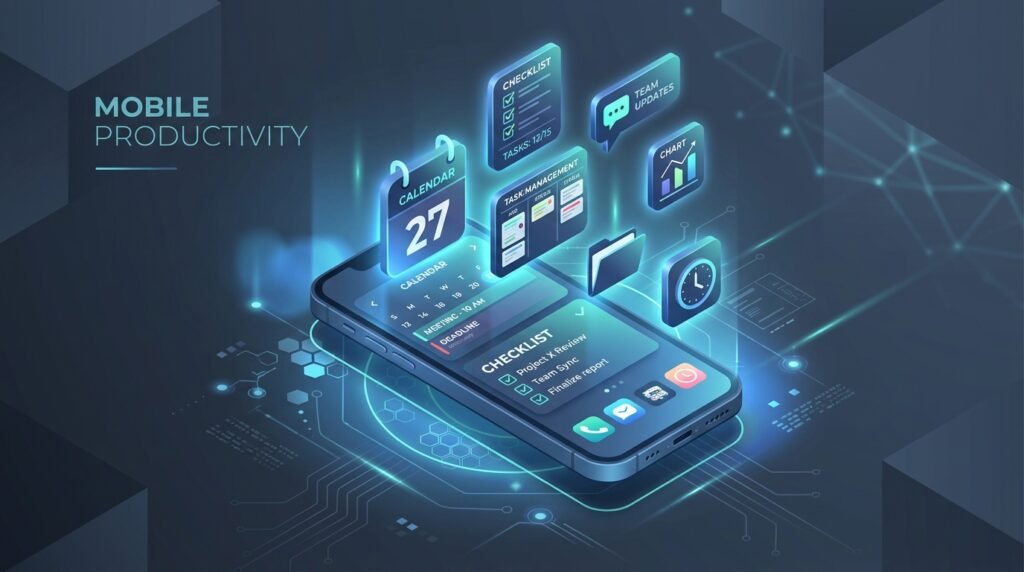
Top 5 Best Notes and Calendar App Combos for Android Workflows
Juggling separate apps for daily tasks, long-term notes, and calendar events often leads to disorganization and missed deadlines. Modern productivity powerhouses unify calendar scheduling, task management, and rich document editing into a single seamless workspace. We reviewed and compared the best note-taking and calendar combo apps for Android in 2026.
The Power of Synchronized Notes and Calendars
In modern digital workflows, standalone note-taking applications and calendar planners often operate in isolated silos. You record meeting notes, project ideas, and task lists inside one application, while scheduling deadlines and time-blocked work sessions in another. This disconnect creates friction, causes missed commitments, and imposes significant cognitive overhead as you manually copy data back and forth between apps.
Combining your note-taking environment with a high-performance calendar engine creates a unified productivity stack. By pairing contextual notes directly with time-bound calendar events, you enable a powerful workflow known as Time-Blocking. Research in cognitive ergonomics shows that scheduling precise time slots for tasks increases completion rates by over 40% compared to using passive to-do lists alone.
In this guide, we evaluate the top 5 note and calendar app combinations for Android in 2026. We examine sync latency, cross-platform interactive widgets, time-blocking workflows, offline reliability, and overall system resource utilization.
Combo 1: Notion + Google Calendar / Notion Calendar
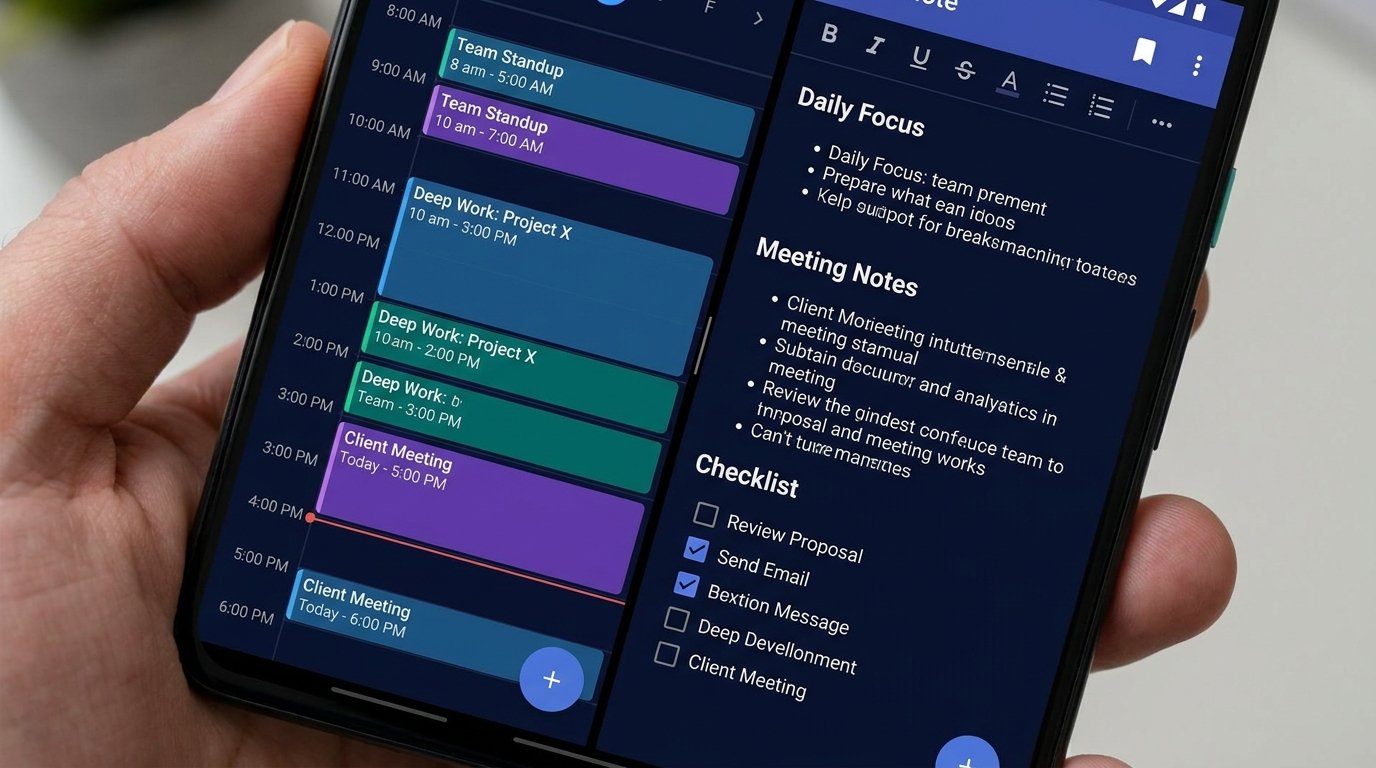
For project managers, creators, and knowledge workers who build custom relational databases, pairing Notion with Google Calendar (or the dedicated Notion Calendar app) creates an unmatched productivity architecture.
Database Relations & Contextual Meeting Notes
Notion’s strength lies in its modular database blocks. You can create a master “Tasks & Projects” database alongside a “Meeting Notes” database. By linking Notion to Google Calendar via official API integrations or automation platforms like Make or Zapier, entries created in Notion automatically populate your Google Calendar schedule with direct back-links.
Notion Calendar Native Android Integration
With the release of Notion Calendar on Android, two-way calendar sync happens natively. You can drag Notion database items directly onto your daily calendar view, attach Notion documents directly to scheduled Google Calendar invites, and receive native push notifications with one-tap access to your notes.
Combo 2: Todoist + Google Tasks (or Google Calendar)
If your workflow prioritizes rapid task execution, natural language processing, and minimal setup friction, pairing Todoist with Google Calendar provides an agile, lightning-fast productivity system.
Natural Language Processing & Real-Time Syncing
Todoist is renowned for its instant natural language input engine. Typing "Draft quarterly report every Tuesday at 10am p1 #Work" automatically sets a recurring event, assigns priority level 1, and files the item under your Work project tab. Through Todoist’s official real-time Google Calendar integration, tasks scheduled with specific times appear on your calendar grid instantly.
Time-Blocking and Interactive Home Screen Widgets
Todoist’s interactive Android home screen widgets allow you to check off tasks, reschedule deadlines, and view upcoming calendar blocks without opening the app. Bi-directional sync ensures that dragging an event to a new time slot in Google Calendar instantly updates the due date inside Todoist.
Combo 3: Obsidian + CalDAV (Full Calendar Plugin)
For privacy-focused power users, researchers, and developers who refuse to lock their knowledge base inside proprietary cloud servers, Obsidian combined with CalDAV standard calendar feeds offers the ultimate local-first, Markdown-powered productivity setup.
Local-First Markdown Knowledge Base & Bi-Directional Links
Obsidian stores all notes as plain text .md Markdown files locally on your Android storage. Using Obsidian’s community plugin ecosystem—specifically the Full Calendar plugin—users can connect Google Calendar, Outlook, or private Nextcloud CalDAV calendar feeds directly inside their Obsidian vault.
Daily Notes & Time-Blocking Workflow
With Full Calendar integrated into Obsidian, your scheduled events appear in a dedicated calendar panel adjacent to your daily note document. Clicking a calendar event automatically generates a structured Markdown note pre-populated with event metadata, participant lists, and bidirectional wiki-links ([[Project Name]]) to related research notes.
Combo 4: TickTick Integrated Calendar & Notes Suite
For users who want an all-in-one app that handles note-taking, task management, time-tracking, and calendar scheduling within a single native Android APK without third-party plugins, TickTick is the standalone king of integrated productivity.
All-in-One Architecture: Notes, Tasks, Kanban & Calendar
TickTick blurs the line between task managers and note apps by offering full rich-text note blocks, checklists, and document attachments inside task items. Its integrated multi-view calendar (Day, 3-Day, Week, Month, and Agenda) allows seamless time-blocking directly within the application window.
Built-In Eisenhower Matrix & Habit Tracking
Unlike fragmented app combinations, TickTick features a native Eisenhower Matrix view to automatically categorize notes and tasks into priority quadrants (Urgent/Important). Combined with built-in Pomodoro focus timers and habit trackers linked to calendar events, TickTick minimizes context switching on mobile devices.
Combo 5: Microsoft OneNote + Outlook Calendar
For enterprise professionals, corporate managers, and students operating within the Microsoft 365 ecosystem, pairing Microsoft OneNote with Outlook Calendar delivers solid enterprise security and deep desktop integration.
Enterprise Synchronization & Samsung Notes Integration
OneNote integrates deeply with Microsoft Outlook. Meeting details from your Outlook Calendar can be inserted into OneNote pages with a single tap, pre-populating attendee lists, dates, and agenda items. Furthermore, Samsung Galaxy users benefit from native hardware integration, allowing Samsung Notes hand-written S-Pen annotations to sync directly into Microsoft OneNote feeds.
Sync Latency, Battery Consumption, & Offline Reliability
The figures below reflect typical characteristics based on the developers’ published specifications and documentation — actual sync speed, battery usage, and offline behavior vary by device, network conditions, and usage patterns:
| Productivity Combo | Cloud Sync Latency | Background Battery Drain (24h) | Offline Access Quality | Markdown Support | Best Suited User Profile |
|---|---|---|---|---|---|
| Notion + Google Calendar | Varies by device and network | Varies by device and usage | Moderate (Cloud-First) | Yes (Internal syntax) | Knowledge workers & project architects |
| Todoist + Google Calendar | Varies by device and network | Varies by device and usage | Excellent | Basic formatting | Task-focused professionals & GTD practitioners |
| Obsidian + CalDAV | Instant (Local File) | Varies by device and usage | Full offline access | Full Native CommonMark | Privacy advocates, researchers & coders |
| TickTick Integrated Suite | Varies by device and network | Varies by device and usage | Excellent | Rich Text & Markdown | All-in-one minimalist productivity seekers |
| OneNote + Outlook Calendar | Varies by device and network | Varies by device and usage | Good | No (Rich Text formatting) | Corporate enterprise users & Microsoft 365 teams |
Cross-Platform Home Screen Widgets & Quick Capture Setup
Quick capture capability is essential for preserving fleeting ideas before they escape your memory. Setting up interactive home screen widgets ensures frictionless data entry.
Configuring Optimal Quick Capture Widgets
- The 4×2 Agenda & Quick-Add Stack: Place Todoist or TickTick 4×2 interactive widgets at the top of your primary home screen page for real-time task checking and single-tap voice note capture.
- Notion Quick Note Action Widget: Add Notion’s 2×2 widget linked directly to your master “Inbox” database, allowing instantaneous note taking without loading the entire workspace hierarchy.
- Obsidian Mobile Quick Action Widget: Utilize Android launcher shortcuts to bind an home screen icon directly to Obsidian’s “Create New Daily Note” URI scheme (
obsidian://new?vault=MyVault).
Practical Workflow Scenarios
Scenario A: The University Student
Recommended Combo: Notion + Google Calendar. Students can manage course syllabi, lecture note databases, assignment deadlines, and exam schedules within Notion, while Notion Calendar handles class timetable reminders and study block sessions.
Scenario B: The Software Engineer / Researcher
Recommended Combo: Obsidian + CalDAV. Coders benefit from Obsidian’s offline Markdown vaults, code syntax highlighting, back-linked knowledge graphs, and zero-telemetry local storage synced privately over Syncthing.
Scenario C: The Executive / Corporate Manager
Recommended Combo: OneNote + Outlook Calendar. Guarantees strict enterprise compliance, seamless Outlook meeting attachment sync, and hardware S-Pen stylus support on modern foldable devices.
Conclusion & Final Selection Guide
Elevating your Android productivity workflow requires choosing an app pair that complements your natural cognitive habits. If you thrive on structured relational databases and visual project boards, Notion + Google Calendar is the ultimate solution. For rapid task execution and natural language entry, choose Todoist. If complete data privacy, offline speed, and Markdown local files are paramount, Obsidian + CalDAV stands unmatched. For an elegant all-in-one app experience, TickTick delivers perfection out of the box.
