
How to Detect and Remove Hidden Spyware from Your Android Phone
Understanding Mobile Spyware & Stalkerware Threat Vectors
Unauthorized tracking utilities, stalkerware, and rogue background applications can silently compromise your privacy, track your GPS location, and drain your battery. Here is our step-by-step security manual for identifying suspicious device admin privileges, scanning for unauthorized accessibility permissions, and removing malware safely.
As smartphones host our bank accounts, private conversations, real-time GPS locations, and identity credentials, mobile devices have become primary targets for malicious surveillance software. Mobile spyware (frequently referred to as stalkerware or commercial surveillance software) consists of covert applications installed with or without physical authorization to monitor user activities silently. Once active, these hidden tools can capture keypresses, record microphone audio, stream live camera feeds, intercept SMS multi-factor codes, track exact coordinates, and exfiltrate personal photos to remote attacker dashboards.
Unlike standard viruses that disrupt device functionality, modern Android spyware is engineered to remain completely stealthy. It often disguises its process footprint under deceptive system package names such as Device Health Service, System Core Update, or Google Play Services Patch. In this definitive security guide, we break down the definitive physical symptoms of infection, reveal hidden system submenus where spyware hides, and provide step-by-step instructions to remove malicious software permanently from your Android phone.
1. Tell-Tale Hardware & Behavioral Symptoms of Android Infection
Spyware requires continuous CPU processing cycles, background sensor access, and constant network data connections to exfiltrate recorded data to remote servers. This activity leaves distinct hardware footprints. If your Android phone exhibits multiple symptoms below, immediate security investigation is recommended:
- Unexplained Rapid Battery Drainage: A sudden drop in battery life without any change in your daily usage patterns. Covert background recording apps keep the CPU in a continuous high-power state, preventing deep sleep mode.
- High Thermal Spikes When Idle: Your device feels warm or hot to the touch even when sitting idle on a nightstand with the screen turned off.
- Abnormal Outbound Mobile Data Usage: Spyware constantly uploads compressed video streams, audio recordings, and keylogs. High data consumption spikes during overnight hours indicate active data exfiltration.
- Random Screen Flickering & Unexpected Reboots: Spontaneous screen wakes, unexplained device restarts, or delayed display shutdowns caused by stalled background monitoring tasks.
- Background Audio Interference: Static clicks, hollow echoes, or volume drops during voice calls caused by uncalibrated third-party audio tapping software.
2. Inspecting and Revoking Device Administrator Apps
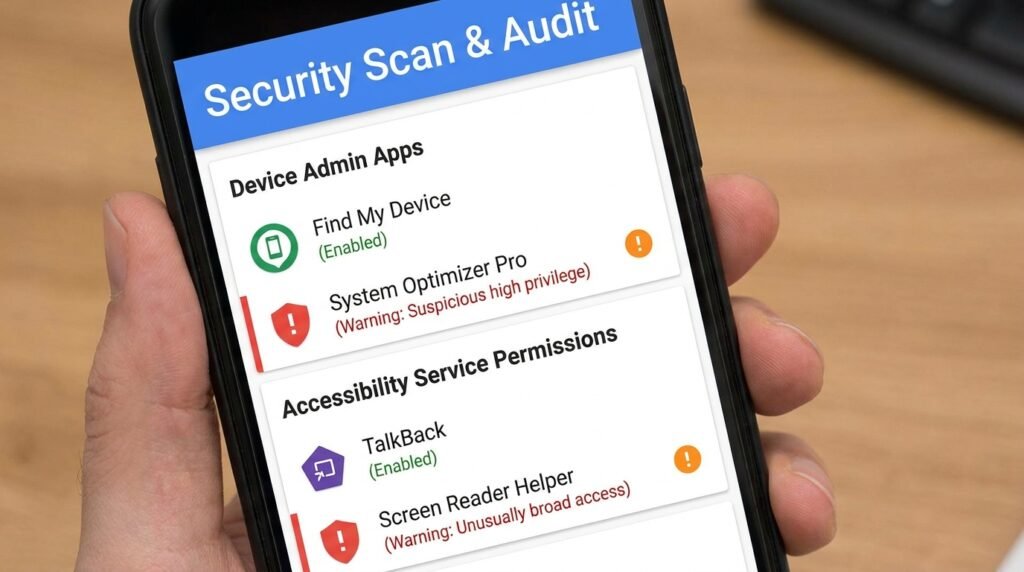
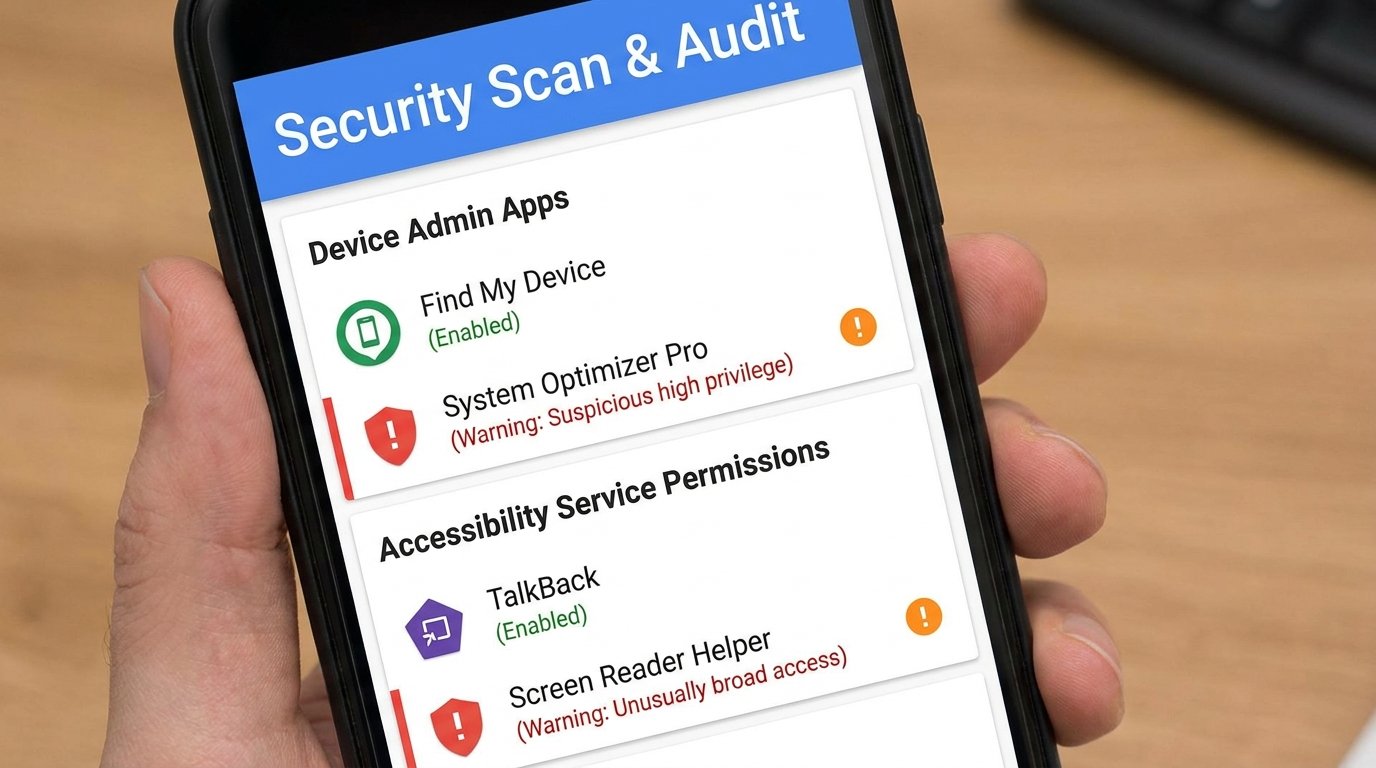
To prevent users from simply uninstalling surveillance applications from the main home screen, advanced spyware elevates its privileges by requesting Device Administrator rights during installation. Once granted admin status, the app disables its standard “Uninstall” button inside system settings and blocks normal app removal requests.
How to Audit and Revoke Device Admin Rights:
- Open system Settings on your Android phone.
- Navigate to Security & Privacy > Special App Access > Device Admin Apps (on some ROMs: Settings > Apps > Special App Access).
- Examine the list of active administrator applications carefully. Legitimate entries typically include Find My Device, Google Pay services, or official enterprise management tools (MDM).
- If you discover an unfamiliar app name, a blank icon entry, or a generic utility like System Health holding admin privileges, tap the app entry immediately.
- Select Deactivate this device admin app to strip its elevated privileges.
Once Device Administrator rights are revoked, the app’s protective uninstall block collapses, allowing you to proceed with standard package removal.
3. Auditing Accessibility Service Permissions: Closing the Keylogger Vector
The single most dangerous permission vector abused by modern Android spyware is the Accessibility Framework. Designed originally to assist users with disabilities by reading screen text and automating navigation inputs, Accessibility Services grant an application deep privileges to:
- Read all text displayed on the screen, including encrypted chats in WhatsApp, Signal, or Telegram.
- Log every typed keypress (passwords, PINs, banking credentials).
- Automatically accept secondary permission prompts without user interaction.
- Overlay transparent clickjacking windows to intercept login inputs.
Conducting a Thorough Accessibility Audit:
- Navigate to Settings > Accessibility.
- Scroll down to the Downloaded Apps or Installed Services section.
- Review every single app listed with active accessibility rights.
- If an application that has no accessibility requirement (e.g., a simple calculator, flashlight, or unknown package) has accessibility toggled ON, turn it OFF immediately.
4. Analyzing Network Traffic and Data Exfiltration Spikes
Because spyware must transmit gathered intelligence back to an external server hosted by an attacker, inspecting network data logs provides concrete empirical proof of active malware installation.
Step-by-Step Data Tracking Audit:
- Go to Settings > Network & Internet > Mobile Network > App Data Usage.
- Set the date range filter to inspect the current billing month.
- Sort installed applications by overall data consumption volume.
- Look for obscure apps consuming gigabytes of cellular or Wi-Fi data in the background despite never being opened directly.
- Tap suspicious apps and toggle Background Data access to Off to immediately cut off active data upload streams.
5. Running Deep System Scans with Google Play Protect & Mobile Antivirus
Google Play Protect continuously scans applications installed on your phone against an updated cloud malware signature database. However, stalkerware installed via manual side-loading (APK files) often attempts to disable Play Protect during installation.
Re-enforcing Google Play Protect Integrity:
- Open the Google Play Store application.
- Tap your profile avatar icon in the top right corner and select Play Protect.
- Check the status screen. If Play Protect displays a message stating “Scanning is turned off,” tap the gear setting icon in the upper right corner and turn on Scan apps with Play Protect and Improve harmful app detection.
- Return to the main screen and tap the Scan button to initiate an immediate, full-device signature check.
For persistent spyware, download verified security tools like Malwarebytes Mobile Security or Bitdefender Mobile Security directly from the Google Play Store to run secondary heuristic memory scans.
6. Uncovering Stealth Apps with Package Browsers & Hidden Launchers
Advanced spyware often deletes its own app icon from the home screen and app drawer immediately after installation, rendering it invisible to casual inspection. However, the app remains installed under Android’s underlying package manager system (com.example.package).
Finding Hidden Zero-Icon App Packages:
- Go to Settings > Apps > See all apps.
- Tap the three-dot menu icon in the upper corner and select Show System Apps (or Show System Processes).
- Carefully scroll through the complete alphabetical package list.
- Look for packages missing an icon graphic (showing a blank default Android silhouette) or entries using generic names without developer branding.
- Tap suspect entries, inspect their Permissions tab (checking for Camera, Microphone, and Location rights), and select Force Stop followed by Uninstall.
7. Safe & Complete Factory Reset Protocol
If suspicious background behavior persists or if you are dealing with kernel-level stalkerware, the most reliable method to restore total device integrity is performing a complete hardware Factory Data Reset.
Step-by-Step Factory Reset Execution:
- Back up critical contacts and photos to your Google Account or external USB flash drive.
- Log out of your primary Google Account via Settings > Accounts to prevent Factory Reset Protection (FRP) activation issues.
- Navigate to Settings > System > Reset options.
- Select Erase all data (factory reset).
- Confirm your device PIN or password and initiate the wipe procedure. Allow the device to clear memory sectors completely and reboot into the initial setup wizard.
Spyware Infection Vectors vs Removal Complexity Matrix
The comparative matrix below details common mobile surveillance vectors, key indicators, and effective remediation methods:
| Threat Vector | Primary Security Risk | Detection Method | Removal Method |
|---|---|---|---|
| Accessibility Abuse | Keylogging, real-time screen scraping, messaging theft | Audit Settings > Accessibility > Downloaded Apps | Revoke Accessibility toggle & uninstall host app |
| Device Admin Stalkerware | Blocks app uninstallation, remote device lock/wipe | Check Settings > Special App Access > Device Admin | Deactivate Admin rights first, then uninstall package |
| Hidden APK Packages | Continuous GPS tracking, background mic/camera access | Inspect complete list via Settings > Apps > Show System | Force Stop & uninstall suspicious unbranded package |
| Browser Notification Trojans | Adware popups, phishing pushes, spoofed security alerts | Check Chrome Site Settings > Notifications permissions | Clear browser site data and reset notification rights |
| Kernel-Level Root Kits | Total device compromise, firmware persistence | Root checking tools (Magisk/Root Checker) | Full Factory Data Reset & stock firmware re-flash |
Post-Removal Security Hardening Checklist
Once you have purged mobile spyware from your Android device, execute these critical post-cleanup steps to guarantee long-term account protection:
- Change All Core Account Passwords: Immediately update passwords for your primary Google Account, banking portals, password managers, and social media platforms from a secondary secure hardware device.
- Enforce Two-Factor Authentication (2FA): Enable hardware token or authenticator app 2FA across all accounts (avoiding SMS-based 2FA where possible).
- Update Device Firmware: Install all pending Android security patch updates to patch system vulnerabilities.
- Disable Unknown Sources: Ensure Install Unknown Apps is revoked for browser applications and file managers.
- Set Up Screen Lock Passcode: Replace simple 4-digit PINs with complex 6+ digit alphanumeric passcodes combined with biometric fingerprint locks to stop physical access tampering.
Frequently Asked Questions (FAQ)
Can spyware remain active after a complete factory reset?
In most consumer stalkerware cases, a full Factory Data Reset removes spyware processes because they reside in user storage partitions. Highly sophisticated nation-state exploits (such as Pegasus) targeting system bootloaders can theoretically persist, but these are extremely rare and do not target typical end users.
Can someone install spyware on my Android phone remotely without physical access?
Remote spyware installation requires either zero-click mobile OS security vulnerabilities (which are patched quickly by monthly updates) or social engineering phishing tricks where the user is duped into clicking a malicious link and manually installing a rogue APK file. Keeping your device software updated makes remote installation virtually impossible.
Why is Play Protect not catching commercial stalkerware?
Commercial stalkerware installers often instruct the installer to disable Google Play Protect manually during initial setup or add target files to exclusion lists. Re-enabling Play Protect and revoking special app permissions overrides these exclusions.
Conclusion
Mobile privacy requires active vigilance. By monitoring your device for physical performance anomalies, auditing sensitive Accessibility and Device Administrator permissions, and maintaining clean app habits, you can effectively neutralize hidden spyware threats. Taking immediate action upon detecting suspicious behavior protects your digital identity, private communications, and financial security in 2026.
Reviewed by the APKMales editorial team. This guide was compiled from publicly available documentation and industry security research.
