
How to Set Up Find Hub Left-Behind Reminders on Android
Some Android features arrive with a big announcement and a new icon on your home screen. Left-Behind Reminders did not. It slipped in as part of Google’s October 2026 Play services update, tucked inside the Find Hub app, and most people will only notice it the first time their phone buzzes to say they have walked away from something. That quiet arrival is a shame, because for anyone who regularly leaves a bag, a set of keys, or a wallet behind, it is one of the more practical small features Google has added lately — provided it is set up for the places where it actually helps, and switched off where it would only nag.
This guide explains what Left-Behind Reminders do in plain terms, what you need before they will work at all, how to set one up, and where the feature is likely to disappoint. It is based on Google’s published October 2026 release notes for Play services version 26.41, which describe the reminders becoming available in Find Hub, alongside automatic bonding for supported locator tags. Rollouts of this kind are gradual, so if the option is not on your phone yet, that does not necessarily mean anything is wrong with your device.
What Left-Behind Reminders Actually Do
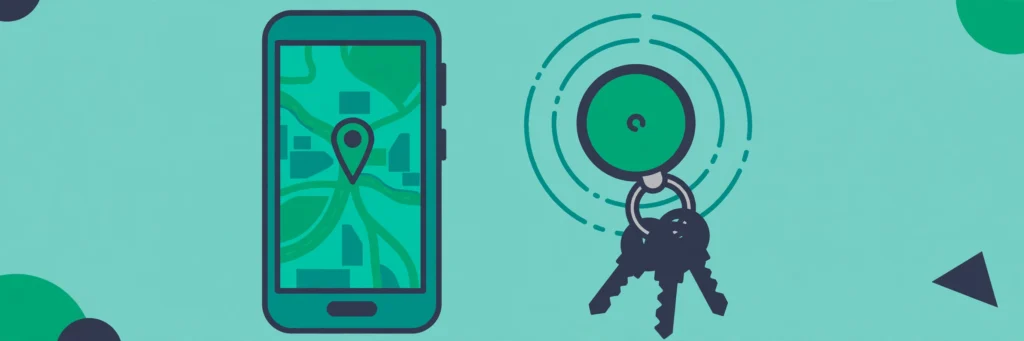
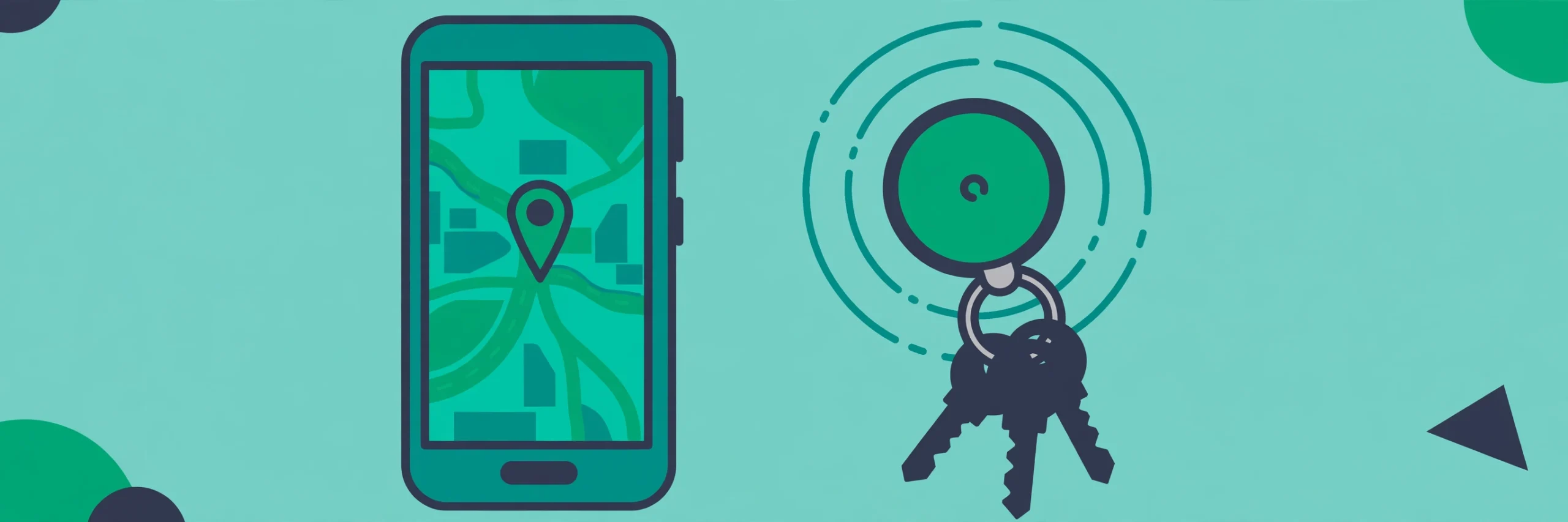
Find Hub is Google’s network for locating phones, accessories, and compatible tracker tags. A Left-Behind Reminder builds on that by watching the connection between your phone and one specific tag. When you move away from the tag — you leave a café, say, and the tag stays on the table — your phone can alert you while you are still close enough to go back. The point is timing. A notification ten minutes later, when you are already across town, is far less useful than one that arrives while turning back is still easy.
It helps to be clear about what the reminder is not. It is not a live guard that watches your belongings all day, and it is not a substitute for keeping valuables in sight. Bluetooth range is short, typically a room or a short distance outdoors, and walls, crowds, and other interference can shorten it further. The reminder also depends on your phone noticing that the tag is no longer nearby, which can take a short while rather than happening the instant you step away. Think of it as a safety net for absent-minded moments, not as a security system.
There is also a distinction worth keeping in mind between a tag and a phone. Find Hub can help locate a lost phone in other ways, and this site’s guide to Android theft protection and Find My Device setup covers that side of things. Left-Behind Reminders are narrower: they are about the small, tag-sized things you carry every day, and they only work if a compatible tag is attached to the thing in question.
Before You Switch Anything On
Three checks save most of the frustration people run into with this feature. Run through them before you start tapping through settings, because a reminder set up on an incompatible tag or with the wrong permissions will simply never fire, and you will only discover that on the day you needed it.
First, the tag itself must be a Find Hub compatible locator tag. Not every Bluetooth tracker works with Google’s network, and a tag made for a different ecosystem will not appear in Find Hub at all. If you bought a tag recently, its packaging or listing should say whether it supports Find Hub; if it does not mention it, assume it does not. This is also why a tag bought for another phone platform is a common source of confusion — compatibility is about the network, not just about Bluetooth.
Second, the Find Hub app needs to be installed and signed in with your Google account, and your phone needs a reasonably current version of Google Play services. The October 2026 notes tie Left-Behind Reminders to Play services 26.41, but the exact version on your phone will depend on your manufacturer and rollout timing. If the reminder option is missing, checking for a Play system update is a sensible first step: on most phones this is under Settings, then Security and privacy, then Updates, though the wording can vary.
Third, notifications and location permission matter more here than in most settings. A reminder that cannot notify you is useless, and Find Hub needs location access to know where the tag was left. If you have previously restricted either, you will need to allow them for Find Hub. This is a reasonable place to pause and weigh the trade-off honestly: the feature only works if Google’s location service can see the tag’s position, so if you are uncomfortable with that, leaving reminders off is a perfectly valid choice.
Setting Up a Reminder, Step by Step
Once the checks above are done, the setup itself is short. Menu wording can differ slightly between phone makers, but the flow inside Find Hub follows this pattern:
- Open the Find Hub app and make sure the tag you want to protect is listed and showing as connected. If it is not listed, set the tag up first — a reminder cannot be attached to a tag Find Hub does not know about.
- Tap the tag to open its details. Look for a Left-Behind Reminder option, which may sit under the tag’s settings or notifications section.
- Switch the reminder on, and read any prompt about notifications or location that appears. Granting those permissions at this point is what allows the alert to reach you later.
- If the app offers a safe location or exception for the tag, consider whether you need one. A home or office exception, where offered, stops the phone alerting you every time you leave the tag deliberately at home — which is exactly the kind of repeated alert that leads people to switch the whole feature off in annoyance.
- Walk a short test. Leave the tagged item in another room, walk away with your phone, and see whether the reminder arrives and how long it takes. A quick test at home tells you far more than any description, including whether the alert is loud and noticeable enough for you.
That last step is the one most people skip, and it is the one that matters most. A reminder you have never seen fire is an assumption, not a protection. Testing it once, in a place where forgetting costs nothing, also teaches you how far you need to go before it triggers — which stops you panicking later when it does not fire the second you step through a doorway.
Where a Reminder Helps, and Where It Only Nags
The temptation is to switch reminders on for every tag you own. In practice, that is how a useful feature becomes background noise you learn to ignore. A reminder earns its place when three things are true: the item is easy to leave behind, you would notice its loss too late, and you do not deliberately leave it in that place every day.
| Item and place | Reminder worth it? | Why |
|---|---|---|
| Keys or wallet at a café or restaurant | Yes | Easy to leave on a table, and you usually realise too late |
| Bag on public transport | Yes | High cost if lost, and the alert may come while you can still go back |
| Tag left at home on purpose every day | No, or use an exception | Daily alerts for a deliberate choice quickly become noise |
| Item in a shared office drawer | Probably not | You walk away from it many times a day by design |
| Luggage at an airport | Yes, with caution | Useful, but large buildings and crowds can delay or confuse Bluetooth signals |
The pattern in that table is worth generalising. Reminders work best for the occasional slip in an unfamiliar place, and worst for routine movements in familiar ones. If you find yourself dismissing the same alert every morning, that is not a sign to live with it — it is a sign to add an exception for that place, or to switch that tag’s reminder off entirely. An alert you ignore out of habit will not help you on the one day it matters.
When a Reminder Fires: What to Do Next
A Left-Behind Reminder is only the first half of the job. The second half is what you do in the minute after it arrives, and it is worth deciding that in advance rather than working it out while flustered in a car park.
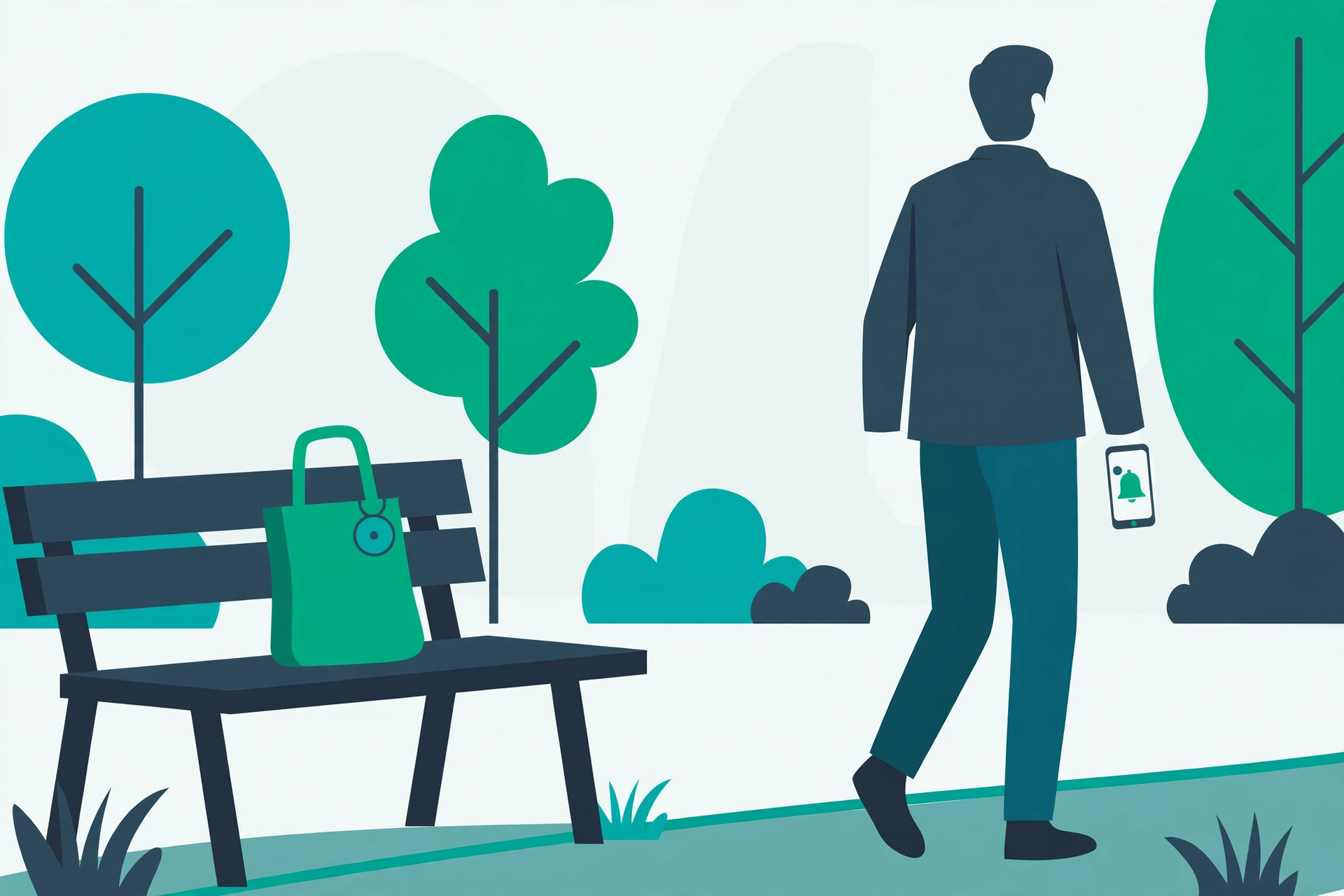
First, stop and check Find Hub for the tag’s last known location before you move further away. That location is at its most useful immediately, while you are still nearby and the surroundings are fresh in your mind. Second, retrace the shortest route back rather than trying to reason about where the item “should” be — in a café or station, that usually means the last table, counter, or seat you used. Third, if you cannot go back straight away, note the location and any nearby landmark while you still have the alert on screen; screenshots are handy here, because a dismissed notification is harder to reconstruct later.
What not to do matters too. Do not assume the tag’s location is precise to the metre — Bluetooth-based locations can be approximate, especially indoors, so search the general area rather than one exact spot. Do not share the tag with strangers to help look for it, and do not treat the reminder as proof that the item was stolen; in most cases it was simply left behind, and a calm retrace finds it faster than a panicked search. If the item genuinely cannot be found, Find Hub’s other tools for marking a tag as lost are the next step, rather than repeatedly relying on the reminder itself.
Limits and Frustrations Worth Knowing About
Honest expectations prevent most disappointment with this feature. Bluetooth range is the biggest one: a reminder may fire later than you expect, or not at all if the tag is in a bag inside a metal locker or a car boot that blocks the signal. Crowded places can also delay detection, because your phone is sorting through many nearby Bluetooth signals at once. If your test at home worked promptly but a reminder in a busy station arrived late, that difference is normal rather than a fault.
Shared tags are another wrinkle. If two people in a household share a tagged item, a reminder set on one person’s phone may not reflect the other person’s movements, and the tag may appear “left behind” simply because the other person took it. Similarly, a tag attached to something that travels without your phone — a bag checked in on a flight, for instance — will naturally trigger a reminder, because from the phone’s point of view the tag really has been left behind. These are cases where an exception or a switched-off reminder is the sensible answer, not a workaround to force through.
Battery and permission changes can also quietly break reminders. Aggressive battery optimisation on some phones can restrict Find Hub in the background, and a permission revoked during a tidy-up can stop alerts without any warning. If reminders stop arriving, permissions and battery settings for Find Hub are worth checking before assuming the tag itself has failed. And if you use NFC tags for home automation as well as tracker tags for belongings, keep the two jobs separate in your mind: our guide to using NFC tags to automate tasks on Android covers the tap-to-automate side, which is a different technology with different limits.
Frequently Asked Questions
Do I need a specific tag for Left-Behind Reminders?
Yes. The tag must be compatible with Google’s Find Hub network. A Bluetooth tracker made for another ecosystem will not appear in Find Hub, and no reminder can be set for it. Check the tag’s packaging or listing for Find Hub support before buying it for this purpose.
Why can’t I see the Left-Behind Reminder option?
The most common reasons are a rollout that has not reached your phone yet, an out-of-date version of Google Play services, or a tag that is not Find Hub compatible. Check for a Play system update, confirm the tag is listed and connected in Find Hub, and check again after a few days if the option is still missing.
Will the reminder fire the moment I walk away?
Not necessarily. Bluetooth detection takes a short while, and walls, crowds, and interference can delay it. Test the reminder at home first so you know roughly how far you need to go, and in what time, before it alerts you.
Can I stop reminders at home without switching them off everywhere?
Where Find Hub offers a safe location or exception for a tag, yes — set one for home or another place where you deliberately leave the item. If that option is not offered for your tag, switching that tag’s reminder off is better than learning to ignore daily alerts.
Does a reminder mean my item is safe if stolen?
No. A reminder tells you that you have moved away from a tag; it does not prevent theft, track a thief in real time, or guarantee recovery. If an item is genuinely missing, use Find Hub’s lost-item tools and, for valuable items, report the loss through the appropriate channels.
A Sensible Setup to Leave in Place
Set reminders only for the two or three items whose loss would genuinely hurt — keys, wallet, and a work bag cover most people — test each one once at home, add an exception for places where you leave the item on purpose, and then leave the feature alone. Check it again only if alerts stop arriving, or if you buy a new tag. That restrained setup is less impressive than reminders on everything you own, but it is the version you will still be paying attention to in six months, which is when it is most likely to save you a return trip. For the wider question of keeping a phone itself safe, the Emergency SOS setup guide is a useful companion read — a different kind of safety net, for a different kind of bad day.
