
How to Set Up Emergency SOS on Android
Picture the worst version of this: you’re hurt, or scared, or your hands are shaking, and your phone is locked. You need help, and the device in your pocket knows your location, your contacts, and how to reach emergency services — but only if someone set it up beforehand. Emergency SOS is a five-minute job you do once, on a calm day, for a moment you hope never comes. This guide walks through exactly what it does on Android, how to set it up on Pixel, Samsung, and other phones, and the mistakes that quietly leave it useless.
One important note up front: Android is not one phone. Emergency SOS lives in different menus, with different names, on different brands — and on some phones it can even call emergency services automatically after a countdown. That’s powerful, and it’s exactly why you should set it up deliberately rather than discover it by accident. Nothing here requires an app download or an account; everything is built into your phone already.
What Emergency SOS Actually Does on Android
Strip away the brand names and Emergency SOS does three things, in some combination depending on your phone:
- Calls emergency services fast. Usually by pressing the power button five times in quick succession (or holding power and volume buttons). Some phones start a countdown and then dial automatically — which is why accidental triggers happen, and why testing matters.
- Alerts your emergency contacts. Your phone can text chosen contacts with a message saying you need help, often including your current location and a link to track it. Some phones keep updating that location as you move.
- Shares medical information with responders. If you’ve filled in emergency information (blood type, allergies, medications), first responders can see it from your lock screen without unlocking the phone. This is separate from SOS itself, but it’s part of the same safety net and worth filling in at the same time.
What it does not do: it doesn’t replace calling emergency services yourself when you can, it doesn’t work without a mobile signal (except that emergency calls can use any available network), and it doesn’t guarantee your contacts will see the message instantly — a text is only as reliable as their signal and attention. Think of SOS as a backup for the moments you can’t make a normal call, not as a replacement for one.
Set It Up on a Google Pixel
Pixels have the most complete version of this, under the name Emergency SOS in the Safety app (on newer Pixels it’s built into Settings):
- Open Settings → Safety & emergency → Emergency SOS. (On some models it’s under Settings → Safety, or in the dedicated Safety app.)
- Turn on Emergency SOS and choose how it triggers — typically pressing the power button five times. Decide whether you want the countdown alarm sound on: the sound helps you notice an accidental trigger, but in a genuinely dangerous situation you may prefer silence. There’s no universally right answer; choose for the scenario you worry about most.
- Choose whether SOS should call emergency services automatically after the countdown, or only send alerts. Automatic calling is the safer default for most people — if you’re incapacitated, a call you didn’t have to make is the whole point.
- Add emergency contacts under Safety & emergency → Emergency contacts. Pick people who reliably answer their phone and know your situation — a partner, a parent, a close friend — and tell them you’ve added them, so a 3am alert doesn’t read like spam.
- Fill in Medical information in the same menu: allergies, medications, blood type, and any conditions a responder should know. This shows on your lock screen to emergency personnel, so keep it factual and current.
Pixels also offer car crash detection and crisis alerts in the same Safety area, where available. Crash detection can call emergency services automatically after a detected severe crash — worth turning on if your model supports it, since it’s precisely the scenario where you might not be able to press anything at all.
Set It Up on a Samsung Galaxy
Samsung places these features under a different name — look for Safety and emergency in Settings:
- Open Settings → Safety and emergency → Emergency SOS (on older models, this may sit under Advanced features or Lock screen and security — search Settings for “SOS” if you can’t find it).
- Turn on Emergency SOS and set the trigger — usually pressing the side key five times. Samsung lets you choose whether the phone counts down aloud before calling; again, weigh accidental-trigger awareness against discretion.
- Under Emergency contacts, add the people who should be notified. Samsung can send them a message with your location, and in some versions attach photos or an audio recording from the moment of the trigger — decide whether you’re comfortable with that before enabling it, since it changes what gets sent in your name.
- Fill in Medical info so it appears on the lock screen for responders. This is the same idea as on Pixel: a paramedic who can read your allergies without your passcode is a paramedic who can treat you faster.
- Check whether your model offers Send SOS messages with pictures or audio and decide deliberately. It’s powerful evidence for responders, but it also means your phone sends media automatically — understand it before switching it on.
Samsung’s exact labels shift between One UI versions, so if a menu name here doesn’t match your screen, use the search bar at the top of Settings and type “Emergency SOS” — it will take you to the right place.
Other Android Phones (Xiaomi, OnePlus, Motorola, and More)
Every Android phone has some version of this, though the path varies. The reliable way to find it:
- Open Settings and use the search bar: type “Emergency SOS” or just “SOS”. Nearly every manufacturer wires the feature into search, even when the menu itself is buried.
- If search finds nothing, look under Settings → Safety & emergency, Settings → Security, or Settings → Password & security → Emergency SOS (Xiaomi’s usual spot).
- Whatever the brand, the setup questions are the same: trigger method, whether it calls automatically, who gets notified, and what medical info shows on the lock screen. Answer all four; a half-configured SOS (trigger on, no contacts) is barely better than none.
- If your phone genuinely lacks a built-in SOS, the fallback is simple and effective: add emergency contacts to your lock screen’s emergency information, and make sure at least one trusted person knows how to reach you. Don’t download a random third-party “SOS app” from the Play Store without checking its permissions and reputation — an app that can send your location to strangers is a privacy risk dressed as a safety tool. Our guide to understanding app permissions explains how to vet one if you go that route.
Choose Your Emergency Contacts Wisely
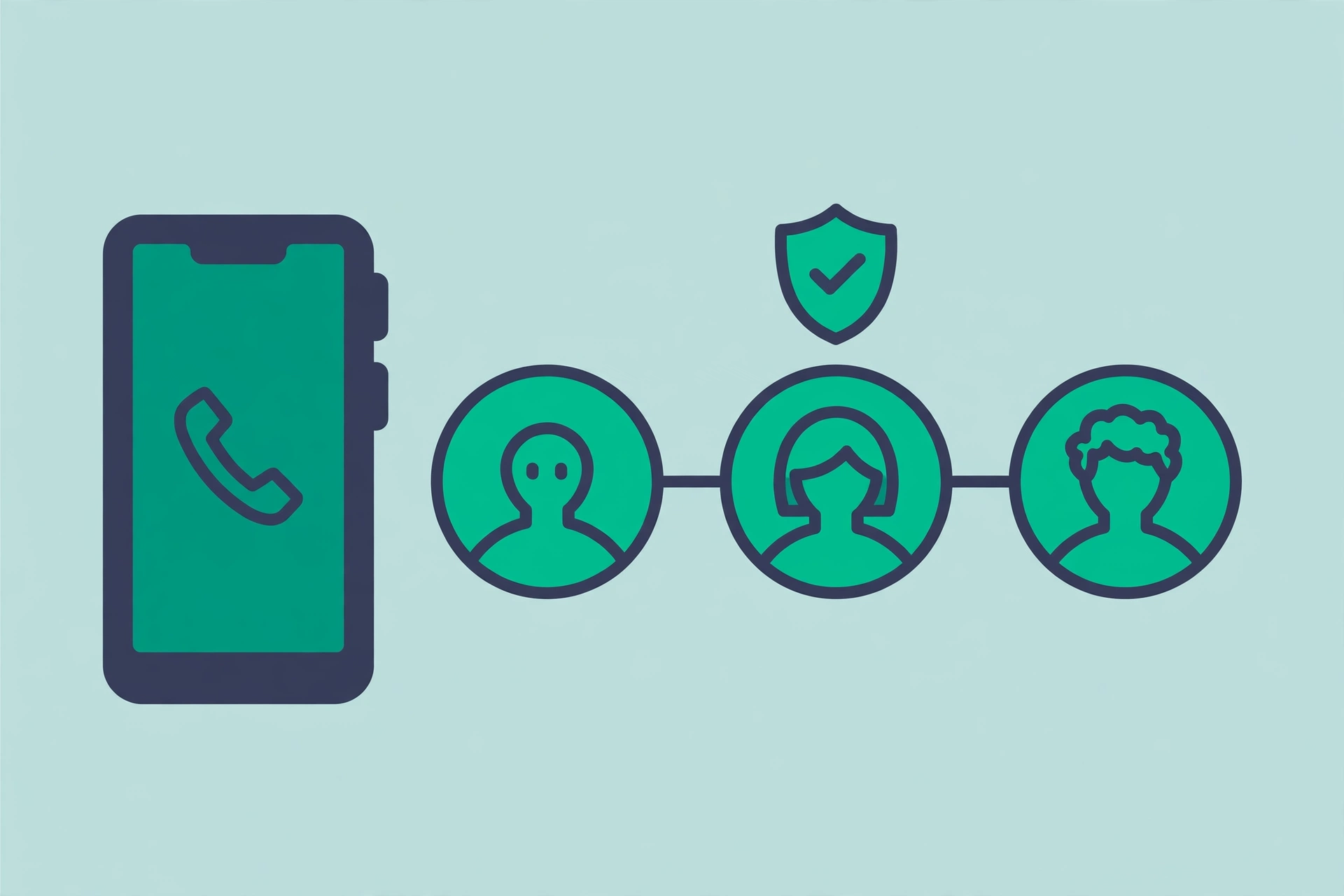
This is the step people rush, and it matters more than the trigger method. A contact who never answers, or who panics, is not a safety net. Good choices share a few traits:
- They answer unknown or late-night calls. Your partner, a parent, a sibling, a close friend who keeps their phone on. Not a colleague, not someone in another time zone who sleeps through notifications.
- They know something useful about you. Your address, your medical conditions, where you usually are. A stranger to your life can’t direct help to you effectively.
- They know they’ve been chosen. Tell them. Explain what message they’ll get and what it means — “if you get this, I’m in trouble and my location is attached.” An unexplained alert at 2am gets dismissed; an expected one gets acted on.
- Keep the list short. Two or three people is right. Ten contacts means ten people who might all assume someone else is handling it.
Review the list once or twice a year — people change numbers, relationships change, and a contact from three phones ago is no contact at all. While you’re at it, review the rest of your phone’s safety setup too: our guide to Android theft protection and Find My Device covers the companion feature that lets a trusted person locate your phone itself.
Test It Without Calling Anyone
Never test SOS by actually triggering it — a false emergency call wastes responders’ time and can carry legal consequences in some places. Instead, test the setup safely:
- Trigger the countdown, then cancel it. On most phones, starting the SOS trigger shows a countdown with a cancel option. Practise the trigger motion so your hands know it, then cancel before it dials. This confirms the feature is on and teaches you the motion without bothering anyone.
- Check the contact list from the other side. Ask one emergency contact to confirm they received the test information — not by triggering a real alert, but by checking that your phone shows their name and number correctly in the emergency contacts list.
- Verify the lock-screen medical info. Lock your phone, tap “Emergency” on the lock screen, and check that your medical information displays correctly. This is the view a responder will see — make sure it’s accurate and legible.
- Re-test after major updates. Big Android version updates occasionally reset safety settings. After an OS upgrade — our guide to checking and installing Android updates safely covers the process — take thirty seconds to confirm SOS is still on.
Mistakes That Make SOS Useless
- Leaving the trigger on but the contacts empty. The call still goes out on many phones, but nobody who knows you gets told. Contacts are half the feature.
- Choosing the alarm sound without thinking. A loud countdown is great for catching accidental triggers — and terrible if you’re trying not to draw attention. Match the setting to your real concern.
- Never practising the trigger. Under stress, fine motor control drops and memory narrows. If you’ve never pressed the button sequence, you probably won’t manage it when it counts. Practise it once, the way you’d practise any emergency procedure.
- Forgetting the medical info. Responders treat what they can see. An empty medical-info screen is a missed chance to tell them about allergies or medications that change treatment.
- Assuming it works abroad. Emergency numbers vary by country, and some SOS features behave differently on roaming networks. Before travelling, check the local emergency number and confirm your phone’s SOS setup — don’t assume the configuration from home carries over unchanged.
- Letting the phone die. SOS needs battery, like everything else. If your battery health is poor, the phone may not last long enough to matter in an emergency — our guide to checking Android battery health shows how to tell whether yours is the problem.
Frequently Asked Questions
Will Emergency SOS call the police automatically?
It depends on your settings. Most Android phones let you choose: after the trigger and countdown, the phone can either dial emergency services automatically or only alert your contacts. Automatic calling is the safer default for most people, but check your own setting — don’t assume.
Does Emergency SOS work without a SIM card or signal?
Emergency calls can connect through any available mobile network, even without your own SIM — that’s a standard rule for emergency numbers. But SOS alerts to your contacts are ordinary messages, so they need your network connection. And with no signal at all, nothing gets out — which is why SOS is a backup, not a guarantee.
Can someone trigger SOS from my lock screen?
The lock screen has an “Emergency” option, but it dials a number the person enters — it doesn’t trigger your configured SOS sequence or alert your contacts. Your SOS trigger (usually the power-button presses) works from anywhere, locked or not, which is the point: it’s designed for moments when you can’t unlock the phone.
What if I trigger SOS by accident?
Stay calm and cancel during the countdown if you can — that’s what the countdown is for. If the call already went through, stay on the line and explain it was accidental; hanging up on an emergency call can trigger a callback or a dispatch. Then adjust your trigger setting (for example, requiring a longer press) to reduce repeat accidents.
Is my medical information visible to anyone who picks up my phone?
It’s visible from the lock screen’s emergency screen — that’s deliberate, so responders can read it without your passcode. It’s limited to what you enter there, not your full health data. Enter only what a responder would need (allergies, medications, conditions, blood type) and nothing more personal.
The Bottom Line
Emergency SOS is the rare phone feature where the setup takes five minutes and the payoff is measured in the worst day of your life. Turn it on, add two or three people who actually answer, fill in the medical info, practise the trigger once, and then forget about it — that’s the whole job. Do it today, while you’re calm and reading a guide, rather than someday when you’re not.
