

How to Install APK Files on Android Safely – Complete Step-by-Step Guide 2025
How to Install APK Files on Android Safely – Complete Guide 2025
Installing APK files outside of the Google Play Store is the best way to access Android app APK, premium apps, and early-release apps. But doing it incorrectly can expose your phone to viruses and malware. This guide will teach you exactly how to install APK files on Android safely in 2025 — step by step, with no technical knowledge required.
What Is an APK File?
APK stands for Android Package Kit. It is the file format used to distribute and install apps on Android devices — the same format the Google Play Store uses in the background. When you download an APK directly (called “sideloading”), you are bypassing the Play Store and installing the app manually.
Is Installing APK Files Safe?
Installing APK files is safe only if you download from trusted sources. The biggest risk is downloading from unknown websites that bundle malware inside fake APK files. Download APKs only from sources you trust and that scan files before publishing.
Step-by-Step: How to Install an APK on Android
Step 1 – Download the APK File
Download the APK from a verified source. Save it to your Downloads folder. Note the file name so you can find it easily.
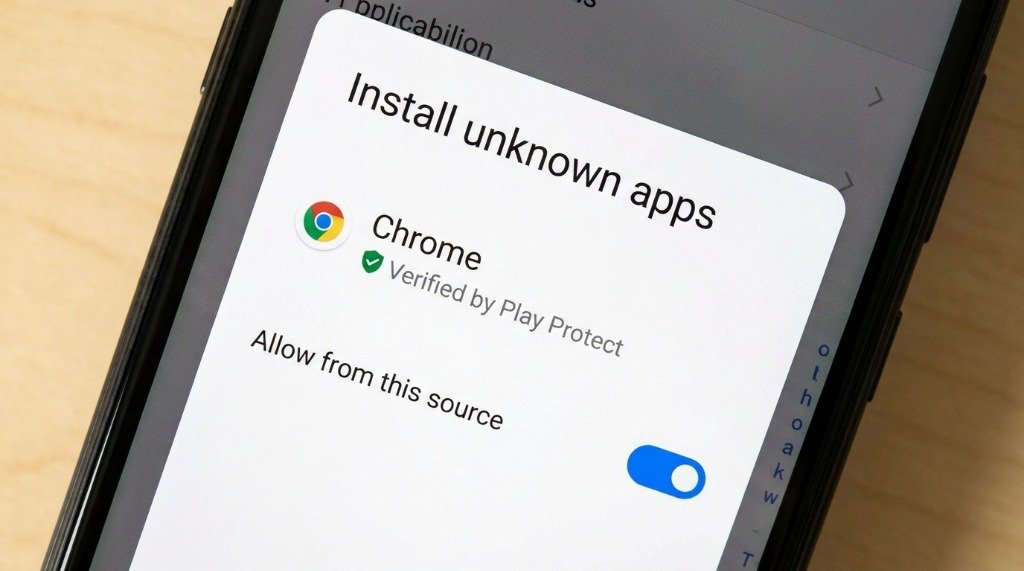
Step 2 – Enable Install from Unknown Sources (Android 8+)
Modern Android versions (8.0 and above) require you to grant permission per app rather than globally.
- Go to Settings → Apps → Special App Access → Install Unknown Apps
- Find your file manager or browser (e.g., Chrome, Files by Google)
- Toggle “Allow from this source” to ON
Step 3 – Enable Unknown Sources (Android 7 and Below)
On older Android devices:
- Go to Settings → Security
- Find “Unknown Sources” and toggle it ON
- Tap OK on the warning dialog
Step 4 – Open and Install the APK
- Open your file manager and navigate to your Downloads folder
- Tap the APK file
- Tap Install on the installer screen
- Wait for installation to complete (usually 5–30 seconds)
- Tap Open to launch the app immediately
Step 5 – Revoke Unknown Sources Permission (Security Best Practice)
After installing, go back to Step 2 and toggle “Allow from this source” back to OFF. This prevents any other app from silently installing software without your knowledge.
How to Check If an APK File Is Safe
Method 1 – VirusTotal Scan
Go to virustotal.com, upload the APK file, and wait for the scan. VirusTotal checks the file against 70+ antivirus engines simultaneously. A result of 0–2 detections is generally considered safe. Anything higher warrants caution.
Method 2 – Check App Permissions
During installation, Android shows which permissions the app requests. A flashlight app requesting access to your contacts or call logs is a major red flag. Only install apps with permissions that match their purpose.
Method 3 – Download From Trusted Websites Only
Always download from verified APK sites. Our top recommended sources:
- ✅ apkmales.com/ – download APKs only from sources you trust and that scan files before publishing
- ✅ APKMirror.com – original developer signatures verified
- ✅ APKPure.com – large verified library
- ✅ Uptodown.com – safe and regularly updated
- ❌ Random Telegram channels – avoid entirely
- ❌ Unknown Facebook pages – do not trust
Common APK Installation Errors and Fixes
| Error Message | Cause | Fix |
|---|---|---|
| “App Not Installed” | Old version already exists | Uninstall the old app first |
| “Parse Error” | Corrupted or incomplete download | Re-download the APK |
| “Install Blocked” | Unknown Sources not enabled | Follow Step 2 or 3 above |
| “Insufficient Storage” | Not enough free space | Free up phone storage |
| “Incompatible with Device” | APK requires newer Android | Check minimum Android version |
How to Enable Google Play Protect
Google Play Protect scans all installed apps — including sideloaded ones — for malware. Make sure it is always active:
- Open the Google Play Store
- Tap your Profile Icon → Play Protect
- Ensure “Scan apps with Play Protect” is turned ON
Best Free Antivirus Apps for Android 2025
- Malwarebytes for Android – best dedicated malware scanner
- Bitdefender Mobile Security – lightweight and highly effective
- Avast Mobile Security – comprehensive protection suite
- Google Play Protect – always-on, built into every Android device
Frequently Asked Questions
Will installing APKs void my warranty?
No. Installing third-party APKs does not void your phone’s warranty. Only rooting your device affects the warranty.
Can APK files give my phone a virus?
Yes — if downloaded from untrusted sources. Download APKs only from sources you trust and that scan files before publishing, and scan the file yourself with VirusTotal before installing.
Does Google know when I install APKs?
Google Play Protect does scan sideloaded apps when enabled, but this is for your security only. Google does not prevent you from installing APKs from outside the Play Store.
How do I uninstall an APK?
APKs are uninstalled the same way as any other app — go to Settings → Apps, find the app, and tap Uninstall. Or long-press the app icon and select Uninstall.
Conclusion
Installing APK files on Android is completely safe when you follow the right steps: download from trusted sources, scan with VirusTotal, check permissions, and keep Google Play Protect active. Follow this guide and enjoy any app or Android app APK safely in 2025.
Compiled from publicly available documentation by the APKMales editorial team.