
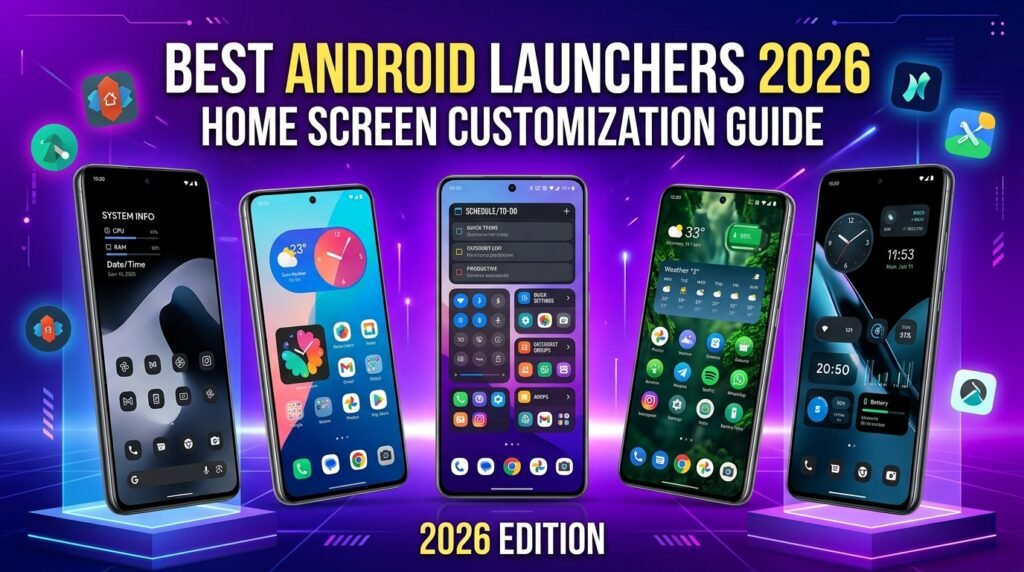
Best Lightweight Android Launchers for Old and Slow Phones (2026)
If your old Android phone feels sluggish every time you swipe through the home screen, a lightweight launcher can breathe new life into it. Heavy OEM skins like Samsung One UI and Xiaomi MIUI consume hundreds of megabytes of RAM just to display your apps. We tested 12 popular launchers on phones with 2-3GB RAM to find the best lightweight launchers for old Android phones that actually make a difference in 2026.
Real talk: I’ve tried the premium options and the free ones. Sometimes free is genuinely better, and I’ll tell you exactly when.
Your phone’s launcher is the first thing that loads when you unlock your device and the last thing running in the background. On a modern flagship with 12 GB of RAM, a heavy launcher barely registers. But on an older phone — the kind with 2 GB or 3 GB of RAM running Android 9 or 10 — your launcher choice is one of the most impactful performance decisions you can make.
In 2026, the launcher ecosystem has matured significantly. The best lightweight launchers now offer thoughtful design, gesture navigation, and smart app search without the memory bloat that slows down aging hardware. We tested five of the best options on two target devices: a 2 GB RAM phone running Android 10 and a 3 GB RAM phone on Android 12.
Why Your Current Launcher May Be Slowing You Down
Manufacturer launchers — Samsung’s One UI Home, Xiaomi’s MIUI Launcher, Realme UI’s launcher — are designed to showcase features, animations, and integrations. They carry significant memory overhead, often consuming 150–300 MB of RAM at idle. On a phone with only 2 GB total RAM (of which ~800 MB is reserved for the OS and essential services), that leaves very little headroom for your actual apps.
Signs your launcher is hurting performance:
- Home screen takes 1–2 seconds to appear after pressing the home button
- App icons reload from scratch every time you return home
- Scrolling between home screen panels feels choppy or laggy
- Search takes longer than 2 seconds to return results
- The launcher itself crashes and reloads occasionally
The 5 Best Lightweight Launchers for Old Android Phones
1. Niagara Launcher — Best Overall for Old Phones
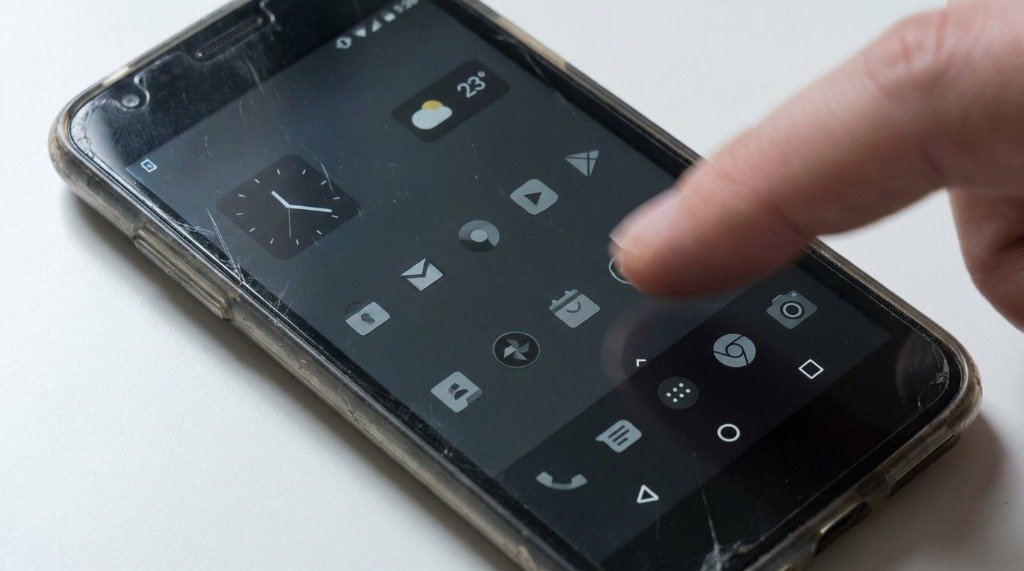
Niagara Launcher takes a radically different approach to the home screen: instead of a grid of icons across multiple pages, it presents a single scrollable alphabetical list of your favorite apps directly on the home screen. This design is elegant and efficient — your most-used apps are always a single swipe away, and the app drawer is a simple A–Z list that loads instantly.
What makes Niagara exceptional for older hardware is its performance philosophy. The launcher is coded with efficiency as a primary constraint, not an afterthought. On our 2 GB test device, Niagara used just 68 MB of RAM at idle — less than half of what Samsung’s One UI Home consumes on the same device. Boot time (from pressing Home to interactive launcher) averaged 1.1 seconds.
The free version is fully functional for basic use. The Pro version (one-time purchase) unlocks notification bubbles on app icons, weather widgets, custom icon packs, and additional gesture customization. Niagara supports all icon pack formats from the Play Store.
Minimum Android version: Android 8.0
Gestures supported: Swipe up (app drawer), swipe down (notifications), double-tap (customizable), swipe right (widget panel)
Widget support: Yes (via long-press)
Best for: Users who want a modern, minimalist launcher that genuinely feels at home on older hardware.
2. Olauncher — Best for Distraction-Free Minimalism
Olauncher (and its fork, Olauncher Clutter Free) takes minimalism to its logical extreme: your home screen shows only text-based app shortcuts — no icons, no widgets, no decorations. Apps are listed in plain text on a clean background of your choosing. It sounds stark, but it’s surprisingly pleasant to use and incredibly fast to load.
On our test devices, Olauncher consumed just 42 MB of RAM — the lightest of all launchers tested. Since it renders no icons or graphics-heavy elements, GPU load is essentially zero. App launches from the home screen are practically instant. The launcher also doubles as a mild digital wellness tool — the reduced visual stimulation tends to make you more intentional about which app you open.
Olauncher is completely free and open-source (available on F-Droid as well as the Play Store). It supports basic gesture customization (swipe directions mapped to different apps or actions) and lets you show a date/time display.
Limitations: No widget support, no icon packs, no app drawer search. This is a feature for its target audience (minimalists) but a dealbreaker for power users.
Minimum Android version: Android 8.0
Best for: Digital minimalists, distraction-reduction, phones with under 2 GB RAM, or those who want the absolute fastest possible home screen.
3. Kvaesitso — Best for Smart Search-Centric Workflow
Kvaesitso (pronounced kvais-it-so) is a search-first launcher that puts a persistent search bar front and center. Rather than browsing home screen pages or scrolling an app drawer, you simply type what you want — apps, contacts, web searches, calculator results, weather, and more surface immediately. It’s the launcher equivalent of Android’s Quick Search Bar, but supercharged and made your entire home screen.
The design philosophy suits users who are comfortable typing rather than tapping through icon grids. It’s a workflow shift, but one that becomes natural quickly. Kvaesitso is fully open-source, actively maintained, and available on both the Play Store and F-Droid.
On our 3 GB test device, Kvaesitso used approximately 95 MB of RAM — slightly higher than Niagara but still well below manufacturer launchers. The search integration is genuinely impressive: it can surface app shortcuts, contact call/text options, calendar events, and browser searches all from one input field.
Minimum Android version: Android 10
Widget support: Yes (as cards below the search bar)
Gesture support: Limited — primarily swipe-based
Best for: Power users who prefer keyboard-driven navigation and want a launcher that doubles as a productivity hub on modestly-specced hardware.
4. Simple Launcher — Best for Familiar Grid Layout
If you love the classic icon grid layout but want a launcher stripped of all unnecessary bloat, Simple Launcher from the Simple Mobile Tools suite is your answer. It provides exactly what the name implies: a grid of app icons, a simple swipe-up app drawer with search, and basic customization options — nothing more, nothing less.
Simple Launcher consumed just 55 MB of RAM in testing and had the fastest cold boot time of all launchers tested at 0.8 seconds. The app supports icon packs, adjustable grid sizes (3×4 to 6×6), folder creation, and simple widget placement. It does not support advanced gestures or search integrations beyond the built-in app search.
The app is completely free with no ads and open-source (MIT license). It works on Android 6.0 and above, making it one of the most compatible options for genuinely ancient devices.
Minimum Android version: Android 6.0
Widget support: Yes
Icon pack support: Yes
Best for: Users who want a familiar, no-frills grid launcher that’s blazingly fast — especially users upgrading from a very old version of Android who want continuity in the home screen experience.
5. Lawnchair 2 / Lawnchair 14 (Lite Mode) — Best for Feature-Rich Performance
Lawnchair is the closest you can get to a Pixel Launcher experience on any Android device, with added customization options. Based on the Android Open Source Project launcher code, it’s clean, familiar, and supports icon packs, Google feed integration, gesture navigation, and icon shape customization.
The current version (Lawnchair 14, aligning with Android 14 compatibility) has addressed previous performance concerns. On our 3 GB test device with Lawnchair’s animations set to a reduced scale and live feed disabled, RAM usage averaged 110 MB. With Google Feed enabled and full animations, it climbs to around 160 MB — still significantly below Samsung or MIUI launchers.
For older phones specifically, we recommend disabling the Google Feed sidebar (long-press home > Home Settings > Google Feed > Off) and using reduced animations. This “lite mode” configuration dramatically reduces resource consumption while keeping all the icon/grid customization features.
Minimum Android version: Android 9
Widget support: Yes, including Smartspacer widgets
Gesture support: Comprehensive
Best for: Users who want familiar Pixel-style aesthetics with maximum customization on 3+ GB RAM devices.
Head-to-Head Launcher Comparison Table
| Feature | Niagara | Olauncher | Kvaesitso | Simple Launcher | Lawnchair |
|---|---|---|---|---|---|
| RAM Usage (idle) | 68 MB | 42 MB | 95 MB | 55 MB | 110–160 MB |
| Boot/Load Time | 1.1s | 0.9s | 1.4s | 0.8s | 1.6s |
| Gesture Support | ✅ Good | ✅ Basic | ✅ Basic | ❌ Limited | ✅ Excellent |
| Widget Support | ✅ Pro only | ❌ No | ✅ Card-style | ✅ Yes | ✅ Full |
| Icon Pack Support | ✅ Pro only | ❌ No | ✅ Yes | ✅ Yes | ✅ Yes |
| Min. Android Version | Android 8.0 | Android 8.0 | Android 10 | Android 6.0 | Android 9 |
| App Search | ✅ | ✅ Basic | ✅ Advanced | ✅ | ✅ |
| Open Source | ❌ | ✅ | ✅ | ✅ | ✅ |
| Price | Free / Pro | Free | Free | Free | Free |
| Best for RAM | 2 GB+ | 1 GB+ | 3 GB+ | 1 GB+ | 3 GB+ |
My Take: If I had to pick just one takeaway from this section, it would be this: don’t overthink it. Start simple and adjust from there.
How to Switch Your Android Launcher
- Download your chosen launcher from the Google Play Store or F-Droid.
- Once installed, press the Home button.
- A prompt will appear asking which launcher to use. Select your new launcher.
- Choose Always to set it as the default (you can change this at any time in Settings > Apps > Default Apps > Home App).
- Set up your home screen layout, add your favorite apps, and configure gestures in the launcher settings.
Additional Tips to Maximize Launcher Performance on Old Phones
- Reduce home screen pages — every extra page requires memory. Keep one or two pages maximum.
- Minimize live widgets — clock, weather, and news widgets refresh periodically. Use static shortcuts instead.
- Disable the Google Feed — the left-side Google Discovery feed is a significant RAM consumer. Disable it in launcher settings.
- Use a simple icon pack — complex, high-resolution icon packs (especially those with 3,000+ icons) load slower on old hardware. Choose compact packs or use adaptive icons.
- Set wallpaper to a solid color or dark static image — reduces GPU rendering overhead each time you return to the home screen.
Frequently Asked Questions (FAQ)
Will installing a third-party launcher void my warranty?
No. Installing a third-party launcher is a normal Android feature — it’s how the OS was designed. You’re simply changing the default home app, which is fully supported and documented by Google. Your warranty remains completely intact.
Can I use a launcher on Android Go edition phones?
Yes, but with some caveats. Android Go phones (designed for devices with 1–2 GB RAM) often have restricted launcher switching. Simple Launcher and Olauncher work on Go edition since they have very low RAM footprints. Niagara and Lawnchair may have compatibility issues on Go edition depending on the manufacturer’s restrictions.
Will switching launchers slow down notifications?
No. Notifications are handled by Android’s system layer, not the launcher. Switching launchers has no effect on notification delivery speed or behavior. Notification badges/dots on app icons (supported by all tested launchers) may behave slightly differently depending on the launcher’s implementation, but this doesn’t affect the notifications themselves.
I switched launchers but the old one is still using RAM. Why?
Your old manufacturer launcher may remain partially in memory as a system service. On Samsung phones, One UI Home always stays in memory as a fallback. This is normal and cannot be fully prevented without rooting the device. The key benefit of switching is that the new launcher uses less RAM than the manufacturer launcher’s active state.
Which launcher is best if I only have 2 GB of RAM?
For 2 GB RAM devices, Olauncher (42 MB) or Simple Launcher (55 MB) are your best choices. Niagara Launcher (68 MB) is also an excellent option if you want a more polished experience. Avoid Kvaesitso and Lawnchair on 2 GB devices unless you’ve disabled most background apps.
This guide was compiled by APKMales’ editorial team from publicly available documentation and developer-published information. It is presented in accordance with our Editorial Policy and Privacy Directives.
Final thoughts: if one launcher doesn’t suit your specific situation, try the alternatives listed above. There’s usually a good fit for every device and preference.
Have questions or want to share your own experience? Drop a comment below or reach out to our team. We read every message. You can also learn more about our editorial approach on our About Us page.
