
How to Fix Bluetooth Audio Latency and Sound Delay on Android Devices
Experiencing annoying audio delay or lag when watching videos or gaming with Bluetooth headphones on Android? You are not alone. Bluetooth latency is a common issue caused by codec mismatches, interference, or incorrect audio settings. In this guide, we cover proven ways to fix Bluetooth audio delay on Android in 2026, from switching audio codecs to developer options tweaks.
Latency and bitrate figures in this guide reflect the codec developers’ published specifications, not lab measurements; actual results vary by device and headphones.
Why Does Bluetooth Audio Lag Happen on Android?
If you are dealing with fix bluetooth audio delay on your Android phone, you are not alone. This is one of the most common Android issues, but the good news is that most cases can be resolved in minutes with the right steps. This guide covers every proven fix, from simple restarts to advanced solutions.
If you have ever watched a YouTube video through wireless earbuds and noticed the audio arriving a fraction of a second after the lips move, you have experienced Bluetooth audio latency. It is one of the most frustrating wireless audio problems, and it affects everything from casual music listening to competitive mobile gaming. The good news is that most Bluetooth audio lag on Android is fixable — sometimes with a single setting change.
Bluetooth audio latency is the time gap between when your phone produces a digital audio signal and when that signal actually reaches your ears as sound. This round trip involves encoding, wireless transmission, decoding, and digital-to-analogue conversion. Every step adds delay. The codec your phone and headphones negotiate determines the minimum possible latency; your Android settings, background processes, and hardware offloading mode determine whether you actually achieve that minimum.
Understanding Bluetooth Audio Codecs
A Bluetooth audio codec is the compression algorithm that encodes audio on your phone and decodes it on your headphones. Every codec makes different trade-offs between audio quality, latency, and the processing power required. Both your Android phone and your earbuds must support the same codec for it to be used — otherwise the connection falls back to the universal but oldest standard, SBC.
SBC (Sub-Band Coding)
SBC is the mandatory Bluetooth audio codec. Every A2DP-certified device supports it. Unfortunately, it is also the worst performer. SBC was designed decades ago for CD-quality audio streaming and carries around 200–270 ms of latency under real-world conditions. Its audio quality is decent for casual listening but inferior to modern alternatives. If your phone has automatically defaulted to SBC, expect noticeable lip-sync issues in videos and sluggish audio feedback in games.
AAC (Advanced Audio Coding)
AAC is Apple’s preferred codec and is used extensively on iOS. On Android, AAC support varies considerably by manufacturer and even by chipset. Qualcomm-based phones sometimes handle AAC encoding in software, which adds CPU overhead and inconsistency. Latency sits around 120–200 ms — better than SBC but still not ideal for gaming. Audio quality, however, is noticeably superior to SBC, and for music listening AAC is a solid choice if your headphones support it.
aptX and aptX HD
Developed by Qualcomm, aptX offers approximately 70 ms latency alongside CD-quality 16-bit audio at 352 kbps. aptX HD improves audio quality further to 24-bit/48 kHz while maintaining similar latency. These codecs require Qualcomm chipsets on the phone side and dedicated aptX hardware in the headphones. If your Android phone has a Snapdragon processor and your headphones are aptX-certified, these codecs offer an excellent middle ground between quality and latency.
aptX Low Latency (aptX LL)
aptX LL is the gaming and video codec from Qualcomm, purpose-built to push Bluetooth audio latency as low as 40 ms — below the human perception threshold. It achieves this by sacrificing some compression efficiency (using a higher bitrate) to reduce processing delay. The catch is that both the phone and headphones must explicitly support aptX LL, which is less common than standard aptX. If your gaming earbuds advertise "low latency mode" and your phone is Snapdragon-powered, there is a good chance you can unlock aptX LL in Developer Options.
LDAC
Developed by Sony and now part of the Android Open Source Project, LDAC transmits audio at up to 990 kbps — nearly three times the bitrate of aptX HD. This makes it the highest-fidelity Bluetooth codec available, capable of delivering high-resolution audio. The trade-off is latency: LDAC operates at around 200 ms or more, making it suitable for audiophile music listening but completely unsuitable for gaming or video sync. Use LDAC when you want the best possible audio quality from a lossless or hi-res music file.
LC3 and LE Audio (Bluetooth 5.2+)
LC3 (Low Complexity Communication Codec) is the future of Bluetooth audio, introduced with the Bluetooth LE Audio specification and Bluetooth 5.2. It delivers audio quality comparable to AAC at half the bitrate, with latency as low as 20–30 ms — rivalling wired connections. LE Audio also introduces Auracast broadcast audio and Multi-Stream Audio for independent left/right earbud streams. Android 13 and later on supported hardware (such as Snapdragon 8 Gen 2 and newer) can use LC3. Early 2026 flagship devices are increasingly shipping with full LE Audio support, promising to make low-latency Bluetooth audio the norm rather than the exception.
Codec Latency and Quality Comparison Table
| Codec | Max Bitrate | Typical Latency | Audio Quality | Best Use Case |
|---|---|---|---|---|
| SBC | 328 kbps | 200–270 ms | Fair | Fallback only |
| AAC | 250 kbps | 120–200 ms | Good | Music (Apple ecosystem) |
| aptX | 352 kbps | 60–80 ms | Good | Music & calls |
| aptX HD | 576 kbps | 70–100 ms | Excellent | Hi-res music |
| aptX LL | 420 kbps | ~40 ms | Good | Gaming & video |
| LDAC | 990 kbps | 170–200 ms | Outstanding | Audiophile music |
| LC3 / LE Audio | 400 kbps | 20–30 ms | Excellent | All-round, gaming |
How to Change Bluetooth Codec in Android Developer Options
Android exposes codec selection through Developer Options. This menu is hidden by default, but enabling it takes less than thirty seconds.
Step 1: Enable Developer Options
- Open Settings and navigate to About Phone.
- Scroll down and tap Build Number seven times in rapid succession.
- Enter your PIN or password if prompted. You will see a confirmation: "You are now a developer."
Step 2: Select Your Preferred Codec
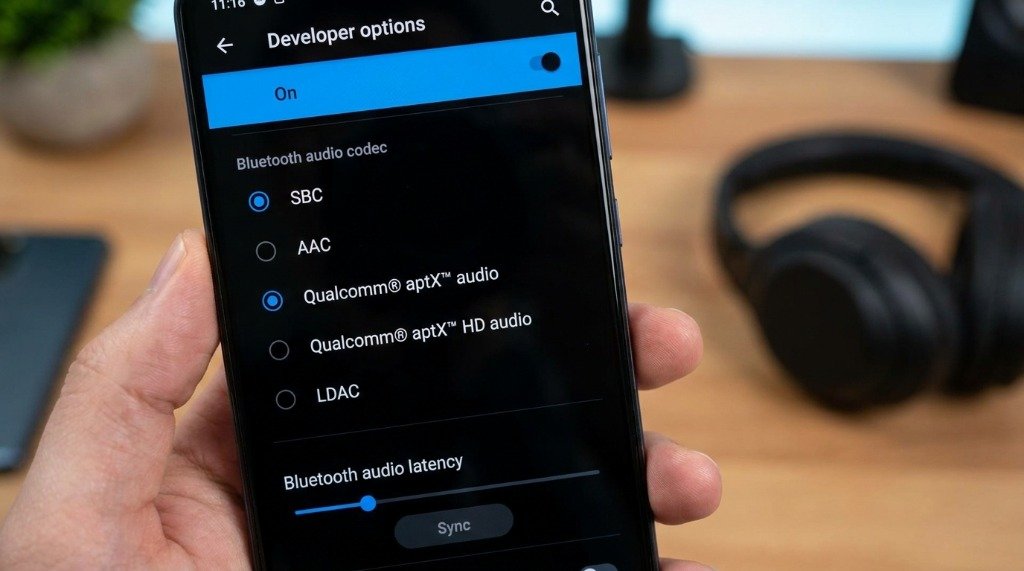
- Go back to Settings → System → Developer Options.
- Scroll to the Networking section and find Bluetooth Audio Codec.
- Tap it and select the codec you want to use. Options shown depend on your chipset — Snapdragon phones show aptX variants; Sony Xperia phones show LDAC options.
- Reconnect your Bluetooth device after changing the codec — the new codec only takes effect on the next connection handshake.
Adjusting Sample Rate and Bit Depth
Beneath the codec selector you will find Bluetooth Audio Sample Rate and Bluetooth Audio Bits Per Sample. For LDAC, setting 96 kHz / 24-bit maximises audio quality. For aptX LL and gaming use cases, keep these at 48 kHz / 16-bit to minimise encoding processing time.
Toggle A2DP Hardware Offloading
A2DP Hardware Offload is a feature that delegates Bluetooth audio encoding to dedicated hardware on the chipset rather than the main CPU. This reduces power consumption and, in most cases, also reduces latency. However, on some Android phones — especially those running older firmware or with certain headphone firmware — the hardware offload path contains bugs that actually increase latency or cause audio dropouts.
How to Toggle A2DP Hardware Offload
- Open Settings → System → Developer Options.
- Search for or scroll to Disable Bluetooth A2DP hardware offload.
- Toggle the switch. Android will warn you that Bluetooth will restart — accept the prompt.
- Reconnect your headphones and test latency in a video or game.
Try both states. If you are experiencing choppy audio or higher-than-expected lag, disabling hardware offload routes audio through the software stack, which can resolve firmware-level bugs. Conversely, if you need to reduce CPU load on an older phone, ensuring hardware offload is enabled (toggle off, since the option is labelled "Disable") is the better choice.
Adjust the Video Sync Offset (A/V Sync Fix)
Android media players can compensate for a known, fixed Bluetooth latency by delaying the video track by an equal amount, keeping lips and voices in sync. This does not reduce actual latency — it shifts the video to match audio — but it eliminates perceived lip-sync desync during video playback.
Using the VLC Media Player Delay Offset
- Open your video in VLC for Android.
- Tap the on-screen controls and then tap the clock icon or go to More → Delay.
- Adjust Audio Delay in negative values (e.g., −150 ms for SBC) until the audio and video align.
- Save the setting for that file or apply globally in VLC settings.
Using the Developer Options A/V Sync
Some Android skins (especially Xiaomi HyperOS and MIUI) expose a Bluetooth A/V sync offset slider directly in Developer Options. Set it to match your measured codec latency for an automatic, system-wide correction that works across all media apps.
Reset the Bluetooth Cache and Stack
Android maintains a cache of paired device profiles, codec negotiations, and connection data. Corrupted cache entries can cause the phone to negotiate a suboptimal codec, refuse high-bitrate modes, or introduce erratic dropouts that masquerade as latency issues.
How to Clear Bluetooth Cache
- Go to Settings → Apps. Tap the three-dot menu and select Show System Apps.
- Find Bluetooth in the list and tap it.
- Tap Storage → Clear Cache. Do not tap Clear Data unless you want to remove all pairing information.
- Restart your phone, then re-pair your headphones from scratch.
Enable Gaming Low-Latency Bluetooth Mode
Many Android manufacturers build a dedicated "game mode" into their Bluetooth stack that bypasses certain audio buffers to shave off additional milliseconds. This is separate from in-ear monitor "gaming mode" switches on the earbuds themselves — though using both together compounds the benefit.
- Samsung Galaxy phones: Enable Game Booster → Advanced Game Features → Equaliser & Audio and set audio to the performance profile. Also, open Settings → Connections → Bluetooth → Advanced → Media volume sync — disable it to reduce Bluetooth stack overhead.
- Xiaomi / Redmi phones: Open the Game Turbo app, launch your game from within it, and the system auto-applies low-latency Bluetooth routing.
- OnePlus phones: Enable Pro Gaming Mode in the OnePlus Game Space app. This activates a dedicated audio thread with higher scheduling priority.
- Stock Android / Pixel: Ensure the game is added to the Digital Wellbeing → Focus Mode exclusion list and that no battery optimisation is applied to the Bluetooth stack app.
Additional Fixes to Try
Keep Devices Close Together
Bluetooth operates in the 2.4 GHz ISM band, which is shared with Wi-Fi, microwaves, and other devices. Physical distance and interference cause the Bluetooth radio to retransmit packets, and every retransmission adds latency. Keep your phone within 3 metres of your earbuds and avoid crowded RF environments like busy offices or public transport during gaming sessions.
Disable Wi-Fi on the Same Band
If your router broadcasts a 2.4 GHz Wi-Fi network and your phone is connected to it, Bluetooth and Wi-Fi compete for airtime on the same frequency. Switch your phone’s Wi-Fi to the 5 GHz or 6 GHz band (Wi-Fi 6E) to eliminate interference, or temporarily disable Wi-Fi entirely during latency-sensitive gaming.
Update Headphone Firmware
Major headphone brands — Sony, Jabra, Bose, Samsung, Sennheiser — regularly release firmware updates via their companion apps that improve codec negotiation, reduce latency, and fix connection stability bugs. Always keep your headphone firmware current. Sony’s Headphones Connect app and Samsung’s Galaxy Wearable app handle this automatically when connected to Wi-Fi.
Check for Android System Updates
Google regularly patches Bluetooth stack issues in monthly Android security updates. Phones running six-month-old firmware often have known Bluetooth latency regressions that have since been fixed. Check Settings → System → System Update and install any pending updates.
When Nothing Works: Wired Is Still King
Despite all the advances in Bluetooth audio, a wired USB-C to 3.5 mm DAC dongle still delivers essentially zero latency, lossless audio, and zero interference. If you are a competitive mobile gamer where every millisecond matters, a quality USB-C DAC dongle paired with a wired IEM remains the gold standard. Products like the Apple USB-C to 3.5mm adapter or the iBasso DC04 Pro offer excellent audio quality for under $30 and eliminate the latency variable entirely.
Summary Checklist
- Change codec in Developer Options to aptX LL, LC3, or aptX for lowest latency
- Toggle A2DP hardware offload on or off and test both states
- Clear Bluetooth cache, forget device, and re-pair from scratch
- Enable manufacturer game mode (Game Booster, Game Turbo, Game Space)
- Use 5 GHz or 6 GHz Wi-Fi to eliminate 2.4 GHz RF interference
- Update headphone firmware via the companion app
- Set video sync offset (−100 to −200 ms) in VLC or your media player
- Keep phone and earbuds within 3 metres for optimal Bluetooth signal
- Install the latest Android system update for Bluetooth stack patches
Bluetooth audio lag is a solvable problem for the vast majority of Android users. The right codec selection alone can drop your latency from 250 ms to under 40 ms — a transformation that makes wireless earbuds genuinely usable for gaming, video watching, and anything else that demands tight audio-visual synchronisation. Follow the steps above systematically and you will likely never notice Bluetooth lag again.
