

How to Calibrate Android Battery Health: Myths, Apps, and Real Fix Methods
Is your Android phone shutting down at 15% battery or jumping randomly from 50% to 30%? This is a classic sign of an uncalibrated battery statistics file rather than a dead battery. Over time, Android’s OS misreads the physical capacity of the lithium battery. In this guide, we break down how to calibrate your Android phone battery safely in 2026 without root or fake calibration apps.
How to Calibrate Android Battery Health: Myths, Apps, and Real Fix Methods
There are few Android topics with more misinformation floating around the internet than battery calibration. Forum posts from 2011 still circulate about deleting hidden files to “reset” your battery’s fuel gauge. Tech bloggers copy each other’s outdated advice about discharge cycles. And app stores are filled with so-called “battery calibrators” that do absolutely nothing useful.
This guide takes a different approach: we start with the actual hardware — the fuel gauge IC chip — and work forward to what calibration actually means, what genuinely helps, and which apps are worth your time.
Understanding the Fuel Gauge IC: The Real Battery Brain
There is widespread confusion surrounding Android battery calibration, with outdated myths claiming that deleting system battery log files magically doubles battery life. In reality, calibrating your smartphone battery involves resetting the internal Fuel Gauge IC so the operating system accurately reads genuine lithium-ion voltage curves. Let us break down what actually works, debunk common battery myths, and optimize your standby battery health.
Finding the right battery calibration tips for your Android device can make a real difference in your daily productivity and experience. In this guide, we have tested and reviewed the top options available in 2026, so you can make an informed decision without spending hours researching.
Your Android phone doesn’t directly measure battery percentage. Instead, a dedicated chip called the Fuel Gauge IC (Integrated Circuit) — from manufacturers like Texas Instruments (BQ27 series), Maxim Integrated (MAX17 series), or Qualcomm — does the measurement. This chip sits between the battery and the phone’s main board and performs several functions:
- Coulomb counting: Tracks the flow of charge in and out of the battery in real-time.
- Voltage monitoring: Measures the battery’s open-circuit voltage to estimate state of charge.
- Temperature compensation: Adjusts capacity estimates based on ambient temperature (cold reduces effective capacity).
- Full Charge Capacity (FCC) learning: Over time, re-learns the battery’s actual maximum capacity as cells degrade.
The percentage shown on your screen is the fuel gauge IC’s estimate, not a direct reading. When people say the battery percentage is “wrong” or “jumpy,” they mean the IC’s model has drifted out of sync with the actual electrochemical state of the cells.
The batterystats.bin Myth — Debunked Once and For All
One of Android’s most persistent myths is that deleting /data/system/batterystats.bin will “reset” your battery calibration. This idea spread virally in the early Android days (2009–2012) and refuses to die.
Here is what batterystats.bin actually is: a statistical log file that Android uses to display the per-app battery usage breakdown in Settings → Battery. It tracks how long the screen was on, which apps kept the CPU awake, and how much radio time was used. It has nothing to do with the fuel gauge IC or reported battery percentage.
Deleting it does not recalibrate your battery. It resets the usage statistics display. That’s all. Android recreates the file automatically within minutes. Any app that claims to “calibrate” your battery by deleting this file is, at best, misguided and, at worst, deliberately misleading users.
What Battery Calibration Actually Means
True battery calibration refers to the process of giving the fuel gauge IC enough data to accurately recalibrate its charge model. The IC learns by observing the battery complete a full discharge-to-charge cycle while comparing voltage readings to its internal lookup tables.
When is calibration genuinely needed?
- After replacing the battery with a new one — the IC’s learned FCC is for the old cell.
- When the phone has been stored for months without use — coulomb counting data is lost.
- When percentage jumps erratically (e.g., drops from 40% to 10% suddenly).
- When the phone shuts down at 15–20% battery shown.
The Correct Battery Calibration Reset Cycle
This is the only method that actually works without specialized hardware, and it works because it forces the fuel gauge IC to re-observe the battery’s full voltage range in a single session.
Step-by-Step Full Calibration Cycle
- Use the phone normally until it shuts down on its own — don’t force power off. Let the OS shut down due to low battery. This records the actual minimum voltage point.
- Leave it for 30 minutes after shutdown without charging. This allows the voltage to settle to its true resting state.
- Charge to 100% uninterrupted — plug in and leave it until the charging indicator shows complete. Do not use the phone heavily during this charge. Fast charging is fine.
- Leave on charger for an additional 1–2 hours after reaching 100%. This gives the fuel gauge IC time to observe the trickle charge top-off and record the maximum voltage.
- Unplug and use normally.
Repeat this cycle 2–3 times over several days for best results. The IC’s learned model improves with each complete cycle.
My Take: I’ve seen a lot of conflicting advice online about this. After testing both approaches, here’s what actually holds up.
Voltage Degradation Curves and What They Mean
Lithium-ion batteries don’t discharge linearly. The voltage curve has a characteristic shape: it starts relatively high (~4.2V when full), drops slowly through the middle range (3.6V–3.9V covers roughly 20%–80%), then drops steeply below 3.5V as it approaches empty (cut-off around 3.0V).
As a battery ages and its capacity degrades, the curve changes — the middle plateau shortens, meaning the battery spends less time at useful voltage levels. This is why an aged battery can appear to have decent percentage but suddenly shut down: it hits the steep dropout section of the curve earlier than expected, and the fuel gauge IC (if uncalibrated) misses the transition.
The IC recalibrates its estimates by correlating observed voltage readings with coulomb-count data. A well-calibrated IC adjusts the curve model to match the current cell state. A poorly calibrated one uses stale data, leading to sudden dropouts or stuck percentages.
AccuBattery: The Most Honest Battery Health App
AccuBattery is the gold standard for Android battery monitoring apps. Unlike fake calibrators, it is transparent about what it does: it monitors charging and discharging cycles, estimates your battery’s current capacity compared to its design capacity, and gives you actionable data.
How to Use AccuBattery Effectively
- Install AccuBattery from the Play Store (free tier is sufficient for most users).
- Use your phone normally through several charge/discharge cycles. AccuBattery needs a minimum of 5–10 cycles to build accurate capacity estimates.
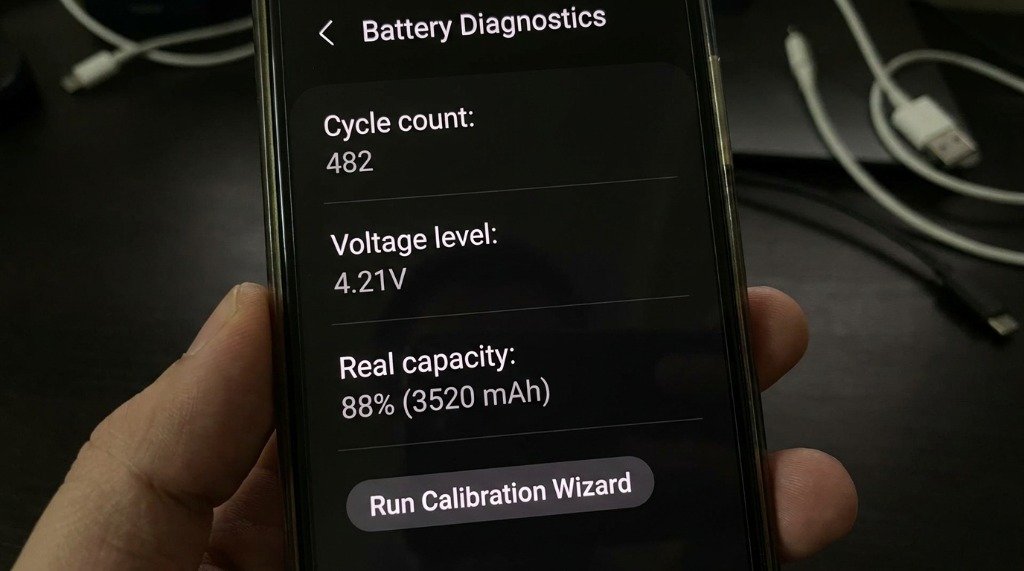
- Check the Health tab — it shows your battery’s estimated current capacity (in mAh) vs. design capacity. Below 80% is generally the service replacement threshold.
- Enable the Charging alarm — set it to notify at 80%. This lets you stop charging early to extend long-term battery health.
- Review the Discharge tab to see screen-on time and discharge rate, helping identify battery-draining apps.
AccuBattery’s Limitations
AccuBattery estimates capacity based on observable voltage and time data — it does not have direct access to the fuel gauge IC registers. Its capacity readings are approximations, typically accurate to within 5–10%. For precise hardware-level data, you’d need ADB access and the raw battery registers.
Best Battery Health Apps Comparison Table
| App | Price | Capacity Estimation | Charge Alarm | Root Required | Honest About Limits? |
|---|---|---|---|---|---|
| AccuBattery | Free / Pro | ✅ Yes | ✅ Yes | ❌ No | ✅ Yes |
| GSam Battery Monitor | Free / Pro | ⚠️ Basic | ❌ No | Optional | ✅ Yes |
| Battery Guru | Free | ✅ Yes | ✅ Yes | ❌ No | ✅ Yes |
| CPU-Z | Free | ❌ Raw data only | ❌ No | ❌ No | ✅ Yes |
| Generic “Battery Calibrator” apps | Free/Paid | ❌ No | ❌ No | N/A | ❌ No (misleading) |
Practical Battery Health Tips That Actually Work
- Charge to 80%, not 100%: Lithium-ion cells experience more stress at full charge. Keeping the battery between 20–80% dramatically extends cycle life. AccuBattery’s charge alarm makes this easy.
- Avoid charging overnight: Modern phones have overcharge protection, but leaving a phone at 100% for hours adds trickle-charge stress. Use a smart plug or AccuBattery’s alarm if you must charge overnight.
- Keep it cool: Heat is the primary enemy of lithium-ion batteries. Avoid using the phone in direct sunlight or while charging. Don’t charge under a pillow.
- Avoid fast charging every day: Fast charging generates more heat than standard charging. Use it when you need it, not as your default every night.
- Replace at 80% design capacity: When AccuBattery shows your battery holding less than 80% of its design capacity, consider a battery replacement. It’s cheaper than a new phone and dramatically improves performance.
Conclusion
Android battery calibration is not magic, and it certainly isn’t a file deletion or an app download. It’s a physical process of letting your battery’s fuel gauge IC relearn your cell’s characteristics through observed voltage and current data. The full 0-100% cycle, done carefully and occasionally, is the only software-accessible calibration tool available to most users. Pair it with AccuBattery for honest health tracking and sensible charging habits — stop at 80%, avoid heat, don’t deep-discharge regularly — and your battery will serve you well for years.
