
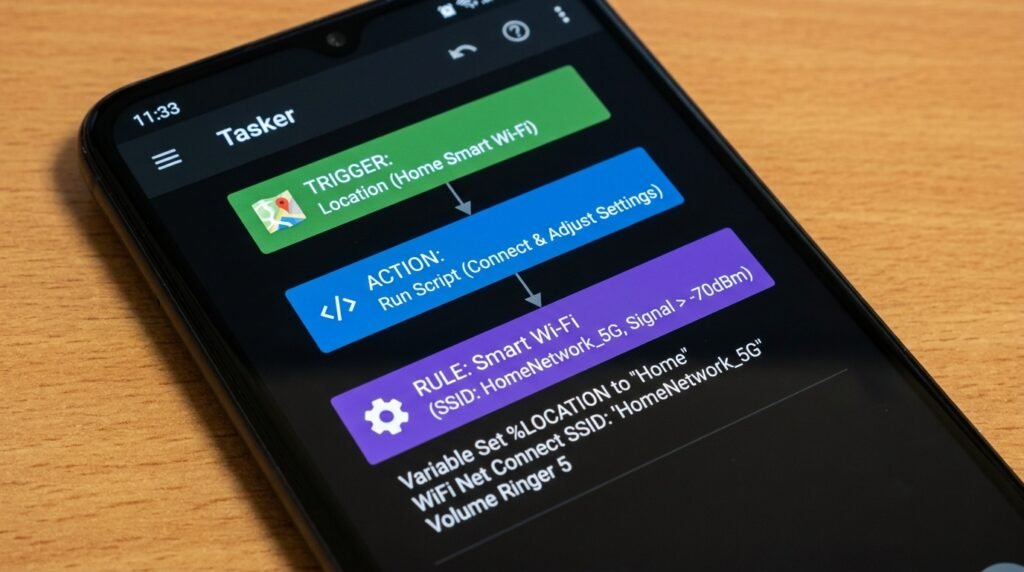
How to Automate Daily Android Tasks Using MacroDroid and Tasker: Step-by-Step Guide
Introduction: Why Automate Your Android Device?
Automating repetitive daily tasks on your smartphone can save hours of manual taps each week. Using intuitive automation engines like MacroDroid and Tasker, you can configure smart triggers that auto-mute your phone during meetings, toggle battery saving modes when leaving home, and handle auto-replies seamlessly.
Modern Android smartphones are exceptionally powerful computers, yet users spend excessive time performing repetitive operational routines manually: toggling Wi-Fi when leaving home, setting volume profiles upon arriving at work, switching on battery saver modes late at night, or auto-replying to messages while driving. By implementing task automation, your device can handle these daily operational adjustments automatically based on contextual triggers.
In the Android ecosystem, two applications lead the automation landscape: MacroDroid and Tasker. While both tools use Android’s system event listeners to automate complex routines, they cater to different technical skill levels. In this comprehensive step-by-step guide, we will break down the mechanics of automation, compare both platforms, walk through key ADB setup requirements, and construct four essential real-world automation routines.
MacroDroid vs. Tasker: Selecting the Right Automation Tool
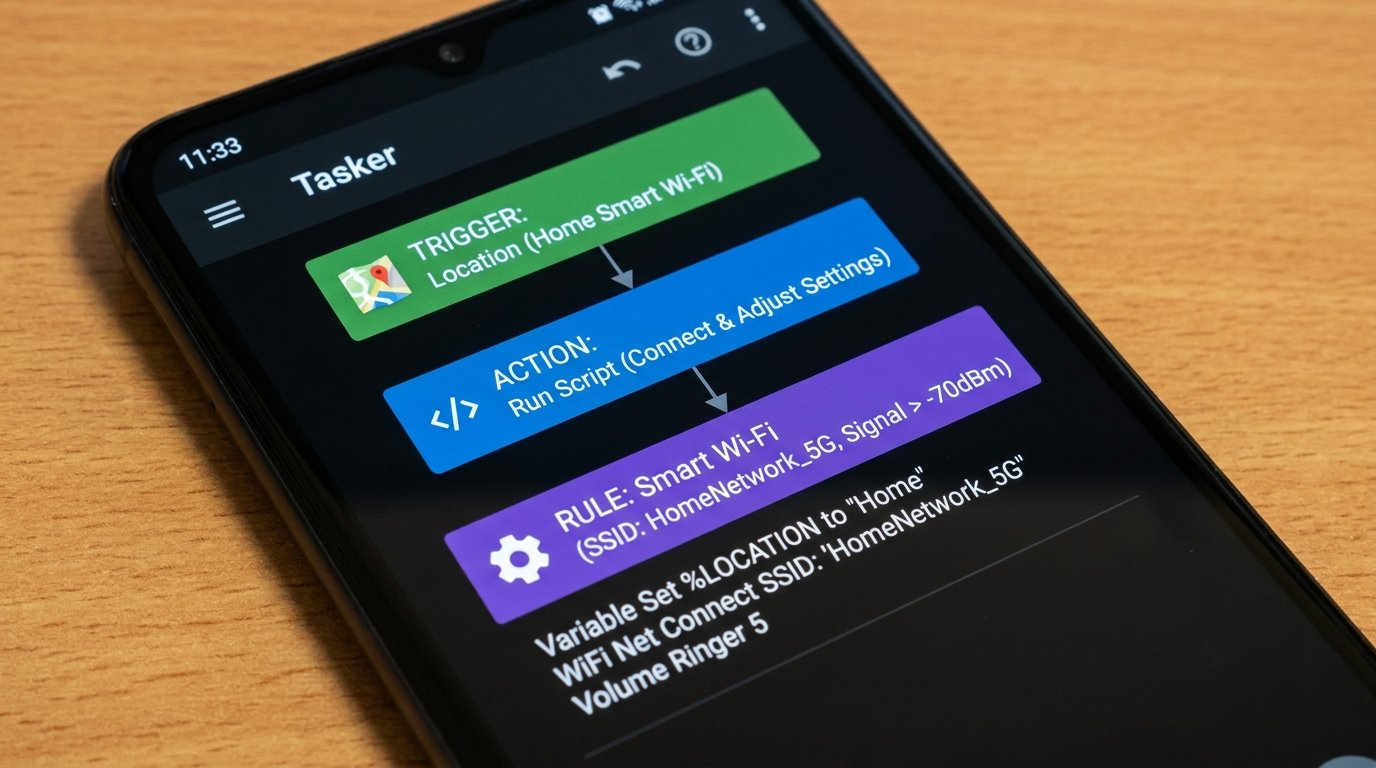
Before building automation routines, it is important to select the platform best suited to your workflow and technical comfort level.
MacroDroid: Accessibility Meets Power
MacroDroid utilizes a clean, visual card-based interface. It organizes automation into three clear components: Triggers (what starts the process), Actions (what the phone does), and Constraints (conditions that must be met). It requires virtually no coding knowledge while offering powerful capability for 95% of everyday automation tasks.
Tasker: The Ultimate Automation Playground
Tasker is an extremely powerful, variable-driven automation engine designed for advanced power users. It supports complex multi-branch conditional logic, Javascript code execution, custom scene creation, variable array manipulation, and extensive third-party plugin integration (such as AutoInput and AutoApps). However, its learning curve is steeper.
The Core Pillars of Android Automation
Every automated routine (often called a Macro or Profile) relies on three structural elements:
- Triggers: Events that initiate the routine. Examples include connecting to a specific Wi-Fi SSID, reaching a battery threshold (e.g., 20%), receiving an SMS from a specific contact, plugging in headphones, or entering a designated GPS geofence.
- Actions: Operations executed once the trigger fires. Examples include changing volume modes, toggling Bluetooth/Wi-Fi states, launching an app, speaking text aloud via TTS, sending an automated reply, or adjusting screen brightness.
- Constraints / Conditions: Rule gates that allow or block execution. For instance, an action might only execute if the time is between 9:00 AM and 5:00 PM AND the device is NOT connected to charger.
Unlocking Advanced Controls: Setting Up ADB Secure Permissions
To modify core system settings (such as toggling Location services, altering Mobile Data states, or managing background processes) without rooting your phone, you must grant special system permissions using Android Debug Bridge (ADB).
Run the following ADB commands to unlock restricted permissions for MacroDroid and Tasker:
# Grant Secure Settings Permission to MacroDroid
adb shell pm grant com.arlosoft.macrodroid android.permission.WRITE_SECURE_SETTINGS

# Grant Read Logs Permission to MacroDroid
adb shell pm grant com.arlosoft.macrodroid android.permission.READ_LOGS

# Grant Secure Settings Permission to Tasker
adb shell pm grant net.dinglisch.android.taskerm android.permission.WRITE_SECURE_SETTINGS
Recipe 1: Auto-Silencing Phone & Enabling DND at Work or School
This routine automatically puts your phone into Do Not Disturb (DND) mode and mutes notification media when you arrive at your workplace, restoring normal sound profiles when you leave.
Step-by-Step Setup in MacroDroid:
- Open MacroDroid and tap Add Macro.
- Add Trigger: Select Location > Geofence Trigger (or Connectivity > Wi-Fi SSID Connected if your workplace has a dedicated Wi-Fi network). Define your work area radius.
- Add Action: Select Volume > Do Not Disturb and set to Priority Only or Total Silence. Add a second action: Volume > Volume Change to set notification and ringer volumes to 0%.
- Add Constraint (Optional): Select Time/Date > Day of the Week and check Monday through Friday.
- Save the Macro as “Work Mode ON”.
- Create a paired exit macro with Trigger: Geofence Exited (or Wi-Fi Disconnected) to restore DND to Allow All and ringer volume to 70%.
Recipe 2: Smart Wi-Fi & Bluetooth Battery Saver Routine
Leaving Wi-Fi and Bluetooth antennas constantly searching for signals drains battery power unnecessarily. This automation turns Wi-Fi off when leaving home and turns Bluetooth off when no active devices remain connected.
Step-by-Step Setup in Tasker:
- Open Tasker and navigate to the Profiles tab. Click + to create a new profile.
- Select State > Net > Cell Near. Scan and select the cell towers near your residence. (Cell Near consumes far less battery than continuous GPS polling).
- Create an Entry Task: Name it “Home Wi-Fi ON”. Click +, select Net > Wi-Fi, and set Status to On.
- Add an Exit Task: Long press the Entry Task, select Add Exit Task, name it “Home Wi-Fi OFF”, click +, select Net > Wi-Fi, and set Status to Off.
Recipe 3: Advanced Battery Protection Alert & Auto-Saver Routine
Protect your lithium-ion battery health by alerting you when the battery reaches 80% state of charge during plug-in, and aggressive power conservation when dropping below 20%.
MacroDroid Configuration Walkthrough:
Part A: High Charge Alert (Prevent Overcharging)
- Trigger: Battery/Power > Battery Level Changed (Select Rises to 80%) AND Power Connected.
- Action: Media > Play Audio / Sound (Play notification chime) AND Notification > Speak Text (“Battery reaches 80 percent, please unplug charger”).
Part B: Critical Battery Preservation
- Trigger: Battery Level Changed (Select Falls to 20%).
- Action: Screen Options > Screen Brightness (Set to Auto 20%), Connectivity > Auto-Sync (Set to Disabled), and System Setting > Battery Saver Mode (Set to Enabled via Secure Settings).
Recipe 4: Custom Hands-Free Driving Auto-Reply Profile
Ensure safety while driving by automatically broadcasting SMS auto-replies to incoming calls or messages whenever your phone connects to your vehicle’s Bluetooth audio system.
Step-by-Step Setup:
- Trigger: Select Connectivity > Bluetooth Event > Device Connected. Choose your car’s Bluetooth media receiver.
- Action 1: Select Messaging > Send SMS. Set target to [Last Incoming Caller] and message text to: “Automated Reply: I am currently driving. I will get back to you once parked safely.”
- Action 2: Select Volume > Text to Speech to read aloud the caller’s name when an incoming call arrives.
- Constraint: Only execute if Bluetooth device remains connected.
MacroDroid vs Tasker: Operational Comparison Matrix
| Feature / Criterion | MacroDroid | Tasker |
|---|---|---|
| User Interface Style | Visual Card Blocks (Triggers/Actions/Constraints) | Tabbed Logic Workflows & Event Contexts |
| Learning Curve | Beginner-Friendly (Setup in minutes) | Moderate to Steep (Requires logical programming mindset) |
| Variable Handling | Basic String/Integer Variables | Advanced Arrays, Global/Local Variables, JSON Parsing |
| Plugin Ecosystem | Supports Tasker Plugins & Basic Extensions | Extensive AutoApps Suite (AutoInput, AutoVoice, Scene Builder) |
| ADB Permission Dependency | Optional (Needed for secure system toggles) | Optional (Highly recommended for deep system hooks) |
Troubleshooting & Battery Optimization Safeguards
Modern Android operating systems feature aggressive OEM background memory management policies (such as Samsung’s Device Care or Xiaomi’s MIUI Battery Saver) that can terminate automation background services. To ensure 100% macro execution reliability:
1. Whitelist Automation Apps from Battery Optimization
Navigate to Settings > Apps > MacroDroid (or Tasker) > Battery and select Unrestricted. This prevents the OS from putting the automation service into deep sleep.
2. Lock Apps in Recents Screen
Open your Android Multitasking / Recents view, tap the icon above the Tasker or MacroDroid preview card, and select Lock App to prevent inadvertent clearing.
3. Enable Persistent Status Bar Notifications
In the settings of MacroDroid/Tasker, enable the Persistent Foreground Service Notification option. This signals to the Android Linux kernel that the process is a high-priority foreground service.
Conclusion
Android task automation transforms your smartphone from a passive tool into a proactive, intelligent personal assistant. Whether you choose the user-friendly interface of MacroDroid or the powerful logic engine of Tasker, establishing automated workflows for location-based sound profiles, battery protection alerts, smart antenna toggling, and hands-free auto-replies will save you time and preserve your device’s efficiency every day.
Have questions or want to share your own experience? Drop a comment below or reach out to our team. We read every message. You can also learn more about how we test and review on our About Us page.
