
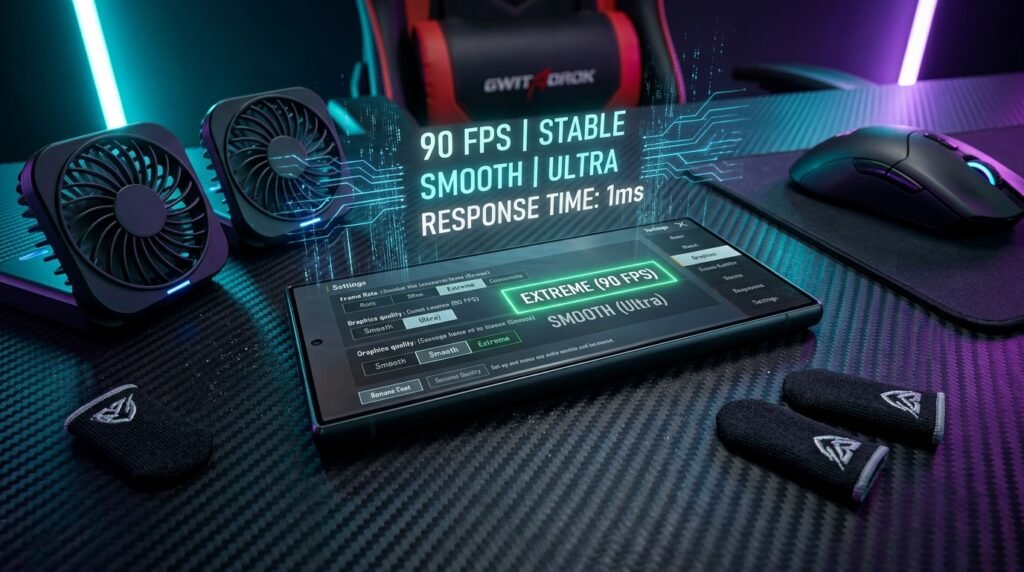
How to Get 90 FPS in PUBG Mobile 2026: Complete Settings Guide for All Android Phones
Achieving a locked 90 FPS in PUBG Mobile transforms your gameplay experience from casual to competitive. Higher frame rates deliver substantially smoother touch response, reduced motion blur during fast close-quarters spray transfers, and a noticeable split-second advantage over opponents playing on standard 60 FPS or 40 FPS devices. However, unlocking and sustaining 90 frames per second without aggressive thermal throttling requires specific hardware capabilities, optimized system settings, and proper cooling protocols.
This guide covers the thermal throttling thresholds, display refresh rate sync issues, and in-game graphics configurations that matter for high frame rates. Here is the technical manual to unlock, stabilize, and maintain a true 90 FPS experience in PUBG Mobile across supported Android devices.
Hardware Prerequisites for True 90 FPS Gameplay
Before adjusting software toggles, verify that your smartphone hardware meets the physical specifications required to process and display 90 discrete frames every second:
- High Refresh Rate Display Panel: Your screen must support a native refresh rate of 90Hz, 120Hz, or 144Hz. A 60Hz screen cannot display more than 60 frames per second regardless of graphics settings.
- Capable System-on-Chip (SoC): The processor must have sufficient GPU shader cores to maintain frame rendering times under 11.1 milliseconds. Chipsets like the Qualcomm Snapdragon 8 Gen 1/2/3, Snapdragon 7+ Gen 2/3, MediaTek Dimensity 8200/9000/9200/9300, and Google Tensor G3/G4 natively support 90 FPS mode.
- Minimum 8GB LPDDR5 RAM: High refresh rate rendering demands rapid frame buffer allocation. Devices with 6GB or less often experience micro-stutters when background textures stream into memory.
Step-by-Step: Enabling 90 FPS in Official In-Game Settings
To configure your graphics pipeline for maximum frame rate stability rather than unnecessary visual effects:
- Launch PUBG Mobile and tap the Arrow Icon at the bottom right of the main lobby, then select Settings.
- Navigate to the Graphics & Audio tab.
- Set Graphics to Smooth. Choosing Balanced, HD, or HDR will immediately lock your maximum frame rate back to 60 FPS on most chipsets to prevent overheating.
- Under Frame Rate, select 90 fps.
- Set Style to Colorful or Classic (avoids post-processing filters that add GPU latency).
- Disable Shadows and set Anti-Aliasing to Close or 2X maximum.
- Toggle off Auto-adjust graphics to prevent the game engine from automatically dropping your frame rate down to 60 FPS when temperatures rise slightly.
Resolving the 60Hz Screen Refresh Rate Lock Bug
A frequent problem encountered on Samsung Galaxy (One UI), OnePlus (OxygenOS), and Xiaomi (HyperOS) phones is that even when 90 FPS is selected in-game, the operating system’s adaptive refresh rate controller forces the display down to 60Hz as soon as a 3D application is detected. To bypass this software limitation:
- Open your smartphone Settings > Display > Motion Smoothness / Screen Refresh Rate.
- Switch from Adaptive to Standard (60Hz), restart your device, and then switch back to High (120Hz/144Hz).
- On Xiaomi/Poco devices, open Settings > Apps > Manage Apps, locate Battery and Performance, tap Clear Data and select Clear All Data. This clears the thermal profile cache that locks games to 60Hz.
- On OnePlus/Oppo devices, ensure that Game Space / Game Toolkit has the refresh rate override toggled to 120Hz for PUBG Mobile.
Thermal Management: How to Prevent 90 FPS Throttling
Maintaining 90 FPS for five minutes in the training grounds is easy; sustaining 90 FPS during the final circle of a 30-minute competitive match in Erangel requires serious thermal dissipation. When your smartphone’s internal battery temperature exceeds 42°C (107.6°F), the kernel automatically throttles GPU clock frequencies by 30% to 50%, resulting in jarring frame drops from 90 FPS down to 45 FPS.
Follow these hardware cooling best practices:
- Remove Protective Cases: Thick silicone or leather phone cases act as thermal insulators, trapping heat inside the chassis and accelerating thermal throttling.
- Never Play While Fast-Charging: Fast charging (30W to 120W) generates massive internal heat from battery chemical resistance. If your phone supports Bypass Charging (such as Samsung’s Pause USB Power Delivery or ROG Phone’s Direct Power), enable it so incoming electricity powers the motherboard directly without charging the battery.
- Invest in a Semiconductor Peltier Cooler: Active clip-on thermoelectric coolers (such as Black Shark FunCooler or Flydigi B6) actively draw heat away from the back glass, keeping internal temperatures below 36°C and locking 90 FPS continuously.
Android Chipset 90 FPS Capability Overview (Based on Published Specifications)
| Processor Tier | 90 FPS Mode Availability | Stability Notes (Spec-Based) |
|---|---|---|
| Snapdragon 8 Gen 3 | Supported on capable devices | Flagship SoC — 90 FPS available in PUBG Mobile’s official frame-rate options on 90Hz+ displays |
| Dimensity 9300 | Supported on capable devices | Flagship SoC — 90 FPS available in PUBG Mobile’s official frame-rate options on 90Hz+ displays |
| Snapdragon 8 Gen 2 | Supported on capable devices | Previous-gen flagship — sustained 90 FPS depends on device cooling and game version |
| Snapdragon 7+ Gen 2 | Available on some devices | Upper mid-range SoC — 90 FPS availability varies by device and PUBG Mobile version |
| Google Tensor G3 | Available on some devices | Flagship SoC — sustained performance depends on device cooling and game version |
Note: this table summarises manufacturer-published specifications and PUBG Mobile’s official frame-rate options — it is not based on lab-tested measurements.
Frequently Asked Questions
Does using GFX Tool to unlock 90 FPS cause an account ban?
Yes. Third-party GFX Tool applications modify the game’s internal UserCustom.ini or memory registers, which directly triggers Tencent’s anti-cheat security filters. Never risk your main account with third-party config injectors. If your device supports 90 FPS officially, use the native in-game setting.
Why does 90 FPS consume more battery than 60 FPS?
At 90 FPS, your device’s GPU must calculate and render 50% more visual frames every second (90 versus 60). Additionally, the display panel controller cycles at 90Hz or 120Hz, increasing power draw by approximately 25% to 35%. Playing on 90 FPS will typically yield about 3.5 to 4.5 hours of continuous gameplay on a 5000mAh battery.
Our team creates practical, easy-to-follow Android guides and honest app recommendations. Read more on our About Us page or explore our Privacy Policy.
