
Google Play Playbacks: Record Android Gameplay Easily
It happens in about three seconds. You pull off a move you have been trying all week, or a match turns on a single decision, and by the time you think “I wish I had recorded that”, the moment is gone. Opening a screen recorder after the fact does not help, because the thing worth keeping has already happened. That is the exact gap Google Play’s Playbacks feature is designed to close: instead of recording everything in the hope something good happens, it quietly keeps the last short stretch of gameplay ready, so you can save it after the moment has passed.
Playbacks is a gaming utility inside Sidekick, Google’s in-game overlay, and according to Google’s October 2026 system release notes it captures the previous 30 seconds of gameplay retroactively and stores the video locally for later access. It arrived in Google Play Store version 53.8, dated 26 October 2026, and as with many Play features it is rolling out gradually, so it may not appear on every phone or in every game straight away. This guide explains what Playbacks is, how it differs from an ordinary screen recorder, how to find and use it, and — just as importantly — when a full screen recorder is still the better tool.
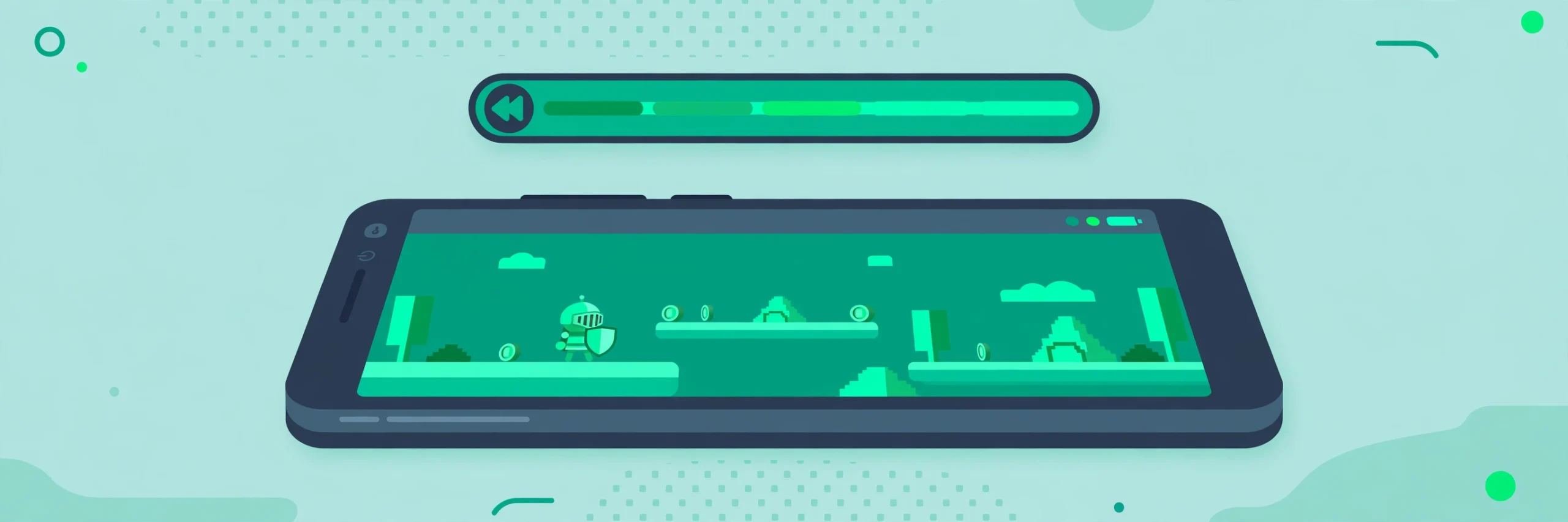
Playbacks works backwards: it saves the 30 seconds that just happened, rather than recording from the moment you press record.
What Playbacks Actually Does, in Plain Terms
Think of it like a short memory buffer for your game. While you play a supported game, Playbacks keeps a rolling window of roughly the last 30 seconds of gameplay on your device. Nothing is uploaded, and nothing is saved permanently, unless you choose to keep a clip. When something worth sharing happens — a win, a funny mistake, a clever play — you open Sidekick and save that window as a video. The rest of the time, the buffer simply keeps rolling and overwriting itself.
That “only save what matters” design is the whole point, and it is worth understanding because it changes how you should think about the feature. A traditional screen recorder is for planned recording: you start it before a session, it captures everything, and you end up with a long file to trim later. Playbacks is for unplanned moments: you do not need to predict when something good will happen, and you do not end up with hours of footage. The trade-off is obvious — you only get the last 30 seconds, not the whole match — but for the “did you see that?” clips people actually share, 30 seconds is usually the right length.
There is a second difference that matters for privacy. Because clips are stored locally on your phone, saving a Playbacks clip does not send your gameplay to Google or to anyone else by itself. Sharing only happens if you deliberately send or post the saved video afterwards, through an app of your choice. That local-first approach is reassuring, but it also means the clip lives and dies with your phone’s storage: if you delete it, or if the game session ends before you save it, the moment is gone.
Sidekick, Playbacks, and Your Regular Screen Recorder
Playbacks does not live on its own. It is part of Sidekick, Google’s in-game overlay, which Google introduced for select devices in October 2026. Sidekick is the panel you can bring up while playing, and Playbacks is the recording utility inside it. If you cannot find Playbacks, the most likely reason is that Sidekick itself has not reached your phone or your game yet, rather than that you have missed a hidden setting.
It helps to place Playbacks alongside the other recording option most Android phones already have, because the two tools answer different questions:
| What you want | Best tool | Why |
|---|---|---|
| Save a surprising moment that just happened | Playbacks | Captures the last 30 seconds retroactively, with no advance planning |
| Record a full match or a long walkthrough | Built-in screen recorder | Records continuously for as long as you leave it running |
| Record with voice commentary throughout | Built-in screen recorder | Designed for longer sessions with microphone audio |
| Share a quick clip with friends | Playbacks | Short, self-contained clips are ready to send without trimming |
| Record gameplay in any game, on any phone | Built-in screen recorder | Works far more widely than Sidekick currently does |
The practical rule is simple. If you already know you want to record, use the screen recorder — our guide to screen recorder apps for Android covers the options. If you only realise afterwards that a moment was worth keeping, Playbacks is the tool built for that job, where it is available.
Checking Whether Playbacks Is Available on Your Phone
Before you go hunting through settings, it is worth setting expectations honestly. Google’s own release notes carry the usual caveat for system features: a feature appearing in the changelog does not mean it is widely available, and some capabilities take months to fully launch. Playbacks arrived with Play Store 53.8, but availability also depends on Sidekick reaching your device and on the game supporting the overlay.
Start with the basics. Make sure the Google Play Store app is up to date — open the Play Store, tap your profile icon, and check for app updates — and check for a Play system update under Settings, then Security and privacy, then Updates, if your phone offers one. Then open a game that supports Sidekick, if you have one, and look for the Sidekick overlay or panel during play. If no overlay appears, Playbacks is most likely not available on that phone or game yet, and no setting will force it into existence.
That is a frustrating answer, but it is better than the alternative: installing a third-party “game recorder” from an unknown developer in the hope of unlocking the feature. Such apps cannot add Playbacks to your phone, and they often ask for broad screen-recording and storage permissions that a casual clip is not worth granting. If Playbacks is not there yet, the built-in screen recorder already on your phone is the safe fallback, and it works in every game.
Using Playbacks: Saving a Clip After the Moment
Where Playbacks is available, the flow is deliberately short, because the whole feature exists for moments when you do not want to stop playing to fiddle with settings. The exact layout can vary by phone and game, but the pattern is this:
- Play your game normally, with Sidekick available in the background. You do not need to start recording anything.
- When a moment worth keeping happens, bring up the Sidekick overlay — typically from an on-screen control or panel during play — rather than leaving the game.
- Look for the Playbacks option in the overlay and choose to save the recent clip. This keeps the last 30 seconds as a video file on your phone.
- Leave the game when you are ready and find the saved clip in your phone’s gallery or files app, where you can watch it back before deciding what to do with it.
- Share it only if you want to: send it to a friend, post it where your gaming group hangs out, or simply keep it for yourself.
The step people most often skip is number four — watching the clip back before sharing it. A 30-second clip can easily include something you did not intend to share: a username in a corner, a private message popping up as a notification, or a voice chat snippet you would rather keep private. A quick review costs a few seconds and saves the awkwardness of trying to un-share something later.
What to Do With a Saved Clip
A saved clip is just a video file, which means you have the same choices as with any short video. Sending it directly to a friend in a chat app is the simplest use, and for most people it is the only use they will ever need. Posting it to a gaming community or social app works too, but that is where a little judgement helps: check the clip for personal details, check the game’s own rules about sharing gameplay if you are in any doubt, and remember that other players in the clip — their usernames, their voice chat — did not necessarily agree to be posted publicly.
Storage is the other practical point. Because Playbacks clips are stored locally, they take up space on your phone like any video. Thirty seconds is short, but a habit of saving every decent play adds up, especially on a phone that is already tight on space. It is worth clearing out clips you have already shared or no longer care about, and our guide to finding downloaded files on Android can help if a saved clip ever seems to vanish into the wrong folder. If you want to keep a clip for the long term, backing it up with your usual photo or cloud backup is a sensible step, since a local-only clip disappears with the phone.
When Playbacks Is Not the Right Tool
Playbacks is a narrow tool, and naming its limits is part of using it well. It is not a replacement for a screen recorder, and trying to force it into that role will only frustrate you.
- Long sessions: a full match, a tutorial, or a speedrun needs continuous recording from the start. Playbacks only ever gives you the last 30 seconds.
- Games without Sidekick support: if the overlay does not appear in your game, Playbacks cannot capture from it, no matter how good the moment was.
- Planned commentary: if you want to talk over a whole session, a screen recorder with microphone audio, started deliberately, is the right choice.
- High-stakes sharing: for anything competitive or public, record deliberately and review carefully, rather than relying on a retroactive clip caught in the moment.
- Phones without the rollout: if Sidekick has not reached your device, waiting or using the built-in recorder beats installing an unknown third-party app.
There is also a social limit worth noting. Just because a clip is easy to save does not mean it is always worth sharing. A run of clips showing other players at their worst — a mistake, a loss, a frustrated voice message — can sour a gaming group quickly. The best Playbacks habit is the same as the best screenshot habit: share the moments that are fun for everyone in them, and keep the rest to yourself.
Frequently Asked Questions
Does Playbacks record all the time?
It keeps a rolling buffer of roughly the last 30 seconds while you play a supported game, but nothing is saved permanently unless you choose to save a clip. Unsaved gameplay is overwritten as you keep playing, and saved clips stay on your phone.
Do I need to start Playbacks before playing?
No — that is the point. Unlike a screen recorder, Playbacks is designed to be used after a moment happens. You play normally, and when something worth keeping occurs, you save the previous 30 seconds from the Sidekick overlay.
Why can’t I find Playbacks on my phone?
The most likely reasons are that Sidekick has not rolled out to your phone or game yet, or that your Play Store app is not yet on version 53.8 or later. Google notes that some system features roll out gradually and may take months to reach everyone. The built-in screen recorder remains the reliable fallback in the meantime.
Are Playbacks clips uploaded anywhere automatically?
According to Google’s description, Playbacks stores saved videos locally on your device. A clip is only shared if you deliberately send or post it afterwards through another app.
Can Playbacks capture longer than 30 seconds?
Not as described in the October 2026 release notes — the feature is specifically the last 30 seconds of gameplay. For anything longer, use your phone’s built-in screen recorder or a recorder app, started before the session.
A Small Feature for a Common Frustration
Playbacks will not change how you play games, and it is not trying to. It solves one small, recurring annoyance — the great moment that happened just before you thought to record — and it solves it in the least intrusive way possible: a short local clip, saved only when you ask for it, shared only if you choose to. If it has reached your phone and your game, try it once on a low-stakes moment first, so you know where the overlay lives before the match that actually matters. And if it has not reached you yet, you are not missing a revolution — your screen recorder already covers everything Playbacks does, just with a little more planning. For a wider look at keeping gameplay and phone settings in good shape, the gaming performance guide is a useful next read.
