
How to Turn On In-Call Scam Protection on Android
Picture the call. It comes from a number that looks almost familiar, and the voice on the other end is calm, professional, and in a hurry. There is a problem with your bank account, or a parcel that cannot be delivered, or a refund that needs your confirmation right now. The caller does not ask you to click a link — that would be too obvious. Instead they ask you to do something small while you are still on the phone: open an app, change a setting, read out a code that just arrived by text. Each step feels harmless on its own. Together, they hand control of your phone, or your account, to a stranger.
That moment — the middle of a live call, when pressure is high and thinking time is low — is exactly what Google’s in-call scam protection is built for. According to Google’s October 2026 release notes for Play services version 26.41, in-call scam protections were expanded to devices running Android 15 and earlier, adding a layer of defence against apps that ask for accessibility permissions during a call. This guide explains, in ordinary language, what that protection does, who is likely to have it, how to check for it, and — just as importantly — where it stops and your own judgement has to take over.
Why a Live Call Is More Dangerous Than a Suspicious Text
A scam text can be re-read, screenshotted, and shown to someone else. A scam call cannot, at least not easily, and that difference is the whole trick. On a call, the scammer controls the pace. Pauses feel awkward, questions feel rude, and hanging up feels like overreacting — especially when the caller sounds like they work for a bank, a delivery company, or a government office. Add urgency (“your account will be frozen in an hour”) and authority (“I am calling from the fraud team”), and many sensible people do things on a call that they would never do after a night’s sleep.
The most dangerous version of this is not the caller asking for a password outright. It is the caller asking you to change something on your phone while they talk you through it. Accessibility permissions are a particular target here, because an app granted those permissions can, in broad terms, see and interact with much of what is on screen. A legitimate app rarely needs that level of access granted in a hurry, during a call, at a stranger’s instruction. That is the specific behaviour in-call protection is designed to interrupt.
It is worth distinguishing this from message-based scams, which work differently and need different defences. Google Messages has its own scam protection for texts, covered in our guide to turning on scam protection in Google Messages. In-call protection is the phone-call counterpart: it is about what happens while you are talking, not what arrives in your inbox.
What In-Call Protection Actually Does
Put simply, the protection adds friction at the exact point where a scammer wants speed. When you are on a call, it can warn you or block attempts to grant sensitive permissions — particularly accessibility access — that could let an app observe or control your phone. The idea is not to decide for you whether a caller is genuine. It is to stop a single rushed tap, made under pressure, from handing over a powerful permission that is difficult to undo.
That framing matters, because it sets realistic expectations. The feature does not listen to the call and judge whether the caller is lying, and it does not magically know that a number is fake. A scammer who simply talks you into transferring money, without asking you to change any setting, is not stopped by a permission block. What is stopped, or at least slowed down, is the technical takeover: the moment where the call turns into remote control of your device. Slowing that moment down gives you the one thing a scammer does not want you to have — time to think.
There is a second, quieter benefit. A warning appearing mid-call breaks the spell of the conversation. Even if you dismiss it, the interruption itself is a signal: something about this call tried to change your phone. That signal alone is often enough to make someone say, “Actually, I will call the bank back on the number on my card,” which is almost always the right move.
Who Gets It, and How to Check Whether You Have It
Google’s October 2026 notes describe the expanded in-call protections as part of Play services 26.41, aimed at devices on Android 15 and earlier. That wording deserves a careful reading. First, because the feature arrives through Play services rather than a full Android version upgrade, it can reach older phones without waiting for a manufacturer update — which is good news. Second, because rollouts are gradual and manufacturers customise their phones, the feature may not appear on every eligible phone at the same time, and its exact name and location in settings can vary.
To check, start with the most likely places, in this order. Open the Phone app, tap the three-dot menu, and look in Settings for anything labelled scam, spam, or call protection. Then check your phone’s main Settings under Security and privacy, where call and device protection options sometimes live. If neither shows a relevant option, check whether a Play system update is available — typically under Settings, then Security and privacy, then Updates — and install it if one is offered. After updating, check the Phone app settings again.
If the option is still missing, the honest answer is that the rollout may not have reached your phone or model yet, rather than that you have done something wrong. Features of this kind rarely arrive for everyone on the same day. In that case, the habits in the next sections matter even more, because they protect you whether or not the technical feature is present. Do not install a third-party “scam protection” app from an unknown developer to fill the gap — that can create exactly the permission risk you are trying to avoid.
Turning It On, Where the Option Exists
Where the protection is available, switching it on is usually a single toggle rather than a complicated setup. The steps below reflect the typical layout; wording on your phone may differ, and that is normal.
- Open the Phone app and go to its Settings, as described above.
- Find the scam or spam protection section. This may be grouped with caller identification or spam filtering, depending on your phone.
- Look for an option covering in-call protection, or protection against apps requesting permissions during calls, and switch it on.
- Read the explanation the phone shows when you enable it. It should describe, in broad terms, that certain actions will be warned about or blocked during calls. If the wording is vague, that is a reason to be cautious, not a reason to ignore it.
- Make a test call to a trusted number — a friend, or your own voicemail — and confirm that ordinary calls still work normally. Protection should be invisible during a normal call; if it interferes with everyday calls, check the setting again rather than switching it off permanently at the first annoyance.
One setting is rarely enough on its own, and it is worth checking the neighbouring options while you are there. Spam and caller ID filtering, where available, help you recognise suspicious numbers before you answer at all, and our guide to blocking spam calls and texts on Android covers those controls in detail. Think of in-call protection as the last line of defence during a call, not the only one: the earlier a suspicious call is filtered or recognised, the less work the in-call protection has to do.
What Changes During a Call, and What Still Depends on You
| Situation during a call | What protection can do | What you still must do |
|---|---|---|
| Caller asks you to grant accessibility access to an app | Warn you or block the grant during the call | Do not grant it, and hang up if pressured |
| Caller asks you to install an app | May flag the risk, depending on your phone | Refuse; no legitimate bank or office needs you to install an app mid-call |
| Caller asks for a code from a text message | Generally cannot block you reading it out | Never read out a verification code to a caller, whoever they claim to be |
| Caller asks you to transfer money urgently | Cannot stop a transfer you authorise yourself | Hang up and call the organisation back on a number you trust |
| Caller claims to be from a known company | Cannot verify their identity | Treat the claim as unproven until you verify it independently |
That table is the heart of this guide, and it is worth reading twice. The protection is strong exactly where the risk is technical — permissions and app installs — and weak exactly where the risk is human — persuasion, urgency, and trust. Scammers know this, which is why the most effective scams lean heavily on the human side. A feature that blocks a permission grant is genuinely valuable, but it is not a reason to relax about everything else a caller says.
Three Habits That Matter More Than Any Toggle
If you take only one section of this article to heart, make it this one, because these habits protect you on any phone, with or without the new feature.
First, never grant a permission, install an app, or change a setting at a caller’s instruction. There is no legitimate situation in which a bank, a delivery company, or a government office needs you to do this live on a call. If a caller insists, that insistence is itself the warning sign. A genuine organisation will accept — even expect — you to hang up and call back.
Second, never read out a code that arrived by text, email, or an authenticator app to someone on the phone. Those codes exist precisely to prove that you, holding your phone, authorised something. Reading one out loud hands that proof to the caller. The same applies to passwords and PINs: no legitimate caller will ask for them, and the moment one is requested, the call should end.
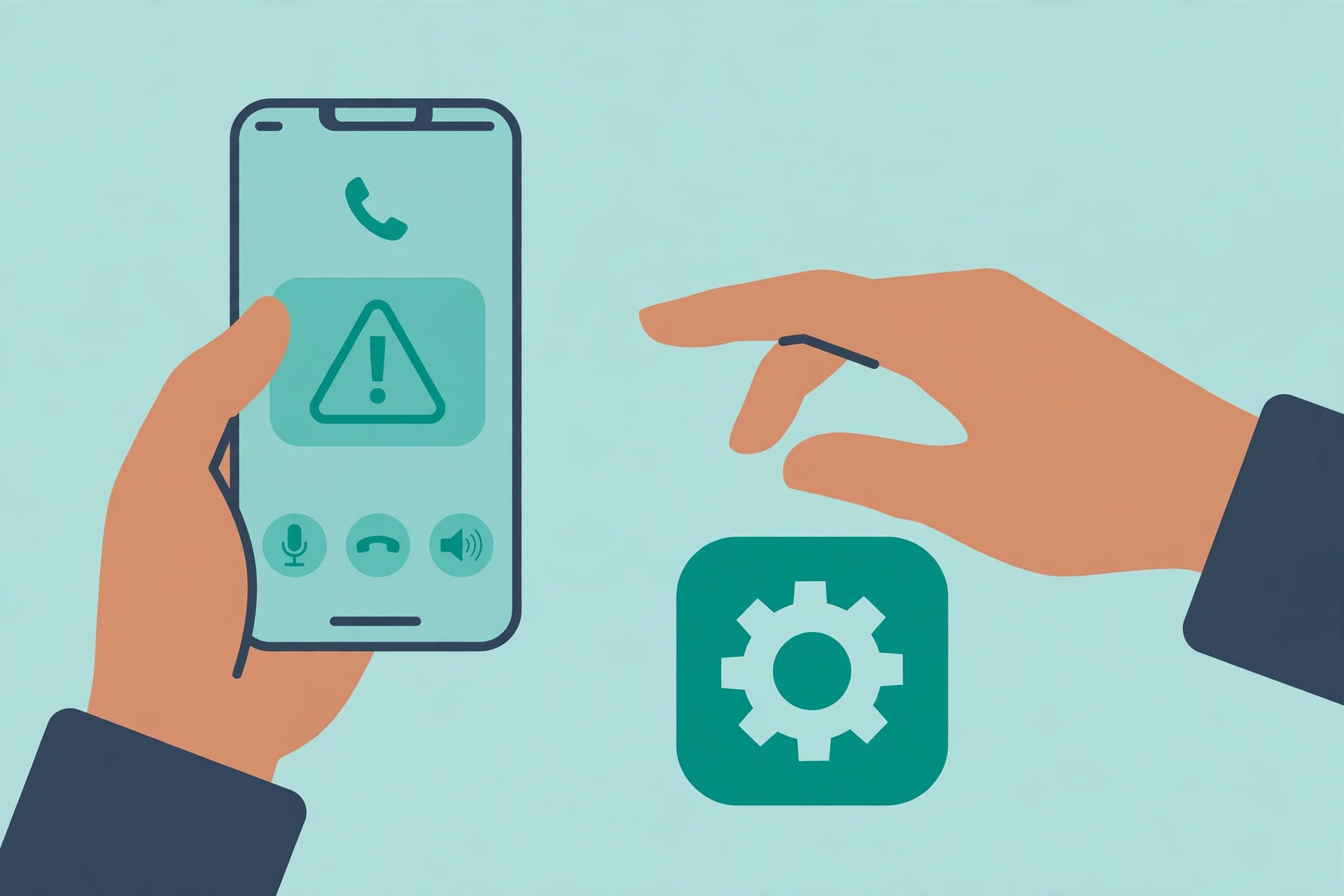
Third, verify independently, on a number you find yourself. If a caller claims a problem with your account, hang up, find the organisation’s official number — on their website, on the back of your card, or in their official app — and call that number. Do not call back a number the caller gave you, and do not use a number from a text they sent. This one habit defeats most impersonation scams outright, because the scammer’s power depends entirely on you staying on their call.
After a Suspicious Call: A Short Checklist
Sometimes the protection works, sometimes the habits work, and sometimes — despite both — a call leaves you uneasy. That unease is worth acting on promptly, in this order.
- Check your permissions. Go to Settings, then Apps, then look for any app with accessibility access that you do not recognise or did not deliberately grant. Remove access from anything suspicious, and uninstall any app a caller asked you to install.
- Check your accounts. If you shared any information at all — even something that felt minor — check the relevant account for unusual activity, and change its password from a device you trust, not while still flustered from the call.
- Report the number. Most Phone apps let you report a call as spam, which helps filtering for others. Reporting is quick, and it is one of the few actions that helps people beyond yourself.
- Block and move on. Block the number, and do not engage if the same caller tries again from a different number. Repeated calls are a pressure tactic, not evidence that the caller is genuine.
If you shared financial details or transferred money, contact your bank or payment provider straight away through their official channels, and explain what happened plainly. Banks deal with this regularly, and early reporting gives them the best chance to help. There is no benefit in embarrassment or delay — scammers rely on both.
Frequently Asked Questions
Does in-call scam protection work on all Android phones?
Not yet, and not identically everywhere. Google’s October 2026 notes tie the expanded protections to Play services 26.41 for Android 15 and earlier, but rollouts are gradual and manufacturers customise settings. If the option is missing, check for a Play system update and check again later, and rely on the habits in this guide in the meantime.
Will it stop all scam calls?
No. It is designed to interrupt risky technical actions during a call, such as granting accessibility permissions at a stranger’s instruction. It cannot judge whether a caller is lying, stop you transferring money yourself, or verify a caller’s claimed identity. Call filtering and your own verification habits remain essential.
Does it listen to or record my calls?
The protection described in Google’s release notes is about permissions during calls, not about recording or analysing call content. If a phone ever asks for microphone or recording permission for a feature you do not understand, treat that as a separate question and check what the permission is actually for before granting it.
What should I do if a warning appears during a genuine call?
Pause and consider what triggered it. A warning during an ordinary call with a trusted contact is unusual, and worth investigating after the call — for instance, whether an app tried to request a permission in the background. Do not simply dismiss repeated warnings; check your permissions as described above.
Is this the same as spam call blocking?
No, though they work well together. Spam blocking and caller identification try to recognise suspicious numbers before or as you answer. In-call protection acts during the call itself, when a caller is already talking to you and trying to guide your actions. Both layers are worth having switched on.
If You Remember One Thing
Let it be this: no genuine caller needs you to change your phone while they talk you through it. If a call reaches the point where someone is guiding your taps, granting permissions, or reading out codes, the call itself is the problem — whatever the caller claims to be fixing. Hang up, breathe, and call the organisation back on a number you found yourself. The protection in your phone can slow a scammer down and warn you at the crucial moment, but the decision that actually stops the scam is yours, and it takes about three seconds: end the call.
