
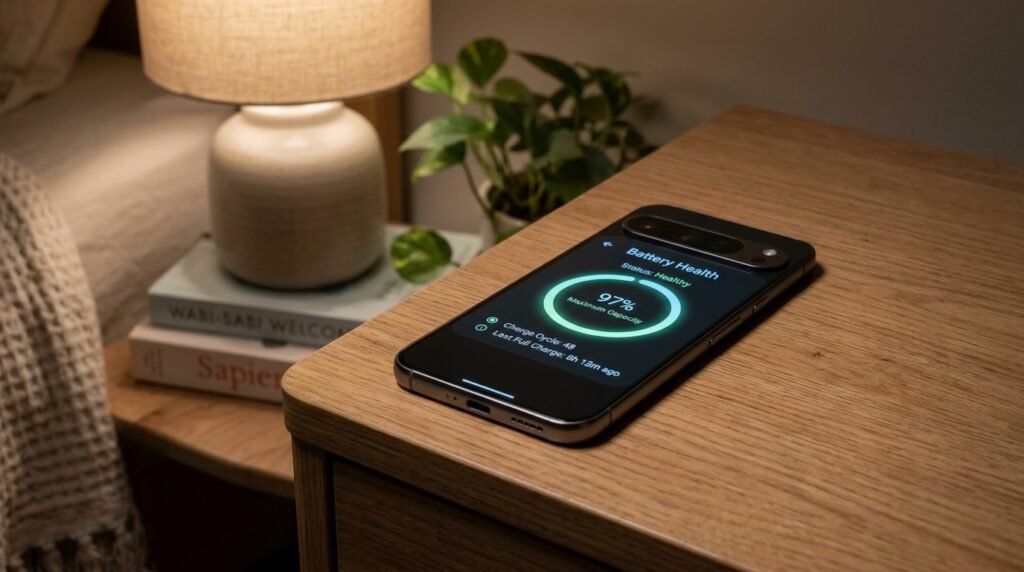
How to Fix Overnight Battery Drain on Android 16: Complete Standby Power Guide
Few things are more frustrating than charging your smartphone to 100% before bed, leaving it completely untouched on your nightstand, and waking up seven hours later to find the battery sitting at 82%. A healthy Android phone in deep sleep should consume no more than 2% to 4% of battery over an eight-hour night. If your device is bleeding 10% to 20% while you sleep, an active background wakelock, an uncalibrated network radio, or a runaway Google Play Services sync loop is actively sabotaging your phone’s standby efficiency.
Based on publicly available documentation for Google Pixel, Samsung Galaxy, and OnePlus devices running Android 15 and 16 builds, here is a diagnostic sequence that can help isolate standby battery leaks and restore deep sleep without disabling essential notifications.
Understanding Android Doze Mode and Standby Wakelocks
To fix idle battery drain, you first have to understand how Android manages sleep. Introduced by Google and refined over recent operating system iterations, Doze Mode operates in two distinct stages: light standby and deep doze. When your device screen turns off while stationary and unplugged, Android restricts network access and delays background job scheduling. During deep sleep, the CPU drops its clock speeds to minimal micro-amperage states.
However, third-party apps can request Wakelocks—system permissions that prevent the processor from sleeping so tasks like GPS tracking, background audio playback, or continuous cloud synchronization can proceed. When poorly optimized apps trigger persistent partial wakelocks, the CPU stays awake at higher power states all night, even while your screen remains pitch black.
A healthy modern smartphone typically loses well under 1% of battery per hour on Wi-Fi with Always-On Display turned off. Drain that stays consistently higher over several hours may indicate an active software wakelock, continuous mobile data polling, or cellular antenna signal hunting. Actual results vary by device, network conditions, and installed apps.
Step 1: Check Built-in Battery Usage Since Last Full Charge
Before installing diagnostic utilities, examine your system’s native power telemetry. Modern Android distributions track battery usage by app and system service with granular screen-off timestamps:
- Open your smartphone Settings and tap on Battery (or Battery and Device Care on Samsung devices).
- Select Battery Usage and view the breakdown since the last full charge.
- Look specifically at the Screen-off time column for top-consuming apps.
- If an app like Instagram, TikTok, or a weather widget accounts for a disproportionately large share of battery consumption compared to its screen-on time, that app is likely waking your processor repeatedly.
Step 2: Disable Unnecessary Always-On Display (AOD) Schedules
While AMOLED displays only illuminate individual pixels for clock widgets and icons, the display controller and ambient light sensors stay active to sense room brightness. Always-On Display can therefore draw a small but steady amount of power every hour, which adds up over a full night. Turning it off can noticeably reduce overnight drain, though actual results vary by device, brightness, and the content shown on screen.
Navigate to Settings > Display > Lock Screen > Always on Display and set it to Tap to Show or establish a daily schedule that automatically turns the feature off between 11:00 PM and 7:00 AM.
Step 3: Resolve Google Play Services Background Sync Loops
Google Play Services handles push notifications, location telemetry, account synchronization, and safety verification across all Google applications. When an account credential encounters a silent authentication error or a corrupted local cache file, Play Services can enter an aggressive synchronization loop that exhausts system resources throughout the night.
To safely clear stalled synchronization states without losing personal data:
- Go to Settings > Apps > See All Apps > Google Play Services.
- Tap Storage & Cache and tap Clear Cache.
- Tap Manage Space and select Clear All Data (this will not delete personal photos or messages; it merely resets your local Google connection tokens).
- Next, navigate to Settings > Passwords & Accounts, select your primary Google account, tap Account Sync, and verify that no individual services show persistent sync error icons.
Step 4: Audit Background Wi-Fi and Bluetooth Scanning
Even when Wi-Fi and Bluetooth are turned off in your Quick Settings shade, Android maintains low-power radio scanning in the background to assist Google Location Accuracy and nearby device discovery. In environments with dense signal traffic, this radio polling prevents sleep states.
Open Settings > Location > Location Services and toggle off both Wi-Fi scanning and Bluetooth scanning. Disabling these toggles will not prevent you from connecting to wireless networks or Bluetooth headphones normally, but it completely stops silent radio wakeups during standby.
Standby Power Consumption Diagnostics Comparison
* Savings vary by device, battery size, network conditions, and usage; these figures are general estimates, not laboratory measurements.
Frequently Asked Questions
Is overnight battery drain caused by battery hardware degradation?
Rarely. Physical battery wear reduces overall runtime under active load, but sudden drops while the phone is completely idle are almost always software-driven wakelocks or cellular modem power amplification due to poor cell tower reception.
Does turning on Airplane Mode at night preserve battery health?
Yes. If you live in an area with weak mobile reception (1 to 2 signal bars), your phone’s cellular modem increases transmission power to stay connected to distant towers. Enabling Airplane Mode with Wi-Fi enabled completely eliminates modem signal amplification and typically reduces overnight drain to under 2%.
Our team creates practical, easy-to-follow Android guides and honest app recommendations. Read more on our About Us page or explore our Privacy Policy.
