
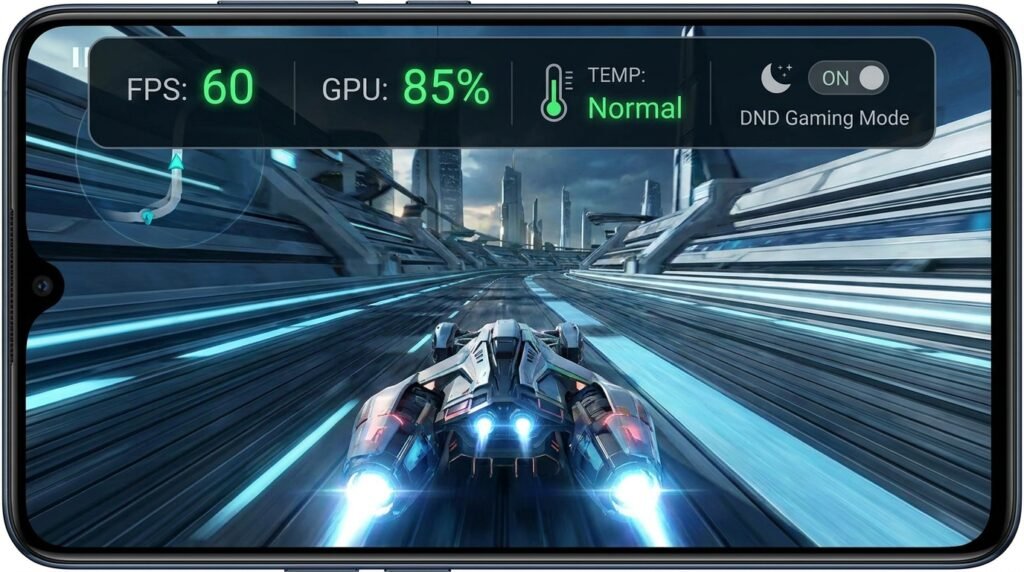
How to Optimize Android Gaming Performance: Fix Lag & Maximize FPS
Overcoming Android Gaming Bottlenecks in 2026
Mobile gaming demands sustained graphical power and minimal touch latency, but thermal throttling and background resource hogging often result in annoying frame drops and stutter. By optimizing game space settings, tweaking GPU rendering options, and managing ambient heat, you can unlock butter-smooth frame rates across demanding titles.
Knowing how to optimize gaming performance correctly on Android can save you time, money, and frustration. Whether you are a beginner or an experienced Android user, this complete 2026 tutorial will walk you through every step clearly and simply.
Mobile gaming has reached unprecedented visual sophistication. Demanding titles like Genshin Impact, Call of Duty: Warzone Mobile, PUBG Mobile 3.0, and high-fidelity emulation engines push Android mobile hardware to its absolute physical limits. However, even high-end flagship smartphones equipped with modern multi-core Snapdragon, Dimensity, or Exynos processors can suffer from sudden frame drops, micro-stuttering, overheating thermal throttle caps, and input touch latency if system parameters are misconfigured.
Android by default prioritizes power efficiency, battery longevity, and passive thermal control over maximum hardware output. When running intensive 3D gaming applications, standard Android power governors intentionally throttle CPU core frequencies and GPU clock speeds to minimize surface heat. In this comprehensive optimization manual, we explore advanced system configurations, deep Developer Options adjustments, thermal dissipation strategies, and GPU driver tweaks designed to eliminate gaming lag and maximize stable FPS (Frames Per Second) on Android in 2026.
1. Configuring Built-In Game Space & Hardware Booster Modules
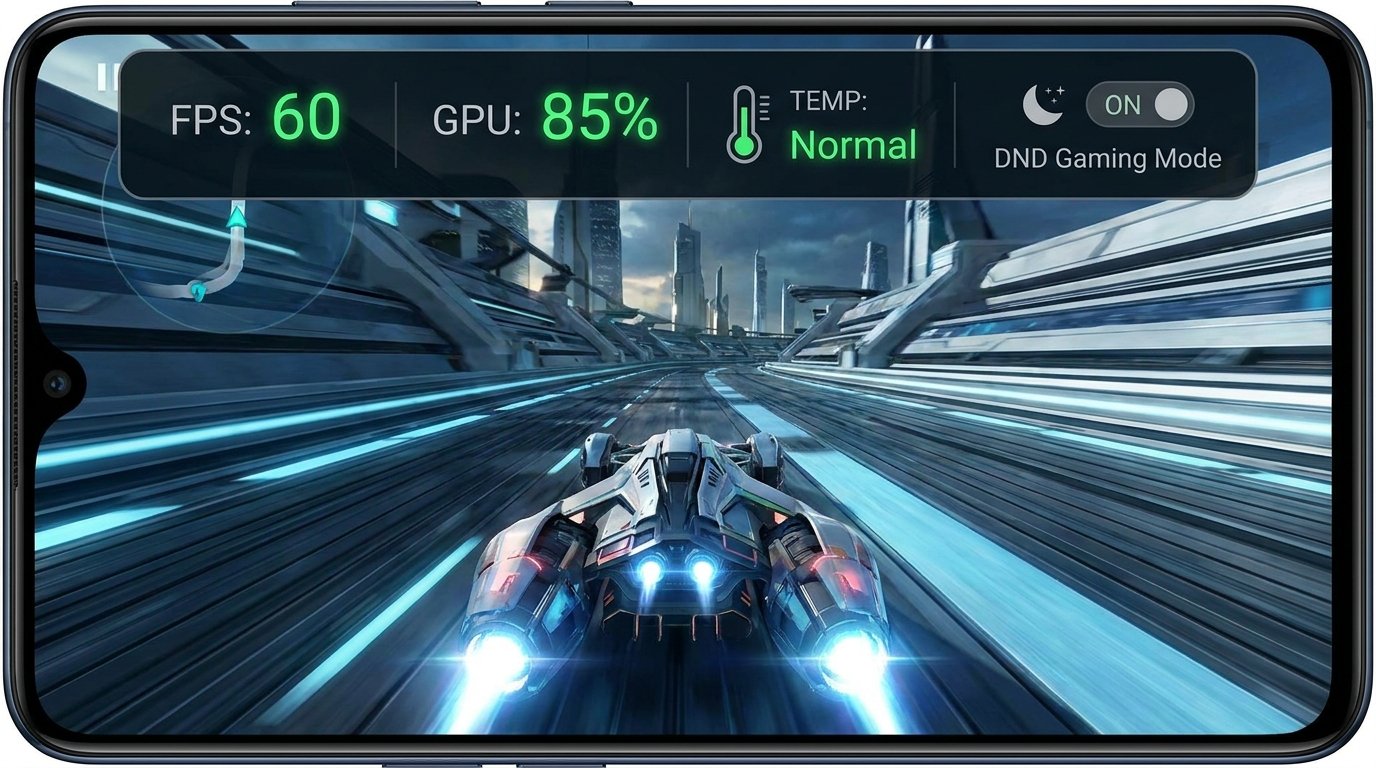
Virtually all modern Android smartphone manufacturers include dedicated gaming hardware optimization engines—such as Samsung’s Game Plugins / Game Booster, Xiaomi’s Game Turbo, OnePlus/Oppo’s Games Space, and ASUS ROG’s Armoury Crate. Rather than being mere cosmetic overlays, these tools communicate directly with low-level Linux kernel governors to allocate hardware resources efficiently.
Essential Game Booster Configurations:
- Enable Performance Focus Mode: Switch device tuning from ‘Balanced’ or ‘Battery Saver’ mode to Performance Mode. This forces the system CPU governor to lock clock speeds at higher baseline frequencies, eliminating initial frame dip stutters when entering heavy render scenes.
- Lock Screen Refresh Rates: Force your display panel to maintain a constant 90Hz, 120Hz, or 144Hz refresh rate while gaming, bypassing adaptive refresh scaling that dynamically drops display rates down to 60Hz.
- Enable Maximum Touch Sampling Rate: Maximize touch controller polling rates (often pushing input response to 480Hz or 720Hz), dramatically reducing physical touch latency in fast-paced shooter games.
- Block Background Alerts: Activate Do Not Disturb (DND) and suppress heads-up banner notifications to prevent incoming calls or chat popups from triggering temporary GPU rendering stalls.
2. Essential Developer Options Tweaks for Maximum FPS
Unlocking Android’s system-level Developer Options grants direct control over hardware rendering pipelines, composition layers, and animation scaling routines. Adjusting these settings frees up system resources for active gaming workloads.
Key Developer Tweaks to Apply:
- Disable HW Overlays (Disable Hardware Overlays): Locate Disable HW overlays and toggle it ON. By default, Android uses the CPU to determine screen composition layering before passing frame buffers to the display screen. Disabling hardware overlays forces system UI composition onto the GPU, eliminating CPU rendering bottlenecks.
- Force 4x MSAA (Multi-Sample Anti-Aliasing): Toggling Force 4x MSAA forces OpenGL ES 2.0 rendering engines to process high-end multi-sample anti-aliasing. Note: Enable this only on modern high-end devices, as mid-range hardware may experience increased thermal output.
- Set Animation Scales to 0.5x or Off: Change Window animation scale, Transition animation scale, and Animator duration scale from 1.0x down to 0.5x or Off. This speeds up UI transitions instantly and frees up display buffer memory.
- Configure System Graphics Driver Preferences: Navigate to Graphics Driver Preferences inside Developer options. Locate your specific game title from the application list and change its setting from ‘Default’ to System Graphics Driver to utilize optimized vendor driver paths directly.
3. Managing Background Processes & Clearing RAM Bottlenecks
Android applications running in the background consume valuable memory bandwidth and CPU cycles. Social media platforms, cloud sync services, and communication apps frequently trigger background fetch loops that interrupt active game threads.
Optimizing Memory Allocation for Mobile Games:
- Set Background Process Limits: In Developer options, locate Background process limit and change the setting from ‘Standard limit’ to At most 2 processes or At most 3 processes while running high-end gaming sessions.
- Disable Adaptive Battery Exemptions for Games: Navigate to Settings > Apps > See all apps > [Your Game Title] > Battery and set battery optimization to Unrestricted. This prevents Android’s aggressive power manager from throttling game background processing during online lobby queues.
- Enable System RAM Expansion Options with Caution: While features like Samsung’s RAM Plus or Xiaomi’s Memory Extension allocate internal storage as virtual RAM, flash storage (UFS 3.1 / UFS 4.0) is significantly slower than physical LPDDR5X RAM. For competitive gaming, setting virtual RAM expansion to minimum values often improves frame consistency by avoiding slow storage swapping delays.
4. Thermal Throttling Mitigation & Advanced Cooling Strategies
The single greatest enemy of sustained high-FPS Android gaming is Thermal Throttling. When mobile processors reach internal temperature safety thresholds (typically between 42°C and 45°C), thermal management systems step in to drastically reduce CPU and GPU clock speeds, causing severe frame drops down to 30 FPS or lower.
Proactive Heat Dissipation Techniques:
- Utilize Bypass Charging (Direct Power Supply): Many modern gaming smartphones (and utility apps) support Bypass Charging. When enabled during plugged-in gaming sessions, electric current bypasses the battery cell entirely and feeds hardware components directly. This eliminates up to 80% of charging heat generation, keeping temps low and preserving peak clock speeds.
- Remove Protective Smartphone Cases: Heavy rubber, leather, or thick TPU phone cases act as thermal insulators, trapping heat inside the phone chassis. Removing your case allows internal vapor chambers and graphite heat sheets to radiate heat out into the surrounding air efficiently.
- Equip External Peltier Semiconductor Coolers: For marathon competitive gaming, clip-on thermoelectric active cooling fans (like Black Shark FunCooler or ASUS AeroActive Cooler) can drop internal battery temperatures by 10°C to 15°C, sustaining maximum FPS indefinitely without thermal throttle drop-offs.
5. Locking Display Refresh Rates & Touch Sensitivity Calibration
Nothing ruins smooth gaming faster than erratic refresh rate fluctuations. Many Android displays dynamically drop from 120Hz to 60Hz when thermal parameters rise or when display content pauses briefly.
Forcing Constant Peak Display Refresh:
- Go to Settings > Display > Refresh Rate and select the maximum manual frequency (e.g., 120Hz or 144Hz) rather than ‘Auto / Adaptive’.
- On devices running custom Android ROMs or specialized UI skins, use ADB commands or system tools like SetEdit to force system display flags (user_refresh_rate and peak_refresh_rate) to lock at matching values.
- Calibrate touch sensitivity inside game settings—maximizing horizontal pan speed and turning off anti-aliasing smoothing filters that introduce processing lag on touch controller hardware.
6. Audio Latency Optimization & Bluetooth LE Audio Codecs
In competitive shooters like PUBG Mobile or Call of Duty, hearing enemy footsteps instantly provides a decisive tactical advantage. However, wireless Bluetooth audio latency can introduce audio delays ranging from 150ms to 300ms, creating a noticeable disconnect between visual gunfire and sound delivery.
Optimizing Mobile Audio Latency:
- Use Wired USB-C / 3.5mm Headsets: Wired headphones deliver zero latency (under 5ms delay), providing instantaneous spatial audio cues.
- Configure Low-Latency Bluetooth Codecs: If using wireless earbuds, open Settings > Developer options and select low-latency audio codecs such as aptX Adaptive, LDAC (Low Latency Mode), or Bluetooth LE Audio (LC3 Codec) to drop wireless audio delay below 40ms.
7. Advanced ADB Commands for Performance Power Users
For users comfortable connecting their device to a PC via Android Debug Bridge (ADB), executing low-level shell commands can force system performance profiles across non-gaming applications:
adb shell settings put global peak_refresh_rate 120.0— Forces display panel to maintain 120Hz locked refresh globally.adb shell settings put global user_refresh_rate 120.0— Overrides adaptive display drop-downs in third-party games.adb shell cmd package compile -m speed -f [package_name]— Forces Android runtime (ART) to pre-compile game bytecode into native machine code ahead of execution, accelerating game load speeds.
8. Vulkan API Selection & Custom GPU Driver Updates
Modern mobile game engines (such as Unreal Engine 5 Mobile and Unity 2026) are optimized for the high-efficiency Vulkan API, which drastically reduces CPU overhead compared to legacy OpenGL ES graphics frameworks.
Whenever a game engine permits selecting graphics renderer backends in its video settings menu, always select Vulkan. Furthermore, owners of Qualcomm Snapdragon devices can use custom Adreno GPU driver updates installed via vendor game space tools to patch driver rendering bugs and boost frame pacing consistency in newly released AAA mobile titles.
Android Gaming Optimization Matrix
The comparative matrix below outlines key system tweaks, their impact on FPS stability, thermal output, and battery trade-offs:
| Optimization Tweak | Target Benefit | FPS Impact | Thermal & Battery Impact |
|---|---|---|---|
| Disable HW Overlays | Offloads UI composition to GPU, unbottlenecks CPU | High (+5-10% smoother FPS) | Negligible battery impact |
| Bypass Charging Enable | Powers hardware directly without charging battery | Critical (Prevents thermal throttle drops) | Dramatically reduces heat (-5°C to -10°C) |
| Background Limit (Max 2) | Prevents background app memory swapping interruptions | Moderate (Eliminates micro-stutters) | Improves overall battery life |
| System Graphics Driver Select | Uses low-level vendor driver paths for target game | Moderate (+3-7 FPS gain) | Neutral impact |
| Force 4x MSAA Enable | Smooths jagged 3D edges (visual quality boost) | Low / Negative on mid-range GPUs | Increases GPU power consumption & heat |
Troubleshooting Common Mobile Gaming Issues
Why does my game stutter even though my phone has high benchmark scores?
Synthetic benchmarks (like Geekbench or AnTuTu) run short bursts of speed lasting only a few minutes. High benchmark scores do not reflect sustained thermal dissipation. If your cooling system cannot radiate heat fast enough, thermal throttling kicks in within 10-15 minutes of real-world gaming, dropping FPS dramatically. Follow the cooling and bypass charging steps above to fix sustained performance.
How do I reduce high ping and Wi-Fi latency spikes during online matches?
Disable Wi-Fi Scanning under location settings to stop background network scans. Configure your Wi-Fi router to connect your phone strictly over the 5GHz or 6GHz Wi-Fi band, avoiding congested 2.4GHz frequencies. In your Game Booster settings, turn on Network Protection Mode to block secondary apps from updating in the background while playing.
Conclusion
Unlocking peak gaming performance on Android does not require complex root modifications or risky overclocks. By configuring Game Booster profiles correctly, unleashing Developer Options hardware rendering tools, restricting background process competition, and managing thermal dissipation effectively, you can transform your Android smartphone into a buttery-smooth gaming powerhouse in 2026.
