

How to Fix Common Google Play Store Errors: Complete Troubleshooting Guide
Introduction to Google Play Store Errors
The Google Play Store serves as the primary gateway for downloading, updating, and managing applications on billions of Android smartphones and tablets worldwide. Under normal conditions, the app store operates silently in the background, keeping your device updated with the latest software patches, performance fixes, and security features. However, because the Play Store depends on a complex web of interconnected system services—including Google Play Services, Google Services Framework, Download Manager, and the low-level Android Package Installer—errors can inevitably occur.
This guide avoids unnecessary jargon; where a technical term is required, it is explained in simple words.
Whether you are greeted by an infinitely looping “Download Pending” status bar, a cryptic error code like Error 492, Error 910, or Error 504, or a frustrating App Not Installed popup during APK sideloading, these glitches interrupt daily productivity. Fortunately, Android Play Store errors are rarely hardware-related; they almost always stem from corrupted cache files, account authentication desynchronization, storage space bottlenecks, or package signature conflicts.
In this comprehensive troubleshooting guide, we break down the root causes behind the most frequent Google Play Store error codes and provide clear, step-by-step diagnostic procedures to restore your app store to perfect working order in 2026.
Fixing “Download Pending” & “Waiting for Download” Issues
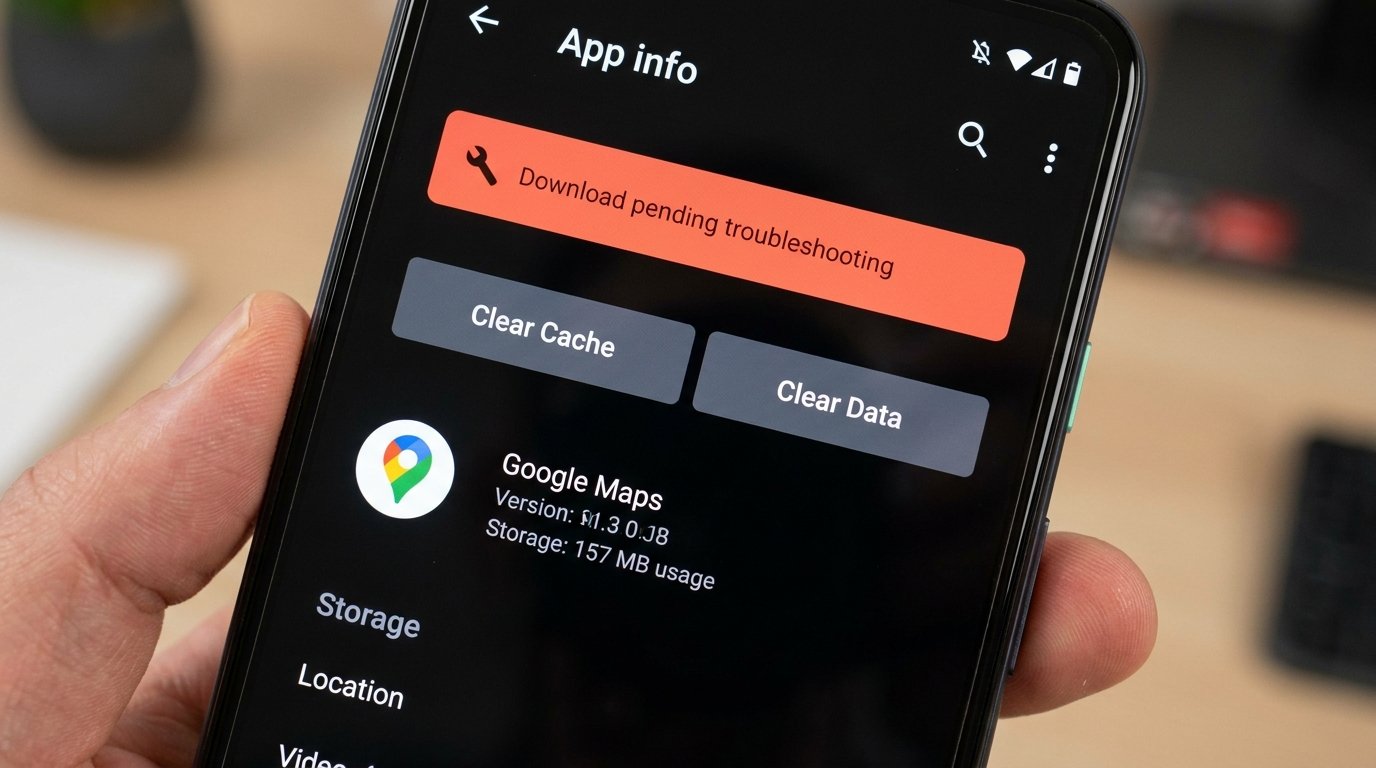
The “Download Pending” status is the single most common frustration faced by Android users. You tap Install or Update on an application, but the progress bar remains indefinitely stuck on “Download Pending” without transferring a single kilobyte of data.
Root Causes Behind Download Pending
- Background Auto-Update Queue: The Play Store updates apps sequentially. If the Play Store is secretly updating 15 background applications in the queue, your manual download will wait until previous updates finish.
- Download Network Preferences: Your Play Store settings may be set to “Over Wi-Fi only,” while your phone is currently connected to cellular data.
- Corrupted Download Manager Cache: Android’s system Download Manager background process may have hung on a broken temporary file download.
Step-by-Step Fixes for Download Pending
- Clear the Active Download Queue: Open the Play Store, tap your profile icon in the top right corner, select Manage apps & device, and tap Overview. Tap Updating apps and click Cancel all to clear stuck queue locks. Now try downloading your desired app again.
- Verify Network Preferences: In the Play Store, tap your profile icon > Settings > Network preferences > App download preference. Select Over any network and tap Done.
- Force Stop and Clear Cache for Download Manager: Go to phone Settings > Apps > tap See all apps > tap the three dots in the top right corner and choose Show system apps. Locate Download Manager, tap Force Stop, select Storage & cache, and tap Clear Cache.
Fixing Play Store Error 492 (Cache & Database Corruption)
Error 492 typically occurs during app downloads or updates accompanied by the message: “App could not be downloaded due to an error (492).” This error indicates severe cache corruption within Java virtual machine runtime layers or corrupted database pointers within Google Play Services.
Detailed Fix Workflow for Error 492
To resolve Error 492, you must execute a dual cache and data reset across both the primary Play Store client and Google Play Services infrastructure:
- Step 1: Force Stop and Clear Play Store Cache: Navigate to Settings > Apps > See all apps > Google Play Store. Tap Force Stop, then tap Storage & cache > Clear Cache.
- Step 2: Clear Play Services Cache: Go back to the app list, select Google Play Services, tap Storage & cache > Clear Cache > Manage Space > Clear All Data.
- Step 3: Reboot Device: Restart your Android phone to allow system database tables to rebuild cleanly upon boot. Open Play Store and initiate your download.
Fixing Play Store Error 910 (Package Installer & Sideload Conflicts)
Error 910 is a specialized installation error that frequently strikes users who download app updates from the Play Store after having previously sideloaded APK files or third-party app builds. The screen displays: “App can’t be installed. Try again, and if the problem continues, see common ways to fix the problem (Error code: -910).”
Root Causes Behind Error 910
Error 910 occurs when Android’s low-level PackageInstaller service attempts to write new app binaries over existing directory fragments that contain mismatched cryptographic signature keys or leftover residual files from previous uninstalls.
Step-by-Step Fixes for Error 910
- Uninstall Residual App Versions: If an older version of the app is still on your device, uninstall it completely. If the app is a system app, go to Settings > Apps > [App Name] > tap the three dots menu > select Uninstall updates.
- Remove Leftover App Folders via File Manager: Open an Android file manager (such as Solid Explorer), navigate to Android/data/ and Android/obb/, and search for folder names matching the problematic app’s package ID (e.g., com.whatsapp or com.spotify). Delete any orphaned leftover folders.
- Remove and Re-insert SD Card: If the app was previously moved to external storage, unmount your SD card via Settings > Storage before retrying the installation from the Play Store.
Fixing Play Store Error 504 (HTTP Gateway Timeout & Dual Account Conflicts)
Error 504 manifests as an HTTP Gateway Timeout error during long download sessions or complex app updates. It typically occurs on unstable network connections or on Android devices configured with multiple logged-in Google Accounts.
Step-by-Step Fixes for Error 504
- Fix 1: Disable VPNs and Proxies: If you are using a VPN service or custom DNS proxy (like AdGuard or Cloudflare WARP), disable it temporarily. Network routing delays through VPN tunnels often cause Play Store HTTP requests to time out, triggering Error 504.
- Fix 2: Re-authenticate Dual Google Accounts: When two Google Accounts are logged into the same device, Play Store license ownership checks can enter an authentication loop.
- Go to Settings > Passwords & accounts (or Accounts & sync).
- Tap your secondary Google Account and select Remove account.
- Restart your phone, open Play Store, complete your app download under your primary account, and then re-add your secondary account.
Fixing “App Not Installed” and Package Parsing Errors
The dreaded “App Not Installed” or “There was a problem parsing the package” errors occur primarily during APK sideloading outside the Play Store environment. Understanding package diagnostics ensures you can resolve installation blocks safely.
Diagnostic Breakdown for Sideloading Failures
| Failure Cause | Technical Description | Resolution / Fix |
|---|---|---|
| CPU Architecture Mismatch | Downloading an armeabi-v7a (32-bit) APK onto a strict arm64-v8a (64-bit modern device) or x86_64 emulator. | Verify device SoC architecture using apps like LibChecker and download matching APK builds. |
| Incompatible Android Target SDK | The APK requires a minimum API level higher than your device’s current Android OS version (e.g., Android 15 APK on Android 11). | Update your phone’s Android OS firmware or download an older app release matching your API level. |
| Signature Key Mismatch | Attempting to install an update signed with a different developer certificate over an existing app installation. | Completely uninstall the existing app version before installing the new APK file. |
| Insufficient Storage Buffer | Android PackageInstaller requires extra temporary buffer space (~1 GB) to unpack compressed APK assets during staging. | Free up at least 2 GB of internal storage space using storage cleaning tools. |
| Split APK (APKS / XAPK) Format | Modern apps use Android App Bundles (AAB) split into base APKs and language/density APK splits, failing standard APK installers. | Use split APK installer utilities like SAI (Split APKs Installer) or Shizuku to stage multi-bundle installations. |
Master Universal Troubleshooting Protocol (Step-by-Step)
If you encounter an unlisted Play Store error code or if individual fixes fail to resolve the problem, execute this master 5-step recovery sequence to clean and reset your system framework completely:
Step 1: Perform a Soft System Reboot
A simple restart flushes temporary memory allocation errors, clears dead thread locks, and resets network interfaces. Hold your power button and select Restart.
Step 2: Clear Data & Cache for Play Store and Play Services
This is the single most effective nuclear option for fixing persistent Play Store errors without losing personal app data:
- Go to Settings > Apps > See all apps.
- Select Google Play Store > tap Force Stop > tap Storage & cache > tap Clear Cache and Clear Data.
- Select Google Play Services > tap Force Stop > tap Storage & cache > tap Clear Cache and Manage Space > tap Clear All Data.
- Select Google Services Framework (enable Show system apps) > tap Storage & cache > tap Clear Cache.
Step 3: Uninstall Google Play Store Updates
If a recent background update corrupted the Play Store application itself, revert it to its factory-installed version:
- Go to Settings > Apps > Google Play Store.
- Tap the three vertical dots in the top right corner.
- Select Uninstall updates and tap OK when prompted.
- Open Play Store; it will automatically update itself silently to the latest stable build in the background within a few minutes.
Step 4: Remove and Re-add Your Google Account
Desynchronized security tokens between your device and Google’s OAuth servers can block app licensing requests:
- Go to Settings > Passwords & accounts.
- Select your main Google Account > tap Remove account.
- Reboot your Android device.
- Return to Passwords & accounts > tap Add account > Google, and sign in again with your email and password.
Step 5: Audit Internal Storage Capacity
Android requires a safety margin of internal storage to function correctly. If your phone drops below 500 MB of free storage space, Android will block the Play Store from downloading or unpacking new apps to prevent system crash loops. Navigate to Settings > Storage and ensure you have at least 2 GB of free space available by clearing cached media files or deleting unused applications.
Quick Reference Matrix: Play Store Error Codes & Solutions
Keep this quick reference guide handy whenever troubleshooting Play Store error codes:
| Error Code | Primary Cause | Primary Action / Solution |
|---|---|---|
| Download Pending | Background auto-update queue or network setting | Cancel queue in Play Store > Clear Download Manager cache |
| Error 492 | Java cache / Play Services database corruption | Clear cache & data for Play Store and Google Play Services |
| Error 910 | Residual installer files or signature mismatch | Uninstall old version, delete Android/data leftover folders |
| Error 504 | HTTP Gateway Timeout or dual account conflict | Disable VPN/Proxy > Remove and re-add Google Account |
| App Not Installed | Architecture mismatch or split APKS format | Check CPU arch (arm64-v8a) > Use Split APKs Installer (SAI) |
Frequently Asked Questions (FAQ)
1. Will clearing Google Play Services data erase my personal photos or messages?
No. Clearing cache or data for Google Play Services or Google Play Store will not delete your photos, contacts, WhatsApp messages, or installed applications. It simply resets Google account handshake tokens and temporary app store databases. You may need to sign back into your Google Account after clearing Play Services data.
2. Why does the Play Store say “Your device isn’t compatible with this version”?
This message occurs when an app developer explicitly restricts an application from running on specific hardware configurations, screen densities, CPU architectures, or outdated Android OS versions. You can often bypass hardware restrictions by downloading the verified APK build directly from reputable mirror sites like APKMirror.
3. How do I force Google Play Store to update itself to the latest version?
Open Google Play Store, tap your profile icon > Settings > About > tap Play Store version. If an update is available, a popup will inform you that a new version will be downloaded and installed automatically in the background.
Conclusion & Prevention Tips
Encountering a Google Play Store error can be frustrating, but armed with the right diagnostic steps, virtually every installation and update failure can be resolved in minutes without resetting your phone. To maintain a healthy Google Play framework, keep these best practices in mind:
- Maintain at least 15% free internal storage capacity for smooth app staging and unpacking.
- Avoid interrupting ongoing app updates or powering off your phone during Play Store updates.
- Sideload APKs only from trusted, verified security sources like APKMirror or official developer sites.
- Periodically restart your Android phone once a week to clear system cache locks.
Following this guide ensures your Android device remains secure, updated, and ready to install any application without unexpected store errors.
Reviewed by the APKMales editorial team. This guide was compiled from publicly available documentation and industry security research.
