
How to Clear Cache and Free Up Storage Space on Android Devices
Running out of internal storage space on your Android smartphone leads to severe performance degradation, slow app launch times, background app crashes, and failure to install system software updates. Apps constantly generate temporary cached files, log files, media thumbnails, and residual download files that consume gigabytes of storage over time. This comprehensive guide outlines effective, safe methods to clear cache and optimize your Android phone’s storage in 2026.
1. Difference Between Application Cache and Data
Before clearing files, understanding the technical distinction between Clear Cache and Clear Data is crucial:
- Clear Cache: Deletes temporary junk files (such as web images, ad banners, and cached media stream fragments) downloaded by apps to speed up loading. Clearing cache does NOT delete user accounts, passwords, or personal saved settings.
- Clear Data: Completely resets an application to its freshly installed factory state, wiping user login accounts, offline downloads, saved databases, and settings.
2. How to Clear App Cache Manually via Settings
To clear cache for resource-intensive apps like Chrome, YouTube, Instagram, and TikTok:
- Open your smartphone’s Settings app and tap Storage (or Apps & Notifications).
- Select Installed Apps and sort by size to identify heavy storage consumers.
- Tap on an application (e.g., Chrome or TikTok).
- Select Storage & Cache.
- Tap the Clear Cache button.
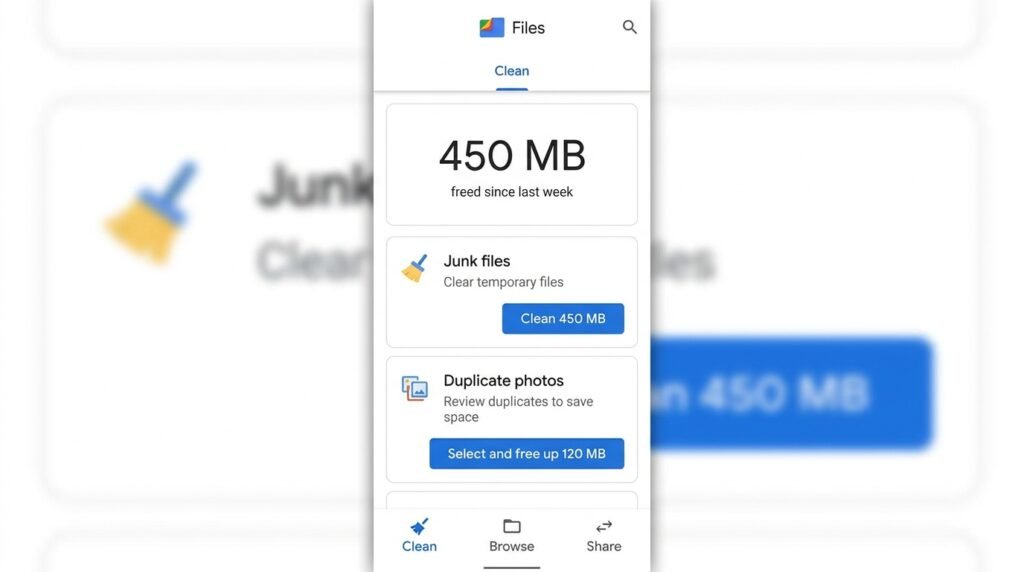
3. Using Google Files App for Automated Junk Cleaning
Google Files is the safest automated cleaning utility for Android. Its built-in Clean Tab scans system directories to detect temporary junk files, duplicate photos, large video files exceeding 100MB, unused APK installer packages, and dormant apps that haven’t been opened in 30 days. Running Google Files clean tool safe frees up 3GB to 10GB of storage space in seconds.
2026 Industry Best Practices & Security Recommendations
Establishing digital hygiene routines safeguards your Android device against emerging mobile security vulnerabilities, zero-day exploit vectors, and silent battery drain. Incorporate these daily maintenance routines:
- Weekly Device Restarts: Rebooting your smartphone at least once per week flushes active RAM caches, closes orphaned background daemon threads, and re-initializes wireless modem drivers.
- Regular App Auditing: Periodically uninstall applications that have remained unused for over 30 days. Removing dormant applications eliminates background data sync requests and frees internal UFS storage capacity.
- Verify Official Software Downloads: Only download software packages and mobile applications from verified repositories such as the Google Play Store, Samsung Galaxy Store, or trusted developer portals.
Conclusion & Final Thoughts
By implementing these technical recommendations and maintaining proactive device management, Android power users can maximize hardware longevity, protect private user data, and enjoy uncompromised mobile performance across all operational scenarios in 2026.
