
How to Transfer Files from Android to PC at Full Wi-Fi Speed (LocalSend & Quick Share)
Transferring high-resolution photos, 4K camera footage, or multi-gigabyte backup archives between your Android phone and Windows PC is often unnecessarily tedious. Slow USB cable connections requiring manual MTP driver troubleshooting and sluggish cloud storage uploads that consume your home internet bandwidth are relics of the past. Using modern local wireless protocols, you can transfer files between devices at blistering speeds exceeding 50 MB/s without a single cable or internet connection.
This guide compares the most reliable wireless file transfer solutions currently available for Android and PC environments. Here is how to configure LocalSend and Quick Share for seamless, high-speed file transfers across your home network.
Method 1: LocalSend (The Open-Source Cross-Platform King)
LocalSend is widely considered the best cross-platform file transfer utility available today. It is 100% free, open-source, and functions without requiring third-party accounts, external servers, or internet connectivity. Devices communicate directly through your local Wi-Fi network using secure HTTPS encryption with end-to-end TLS certificates.
How to Set Up LocalSend on Android and Windows PC:
- Install LocalSend on your Android device from Google Play or F-Droid.
- Download and install the official Windows client from the official LocalSend website or Microsoft Store.
- Ensure both your Android phone and PC are connected to the same local Wi-Fi network (or mobile hotspot).
- Open the app on both devices. They will automatically discover each other and display friendly animal codenames (such as Fast Mango or Quick Falcon).
- On your Android phone, tap Send, select your files, photos, or APK packages, and tap on your PC’s name.
- Click Accept on your computer, and the files will transfer immediately at maximum Wi-Fi link speed.
📌 Pro Tip for Faster Transfer Speeds: keep both devices on the same 5 GHz Wi-Fi network and avoid obstacles. Actual speeds vary by router, device hardware, and network conditions.
Method 2: Quick Share for Windows (Official Google Ecosystem)
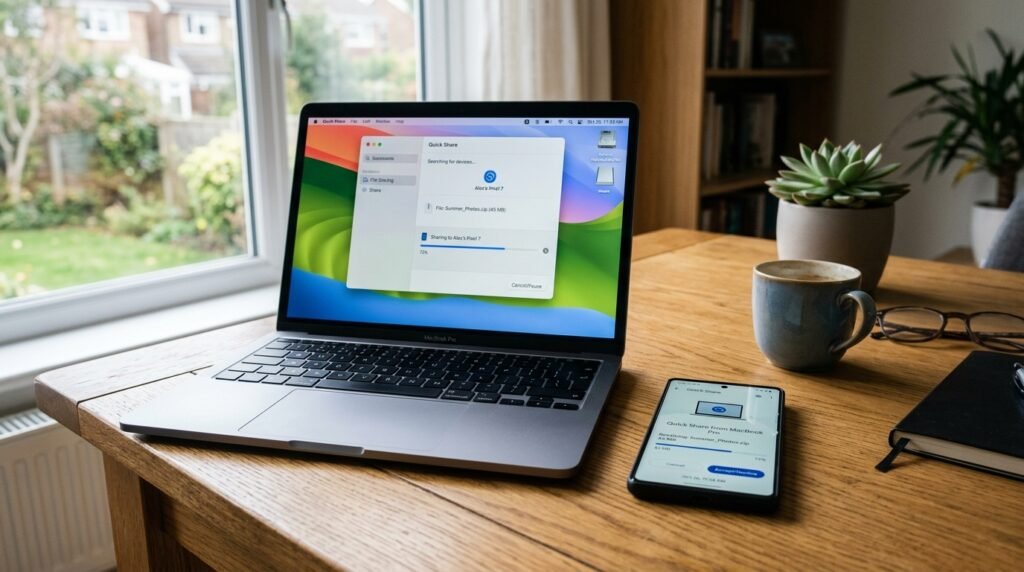
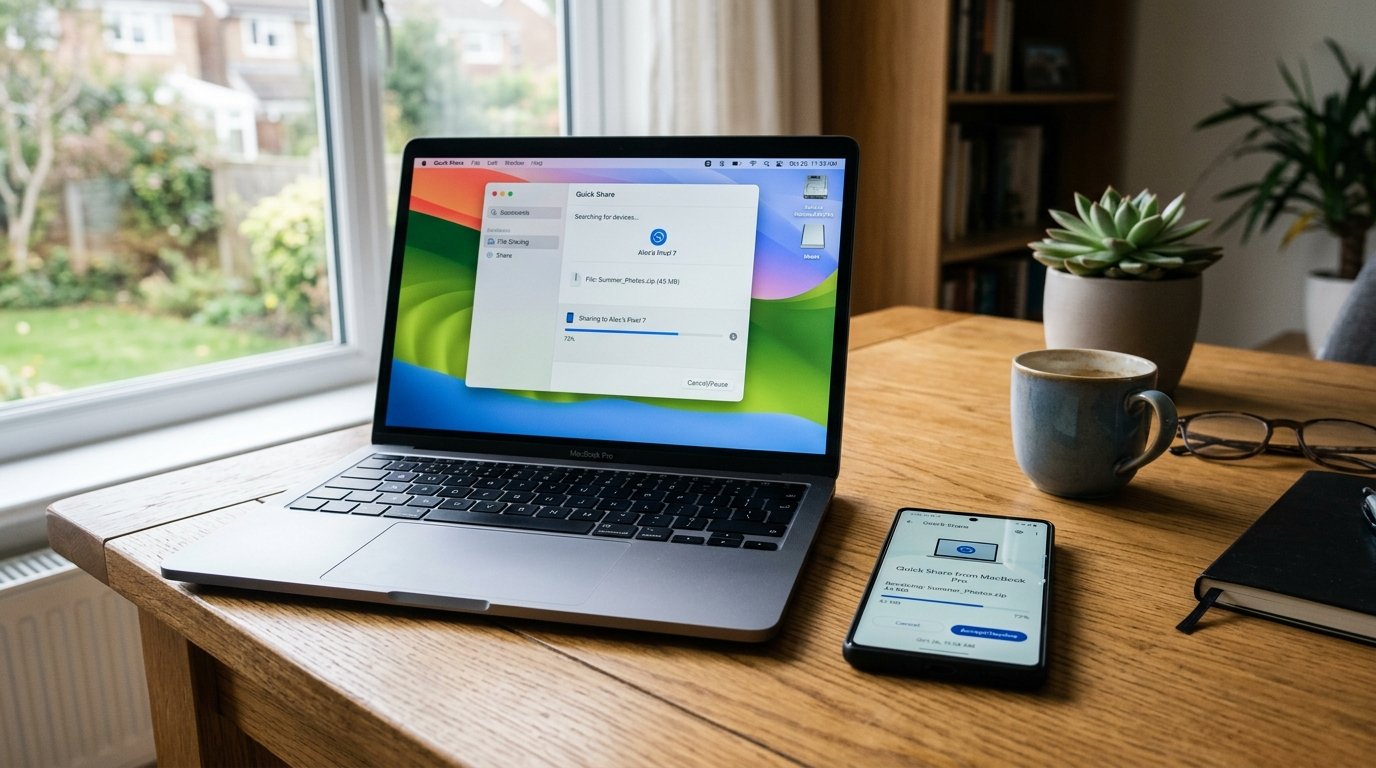
Formerly known as Nearby Share, Google’s official Quick Share protocol is built directly into Android system framework services. Google provides an official Quick Share for Windows desktop application that integrates flawlessly with Windows 10 and Windows 11 PCs.
- Download the Quick Share for Windows client from android.com.
- Install the application and sign in with the same Google Account used on your smartphone (this enables automatic transfers without manual confirmation prompts).
- Set device visibility to Your Devices or Contacts.
- On your Android phone, open your photo gallery or file manager, tap Share, and select Quick Share.
- Your Windows PC will appear at the top of the nearby devices list. Tap it, and the transfer will initiate instantly via Wi-Fi Direct.
Method 3: Local FTP Server (Zero App Installation on PC)
If you are using a work computer or borrowed laptop where installing desktop software is restricted by administrative policies, you can turn your Android phone into an instant local FTP server using apps like Solid Explorer, Cx File Explorer, or MiXplorer:
- Open your Android file manager and tap Start FTP Server.
- The app will display an IP address and port number (for example:
ftp://192.168.1.15:2121). - On your Windows PC, open standard File Explorer (Win + E), paste the FTP address into the address bar, and press Enter.
- Your entire phone storage structure will appear as a native network drive. You can drag and drop gigabytes of data back and forth seamlessly.
Wireless File Transfer Methods Compared
| Transfer Method | Typical Speed | Internet Needed | PC Software Required |
|---|---|---|---|
| LocalSend | Varies by device | No | Yes |
| Quick Share | Varies by device | No | Yes |
| Local FTP Server | Varies by device | No | No |
| Cloud Storage | Varies by device and internet speed | Yes | No (browser) |
Frequently Asked Questions
Can I transfer files if my PC does not have Wi-Fi (Ethernet only)?
Yes. As long as your PC is connected via Ethernet cable to the same home router that your Android phone connects to via Wi-Fi, both devices reside on the same local subnet, and LocalSend or FTP will discover each other seamlessly.
Are local wireless file transfers secure from network eavesdropping?
Yes. Utilities like LocalSend encrypt all file streams using TLS/HTTPS certificates directly between the two endpoints, ensuring that even on shared home networks, other connected users cannot intercept or inspect file payloads.
Our team creates practical, easy-to-follow Android guides and honest app recommendations. Read more on our About Us page or explore our Privacy Policy.
