
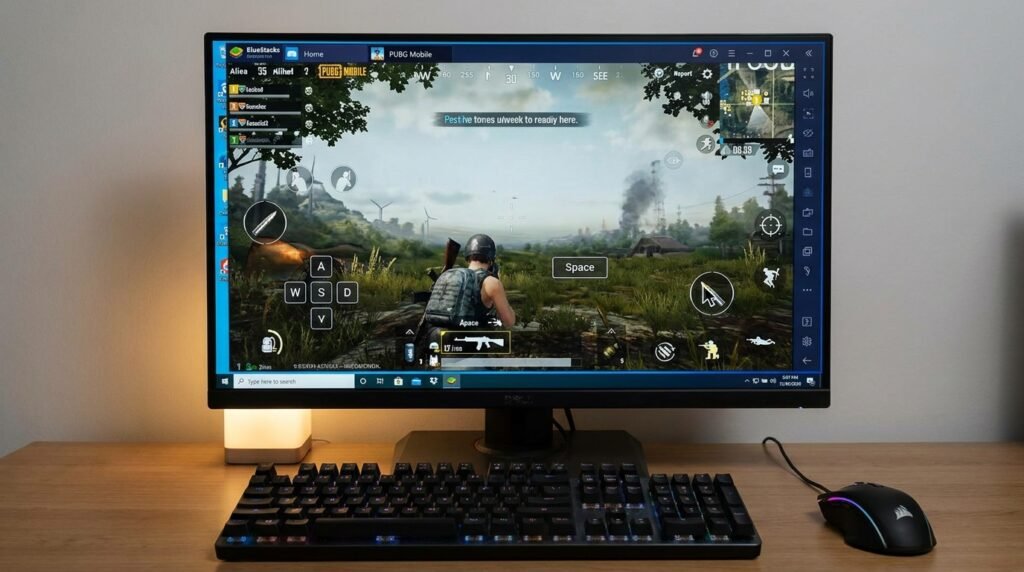
Best Android Emulators for PC and Mac in 2026: Tested for Speed and Compatibility
The Evolution of Android Emulation in 2026
Android emulation technology has undergone a massive architecture revolution. What once required clunky, sluggish virtualization layers that crippled desktop hardware has matured into highly optimized, hardware-accelerated environments capable of running complex mobile software, high-refresh-rate 3D games, and developer test suites smoothly on PC, Mac, and Linux hardware.
Modern Android emulators use native hardware virtualization extensions (Intel VT-x, AMD-V, Apple Silicon Hypervisor Framework) combined with advanced x86-to-ARM translation engines. Whether you are a competitive gamer seeking multi-instance farm setups with precise keyboard-and-mouse mapping, a content creator running Android-exclusive social tools on desktop monitors, or a developer testing application builds, selecting the right emulator environment is paramount. In this deep-dive comparative review, we benchmark and evaluate the five best Android emulators of 2026: BlueStacks 5, LDPlayer 9, NoxPlayer, MuMu Player Pro, and Waydroid.
1. BlueStacks 5 (Windows & macOS): The Feature-Packed Powerhouse
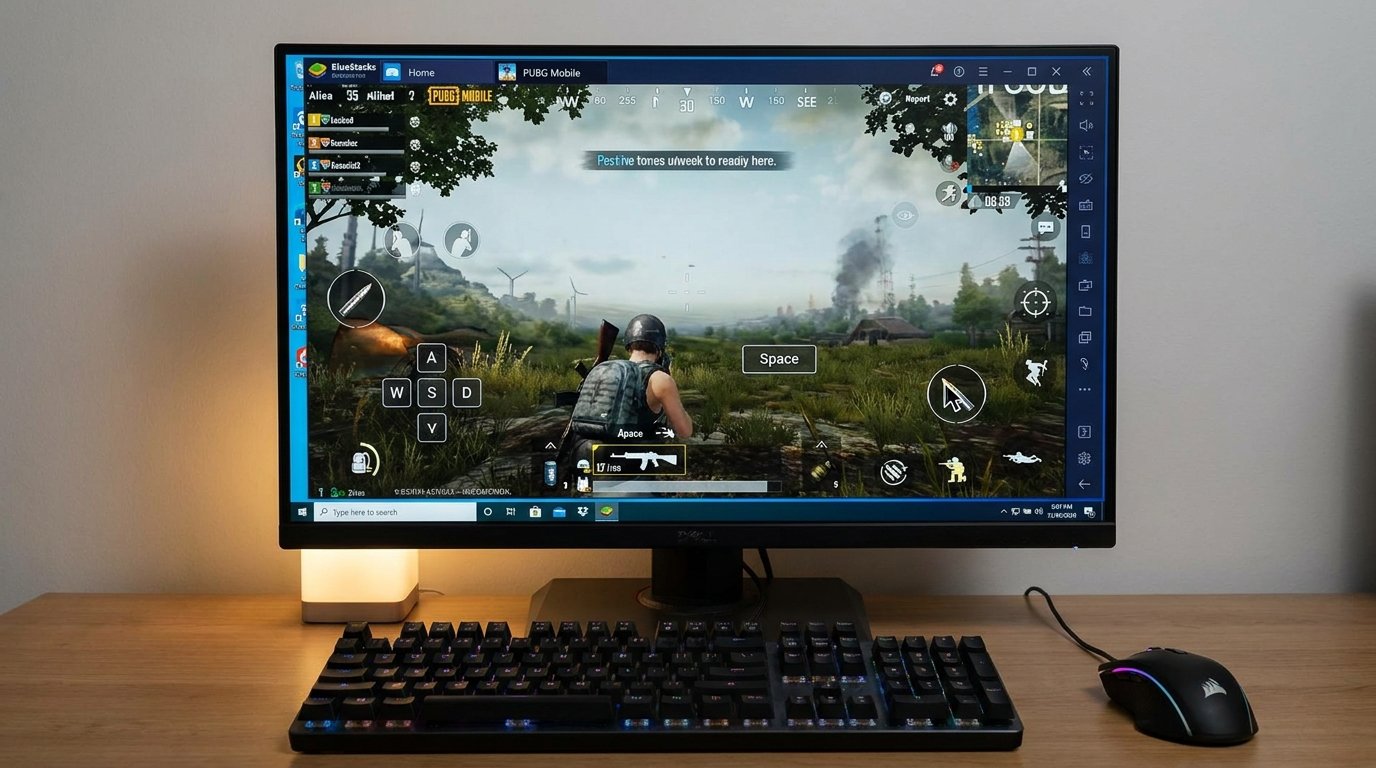
BlueStacks 5 remains the undisputed market leader in overall feature density, software compatibility, and user ecosystem support. Built ground-up on a modular lightweight engine, BlueStacks 5 drastically reduces system RAM consumption by up to 50% compared to legacy BlueStacks 4 builds, while offering seamless multi-instance orchestration.
BlueStacks 5 supports 64-bit Android 11 and Android 13 runtime environments, allowing users to run modern 64-bit-only Google Play titles without compatibility errors. Its keymapping engine is exceptionally refined, featuring pre-configured control schemes for thousands of mobile titles alongside full gamepad controller auto-detection.
Key Advantages of BlueStacks 5:
- Advanced Multi-Instance Manager: Run dozens of concurrent Android instances simultaneously with Eco Mode enabled, reducing CPU usage by 87% and GPU usage by 97% on inactive background instances.
- Built-In RAM Trim Utility: Instant memory clearing tool that frees up idle system RAM with a single click during long gaming sessions.
- High-FPS & Hyper-V Support: Supports high-frame-rate rendering (up to 240 FPS per the manufacturer’s published specifications) while operating smoothly alongside Microsoft Windows 11 Hyper-V and WSL2 environments.
- Comprehensive Macro Recorder: Record and execute automated task sequences, hotkey combinations, and script inputs easily.
2. LDPlayer 9 (Windows): Lightweight Architecture & Maximum FPS Gaming
If your primary goal is competitive high-FPS Android mobile gaming on a mid-range PC or laptop, LDPlayer 9 is widely recognized as the most efficient Android 9/11 emulator engine available. LDPlayer utilizes advanced kernel-level optimizations that deliver superior frame stability, reduced frame drops, and minimal background CPU overhead.
LDPlayer 9 excels at resolving graphical rendering glitches in high-demand titles like Free Fire, Brawl Stars, and Mobile Legends. Its custom macro script engine allows advanced users to map complex multi-touch gestures, keybindings, and mouse-sensitivity curves directly to physical hardware inputs.
Key Advantages of LDPlayer 9:
- Ultra-Lightweight RAM Footprint: Consumes significantly less physical host system memory than competitors, making it ideal for low-to-mid spec PCs.
- Superior Graphics Engine Integration: Advanced Vulkan and OpenGL graphic rendering pipeline support, with high frame rates advertised by the manufacturer.
- Solid ADB & Developer Tools: Excellent integration with Android Debug Bridge (ADB) for local app package testing and APK sideloading.
- Bypass Emulator Detection Hooks: Optimized hardware identifier spoofing options to assist game engine compatibility.
3. NoxPlayer (Windows & macOS): Unmatched Customization & Device Spoofing
NoxPlayer is a veteran Android emulator known for its solid stability, deep customization options, and multi-Android kernel support. Nox allows users to launch distinct emulator instances running Android 7, Android 9, or Android 11 within the exact same management interface, ensuring legacy app backward compatibility alongside modern application support.
NoxPlayer’s interface is clean and intuitive, offering dedicated lateral toolbars for virtual location GPS spoofing, file sharing between PC host drives and Android internal directories, single-click root privilege toggles, and multi-controller mapping.
Key Advantages of NoxPlayer:
- Multi-Android Version Coexistence: Simultaneously run different Android OS versions across distinct active instances.
- One-Click Root Access Toggle: Effortlessly toggle root permissions on or off inside emulator settings for modding or developer debugging.
- Virtual GPS Location Spoofing: Built-in interactive map interface to simulate real-time GPS movement speeds and worldwide geographic coordinates.
- Cross-Platform Compatibility: Reliable performance across both Microsoft Windows and macOS systems.
4. MuMu Player Pro (Windows & Apple Silicon Mac): macOS M-Series Dominance
Developed by NetEase, MuMu Player Pro has risen to top prominence in 2026 thanks to its revolutionary native optimization for Apple Silicon (M1, M2, M3, M4) Macs alongside Windows PCs. While traditional emulators struggle with x86-to-ARM translation slowdowns on macOS, MuMu Player Pro uses Apple’s native ARM architecture natively, delivering astounding speed and efficiency.
Running an Android 12 environment, MuMu Player Pro is advertised by the manufacturer to deliver smooth high-frame-rate graphics performance (120-240 FPS per published specifications) in graphic-heavy mobile games on MacBook laptops.
Key Advantages of MuMu Player Pro:
- Native Apple Silicon ARM Execution: Executes ARM-native Android applications directly on Mac M-series chips without translation overhead.
- Modern Android 12 Environment: Higher API level support ensuring compatibility with the newest Play Store apps.
- Retina & Ultra-HD Resolution Support: Crisp display scaling up to 4K resolution with high-dynamic-range color rendering.
- Low Power Draw: Exceptional battery efficiency when running emulated sessions on mobile laptop hardware.
5. Waydroid (Linux): Containerized Native Hardware Speed
For Linux desktop users (Ubuntu, Fedora, Arch, SteamOS), traditional hypervisor emulators are obsolete thanks to Waydroid. Unlike standard emulators that run an entire virtualized computer system inside a heavy hypervisor (QEMU/KVM), Waydroid runs a complete Android system inside LXC Linux containers directly on the host kernel.
This containerized architecture means Android applications communicate directly with host hardware GPUs, storage arrays, and network cards with zero hypervisor virtualization overhead. Android applications render inside seamless native Linux desktop windows alongside native Linux software.
Key Advantages of Waydroid:
- Near-Native Bare-Metal Performance: Minimal overhead, designed to deliver near-native desktop hardware frame rates (based on the developer’s documentation).
- Wayland Compositor Integration: Android apps launch as resizable desktop windows on Wayland desktop environments (GNOME, KDE Plasma).
- Full ARM Translation via Houdini/libndk: Smoothly executes ARM 64-bit APK packages on x86_64 Linux systems using open-source translation helpers.
- 100% Free & Open Source: Totally community-driven without commercial ads, popups, or telemetry tracking.
6. Step-by-Step Guide: Enabling BIOS Virtualization (VT-x / AMD-V)
To achieve acceptable performance on Windows or Intel Mac emulators, enabling hardware virtualization in your motherboard BIOS is mandatory. Without virtualization enabled, emulator performance drops by over 80% due to software emulation fallback routines.
How to Enable Virtualization on PC:
- Restart your computer and repeatedly press your motherboard BIOS key (typically Del, F2, F10, or F12) during screen boot.
- Navigate to the Advanced CPU Configuration or Processor Settings tab.
- Locate the virtualization flag:
- For Intel CPUs: Look for Intel Virtualization Technology, VT-x, or Vanderpool and change to Enabled.
- For AMD CPUs: Look for SVM Mode (Secure Virtual Machine) or AMD-V and change to Enabled.
- Press F10 to Save & Exit BIOS, rebooting into Windows.
7. Keymapping Engine Setup & Gamepad Controller Mapping
Configuring proper input controls is crucial for translating touch gesture interfaces to physical desktop peripherals:
- Keyboard & Mouse Mapping: Modern emulators offer visual overlay editors. Drag directional D-Pad controls onto move keys (WASD), map mouse movement to camera look controls, and assign single key triggers to virtual screen buttons.
- Gamepad Controller Support: Plug in your Xbox, PlayStation DualSense, or XInput controller via USB or Bluetooth. Enable ‘Gamepad Auto-Detection’ inside emulator settings to map analog thumbsticks and pressure-sensitive shoulder triggers.
- Macro Script Triggers: Automate multi-step combos in RPG games by mapping custom macro strings (combining click coordinates, delay timers, and key sequences) to single keyboard shortcuts.
8. Troubleshooting Virtualization Conflicts on Windows 11
On Windows 11 systems, features like Core Isolation / Memory Integrity (VBS) or Windows Hypervisor Platform can conflict with older emulator hypervisors. If your emulator throws virtual hardware initialization errors:
- Open Windows Start menu, search for Core Isolation, and temporarily toggle Memory Integrity to Off.
- In Windows Search, open Turn Windows features on or off.
- Ensure Virtual Machine Platform and Windows Hypervisor Platform are checked if using Hyper-V compliant emulator builds (such as BlueStacks 5 Hyper-V edition).
Android Emulator Benchmark & Feature Matrix
The comparative matrix below details features, resource considerations, and platform support across all five emulators in 2026:
| Emulator Name | Supported OS | Android Version | Idle RAM Footprint | Multi-Instance Efficiency | Best For |
|---|---|---|---|---|---|
| BlueStacks 5 | Windows 10/11, macOS | Android 9 / 11 / 13 | Varies by device | Excellent (Eco Mode) | All-around gaming, macros, & multitasking |
| LDPlayer 9 | Windows 7/10/11 | Android 9 / 11 | Varies by device | High Efficiency | Lightweight PCs & high-FPS gaming |
| NoxPlayer | Windows, macOS | Android 7 / 9 / 11 | Varies by device | Moderate | App customization, GPS spoofing, & root tools |
| MuMu Player Pro | Windows, macOS (M1-M4) | Android 12 | Varies by device | High Efficiency | Apple Silicon Mac gaming |
| Waydroid | Linux (Wayland) | Android 11 / 13 | Varies by device | Container Native | Bare-metal Linux desktop integration |
Note: resource and efficiency ratings in this matrix reflect each developer’s published specifications and feature documentation, not independent lab measurements.
Frequently Asked Questions (FAQ)
Can I run Android emulators alongside Windows 11 Hyper-V / WSL2?
In the past, enabling Hyper-V caused emulators to crash. However, modern versions of BlueStacks 5 (Hyper-V version) and LDPlayer 9 fully support Windows Hyper-V API hypervisors, allowing seamless co-existence alongside WSL2 and Docker containers.
Is using an Android emulator safe for my Google Account login?
Yes. Verified Android emulators like BlueStacks, LDPlayer, Nox, and MuMu pass Google’s Play Protect certification pipelines and use official open-source Android x86/ARM translation images. Logging into your Google Account inside these platforms is as safe as logging into a secondary physical Android device.
Conclusion
Selecting the ideal Android emulator in 2026 comes down to host operating system compatibility and primary use case. For general Windows users seeking feature completeness, BlueStacks 5 remains supreme. For lower-spec PCs demanding ultra-fast frame rates, LDPlayer 9 delivers unmatched speed. Apple Silicon Mac users will find MuMu Player Pro unrivaled, while Linux enthusiasts can enjoy true native container performance with Waydroid. Harnessing these powerful virtualization tools brings the complete Android ecosystem directly onto your desktop display.
Compiled from publicly available documentation in accordance with our Editorial Policy and Privacy Directives.
Have questions or want to share your own experience? Drop a comment below or reach out to our team. We read every message. You can also learn more about how we test and review on our About Us page.
